> ## Documentation Index
> Fetch the complete documentation index at: https://support.i.moneyforward.com/llms.txt
> Use this file to discover all available pages before exploring further.

# Perdoo

> Perdooとの連携手順です。

## サポートする機能

<Badge color="blue">アカウント作成</Badge> <Badge color="blue">アカウント無効化</Badge> <Badge color="blue">アカウント削除</Badge>

<Info>
  連携には管理者権限のアカウントが必要です。
</Info>

## 事前準備

### ログイン方法

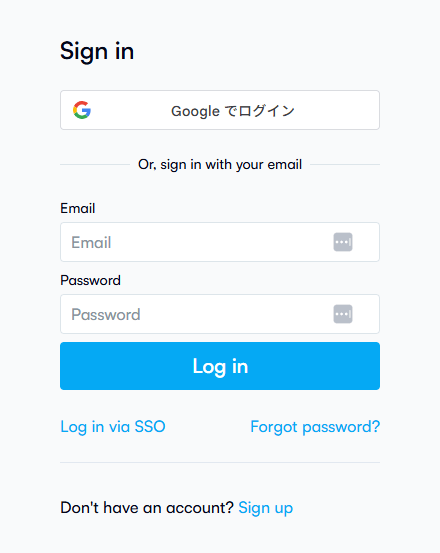
[Perdooログインページ](https://web.perdoo.com/login/regular)にて、メールアドレス・パスワードを入力し、ログインします。
<img src="https://mintcdn.com/moneyforwardi/-1FHCVDHovQ5S9P9/images/integrations/dw2bvgp5lb/2025-12-11-181938.png?fit=max&auto=format&n=-1FHCVDHovQ5S9P9&q=85&s=c224bced8b5d3bf24bafbd61e54b2e70" alt="Perdooログイン画面" width="440" height="553" data-path="images/integrations/dw2bvgp5lb/2025-12-11-181938.png" />

### APIキーの取得方法

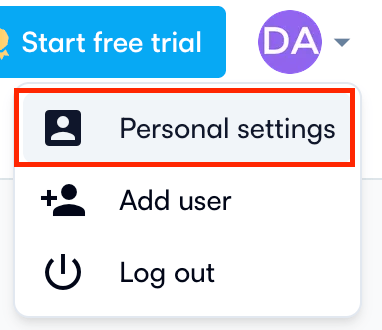
1. Perdooにログインし、右上の**プロフィール** > **Personal settings** をクリックします。
   <img src="https://mintcdn.com/moneyforwardi/-1FHCVDHovQ5S9P9/images/integrations/dw2bvgp5lb/screenshot-2025-12-09-at-10-24-24.png?fit=max&auto=format&n=-1FHCVDHovQ5S9P9&q=85&s=f8d1094dbe0cb865065e44cbe8718d1a" alt="Personal settings" width="382" height="330" data-path="images/integrations/dw2bvgp5lb/screenshot-2025-12-09-at-10-24-24.png" />

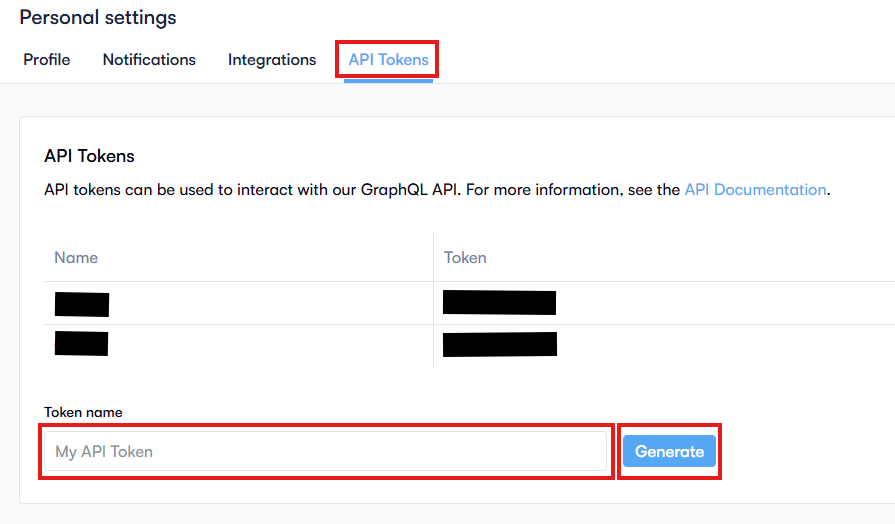
2. **API Tokens**をクリックし、新しい**トークンの名前を入力・Generate**をクリックします。
   <img src="https://mintcdn.com/moneyforwardi/-1FHCVDHovQ5S9P9/images/integrations/dw2bvgp5lb/2025-12-11-184138.png?fit=max&auto=format&n=-1FHCVDHovQ5S9P9&q=85&s=64bb5b6e182bf07b768e3833773f7f7e" alt="API Tokens" width="895" height="524" data-path="images/integrations/dw2bvgp5lb/2025-12-11-184138.png" />

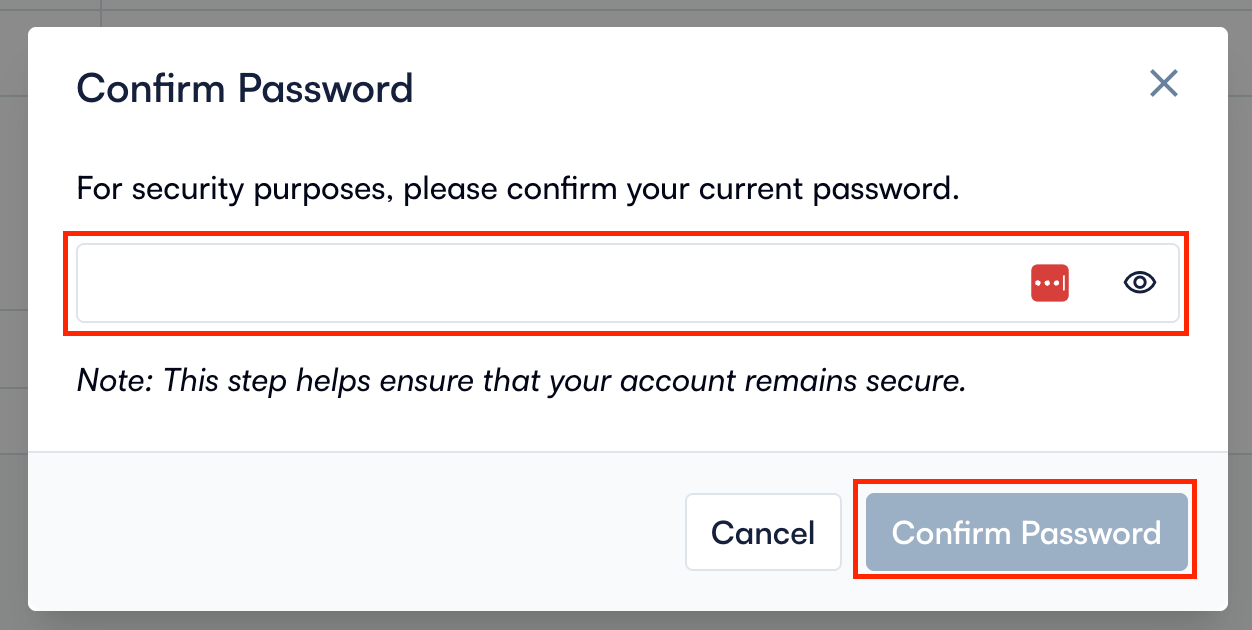
3. **パスワード**を入力し、**Confirm Password** をクリックします。
   <img src="https://mintcdn.com/moneyforwardi/-1FHCVDHovQ5S9P9/images/integrations/dw2bvgp5lb/screenshot-2025-12-09-at-10-25-40.png?fit=max&auto=format&n=-1FHCVDHovQ5S9P9&q=85&s=7c9332db3876e6fa43a7760231239671" alt="Confirm Password" width="1252" height="630" data-path="images/integrations/dw2bvgp5lb/screenshot-2025-12-09-at-10-25-40.png" />

4. 作成された**APIキー**をコピーします。

## インテグレーションのセットアップ

1. インテグレーション画面にて、**Perdoo**で検索します。

2. 任意の**ワークスペース名**、Perdoo**ログイン用メールアドレス・パスワード、**前の手順で取得した**APIキー**を入力し、**連携する**をクリックします。
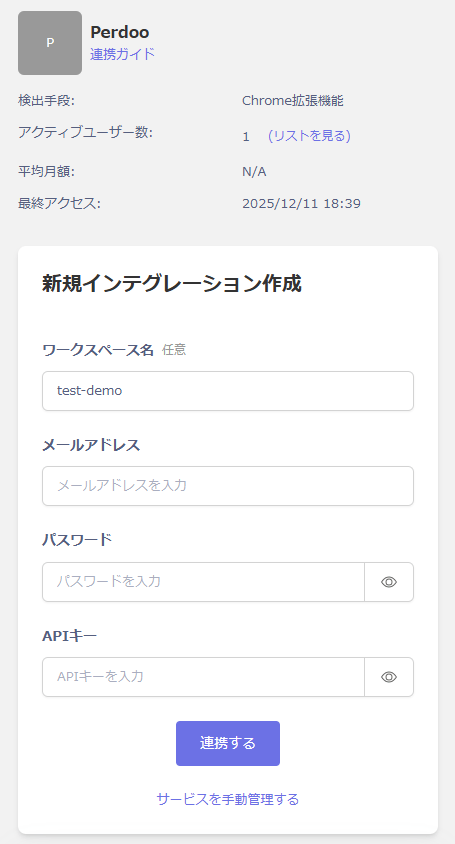
   <img src="https://mintcdn.com/moneyforwardi/asVFolHD2Z2R-UWD/images/integrations/dw2bvgp5lb/perdoo.png?fit=max&auto=format&n=asVFolHD2Z2R-UWD&q=85&s=ffadbb513d547ab4f7aea29f60eee8e9" alt="連携画面" width="714" height="1082" data-path="images/integrations/dw2bvgp5lb/perdoo.png" />

3. 連携が成功すると、アカウント一覧に登録済みのユーザー情報が表示されます。正常に完了しない場合は、まず [SaaSとの連携に失敗する場合の対処法](/it-management/saas-management/93nahw45is-trouble) に記載のステップをお試しください。それでも解決しない場合は、[ご提供いただきたい情報](/it-management/saas-management/93nahw45is-trouble#info-to-provide) をご確認のうえ、[サポート窓口](/contact-support)までお問い合わせください。
