> ## Documentation Index
> Fetch the complete documentation index at: https://support.i.moneyforward.com/llms.txt
> Use this file to discover all available pages before exploring further.
# trocco
> troccoとの連携方法です。マネーフォワードAdminaからtroccoへの、管理者のログインから、連携方法まで一連の手順を解説します。
## 事前準備
### torccoへのログイン方法
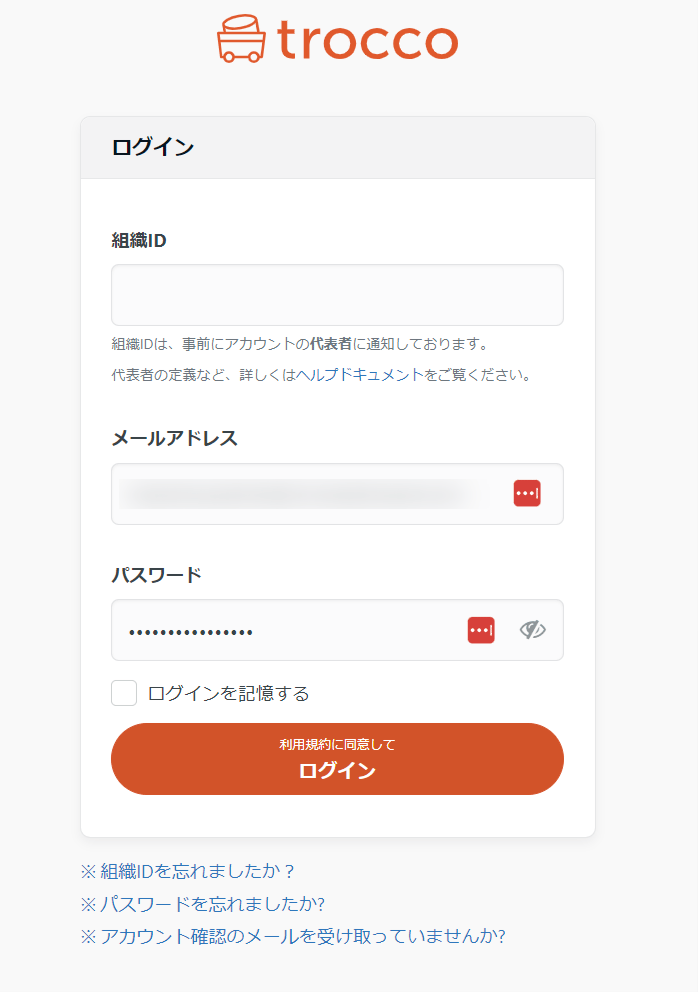
[toroccoログインページ](https://trocco.io/users/sign_in)にて、**組織ID・メールアドレス・パスワード**を入力します。
連携にはGoogleやSSOなど外部認証アカウントはご利用いただけません。
 ## インテグレーションのセットアップ
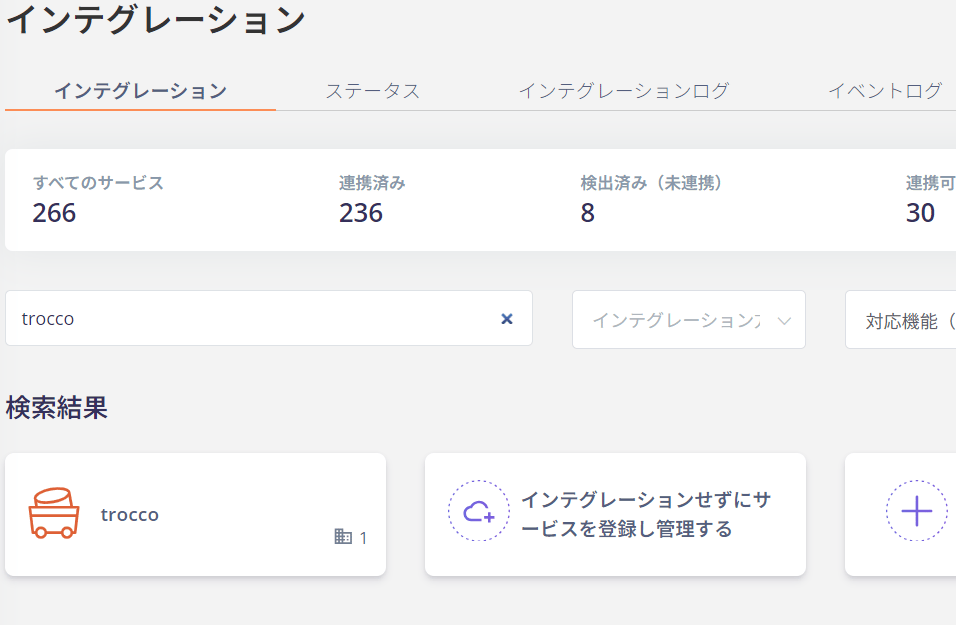
インテグレーション画面にて、**trocco**で検索します。
## インテグレーションのセットアップ
インテグレーション画面にて、**trocco**で検索します。
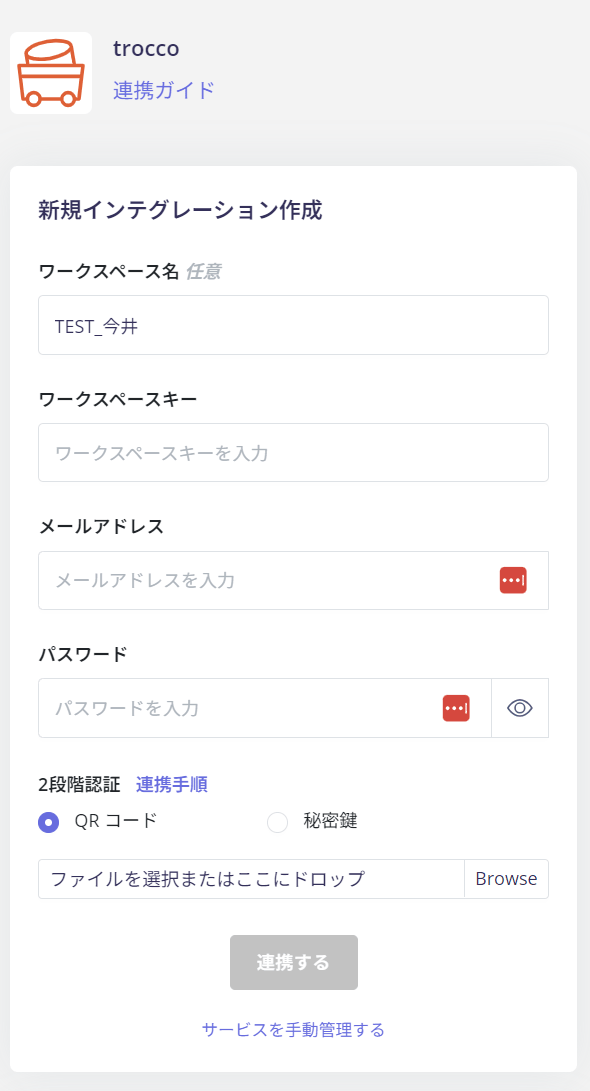
 troccoログイン時と同様に入力します。**ワークスペースキーには組織ID、メールアドレス・パスワード**を入力し、連携するをクリックします。
**ワークスペース名は任意入力**です。
2段階認証をご利用の場合は、組織の設定に従い入力してください。
troccoログイン時と同様に入力します。**ワークスペースキーには組織ID、メールアドレス・パスワード**を入力し、連携するをクリックします。
**ワークスペース名は任意入力**です。
2段階認証をご利用の場合は、組織の設定に従い入力してください。
 troccoとの連携に成功すると、アカウント一覧に登録済みのユーザー情報が表示されます。
正常に完了しない場合は、インテグレーション画面のステータスタブから**編集**し、再度連携をお試しください。
解決しない場合はチャットにてお問い合わせください。
troccoとの連携に成功すると、アカウント一覧に登録済みのユーザー情報が表示されます。
正常に完了しない場合は、インテグレーション画面のステータスタブから**編集**し、再度連携をお試しください。
解決しない場合はチャットにてお問い合わせください。