> ## Documentation Index
> Fetch the complete documentation index at: https://support.i.moneyforward.com/llms.txt
> Use this file to discover all available pages before exploring further.

# VAddy

> VAddyとの連携手順です。

## サポートする機能

<Badge color="blue">アカウント作成</Badge> <Badge color="blue">アカウント削除</Badge>

<Info>
  Vaddy連携には、Advancedプラン以上のご契約が必要です。
</Info>

## 事前準備

### ログイン方法

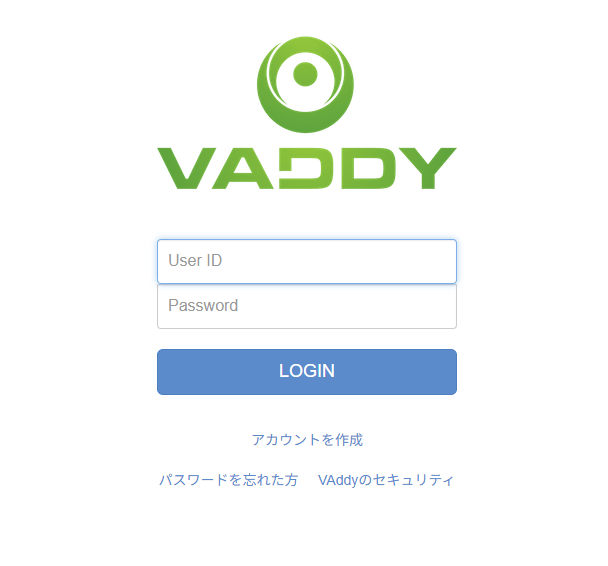
[VAddyログインページ](https://console.vaddy.net/login)にて、**ユーザーID**・**パスワード**を入力し、ログインします。
<img src="https://mintcdn.com/moneyforwardi/0ySy00K4rFJnnltO/images/integrations/fk5tgj9y6z/2025-06-13-145817.png?fit=max&auto=format&n=0ySy00K4rFJnnltO&q=85&s=2f8d4b5a158f2d85c5d822a0745c23cc" alt="VAddyログイン画面" width="608" height="566" data-path="images/integrations/fk5tgj9y6z/2025-06-13-145817.png" />

### 2段階認証のための秘密鍵の取得方法

<Info>
  2段階認証の有効化については任意となります。
</Info>

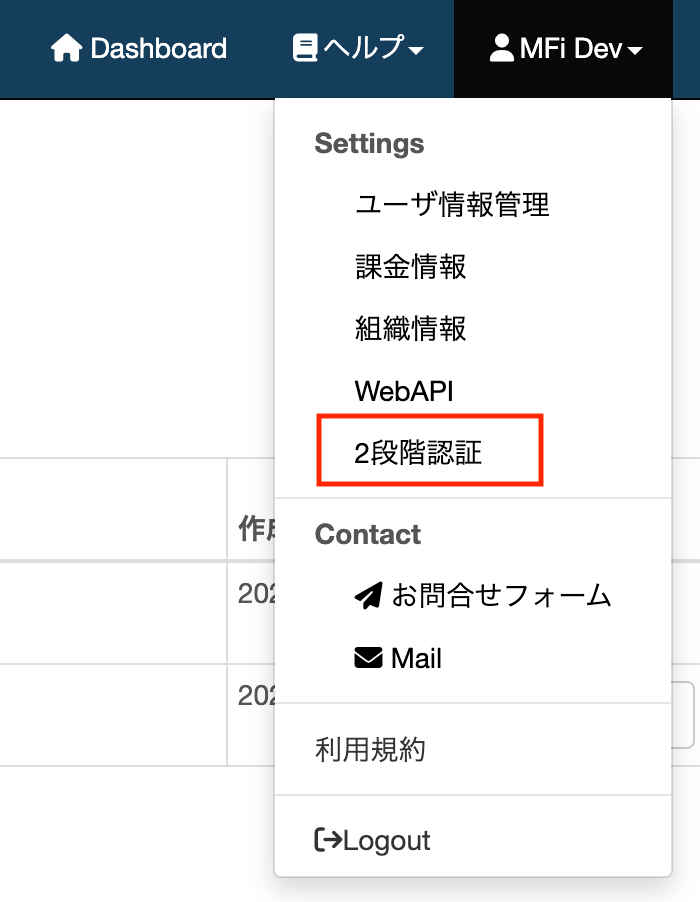
**VAddy**にログイン後、画面右上の**プロフィール**をクリックします。

<img src="https://mintcdn.com/moneyforwardi/0ySy00K4rFJnnltO/images/integrations/fk5tgj9y6z/screenshot-2025-06-09-at-14-38-02.png?fit=max&auto=format&n=0ySy00K4rFJnnltO&q=85&s=1bb0e198516d4ed1d190ca511706f276" alt="プロフィールメニュー" width="3186" height="452" data-path="images/integrations/fk5tgj9y6z/screenshot-2025-06-09-at-14-38-02.png" />

**２段階認証**をクリックします。

<img src="https://mintcdn.com/moneyforwardi/0ySy00K4rFJnnltO/images/integrations/fk5tgj9y6z/screenshot-2025-06-09-at-14-38-09.png?fit=max&auto=format&n=0ySy00K4rFJnnltO&q=85&s=f834bdecc02e5784828936420d603ab6" alt="２段階認証メニュー" width="700" height="902" data-path="images/integrations/fk5tgj9y6z/screenshot-2025-06-09-at-14-38-09.png" />

２段階認証ステータス＞**有効にする**をクリックします。

<img src="https://mintcdn.com/moneyforwardi/0ySy00K4rFJnnltO/images/integrations/fk5tgj9y6z/screenshot-2025-06-09-at-14-38-16-1.png?fit=max&auto=format&n=0ySy00K4rFJnnltO&q=85&s=a2df46c4eda9209c84eaa0ef5165fc20" alt="２段階認証を有効にする" width="3134" height="380" data-path="images/integrations/fk5tgj9y6z/screenshot-2025-06-09-at-14-38-16-1.png" />

**パスワード**を入力し、**Sent**をクリックします。

<img src="https://mintcdn.com/moneyforwardi/0ySy00K4rFJnnltO/images/integrations/fk5tgj9y6z/screenshot-2025-06-09-at-14-38-22.png?fit=max&auto=format&n=0ySy00K4rFJnnltO&q=85&s=eb97b6e115ff17c97e1025184ede993b" alt="パスワード入力画面" width="3152" height="372" data-path="images/integrations/fk5tgj9y6z/screenshot-2025-06-09-at-14-38-22.png" />

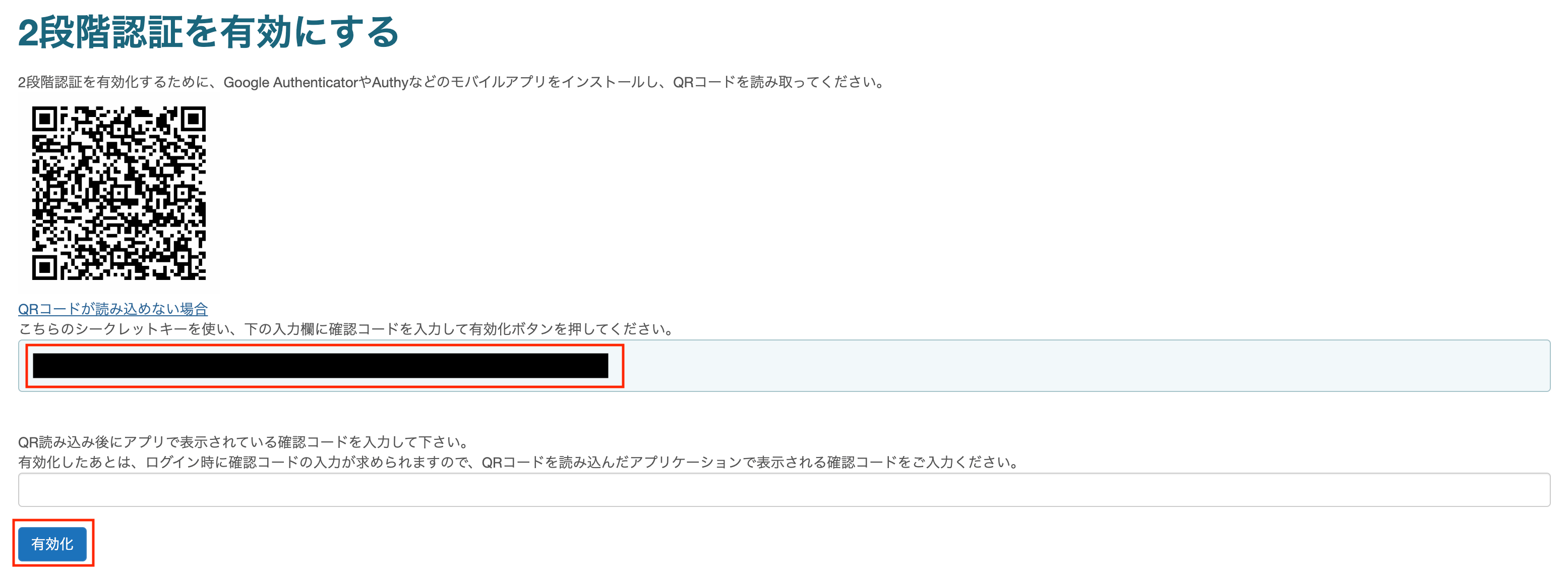
**QRコードが読み込めない場合**をクリックし、表示された**シークレットキー**をコピー・保存します。こちらが**秘密鍵**となります。

画面の説明に沿って確認コードを入力し、**有効化**をクリックします。
<img src="https://mintcdn.com/moneyforwardi/0ySy00K4rFJnnltO/images/integrations/fk5tgj9y6z/screenshot-2025-06-09-at-14-38-38-1.png?fit=max&auto=format&n=0ySy00K4rFJnnltO&q=85&s=29dd4c4f666f6ec7d9432494ea9fd900" alt="２段階認証の有効化" width="3110" height="1130" data-path="images/integrations/fk5tgj9y6z/screenshot-2025-06-09-at-14-38-38-1.png" />

## インテグレーションのセットアップ

インテグレーション画面にて、**VAddy**で検索します。

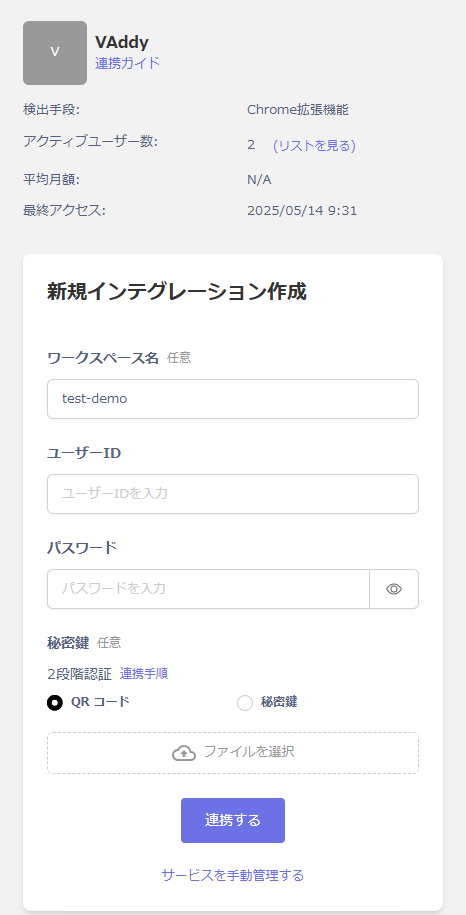
任意の**ワークスペース名**、VAddyログイン時の**ユーザーID・パスワード**を入力し、**連携する**をクリックします。

※2段階認証を有効化されている場合は、前の手順で取得した秘密鍵をご入力ください。
<img src="https://mintcdn.com/moneyforwardi/0ySy00K4rFJnnltO/images/integrations/fk5tgj9y6z/2025-06-13-162353.png?fit=max&auto=format&n=0ySy00K4rFJnnltO&q=85&s=3d5cd7d5b9a0a08cb01b0ebd5e1ac9e1" alt="VAddy連携設定画面" width="466" height="915" data-path="images/integrations/fk5tgj9y6z/2025-06-13-162353.png" />

連携に成功すると、アカウント一覧に登録済みのユーザー情報が表示されます。

正常に完了しない場合は、インテグレーション画面のステータスタブから**編集**し、再度連携をお試しください。

解決しない場合はチャットにてお問い合わせください。