> ## Documentation Index
> Fetch the complete documentation index at: https://support.i.moneyforward.com/llms.txt
> Use this file to discover all available pages before exploring further.

# esa

> esaとの連携の手順です。マネーフォワードAdminaからesaへの、管理者のログインから、連携方法まで一連の手順を解説します。

## サポートする機能

<Badge color="blue">アカウント削除</Badge> <Badge color="blue">アカウント作成</Badge>

<Info>
  連携には管理者アカウントが必要です。
</Info>

## インテグレーションのセットアップ

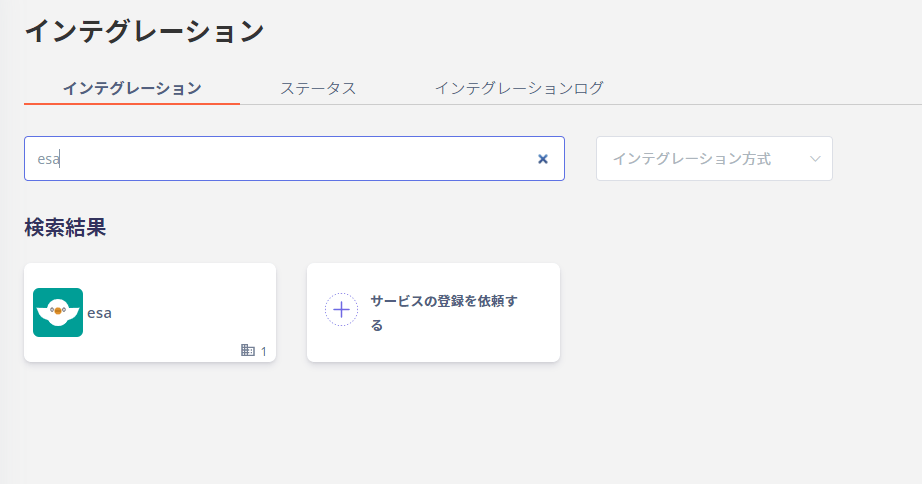
インテグレーション画面にて、**esa**で検索します。
<img src="https://mintcdn.com/moneyforwardi/0ySy00K4rFJnnltO/images/integrations/flrr62psg2/1646791149578-image.png?fit=max&auto=format&n=0ySy00K4rFJnnltO&q=85&s=31e8c67bb6948f5ef79918942131cfaa" alt="インテグレーション画面でesaを検索" width="922" height="484" data-path="images/integrations/flrr62psg2/1646791149578-image.png" />

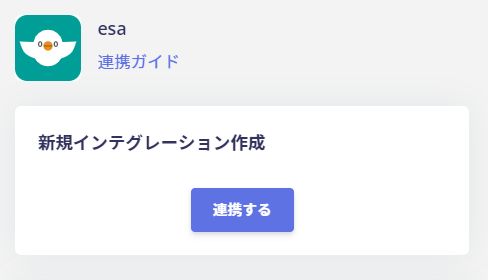
**連携する**をクリックします。

<img src="https://mintcdn.com/moneyforwardi/0ySy00K4rFJnnltO/images/integrations/flrr62psg2/1646791280774-image.png?fit=max&auto=format&n=0ySy00K4rFJnnltO&q=85&s=0410e841dbeda14dccf610cf180ec25d" alt="連携するボタン" width="488" height="280" data-path="images/integrations/flrr62psg2/1646791280774-image.png" />

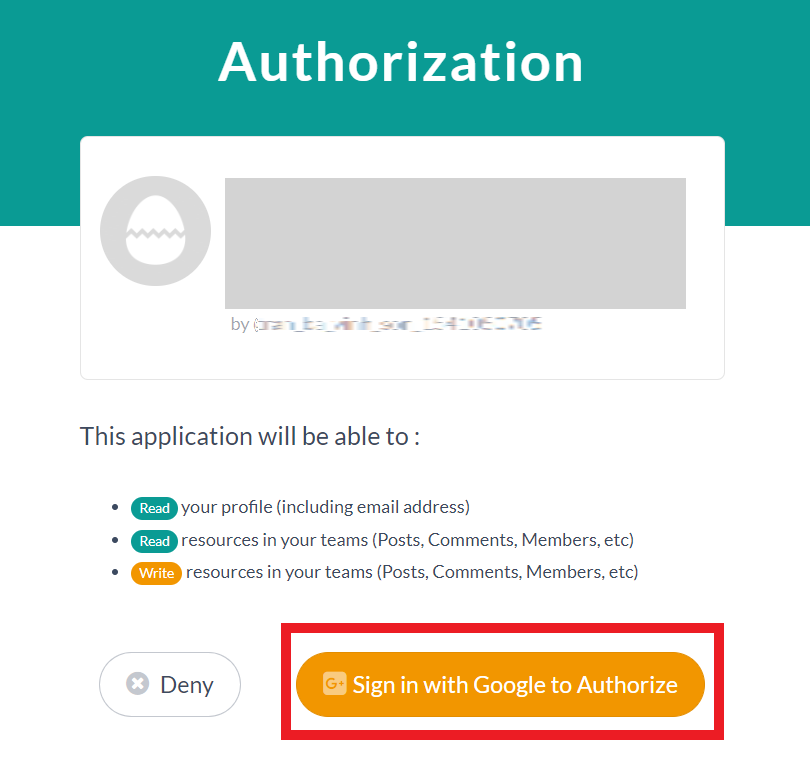
以下のようなログイン兼許諾画面が表示されるので、**Sign in with Google to Authorize** をクリックしログインします。
<img src="https://mintcdn.com/moneyforwardi/0ySy00K4rFJnnltO/images/integrations/flrr62psg2/1656493107095-image.png?fit=max&auto=format&n=0ySy00K4rFJnnltO&q=85&s=6d61d1d6af0f6f6dd450edaae98452f2" alt="ログイン兼許諾画面" width="810" height="780" data-path="images/integrations/flrr62psg2/1656493107095-image.png" />

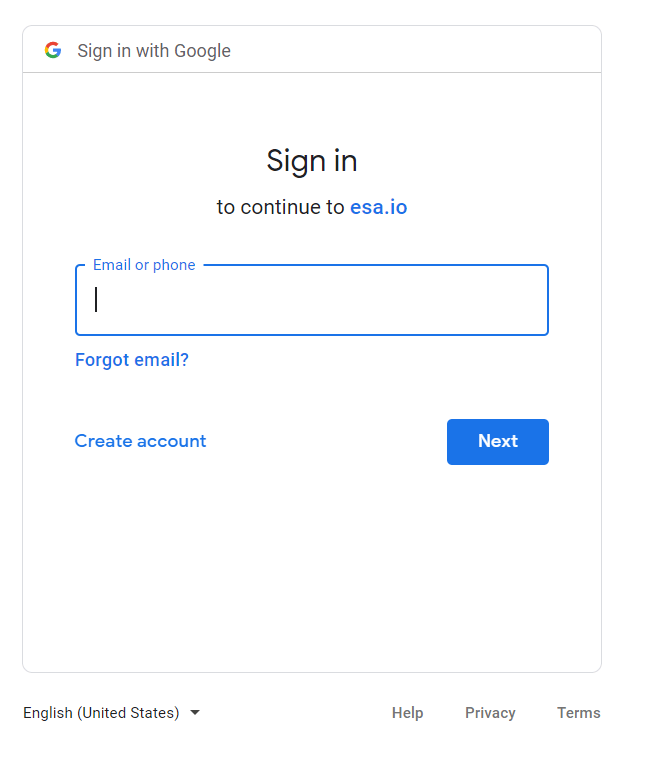
esa管理者アカウントでログインします。

<img src="https://mintcdn.com/moneyforwardi/0ySy00K4rFJnnltO/images/integrations/flrr62psg2/1662091238979-image.png?fit=max&auto=format&n=0ySy00K4rFJnnltO&q=85&s=9fd26cb5f8c91e655719595b44e9b930" alt="esa管理者アカウントでログイン" width="652" height="757" data-path="images/integrations/flrr62psg2/1662091238979-image.png" />

esaとの連携に成功すると、アカウント一覧に登録済みのユーザー情報が表示されます。

正常に完了しない場合は、インテグレーション画面のステータスタブから**編集**し、再度連携をお試しください。

解決しない場合はチャットにてお問い合わせください。

esaの連携概要については[連携ページ](http://admina.moneyforward.com/jp/integrations/esa)をご覧ください。