> ## Documentation Index
> Fetch the complete documentation index at: https://support.i.moneyforward.com/llms.txt
> Use this file to discover all available pages before exploring further.
# Atlassian
> Atlassianとの連携の手順です。
## サポートする機能
アカウント無効化
連携には、組織管理者権限が必要です。
## 事前準備
### Atlassianへのログイン方法
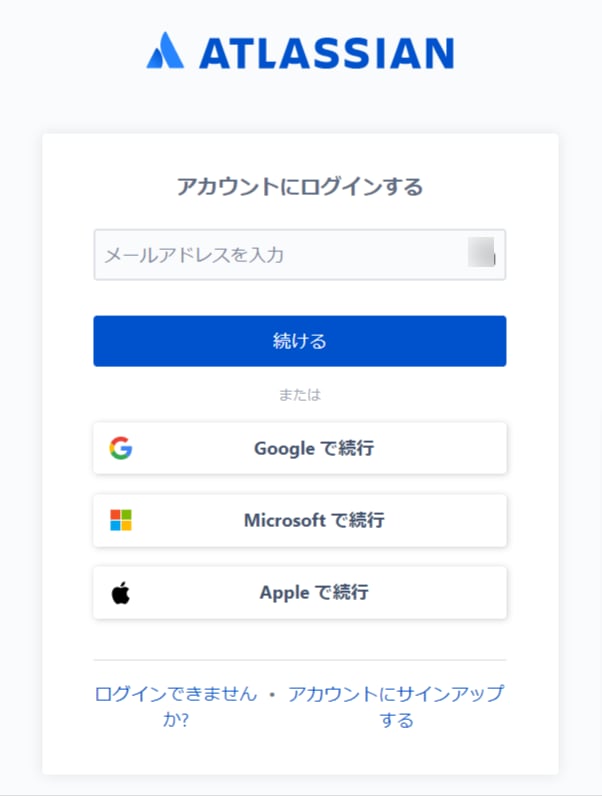
[Atlassianログインページ](https://id.atlassian.com/login)で、ご利用のログイン方法またはメールアドレス・パスワードを入力しログインします。
 ### 連携前の必須設定(組織の作成とドメイン認証)
Adminaでは、認証済みドメインのメールアドレスを持つ管理対象アカウント(Managed Account)を取得します。
**組織の作成・ドメイン認証を未実施の場合、アカウントを取得できません。連携前に必ずAtlassian側で以下を実施してください。**
* 組織の作成: [Atlassianの組織とは(外部サイト)](https://support.atlassian.com/ja/organization-administration/docs/what-is-an-atlassian-organization/)
* ドメイン認証: [ドメインの認証(外部サイト)](https://support.atlassian.com/ja/user-management/docs/verify-a-domain-to-manage-accounts/)
ユーザーではなく、管理対象アカウントが必要です。[Atlassian管理対象アカウントとは(外部サイト)](https://support.atlassian.com/ja/user-management/docs/what-are-managed-accounts/)
アカウント取得は、Atlassianサービスのアカウント取得について確認したいもご参照ください。
### API キーの取得方法
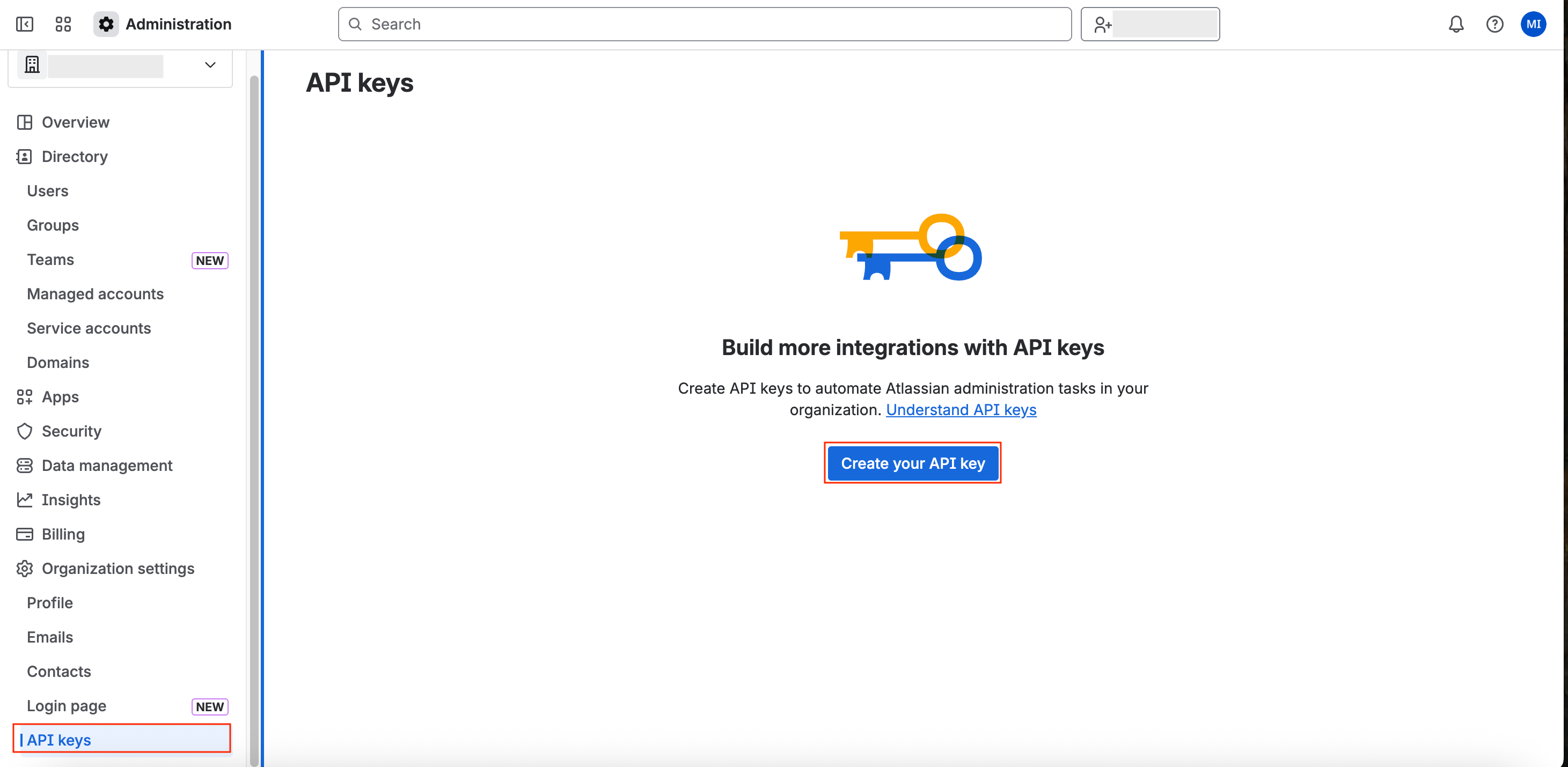
1. [Atlassian管理](https://admin.atlassian.com/)にアクセスし、Organization Settings > **API keys**に進みます。
2. **Create your API key**をクリックします。
### 連携前の必須設定(組織の作成とドメイン認証)
Adminaでは、認証済みドメインのメールアドレスを持つ管理対象アカウント(Managed Account)を取得します。
**組織の作成・ドメイン認証を未実施の場合、アカウントを取得できません。連携前に必ずAtlassian側で以下を実施してください。**
* 組織の作成: [Atlassianの組織とは(外部サイト)](https://support.atlassian.com/ja/organization-administration/docs/what-is-an-atlassian-organization/)
* ドメイン認証: [ドメインの認証(外部サイト)](https://support.atlassian.com/ja/user-management/docs/verify-a-domain-to-manage-accounts/)
ユーザーではなく、管理対象アカウントが必要です。[Atlassian管理対象アカウントとは(外部サイト)](https://support.atlassian.com/ja/user-management/docs/what-are-managed-accounts/)
アカウント取得は、Atlassianサービスのアカウント取得について確認したいもご参照ください。
### API キーの取得方法
1. [Atlassian管理](https://admin.atlassian.com/)にアクセスし、Organization Settings > **API keys**に進みます。
2. **Create your API key**をクリックします。
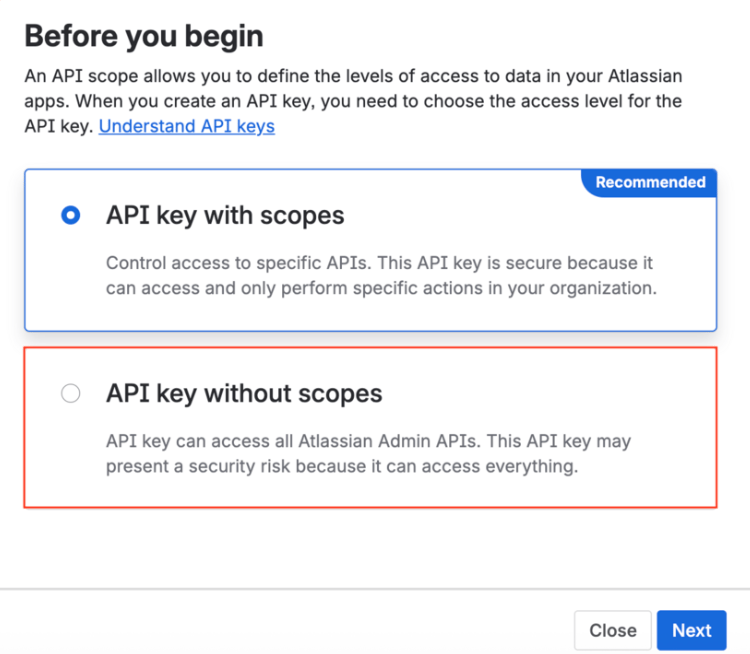
 3. Scopesを選択する画面が表示されますので、[API key without scopes]をクリックします。
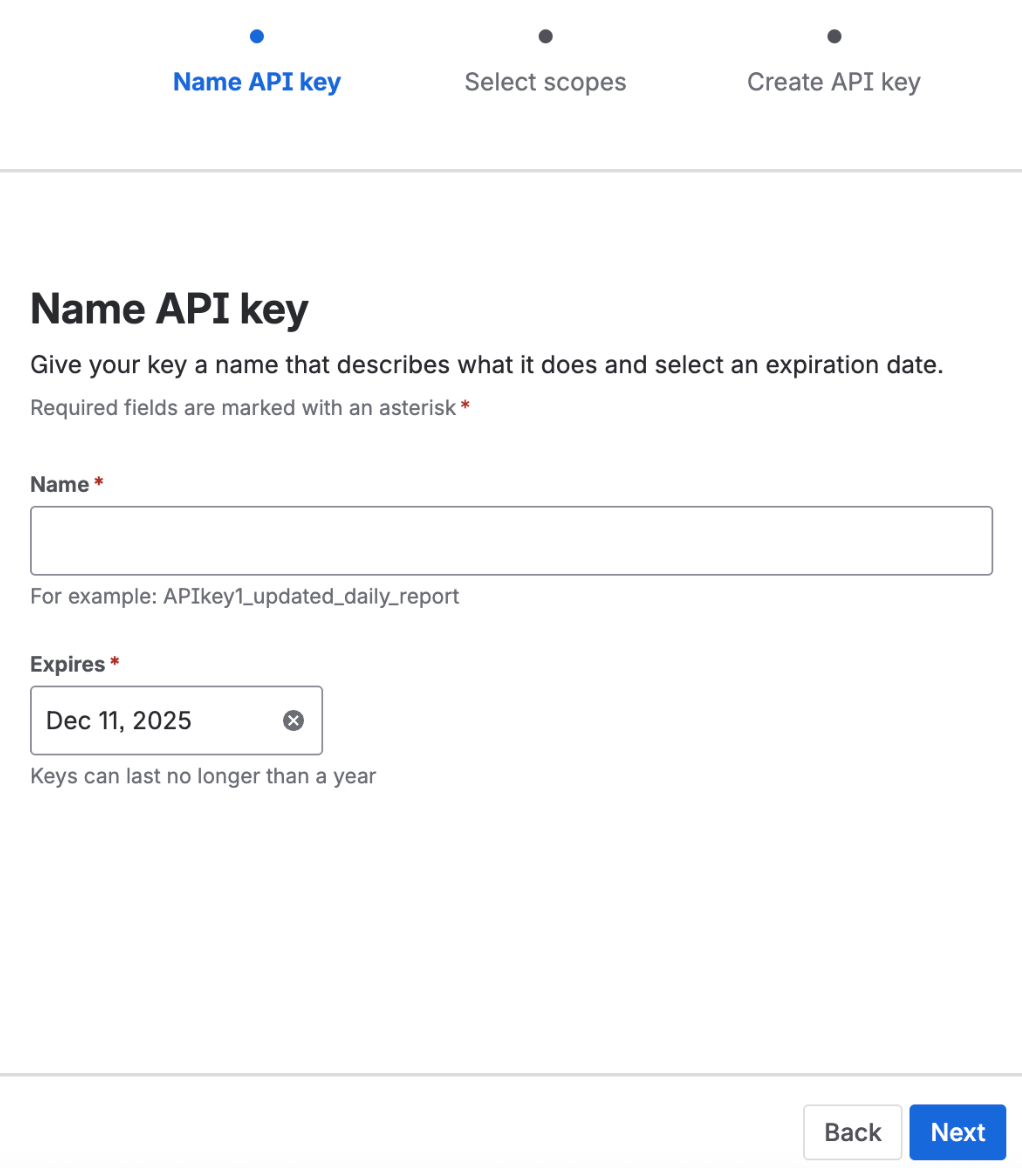
 4. 任意の名称と有効期限を決めて作成してください。
有効期限はデフォルトで1週間です。任意の期間を設定もできます。期限が過ぎると再度APIキーの発行が必要です。
4. 任意の名称と有効期限を決めて作成してください。
有効期限はデフォルトで1週間です。任意の期間を設定もできます。期限が過ぎると再度APIキーの発行が必要です。
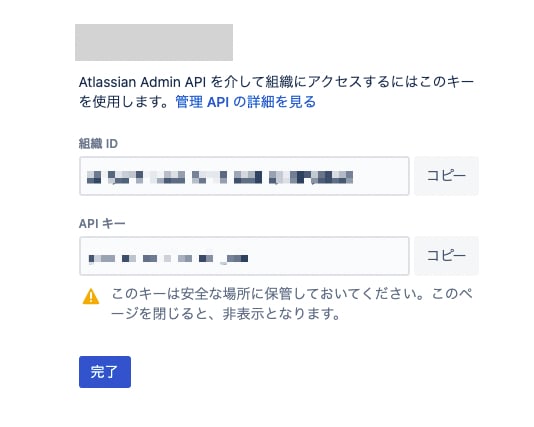
 5. **組織ID** と **APIキー** が生成されます。
 ## インテグレーションのセットアップ
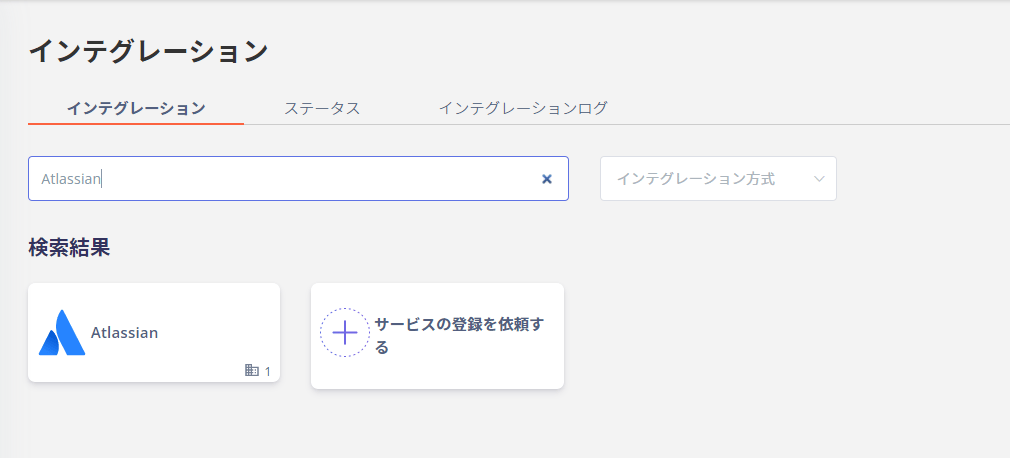
1. マネーフォワード Adminaのインテグレーション画面にて、**Atlassian**で検索します。
## インテグレーションのセットアップ
1. マネーフォワード Adminaのインテグレーション画面にて、**Atlassian**で検索します。
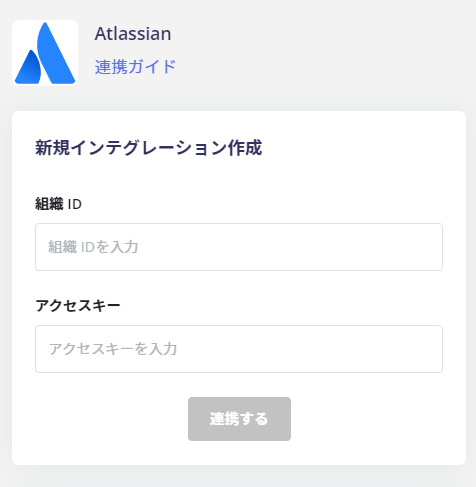
 2. 前の手順で取得した**組織ID**、**アクセスキーにはAPIキー**を入力し、**連携する**をクリックします。
 3. Atlassianとの連携に成功すると、アカウント一覧に登録済みのユーザー情報が表示されます。
成功してもアカウントが`0`人と表示される場合、前述の**組織の作成とドメイン認証**を実施済みかどうかご確認ください。
正常に完了していない場合は、インテグレーション画面のステータスタブから編集し、再度連携をお試しください。
解決しない場合はチャットにてお問い合わせください。
Atlassianの連携概要については[連携ページ](http://admina.moneyforward.com/jp/integrations/atlassian)をご覧ください。
## FAQ
### Q. Atlassianサービスのアカウント取得について確認したい
A. Atlassianサービスでは、以下の**取得情報**に記載のアカウント情報を取得します。[Atlassian管理対象アカウントとは(外部サイト)](https://support.atlassian.com/ja/user-management/docs/what-are-managed-accounts/)
アカウントの取得は、[Atlassianサービスのアカウント取得について](/it-management/faq/w2k92cqw8b-jira-confluence-trello)もご参照ください。
| SaaS名 | 取得情報 |
| ------------------------------------ | ----------------------------------------------------------- |
| Atlassian | 認証済ドメインのユーザーのみ取得可能(認証外の外部ドメイン≒外部IDは取得不可) |
| Atlassianシリーズ:Jira、Trello、Confluence | AtlassianIDの設定により取得情報が異なります。(「既定アクセス」が「非公開」の場合、メールアドレス取得不可) |
### Q. Atlassianと連携後、Jira・Confluence・Trelloのライセンスは確認できますか
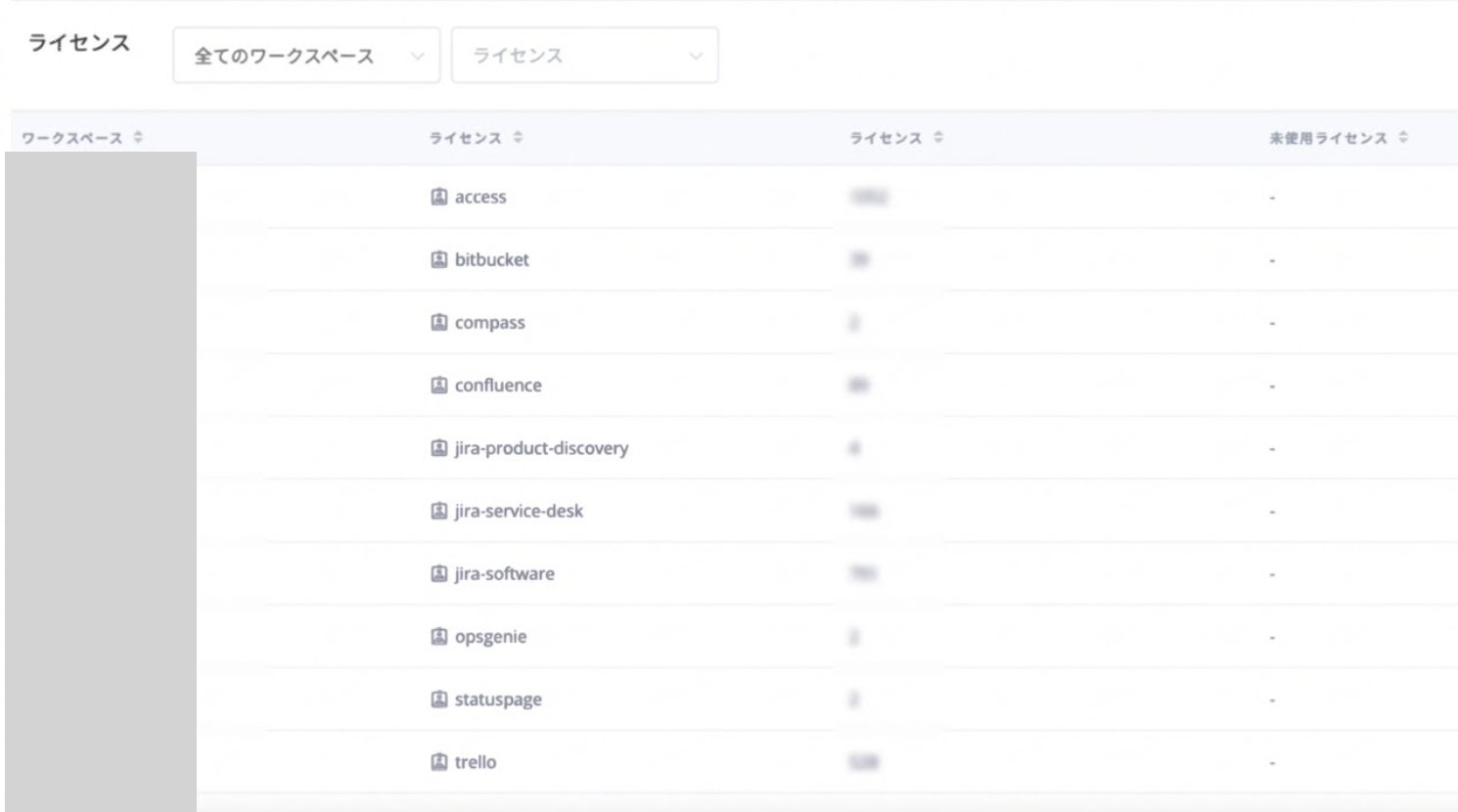
**A.** 取得したJira、Trello、Confluenceのアカウントは、サービス > Atlassian > 情報 > ライセンス、または サービス > Atlassian > アカウント > 絞り込み「ライセンス」で確認できます。
詳細は[アカウント(サービス詳細)](/it-management/saas-management/dcqgfmkgaq-services)、[情報(サービス詳細)](/it-management/saas-management/dcqgfmkgaq-services)をご参照ください。
3. Atlassianとの連携に成功すると、アカウント一覧に登録済みのユーザー情報が表示されます。
成功してもアカウントが`0`人と表示される場合、前述の**組織の作成とドメイン認証**を実施済みかどうかご確認ください。
正常に完了していない場合は、インテグレーション画面のステータスタブから編集し、再度連携をお試しください。
解決しない場合はチャットにてお問い合わせください。
Atlassianの連携概要については[連携ページ](http://admina.moneyforward.com/jp/integrations/atlassian)をご覧ください。
## FAQ
### Q. Atlassianサービスのアカウント取得について確認したい
A. Atlassianサービスでは、以下の**取得情報**に記載のアカウント情報を取得します。[Atlassian管理対象アカウントとは(外部サイト)](https://support.atlassian.com/ja/user-management/docs/what-are-managed-accounts/)
アカウントの取得は、[Atlassianサービスのアカウント取得について](/it-management/faq/w2k92cqw8b-jira-confluence-trello)もご参照ください。
| SaaS名 | 取得情報 |
| ------------------------------------ | ----------------------------------------------------------- |
| Atlassian | 認証済ドメインのユーザーのみ取得可能(認証外の外部ドメイン≒外部IDは取得不可) |
| Atlassianシリーズ:Jira、Trello、Confluence | AtlassianIDの設定により取得情報が異なります。(「既定アクセス」が「非公開」の場合、メールアドレス取得不可) |
### Q. Atlassianと連携後、Jira・Confluence・Trelloのライセンスは確認できますか
**A.** 取得したJira、Trello、Confluenceのアカウントは、サービス > Atlassian > 情報 > ライセンス、または サービス > Atlassian > アカウント > 絞り込み「ライセンス」で確認できます。
詳細は[アカウント(サービス詳細)](/it-management/saas-management/dcqgfmkgaq-services)、[情報(サービス詳細)](/it-management/saas-management/dcqgfmkgaq-services)をご参照ください。