> ## Documentation Index
> Fetch the complete documentation index at: https://support.i.moneyforward.com/llms.txt
> Use this file to discover all available pages before exploring further.

# HubSpot

> Hubspotとの連携の手順です。

## サポートする機能

<Badge color="blue">アカウント削除</Badge> <Badge color="blue">アカウント作成</Badge>

<Info>
  全プラン連携に対応していますが、**Roleの取得にはCRM Hub Enterprise planが必要**です。
</Info>

## インテグレーションのセットアップ

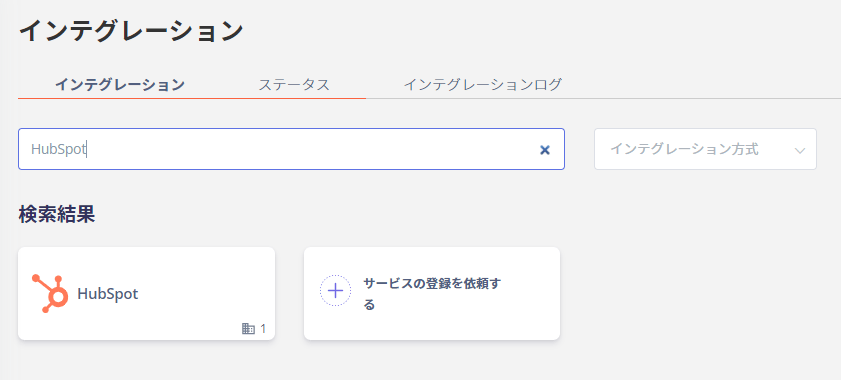
1. Adminaのインテグレーション画面で**HubSpot**と検索しクリックします。
<img src="https://mintcdn.com/moneyforwardi/zKVVvDYqzE3w_IfF/images/integrations/iq3vf71kj6/1648101058820-image.png?fit=max&auto=format&n=zKVVvDYqzE3w_IfF&q=85&s=ec3a3b72d111458cf236aace2b82732a" alt="HubSpot検索画面" width="841" height="380" data-path="images/integrations/iq3vf71kj6/1648101058820-image.png" />

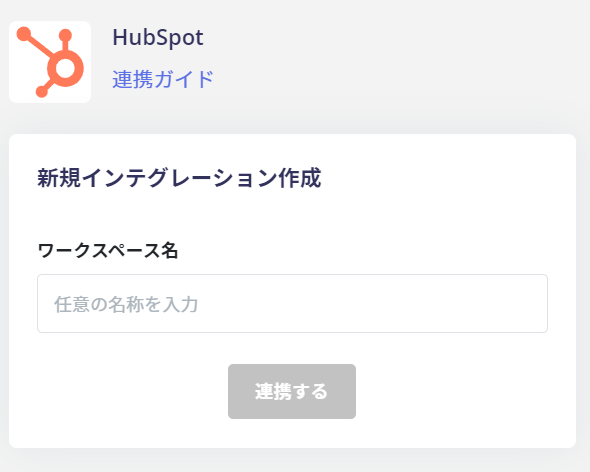
2. **ワークスペースキー**には**任意の名称**（会社名など）を入力し、［**連携する**］をクリックします。

<img src="https://mintcdn.com/moneyforwardi/zKVVvDYqzE3w_IfF/images/integrations/iq3vf71kj6/1657164970406-image.png?fit=max&auto=format&n=zKVVvDYqzE3w_IfF&q=85&s=37767d585505c50fc7c3111a24d1fc69" alt="ワークスペースキー入力画面" width="590" height="472" data-path="images/integrations/iq3vf71kj6/1657164970406-image.png" />

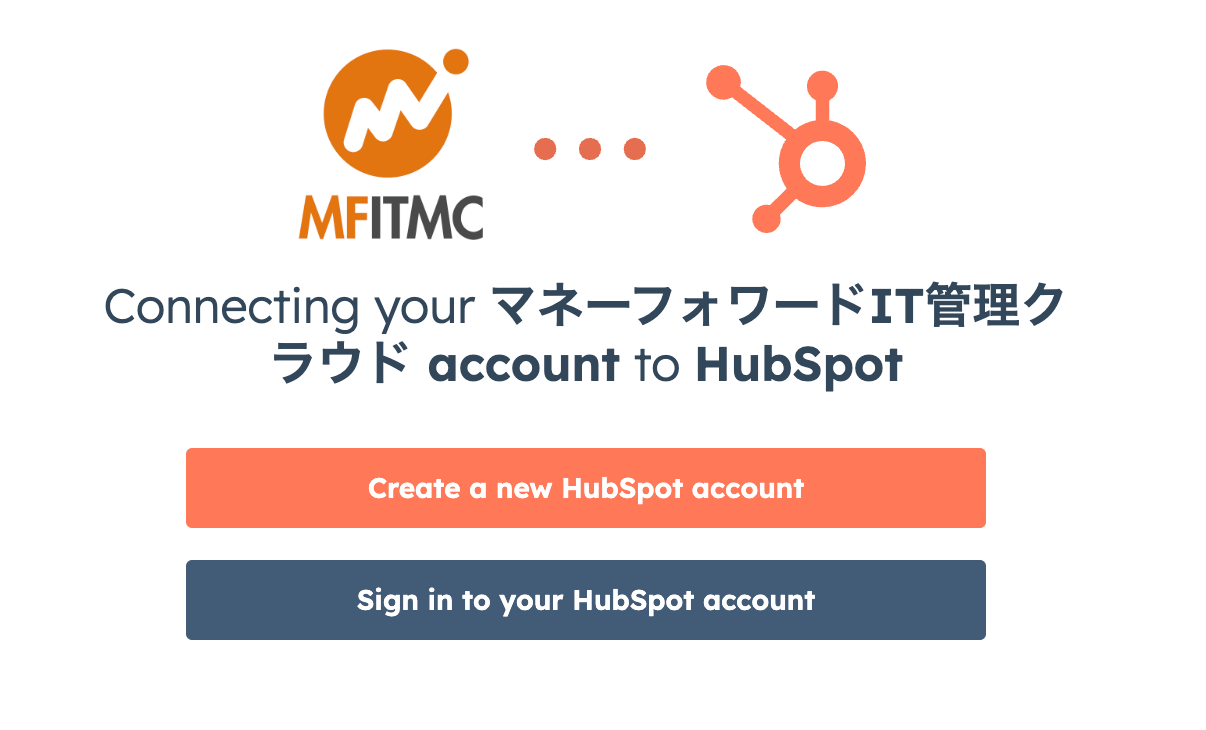
3. 「OAuth Bridge」画面が表示されますので、［Sign in to your HubSpot account］をクリックします。

<img src="https://mintcdn.com/moneyforwardi/zKVVvDYqzE3w_IfF/images/integrations/iq3vf71kj6/1755733166558-2025-08-21-8-32-39.png?fit=max&auto=format&n=zKVVvDYqzE3w_IfF&q=85&s=b3e30040862b44f0c55420788c40ad2b" alt="OAuth Bridge画面" width="1206" height="730" data-path="images/integrations/iq3vf71kj6/1755733166558-2025-08-21-8-32-39.png" />

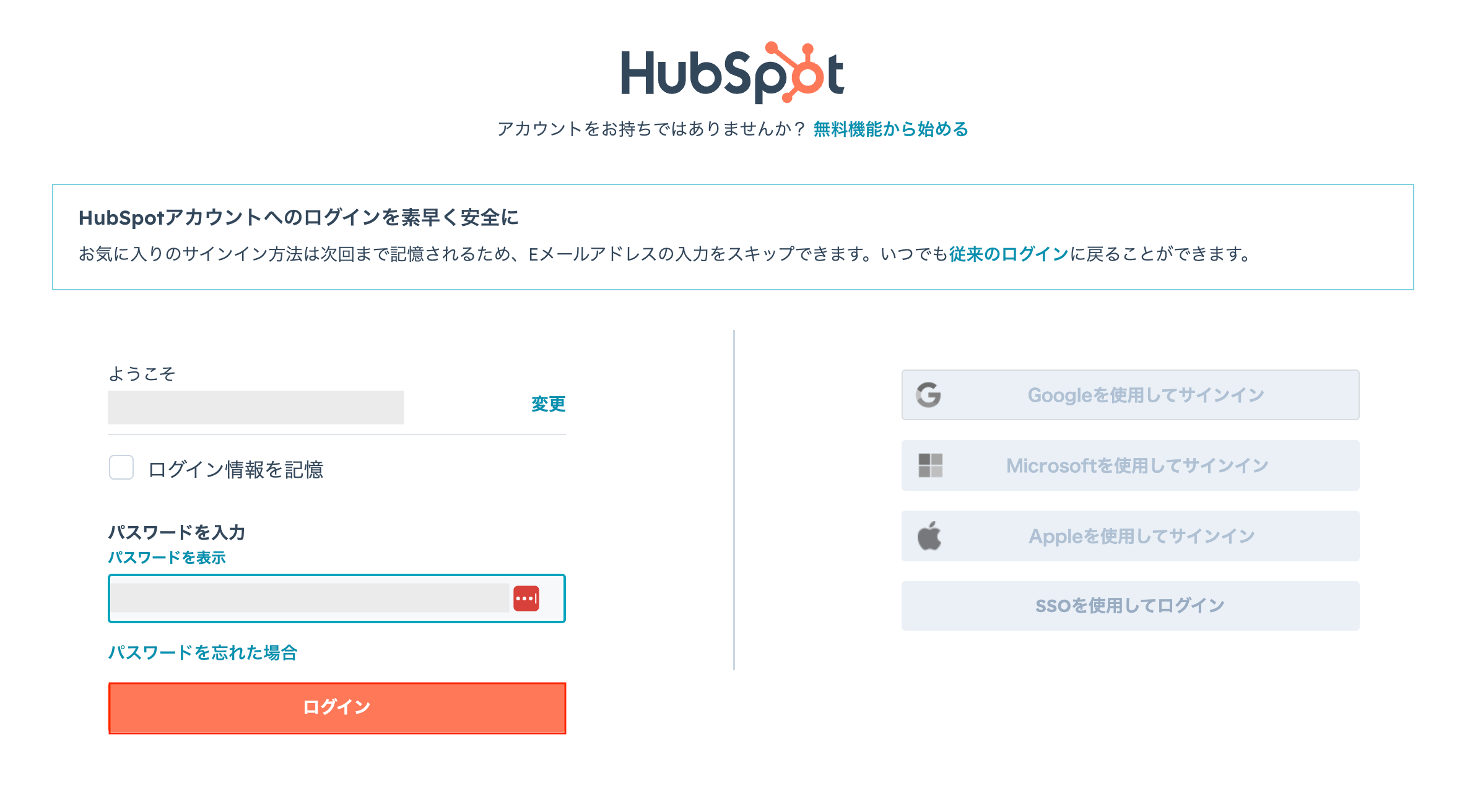
4. HubSpotログイン画面が出ますので、**メールアドレス**・**パスワード**を入力して、［ログイン］します。

<img src="https://mintcdn.com/moneyforwardi/zKVVvDYqzE3w_IfF/images/integrations/iq3vf71kj6/1755733461112-2025-08-21-8-32-55.png?fit=max&auto=format&n=zKVVvDYqzE3w_IfF&q=85&s=5701b59796219a3e13be921b5f6dc8b0" alt="HubSpotログイン画面" width="2374" height="1312" data-path="images/integrations/iq3vf71kj6/1755733461112-2025-08-21-8-32-55.png" />

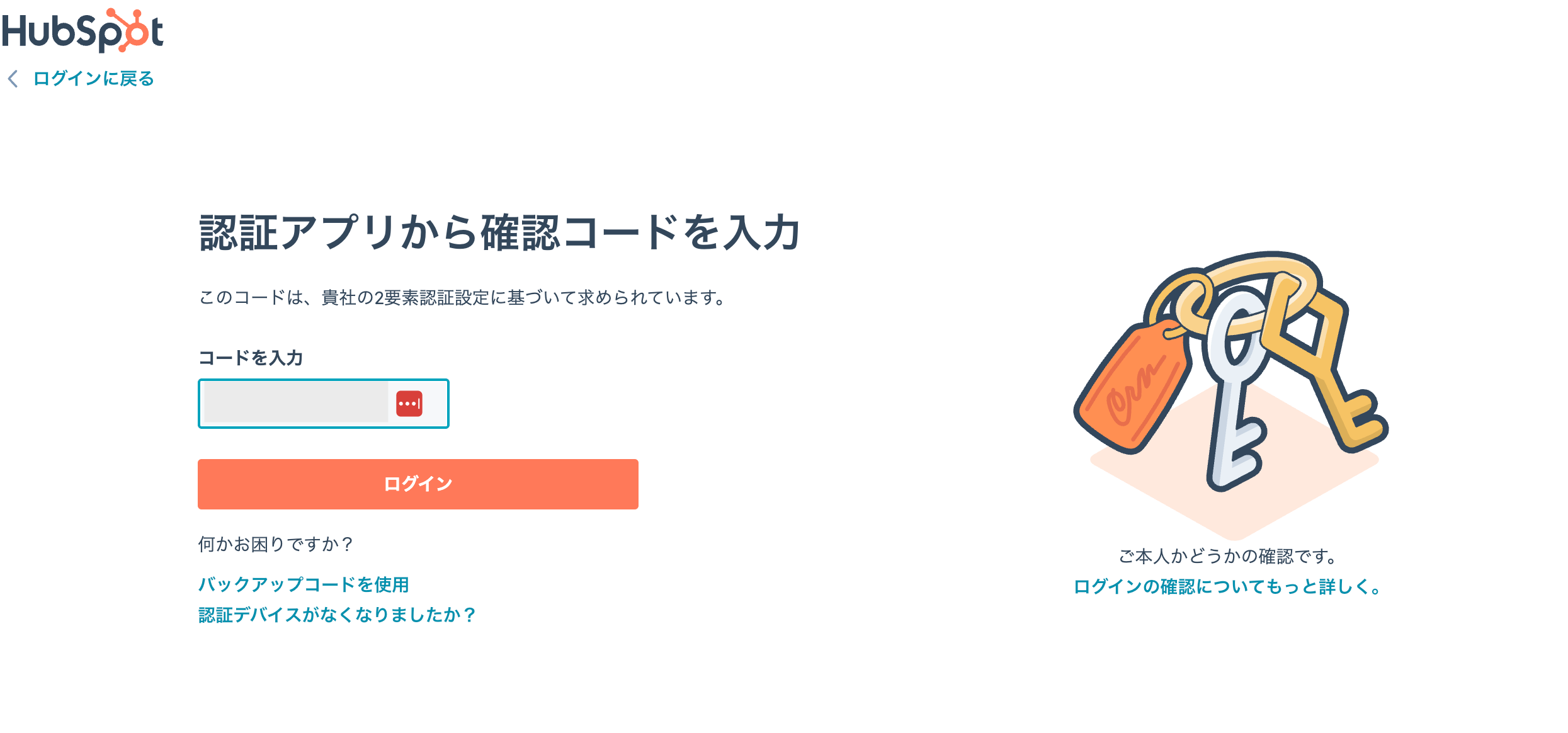
5. 「認証アプリから認証コードを入力」画面が表示されますので、コードを入力して、［ログイン］します。

<img src="https://mintcdn.com/moneyforwardi/zKVVvDYqzE3w_IfF/images/integrations/iq3vf71kj6/1755733536750-2025-08-21-8-33-10.png?fit=max&auto=format&n=zKVVvDYqzE3w_IfF&q=85&s=6557cf8830c337c99fe1eca2f3d0efd7" alt="認証コード入力画面" width="2490" height="1164" data-path="images/integrations/iq3vf71kj6/1755733536750-2025-08-21-8-33-10.png" />

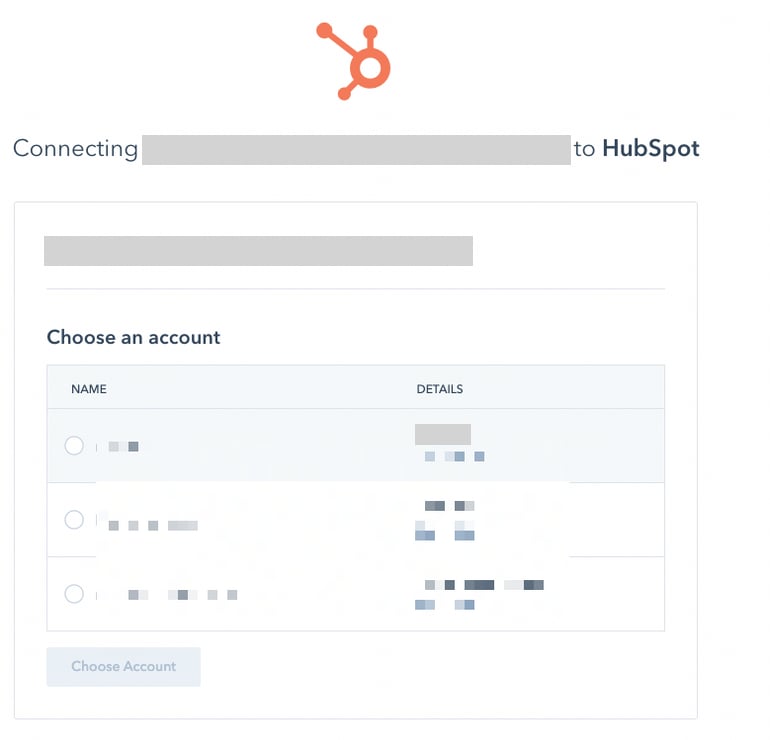
6. HubSpot上にAccountが複数ある場合は、**連携するaccountを選択**します。
<img src="https://mintcdn.com/moneyforwardi/zKVVvDYqzE3w_IfF/images/integrations/iq3vf71kj6/1640414098077-clean-shot-2021-06-08-at-21-04-44.png?fit=max&auto=format&n=zKVVvDYqzE3w_IfF&q=85&s=e893bfafc7a76c69af8c4971d29bd897" alt="アカウント選択画面" width="770" height="740" data-path="images/integrations/iq3vf71kj6/1640414098077-clean-shot-2021-06-08-at-21-04-44.png" />

7. HubSpotとの連携に成功すると、アカウント一覧に登録済みのユーザー情報が表示されます。

## トラブルシューティング

正常に完了しない場合は、インテグレーション画面のステータスタブから**編集**し、再度連携をお試しください。

解決しない場合はチャットにてお問い合わせください。

HubSpotの連携概要については[連携ページ](http://admina.moneyforward.com/jp/integrations/hubspot)をご覧ください。