> ## Documentation Index
> Fetch the complete documentation index at: https://support.i.moneyforward.com/llms.txt
> Use this file to discover all available pages before exploring further.

# Klipfolio

> Klipfolio との連携手順です。

## サポートする機能

<Badge color="blue">アカウント削除</Badge> <Badge color="blue">アカウント作成</Badge>

<Info>
  連携には管理者権限のアカウントが必要です。
</Info>

## 事前準備

### ログイン方法

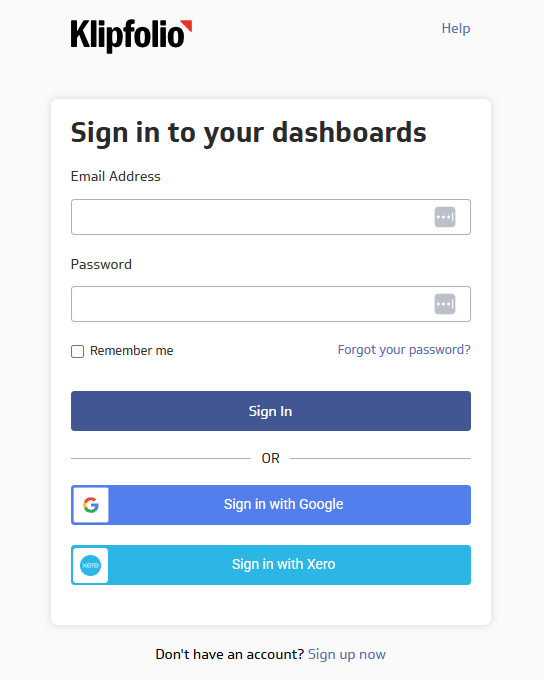
[Klipfolio ログインページ](https://app.klipfolio.com/login)にて、メールアドレス・パスワードを入力し、ログインします。
<img src="https://mintcdn.com/moneyforwardi/cYHdVshJUSVuJ5aA/images/integrations/lt7lmpqb0u/2026-01-30-150656.png?fit=max&auto=format&n=cYHdVshJUSVuJ5aA&q=85&s=4d527b7b960a473e5f3188907a8bac94" alt="Klipfolio ログイン画面" width="544" height="680" data-path="images/integrations/lt7lmpqb0u/2026-01-30-150656.png" />

### API キーの取得方法

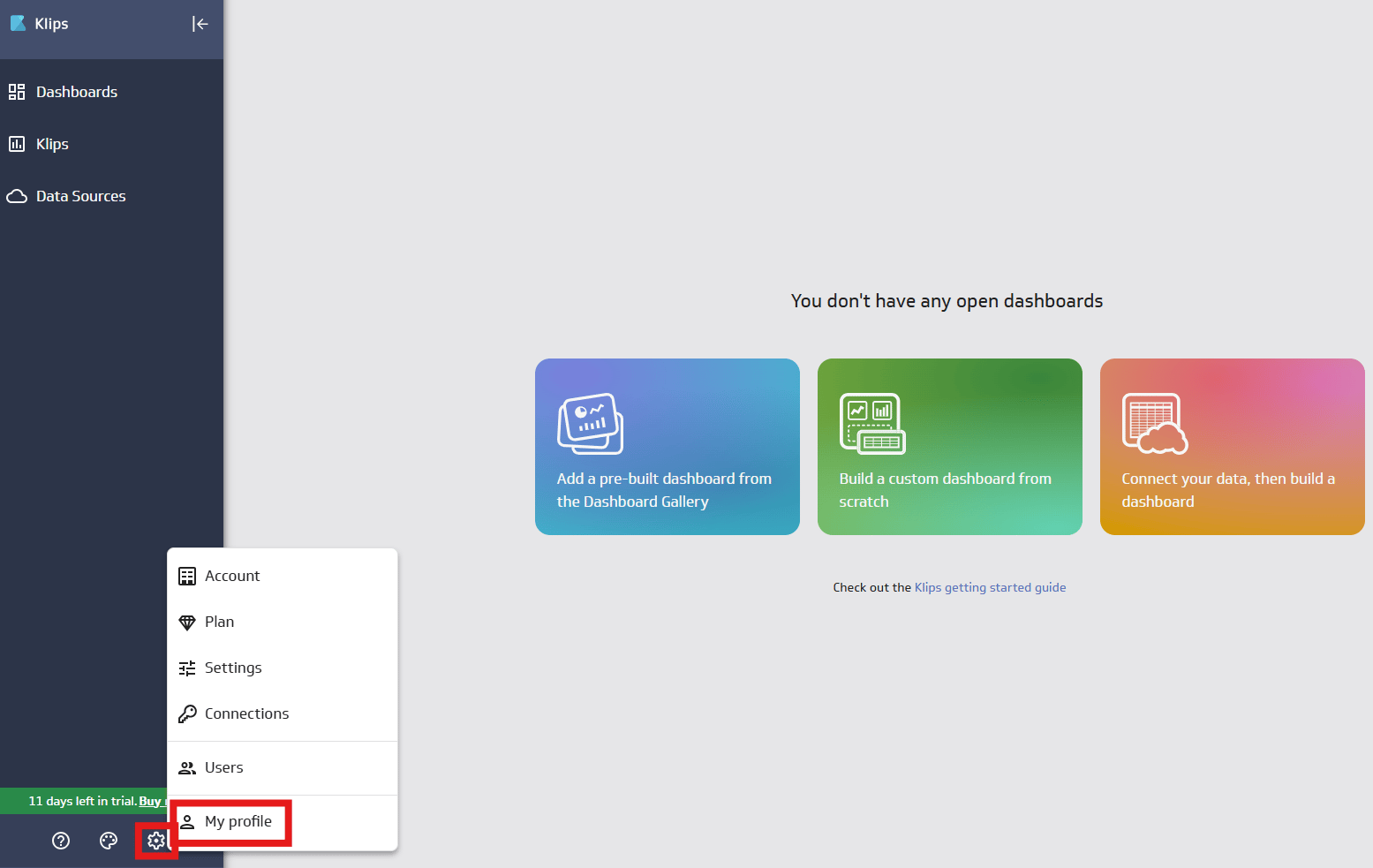
1. Klipfolio ログイン後、画面左下の **設定（歯車マーク）** > **My profile** をクリックします。

   <img src="https://mintcdn.com/moneyforwardi/cYHdVshJUSVuJ5aA/images/integrations/lt7lmpqb0u/2026-01-30-160915.png?fit=max&auto=format&n=cYHdVshJUSVuJ5aA&q=85&s=92877bcebd1c3d2b603d9801d14f7422" alt="設定メニュー" width="1555" height="983" data-path="images/integrations/lt7lmpqb0u/2026-01-30-160915.png" />

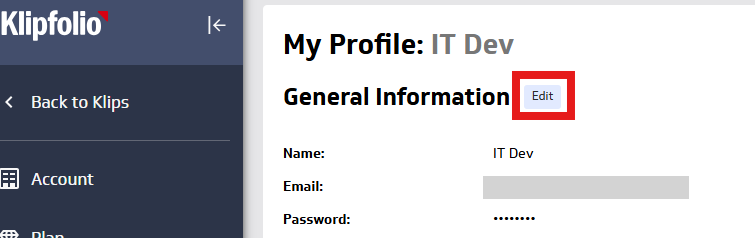
2. **General Information** の **Edit** をクリックします。
   <img src="https://mintcdn.com/moneyforwardi/tafzl_sQ3HYSeWQI/images/integrations/lt7lmpqb0u/2026-01-30-161344.png?fit=max&auto=format&n=tafzl_sQ3HYSeWQI&q=85&s=1d329353d8c33fb1b17e6a2be7c107ea" alt="General Information の編集" width="755" height="238" data-path="images/integrations/lt7lmpqb0u/2026-01-30-161344.png" />

3. **API Key** の **Generate New API Key** をクリックします。

   <img src="https://mintcdn.com/moneyforwardi/cYHdVshJUSVuJ5aA/images/integrations/lt7lmpqb0u/2026-01-30-161449.png?fit=max&auto=format&n=cYHdVshJUSVuJ5aA&q=85&s=0925f7dad60084e7bef852d6c3f887ae" alt="API Key 生成" width="698" height="124" data-path="images/integrations/lt7lmpqb0u/2026-01-30-161449.png" />

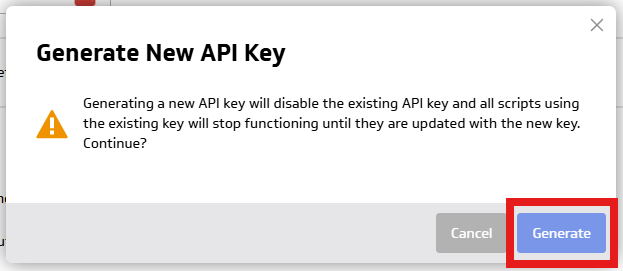
4. **Generate** をクリックし、作成された **API キー** をコピーします。
   <img src="https://mintcdn.com/moneyforwardi/cYHdVshJUSVuJ5aA/images/integrations/lt7lmpqb0u/2026-01-30-161735.png?fit=max&auto=format&n=cYHdVshJUSVuJ5aA&q=85&s=62e00dc5d0ab119a189b087bcfe70d56" alt="API Key をコピー" width="623" height="271" data-path="images/integrations/lt7lmpqb0u/2026-01-30-161735.png" />

## インテグレーションのセットアップ

1. インテグレーション画面にて、**Klipfolio** で検索します。

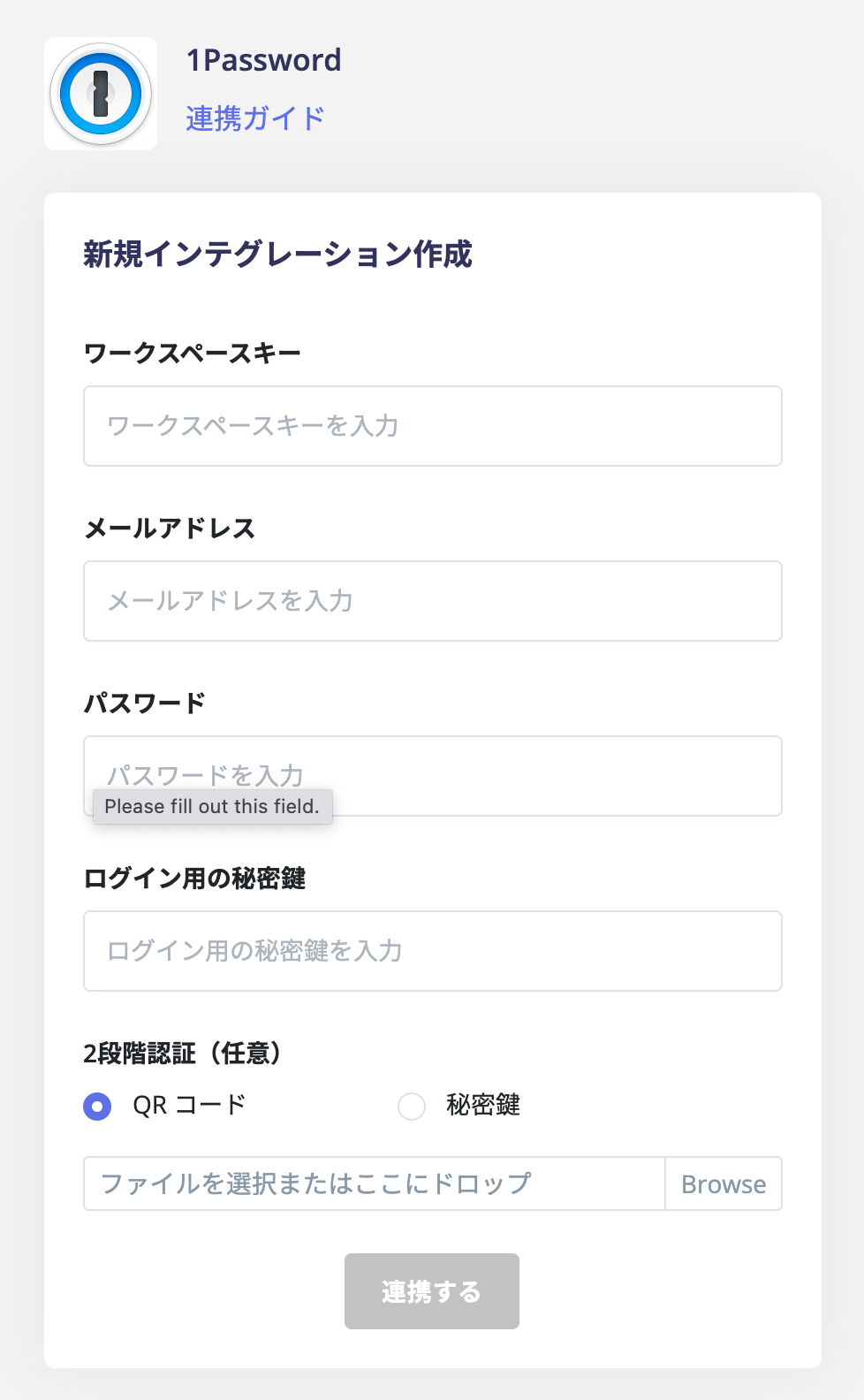
2. 任意のワークスペース名、前の手順で取得した **API キー**を入力し、**連携する**をクリックします。
   <img src="https://mintcdn.com/moneyforwardi/cYHdVshJUSVuJ5aA/images/integrations/lt7lmpqb0u/screen-shot-2022-01-27-at-18-40-23.png?fit=max&auto=format&n=cYHdVshJUSVuJ5aA&q=85&s=89040716ffdbe0d97855b12b9c8c08da" alt="連携画面" width="978" height="1584" data-path="images/integrations/lt7lmpqb0u/screen-shot-2022-01-27-at-18-40-23.png" />

3. 連携が成功すると、アカウント一覧に登録済みのユーザー情報が表示されます。正常に完了しない場合は、まず [SaaSとの連携に失敗する場合の対処法](/it-management/saas-management/93nahw45is-trouble) に記載のステップをお試しください。それでも解決しない場合は、[ご提供いただきたい情報](/it-management/saas-management/93nahw45is-trouble#info-to-provide) をご確認のうえ、[サポート窓口](/contact-support)までお問い合わせください。