> ## Documentation Index
> Fetch the complete documentation index at: https://support.i.moneyforward.com/llms.txt
> Use this file to discover all available pages before exploring further.

# Cacoo

> Cacooとの連携の手順です。

## サポートする機能

<Badge color="blue">アカウント無効化</Badge> <Badge color="blue">アカウント作成</Badge>

## 事前準備

### Cacooへのログイン方法

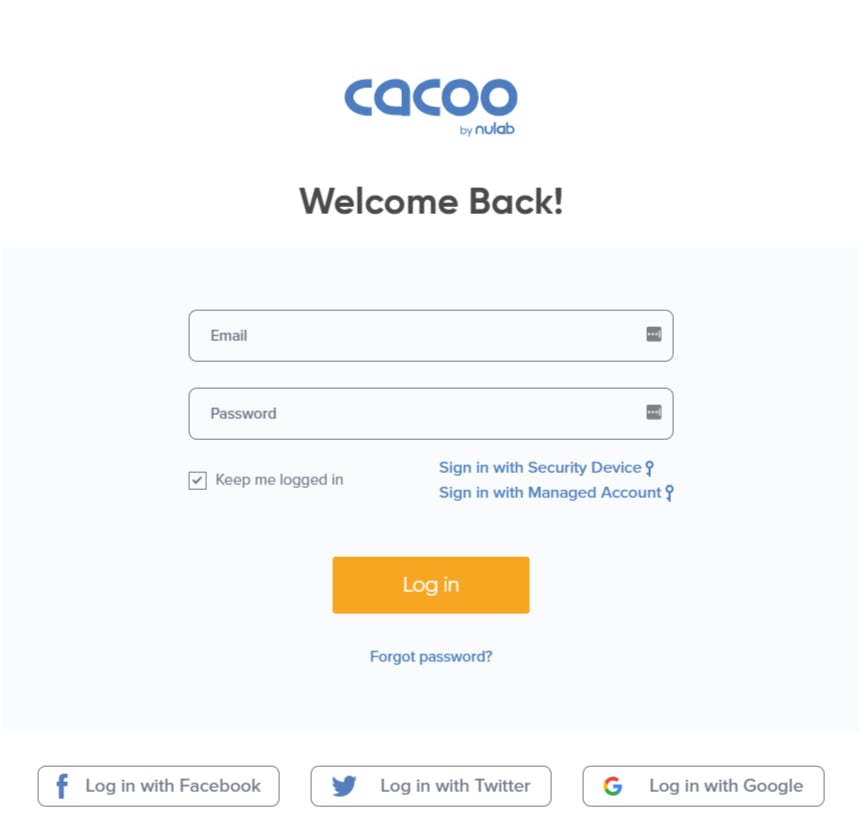
[Cacooのログインページ](https://cacoo.com/signin)にて、メールアドレス・パスワードを入力し、ログインします。

<Info>
  連携にはGoogleやSSOなど外部認証アカウントはご利用いただけません。
</Info>

<img src="https://mintcdn.com/moneyforwardi/cYHdVshJUSVuJ5aA/images/integrations/m7g7zqo3f1/1655950634255-image.png?fit=max&auto=format&n=cYHdVshJUSVuJ5aA&q=85&s=7fea5de22af9dd7aff3a937068ab4cdf" alt="Cacooログイン画面" width="867" height="821" data-path="images/integrations/m7g7zqo3f1/1655950634255-image.png" />

### ワークスペースキーの取得方法

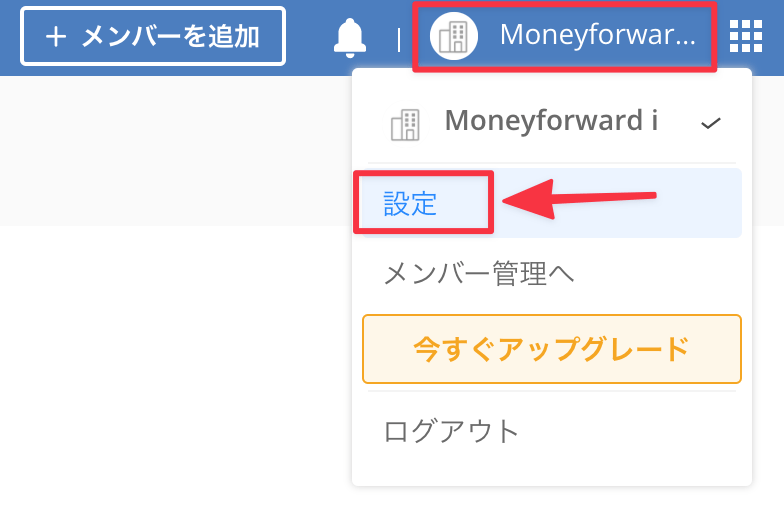
Cacooにログイン後、右上の**プロフィール名**をクリックし、**設定**をクリックします。
<img src="https://mintcdn.com/moneyforwardi/cYHdVshJUSVuJ5aA/images/integrations/m7g7zqo3f1/clean-shot-2021-09-28-at-2-27-392-x.png?fit=max&auto=format&n=cYHdVshJUSVuJ5aA&q=85&s=5686949b09055f43a5ce3bc9a90ff032" alt="プロフィール名をクリックして設定を選択" width="784" height="510" data-path="images/integrations/m7g7zqo3f1/clean-shot-2021-09-28-at-2-27-392-x.png" />

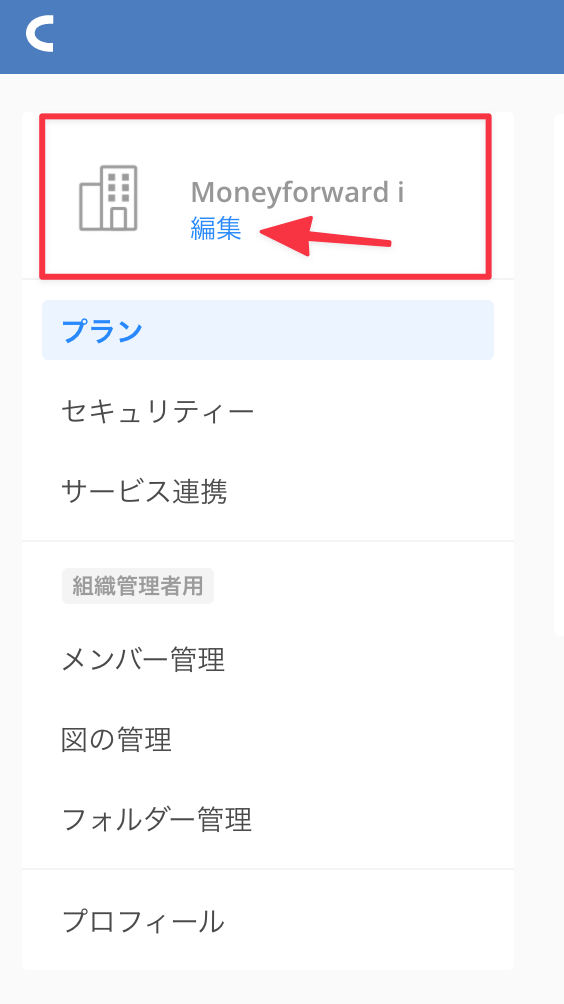
左のメニューにある**編集**をクリックします。

<img src="https://mintcdn.com/moneyforwardi/cYHdVshJUSVuJ5aA/images/integrations/m7g7zqo3f1/clean-shot-2021-09-28-at-2-30-412-x.png?fit=max&auto=format&n=cYHdVshJUSVuJ5aA&q=85&s=6ec04ba46ccd1b72f53e08d3d7e8993f" alt="編集をクリック" width="564" height="1004" data-path="images/integrations/m7g7zqo3f1/clean-shot-2021-09-28-at-2-30-412-x.png" />

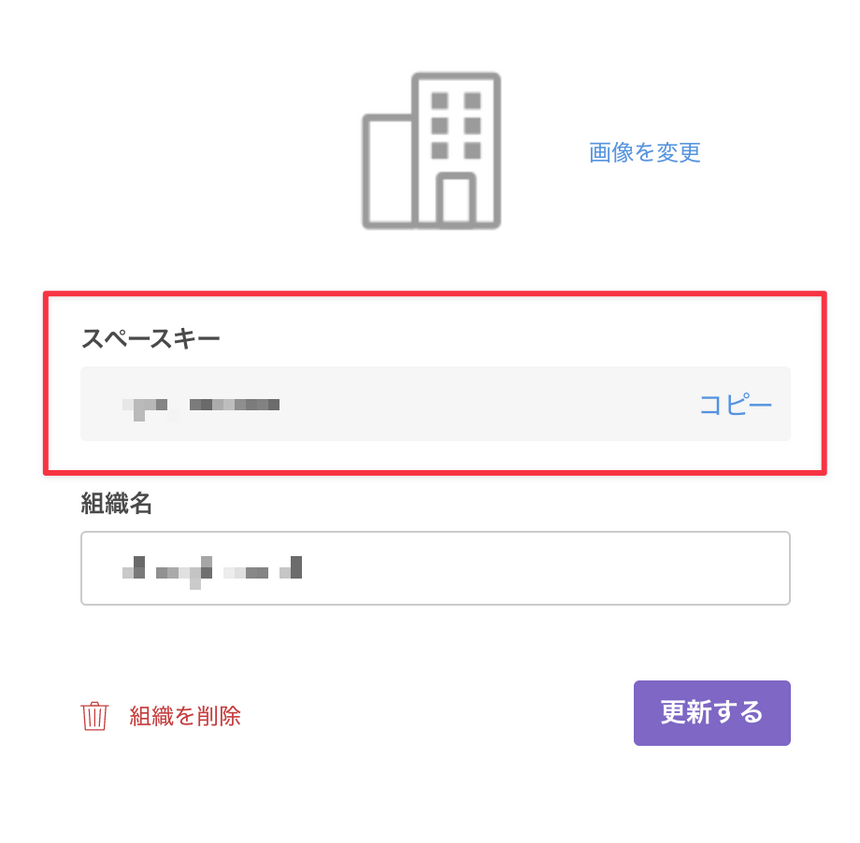
以下のような画面が表示され、**スペースキーがワークスペースキー**になるので、コピー・保存します。
<img src="https://mintcdn.com/moneyforwardi/cYHdVshJUSVuJ5aA/images/integrations/m7g7zqo3f1/clean-shot-2021-09-28-at-2-37-512-x.png?fit=max&auto=format&n=cYHdVshJUSVuJ5aA&q=85&s=23b5780f8059ab6b86a51bf5ec415410" alt="ワークスペースキーをコピー" width="860" height="843" data-path="images/integrations/m7g7zqo3f1/clean-shot-2021-09-28-at-2-37-512-x.png" />

## インテグレーションのセットアップ

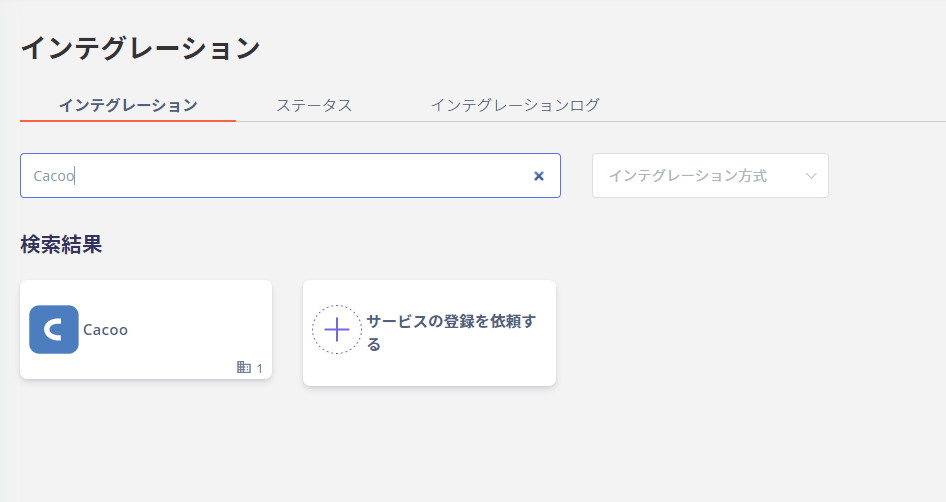
マネーフォワード Adminaのインテグレーション画面にて、**Cacoo** で検索します。
<img src="https://mintcdn.com/moneyforwardi/cYHdVshJUSVuJ5aA/images/integrations/m7g7zqo3f1/2022-03-04-172249.png?fit=max&auto=format&n=cYHdVshJUSVuJ5aA&q=85&s=31ccaaf94e366b9b444bc8b8bf855735" alt="Admina インテグレーション画面でCacooを検索" width="946" height="502" data-path="images/integrations/m7g7zqo3f1/2022-03-04-172249.png" />

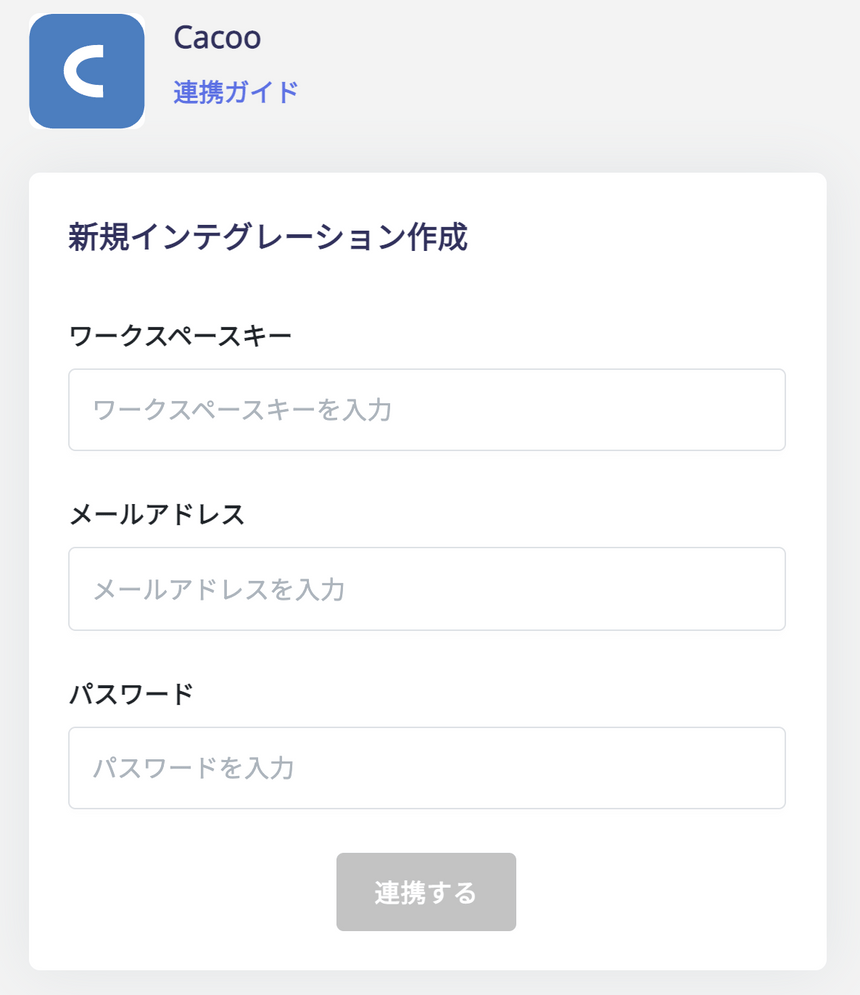
前の手順で取得した**ワークスペースキー**、Cacooログイン用**メールアドレスとパスワード**を入力し、**連携する**をクリックします。
<img src="https://mintcdn.com/moneyforwardi/cYHdVshJUSVuJ5aA/images/integrations/m7g7zqo3f1/clean-shot-2021-09-28-at-2-04-582-x.png?fit=max&auto=format&n=cYHdVshJUSVuJ5aA&q=85&s=d6ce541f33a7598342b13921a70a6995" alt="認証情報を入力して連携" width="860" height="995" data-path="images/integrations/m7g7zqo3f1/clean-shot-2021-09-28-at-2-04-582-x.png" />

Cacooとの連携に成功すると、アカウント一覧に登録済みのユーザー情報が表示されます。

正常に完了しない場合は、インテグレーション画面のステータスタブから**編集**し、再度連携をお試しください。

解決しない場合はチャットにてお問い合わせください。

Cacooの連携概要については[連携ページ](https://admina.moneyforward.com/jp/integrations/cacoo)をご覧ください。