> ## Documentation Index
> Fetch the complete documentation index at: https://support.i.moneyforward.com/llms.txt
> Use this file to discover all available pages before exploring further.
# Make
> Makeとの連携方法です。
## サポートする機能
このサービスは基本的なアカウント情報の取得・集計のみに対応しています。
## 事前準備
### Makeへのログイン方法
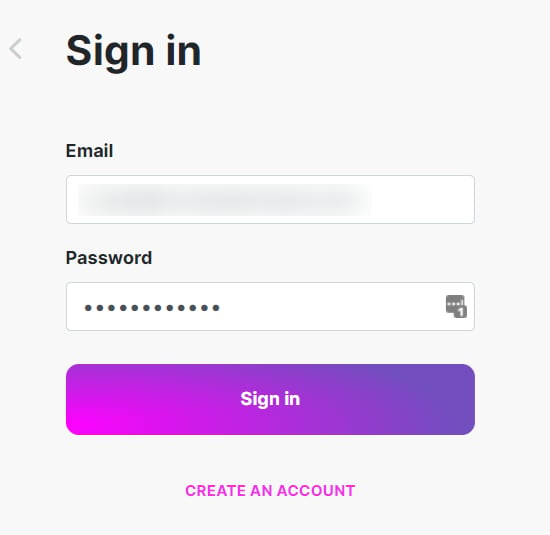
[Makeログインページ](https://www.make.com/en/login)にて、メールアドレス・パスワードを入力しログインします。
 ### アクセスキーの取得方法
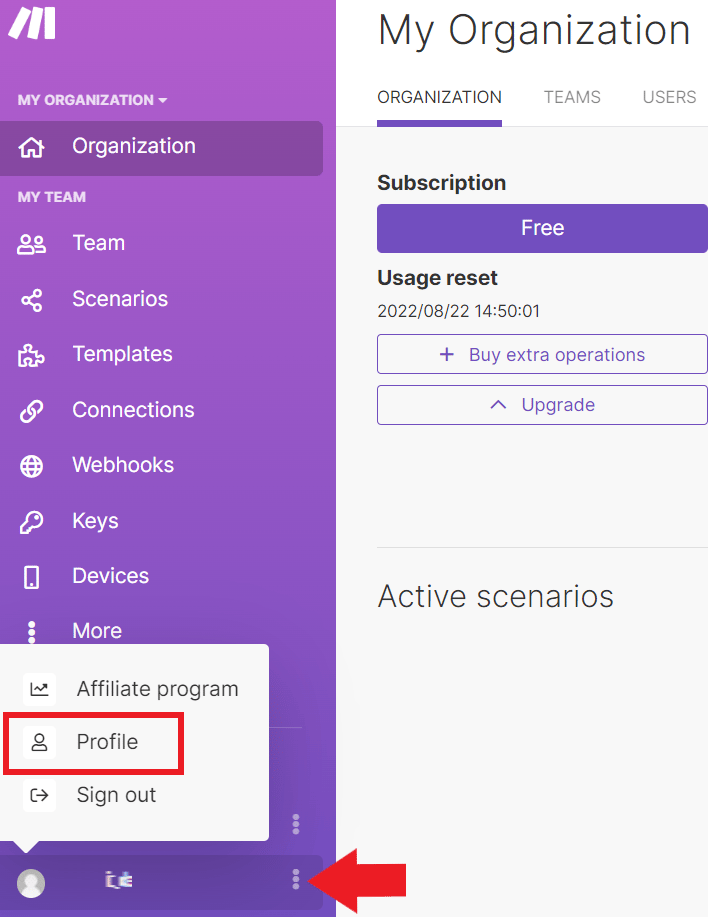
1. Makeにログイン後、左メニューの**ユーザーアイコン>Profile** をクリックします。
Profile画面は[組織の作成(外部サイト)](https://help.make.com/organizations)をご参照ください。
### アクセスキーの取得方法
1. Makeにログイン後、左メニューの**ユーザーアイコン>Profile** をクリックします。
Profile画面は[組織の作成(外部サイト)](https://help.make.com/organizations)をご参照ください。
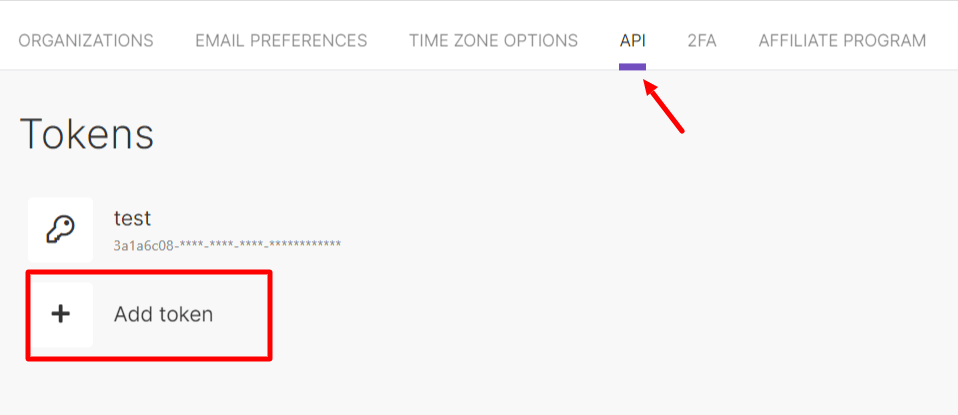
 2. Profileのメニュータブから **API** を選択し、**Add token** をクリックします。
詳細は[APIトークンの作成(外部サイト)](https://developers.make.com/api-documentation/authentication/create-authentication-token)をご参照ください。
2. Profileのメニュータブから **API** を選択し、**Add token** をクリックします。
詳細は[APIトークンの作成(外部サイト)](https://developers.make.com/api-documentation/authentication/create-authentication-token)をご参照ください。
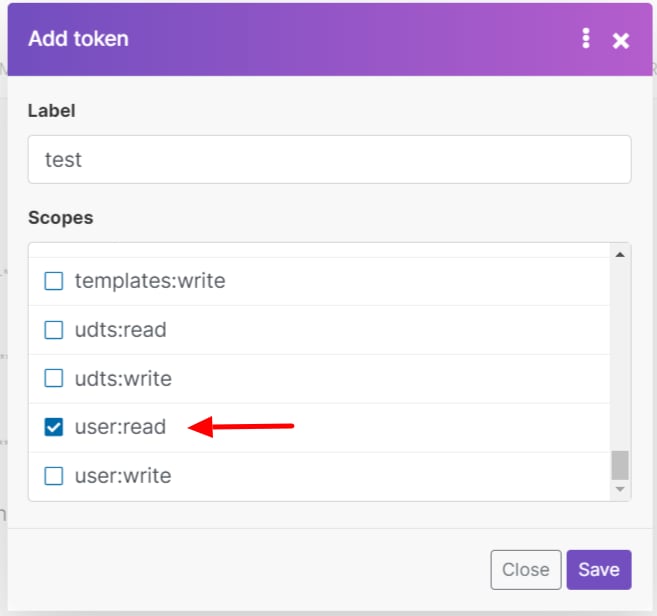
 3. 以下の画面が表示されますので、**Labelには任意の名称**(会社名、用途など)を入力します。
**Scopes は**`**user:read**`に✅を入れ、**Save** をクリックします。
3. 以下の画面が表示されますので、**Labelには任意の名称**(会社名、用途など)を入力します。
**Scopes は**`**user:read**`に✅を入れ、**Save** をクリックします。
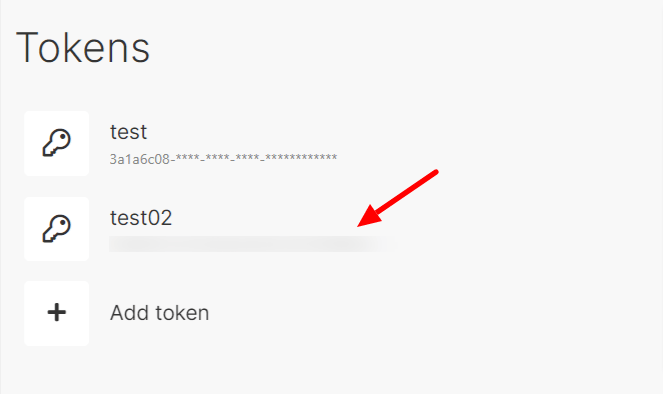
 4. tokenが生成され、以下のように表示されます。**tokenがアクセスキー**となるので、保存します。
tokenは再表示できませんので、必ず保存してください。ページをリフレッシュ、移動すると確認できなくなります。
4. tokenが生成され、以下のように表示されます。**tokenがアクセスキー**となるので、保存します。
tokenは再表示できませんので、必ず保存してください。ページをリフレッシュ、移動すると確認できなくなります。
 ### 組織IDの取得方法
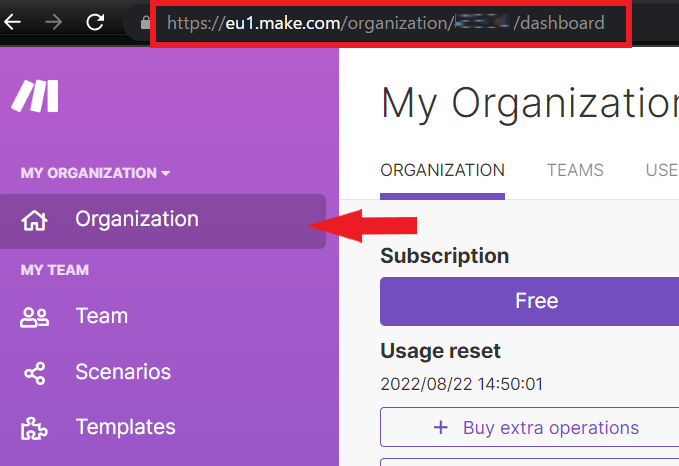
左メニューより**Organization**を選択し、Organizationページに移動します。**URLの一部に組織ID**が表示されますので、保存します。
[https://eu1.make.com/organization/\*\*\`組織ID\`\*\*/dashboard](https://eu1.make.com/organization/**`組織ID`**/dashboard)
### 組織IDの取得方法
左メニューより**Organization**を選択し、Organizationページに移動します。**URLの一部に組織ID**が表示されますので、保存します。
[https://eu1.make.com/organization/\*\*\`組織ID\`\*\*/dashboard](https://eu1.make.com/organization/**`組織ID`**/dashboard)
 ### Regionの取得方法
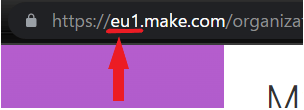
以下のように**URLの一部にeu1 またはus1 と表示されているのがRegion**となりますので、保存します。(1までがRegionです)
https\://**`Region`**.make.com/****
### Regionの取得方法
以下のように**URLの一部にeu1 またはus1 と表示されているのがRegion**となりますので、保存します。(1までがRegionです)
https\://**`Region`**.make.com/****
 ## インテグレーションのセットアップ
1. Adminaのインテグレーション画面で「**Make**」と検索します。
## インテグレーションのセットアップ
1. Adminaのインテグレーション画面で「**Make**」と検索します。
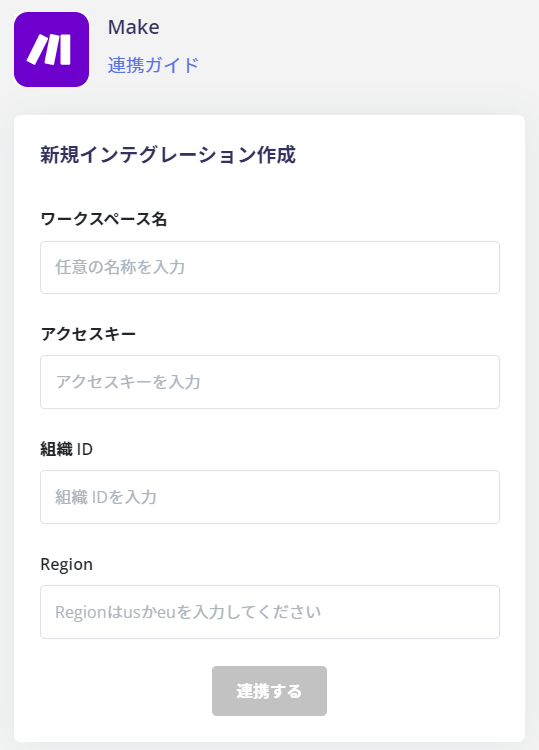
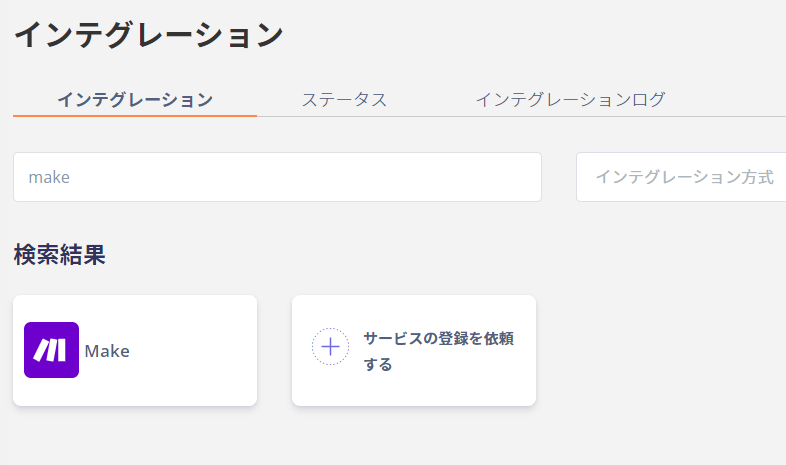 2. **ワークスペース名には任意の名称**(会社名など)、前の手順で取得した**アクセスキー、組織ID、Region**を入力し、**連携する**をクリックします。
 3. Makeとの連携に成功すると、アカウント一覧に登録済みのユーザー情報が表示されます。
正常に完了しない場合は、インテグレーション画面のステータスタブから**編集**し、再度連携をお試しください。
解決しない場合はチャットにてお問い合わせください🙏
3. Makeとの連携に成功すると、アカウント一覧に登録済みのユーザー情報が表示されます。
正常に完了しない場合は、インテグレーション画面のステータスタブから**編集**し、再度連携をお試しください。
解決しない場合はチャットにてお問い合わせください🙏