> ## Documentation Index
> Fetch the complete documentation index at: https://support.i.moneyforward.com/llms.txt
> Use this file to discover all available pages before exploring further.
# Google Workspace
> Google Workspaceの連携手順です。
## サポートする機能
従業員マスター連携 アカウント無効化 アカウント削除 アカウント作成
この設定にはGoogle workspaceの**特権管理者**権限が必要です
## インテグレーションのセットアップ
1. Adminaのインテグレーション > インテグレーションで**Google workspace**を検索して選択します。
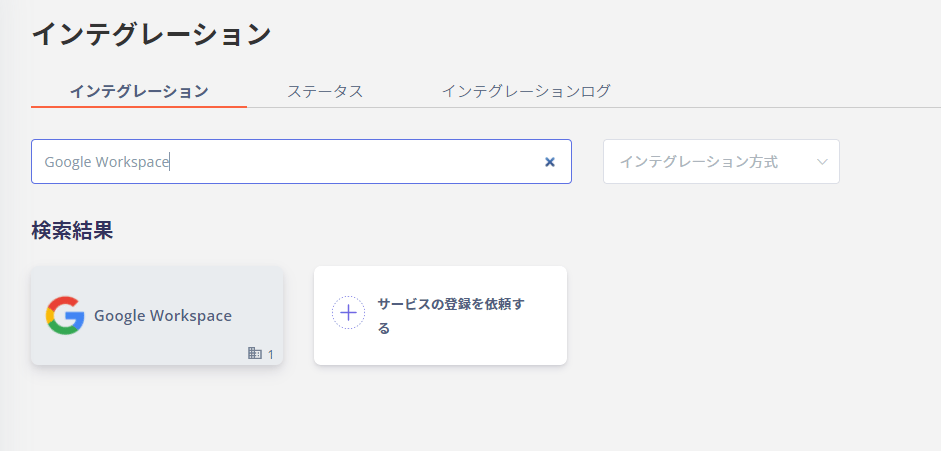 2. **Sign in with Google**をクリックします。
ドメイン(例 i.moneyforwar.com)を入力すると、指定したドメインのアカウントのみ連携できます。指定したドメイン以外のアカウントは取得できなくなるため、検証など一次目的でご利用ください。すべてのドメインを連携する場合、空欄で**Sign in with Google**をクリックします。
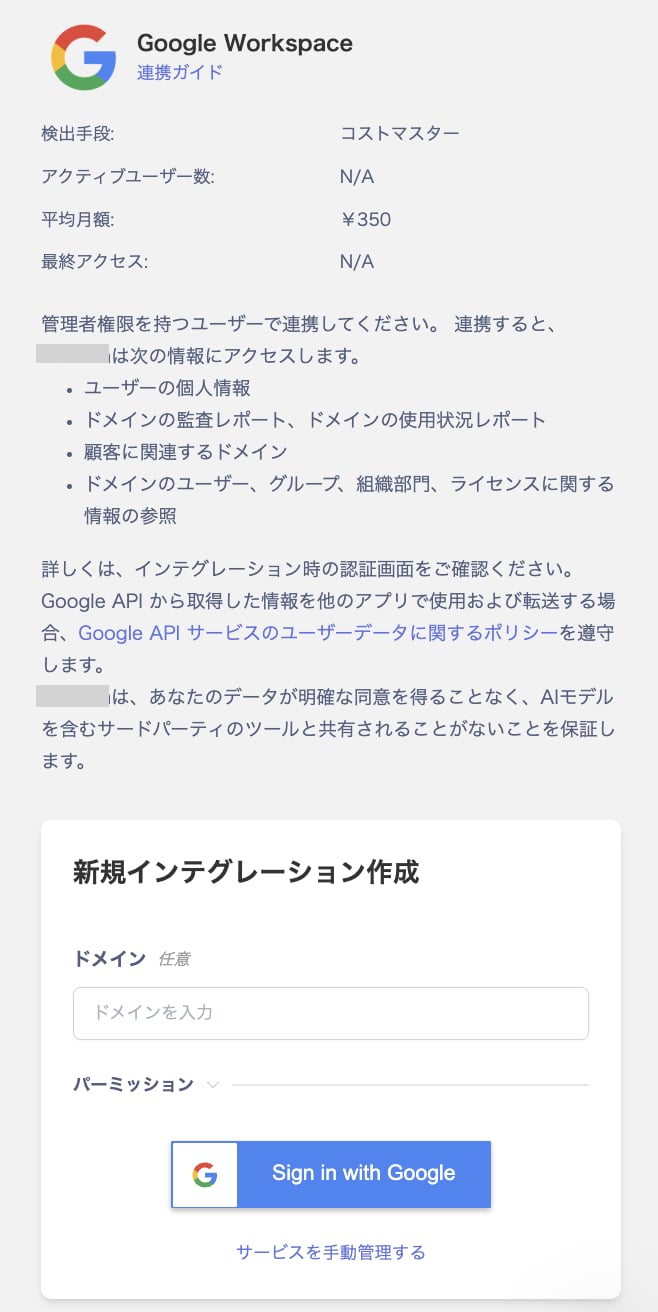
2. **Sign in with Google**をクリックします。
ドメイン(例 i.moneyforwar.com)を入力すると、指定したドメインのアカウントのみ連携できます。指定したドメイン以外のアカウントは取得できなくなるため、検証など一次目的でご利用ください。すべてのドメインを連携する場合、空欄で**Sign in with Google**をクリックします。
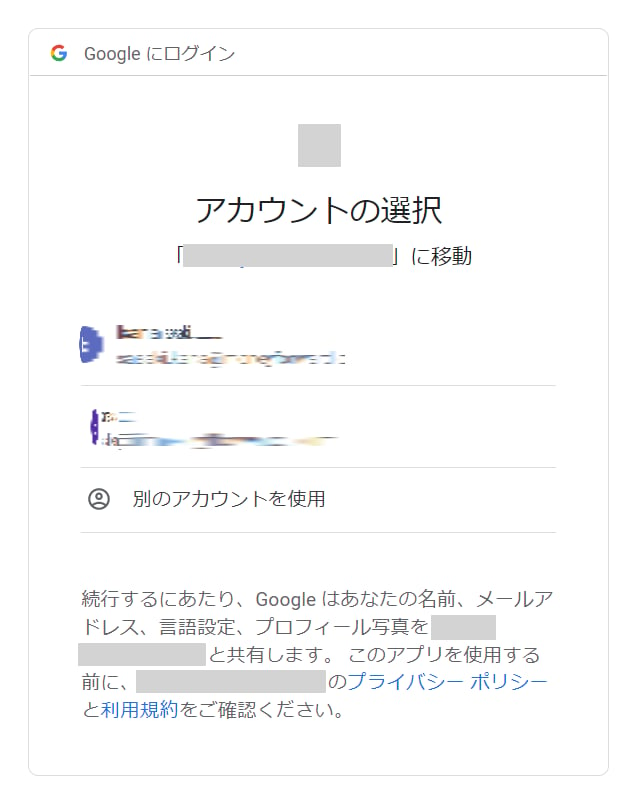
 3. Googleのログインページに移動しますので、**特権管理者の権限を持つアカウント**でログインします。
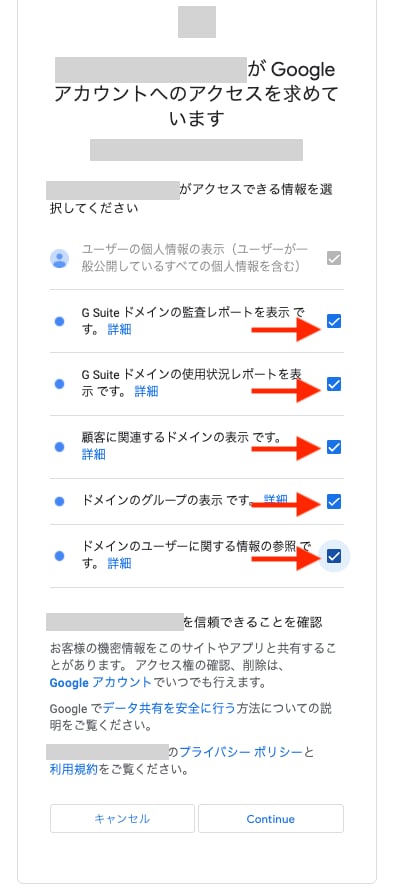
 4. アクセス権を選択する「Googleアカウントのアクセスを求めています」画面が表示されますので、**全ての項目**にチェックを入れ、**Continue**をクリックします。
 5. 連携に成功すると、アカウント一覧に登録済みのユーザー情報が表示されます。
正常に完了しない場合は、インテグレーション画面のステータスタブから**編集**し、再度連携をお試しください。
解決しない場合はチャットにてお問い合わせください。Google Workspaceの連携概要については[連携ページ](http://admina.moneyforward.com/jp/integrations/google-workspace)をご覧ください。
## エラーが表示される場合
以下の方法もお試しください。
* [Google OAuth連携でエラーが表示される](/it-management/faq/x6sms6m4ja-google-oauth)\[Google OAuth連携でエラーが出ます]
* [「このアプリはGoogleで確認されていません」と表示される](/it-management/faq/dqpoevdgwg-google-error)\[「このアプリはGoogle で確認されていません」 エラーが表示される]
従業員マスタの設定がお済みでない場合は、[従業員マスタ連携](/it-management/tutorial/ikf8odm6ti-2)の手順で設定をお願いします。
## アーカイブ ユーザーライセンスをご利用の場合
Google WorkspaceのArchived Userはサービス > Google Workspaceで確認できます。
アーカイブユーザーライセンスについては[アーカイブユーザーライセンスを追加する(外部サイト)](https://support.google.com/a/answer/9048232?hl=en)もご参照ください。
**通知**;アーカイブユーザーは[アラートで通知されません](/it-management/saas-management/q6jgukpnvh-alert#3389060810)。
**アカウント**:ステータスは「ARCHIVED」です。「ライセンス」で絞り込むと、「**Google Workspace** **`(エディション)`** **- Archived User**」と表示されます。ライセンスを選択し、「停止済みアカウントを表示」にチェックを入れると、該当アカウントを確認できます。
5. 連携に成功すると、アカウント一覧に登録済みのユーザー情報が表示されます。
正常に完了しない場合は、インテグレーション画面のステータスタブから**編集**し、再度連携をお試しください。
解決しない場合はチャットにてお問い合わせください。Google Workspaceの連携概要については[連携ページ](http://admina.moneyforward.com/jp/integrations/google-workspace)をご覧ください。
## エラーが表示される場合
以下の方法もお試しください。
* [Google OAuth連携でエラーが表示される](/it-management/faq/x6sms6m4ja-google-oauth)\[Google OAuth連携でエラーが出ます]
* [「このアプリはGoogleで確認されていません」と表示される](/it-management/faq/dqpoevdgwg-google-error)\[「このアプリはGoogle で確認されていません」 エラーが表示される]
従業員マスタの設定がお済みでない場合は、[従業員マスタ連携](/it-management/tutorial/ikf8odm6ti-2)の手順で設定をお願いします。
## アーカイブ ユーザーライセンスをご利用の場合
Google WorkspaceのArchived Userはサービス > Google Workspaceで確認できます。
アーカイブユーザーライセンスについては[アーカイブユーザーライセンスを追加する(外部サイト)](https://support.google.com/a/answer/9048232?hl=en)もご参照ください。
**通知**;アーカイブユーザーは[アラートで通知されません](/it-management/saas-management/q6jgukpnvh-alert#3389060810)。
**アカウント**:ステータスは「ARCHIVED」です。「ライセンス」で絞り込むと、「**Google Workspace** **`(エディション)`** **- Archived User**」と表示されます。ライセンスを選択し、「停止済みアカウントを表示」にチェックを入れると、該当アカウントを確認できます。
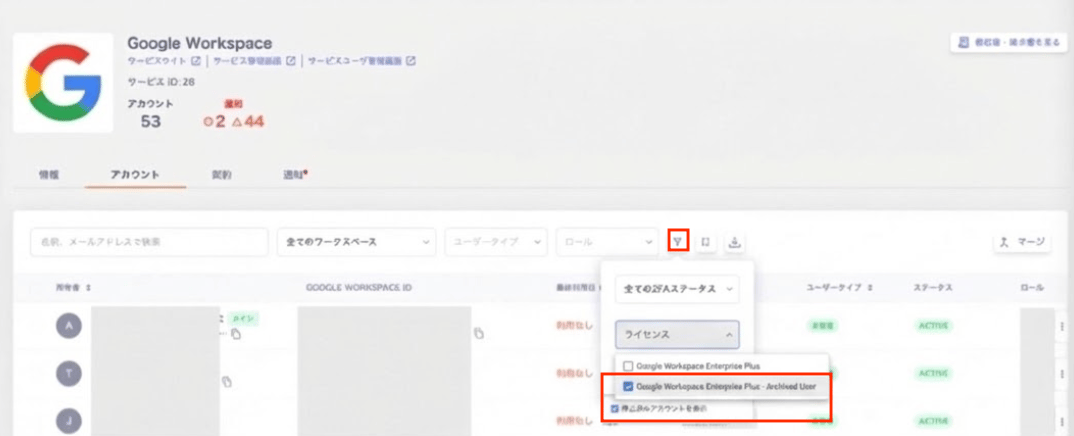 **ライセンス**:Google Workspace > 情報 > 情報 > ライセンスの\[ライセンス]で絞り込むと、所有しているライセンスが表示されます。
 ## FAQ
### Q. Google Workspaceのライセンス有が実際のライセンス数と一致しません。
**A.** Google Workspace側では、保有している全ライセンス数が表示されます。 Adminaへ連携後のライセンス数は、アクティブなユーザーに紐付いているライセンス数のみ表示されます。
### Q. サービス > Google Workspace > 情報 > ライセンス欄が表示されない場合、何を確認したら良いですか?
**A.** Google Workspaceとの連携時に権限が不足している場合、ライセンス欄が表示されません。ライセンス欄を表示するためには、特権管理者の権限で再度連携をお試しください。
## FAQ
### Q. Google Workspaceのライセンス有が実際のライセンス数と一致しません。
**A.** Google Workspace側では、保有している全ライセンス数が表示されます。 Adminaへ連携後のライセンス数は、アクティブなユーザーに紐付いているライセンス数のみ表示されます。
### Q. サービス > Google Workspace > 情報 > ライセンス欄が表示されない場合、何を確認したら良いですか?
**A.** Google Workspaceとの連携時に権限が不足している場合、ライセンス欄が表示されません。ライセンス欄を表示するためには、特権管理者の権限で再度連携をお試しください。