> ## Documentation Index
> Fetch the complete documentation index at: https://support.i.moneyforward.com/llms.txt
> Use this file to discover all available pages before exploring further.

# Loom

> Loom との連携手順です。

## サポートする機能

<Badge color="blue">アカウント無効化</Badge> <Badge color="blue">アカウント作成</Badge>

## 事前準備

### Loom へのログイン方法

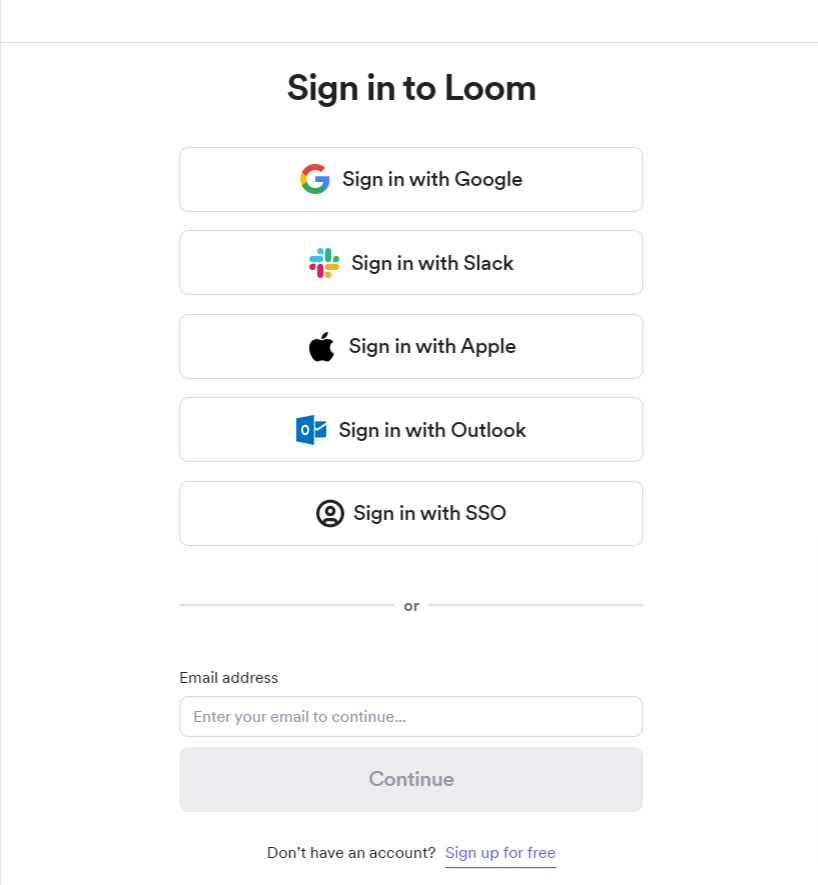
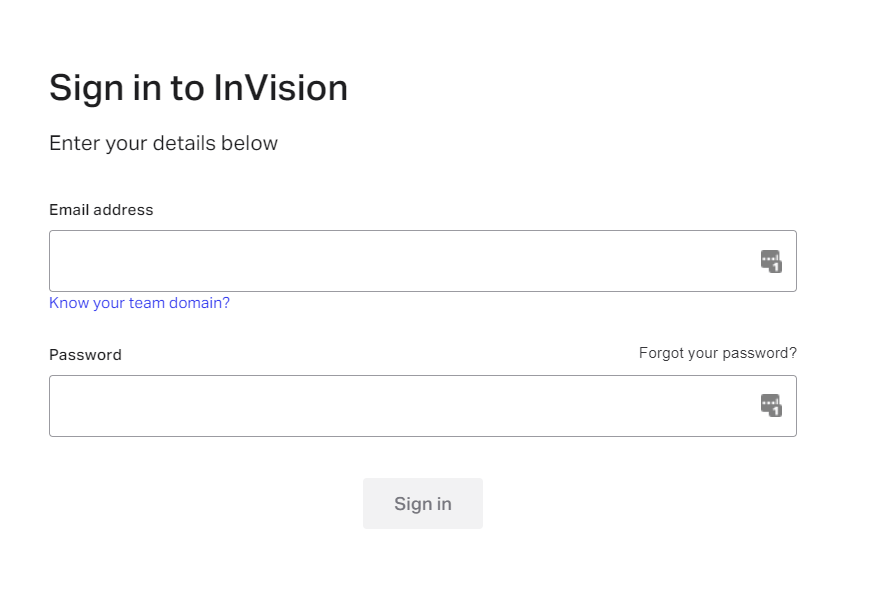
[Loom ログインページ](https://www.loom.com/login)より、メールアドレス・パスワードまたは、ご利用のログイン方法を選択し、ログインします。

<Info>
  連携には Google や SSO など外部認証アカウントはご利用いただけません。詳細は \[制限事項] Google 認証や SSO など外部認証アカウントによる連携失敗 をご覧ください。
</Info>

<img src="https://mintcdn.com/moneyforwardi/Xi2n4osxO3YA8XjG/images/integrations/qz3x3v36ng/6lt7e9w2ya-1658295317627-image.png?fit=max&auto=format&n=Xi2n4osxO3YA8XjG&q=85&s=e9f838fbcc2997543263c22c652a55ee" alt="Loom ログイン画面" width="871" height="591" data-path="images/integrations/qz3x3v36ng/6lt7e9w2ya-1658295317627-image.png" />

<img src="https://mintcdn.com/moneyforwardi/Xi2n4osxO3YA8XjG/images/integrations/qz3x3v36ng/1658987203711-image.png?fit=max&auto=format&n=Xi2n4osxO3YA8XjG&q=85&s=7a72a5f662fb1c8d555458fd6b6018fa" alt="Loom ログイン画面（メールアドレス・パスワード入力）" width="818" height="885" data-path="images/integrations/qz3x3v36ng/1658987203711-image.png" />

### ワークスペースキーの取得方法

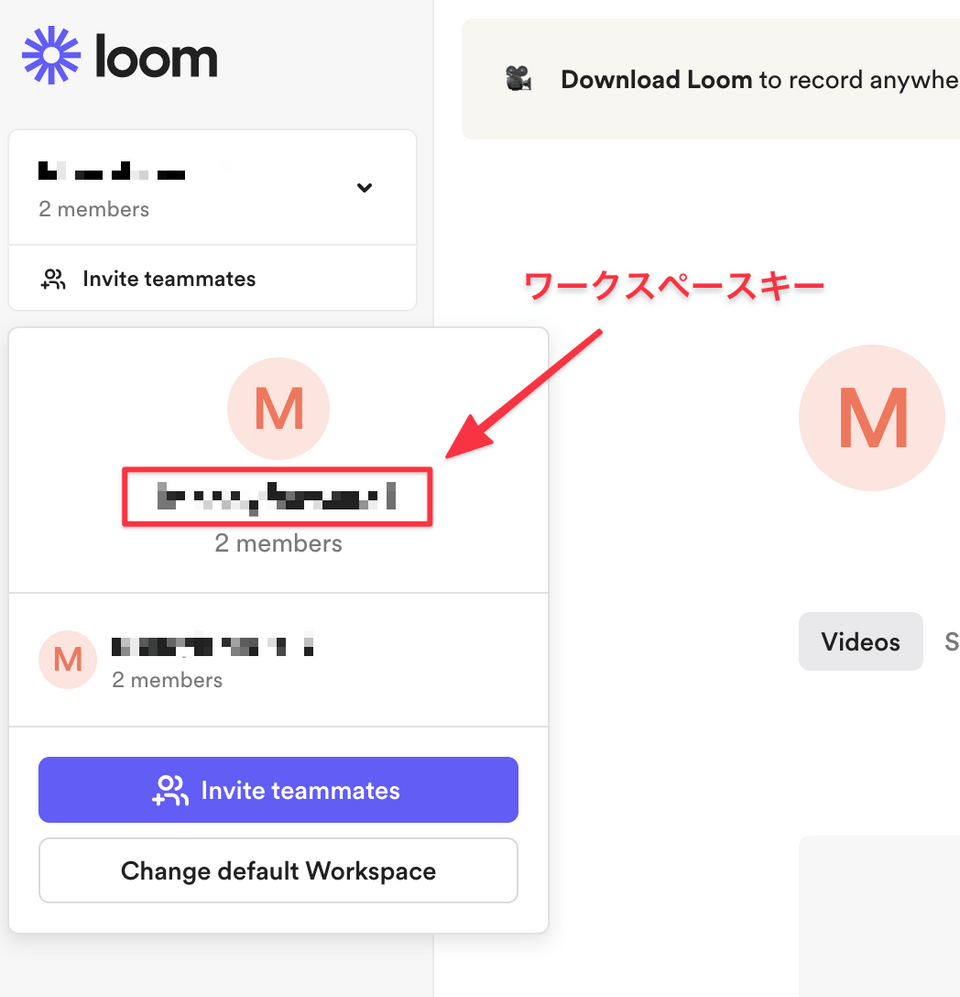
Loom にログイン後、左のメニューより**連携したいワークスペースを選択**すると以下のような画面が表示されます。

アイコン下の**ワークスペース名がワークスペースキー**となるので、保存しておきます。
<img src="https://mintcdn.com/moneyforwardi/Xi2n4osxO3YA8XjG/images/integrations/qz3x3v36ng/1640417040298-clean-shot-2021-09-08-at-3-11-232-x.png?fit=max&auto=format&n=Xi2n4osxO3YA8XjG&q=85&s=17fcd84f30f0c52e6ebb12056778445c" alt="ワークスペース名の確認" width="960" height="997" data-path="images/integrations/qz3x3v36ng/1640417040298-clean-shot-2021-09-08-at-3-11-232-x.png" />

## インテグレーションのセットアップ

マネーフォワード Admina のインテグレーション画面にて、**Loom** で検索します。
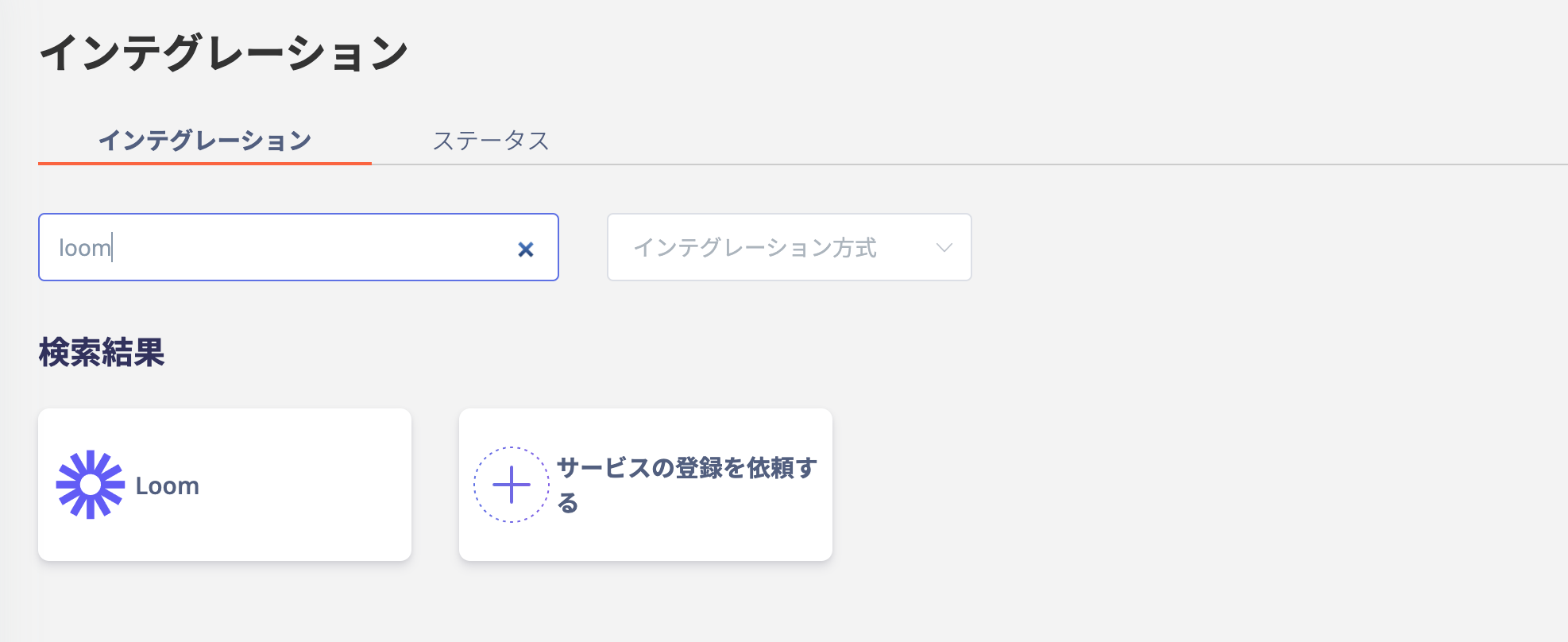
<img src="https://mintcdn.com/moneyforwardi/Xi2n4osxO3YA8XjG/images/integrations/qz3x3v36ng/1643510291087-screen-shot-2022-01-30-at-11-38-01.png?fit=max&auto=format&n=Xi2n4osxO3YA8XjG&q=85&s=4dd09858098ed385a9e05b98364cd236" alt="Admina のインテグレーション画面で Loom を検索" width="1974" height="808" data-path="images/integrations/qz3x3v36ng/1643510291087-screen-shot-2022-01-30-at-11-38-01.png" />

**前の手順で取得したワークスペースキー、Loom ログイン用メールアドレスとパスワード**を入力し、**連携する**をクリックします。
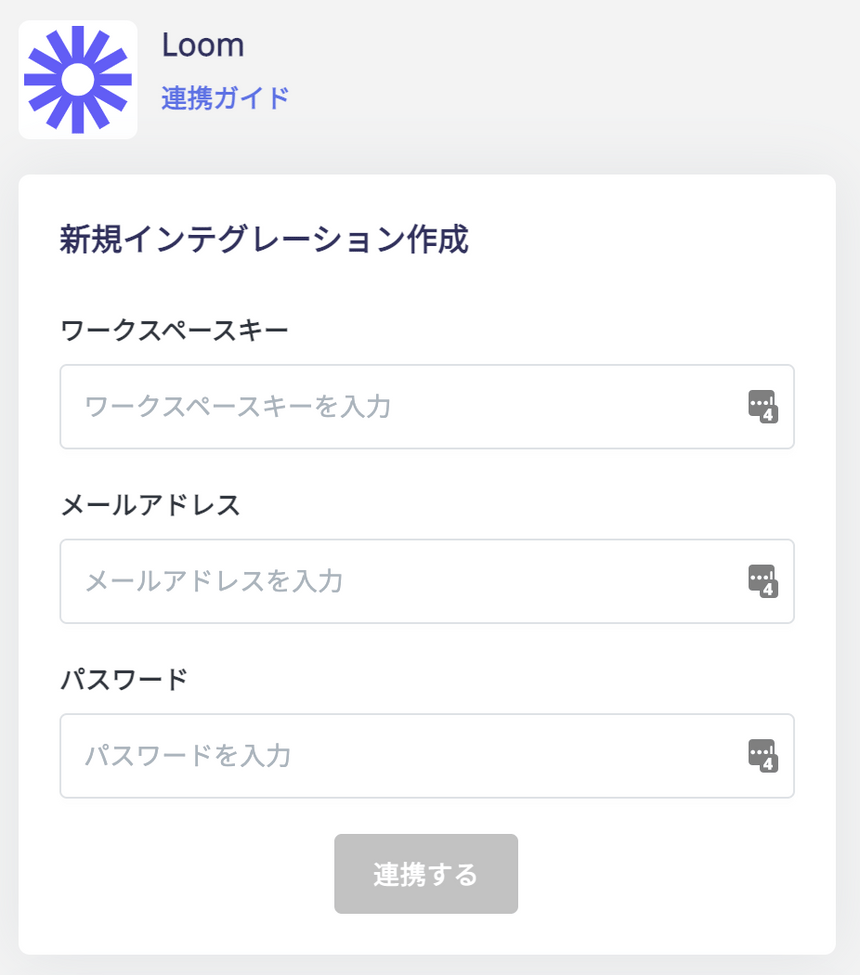
<img src="https://mintcdn.com/moneyforwardi/Xi2n4osxO3YA8XjG/images/integrations/qz3x3v36ng/1640417087378-clean-shot-2021-09-08-at-4-48-482-x.png?fit=max&auto=format&n=Xi2n4osxO3YA8XjG&q=85&s=588c2b6f157ac5c9000a23ec411279ea" alt="Loom 連携情報の入力" width="860" height="975" data-path="images/integrations/qz3x3v36ng/1640417087378-clean-shot-2021-09-08-at-4-48-482-x.png" />

Loom との連携に成功すると、アカウント一覧に登録済みのユーザー情報が表示されます。

正常に完了しない場合は、インテグレーション画面のステータスタブから編集し、再度連携をお試しください。

解決しない場合はチャットにてお問い合わせください🙏

Loom の連携概要については[連携ページ](http://admina.moneyforward.com/jp/integrations/loom)をご覧ください。