> ## Documentation Index
> Fetch the complete documentation index at: https://support.i.moneyforward.com/llms.txt
> Use this file to discover all available pages before exploring further.
# Box
> Box連携の手順です。マネーフォワード AdminaからBoxへの、管理者のログインから、連携方法まで一連の手順を解説します。
## サポートする機能
アカウント無効化 ファイル集計 ファイル権限管理 アカウント作成
## インテグレーションのセットアップ
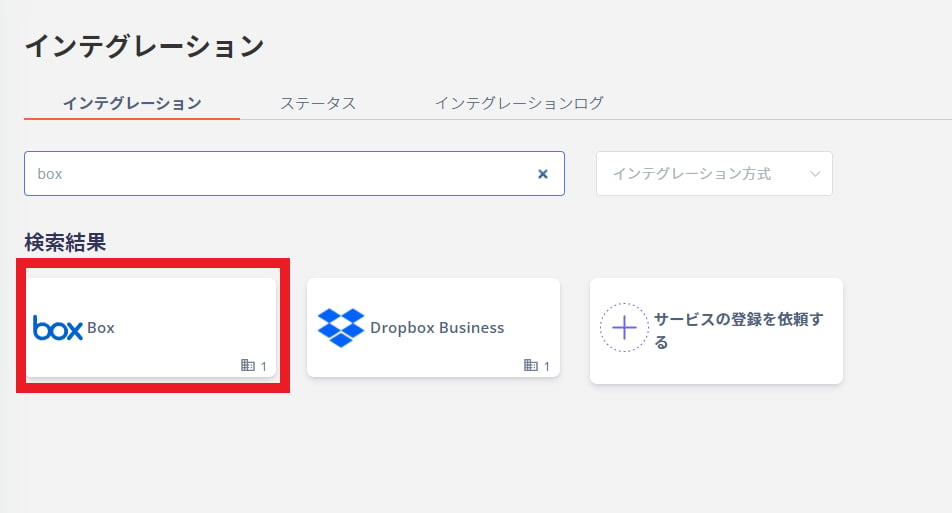
1. Adminaのインテグレーション > インテグレーションで、「**Box**」を検索します。
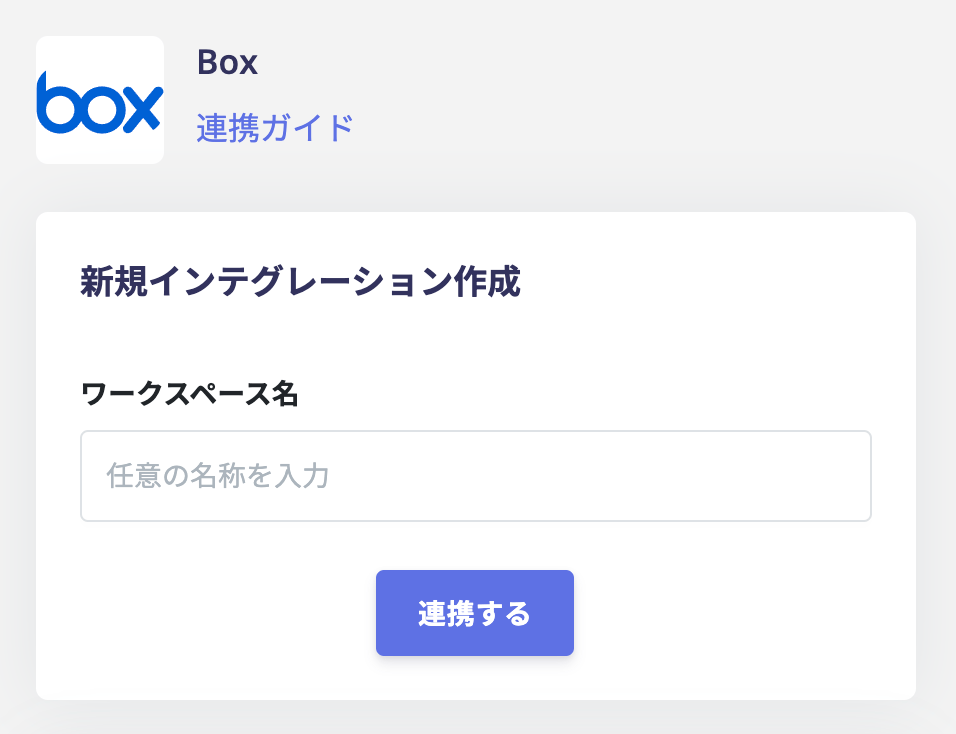
 2. \*\*ワークスペース名には任意の名前(会社名など)\*\*を入力し、**連携する**をクリックします。
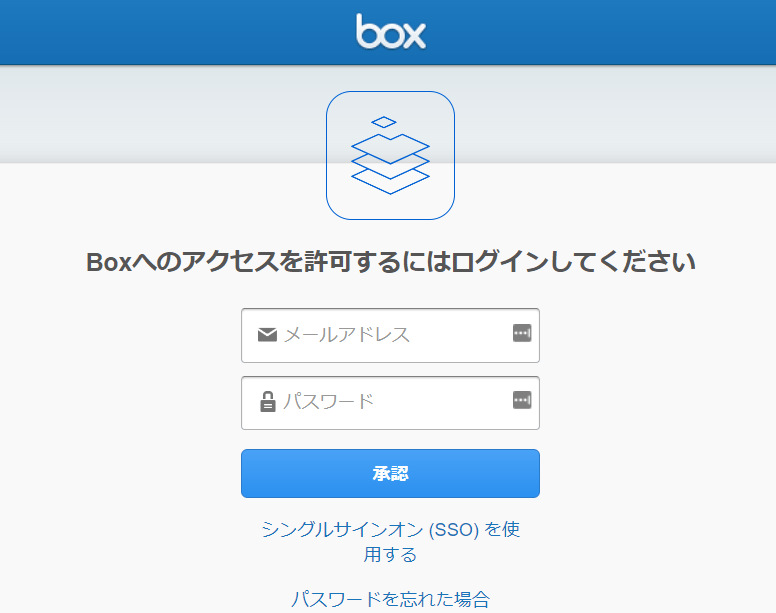
 3. Boxのログインページに移動します。**メールアドレス・パスワード**を入力し、**ログイン**します。
 4. 以下の画面が表示されますので、**Grant access to Box**をクリックします。
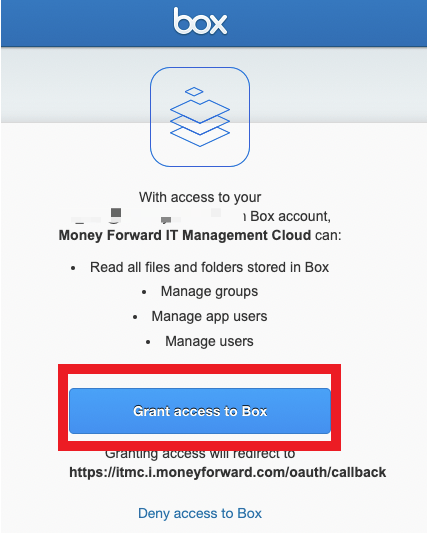 5. Boxとの連携に成功すると、アカウント一覧に登録済みのユーザー情報が表示されます。
正常に完了しない場合は、インテグレーション画面のステータスタブから**編集**し、再度連携をお試しください。
解決しない場合はチャットにてお問い合わせください。Boxの連携概要については[連携ページ](http://admina.moneyforward.com/jp/integrations/box)をご覧ください。
### アプリケーションの許可設定
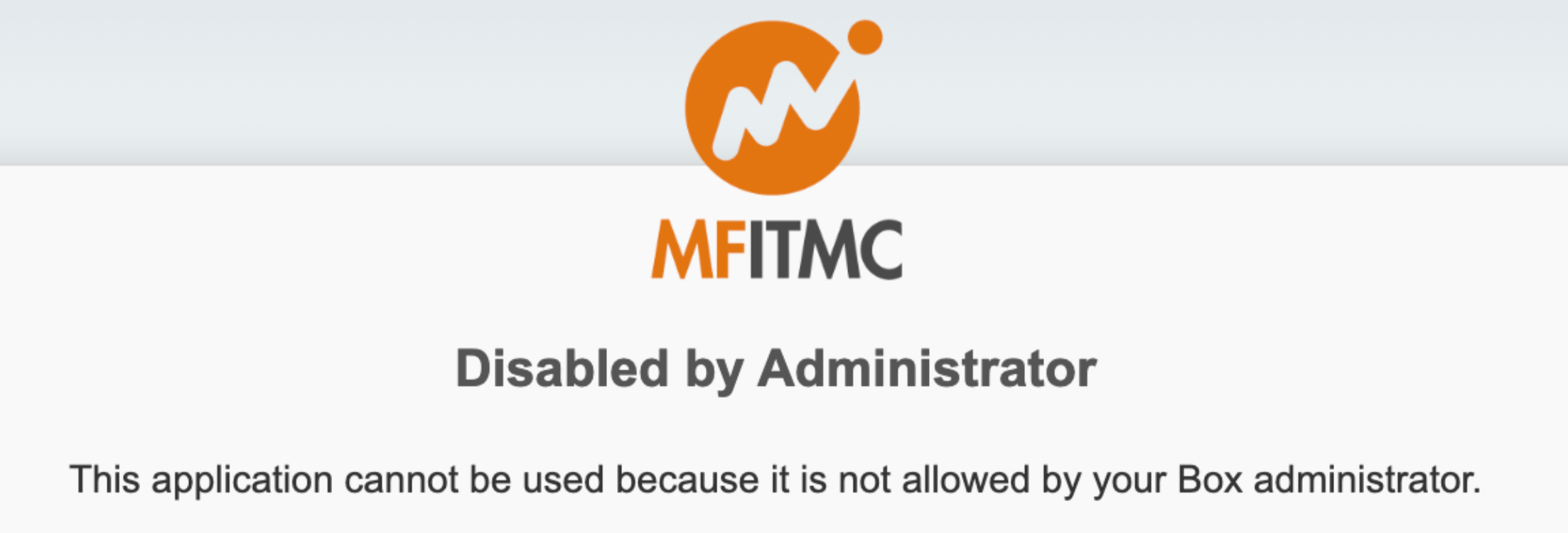
ご利用の組織によっては、下記のような画面が表示され連携に失敗するケースがあります。
この場合、Admina連携用のアプリケーションを次の画面から許可ください。
Box > Admin console > App > Custom App Manager から下記のClient IDを追加し、再連携ください。
```
at43uoo6x1t501uopl7xhlrhgbf48oaw
```
5. Boxとの連携に成功すると、アカウント一覧に登録済みのユーザー情報が表示されます。
正常に完了しない場合は、インテグレーション画面のステータスタブから**編集**し、再度連携をお試しください。
解決しない場合はチャットにてお問い合わせください。Boxの連携概要については[連携ページ](http://admina.moneyforward.com/jp/integrations/box)をご覧ください。
### アプリケーションの許可設定
ご利用の組織によっては、下記のような画面が表示され連携に失敗するケースがあります。
この場合、Admina連携用のアプリケーションを次の画面から許可ください。
Box > Admin console > App > Custom App Manager から下記のClient IDを追加し、再連携ください。
```
at43uoo6x1t501uopl7xhlrhgbf48oaw
```
 ## 公開ファイル機能
Boxと連携することで、Boxにある外部公開ファイル情報を取得します。([外部共有コンテンツ管理機能について](/it-management/file-management/aakpi1r7gq-file-management))
全体公開されているファイルがあればお知らせする機能の利用が可能です。詳細は[検出条件](/it-management/file-management/3dcsdrnc1a-google-form#detection-criteria)をご覧ください。
参照にはAdminaのAdminロールが必要です。
### 共有設定を停止する
Adminaからファイルの共有設定を変更(停止)できます。これにより、危険性の高いファイルの共有を即座に停止することが可能となります。
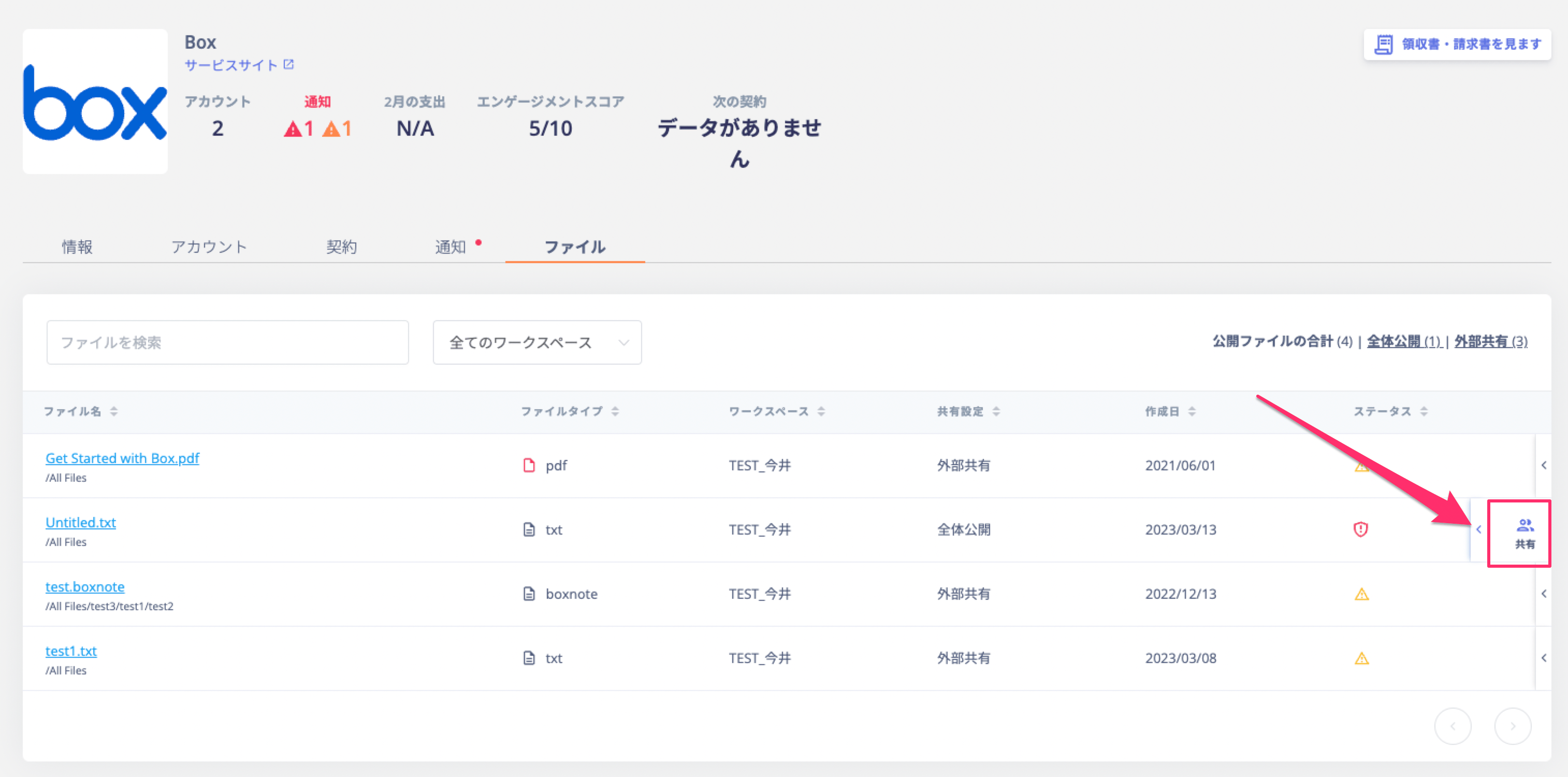
1. 設定を変更したいファイルの右端をクリックし、\[共有]をクリックします。
## 公開ファイル機能
Boxと連携することで、Boxにある外部公開ファイル情報を取得します。([外部共有コンテンツ管理機能について](/it-management/file-management/aakpi1r7gq-file-management))
全体公開されているファイルがあればお知らせする機能の利用が可能です。詳細は[検出条件](/it-management/file-management/3dcsdrnc1a-google-form#detection-criteria)をご覧ください。
参照にはAdminaのAdminロールが必要です。
### 共有設定を停止する
Adminaからファイルの共有設定を変更(停止)できます。これにより、危険性の高いファイルの共有を即座に停止することが可能となります。
1. 設定を変更したいファイルの右端をクリックし、\[共有]をクリックします。
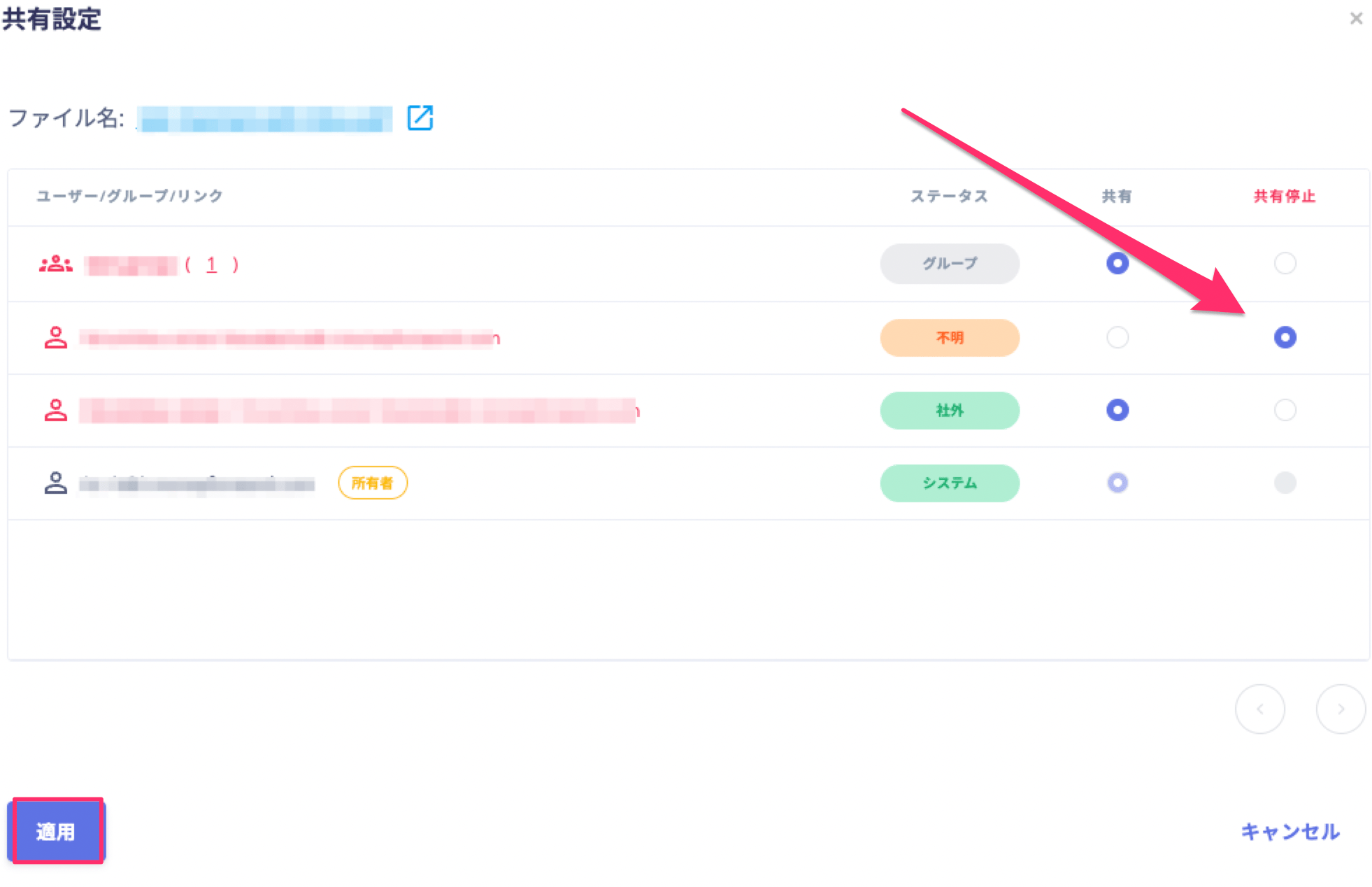
 2. 共有されているユーザーの一覧が表示されます。共有を停止したユーザーについて、\[**共有停止**]を選択し、\[**適用**]をクリックします。
 3. 権限を更新する画面が表示されますので、内容を確認し、\[閉じる]をクリックします。