> ## Documentation Index
> Fetch the complete documentation index at: https://support.i.moneyforward.com/llms.txt
> Use this file to discover all available pages before exploring further.

# Canva

> Canvaとの連携の手順です。

<Info>
  [Canva エンタープライズ](https://www.canva.com/ja_jp/enterprise/)との連携に対応しています。
</Info>

## 事前準備

### Canvaへのログイン方法

[Canvaログインページ](https://www.canva.com/login/)にて、ご利用のログイン方法またはメールアドレス・パスワードを入力し、ログインします。
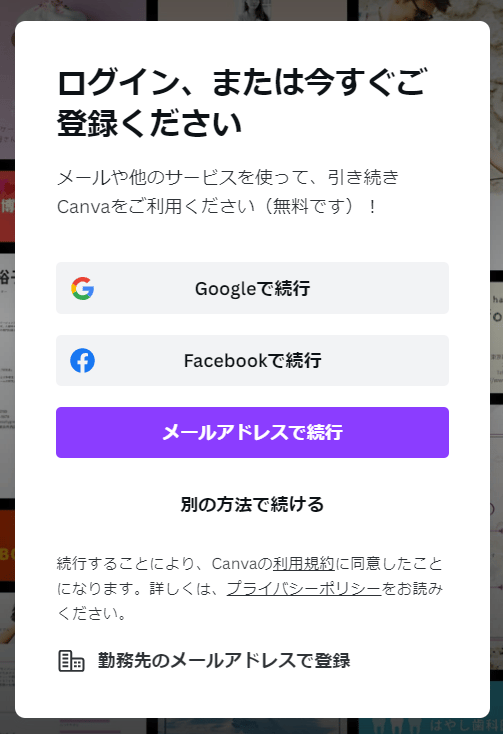
<img src="https://mintcdn.com/moneyforwardi/QzbS1Vmxd8p6iTrg/images/integrations/ww8qpvqk37/1662086052549-image.png?fit=max&auto=format&n=QzbS1Vmxd8p6iTrg&q=85&s=851a7f43a700d511e6259bbe6b149879" alt="Canvaログイン画面" width="503" height="734" data-path="images/integrations/ww8qpvqk37/1662086052549-image.png" />

### アクセスキーの取得方法

アクセスキーの取得方法は[エンタープライズ用にシングルサインオン（ SSO ）を設定する（外部サイト）](https://www.canva.com/help/set-up-sso/)もご参照ください。

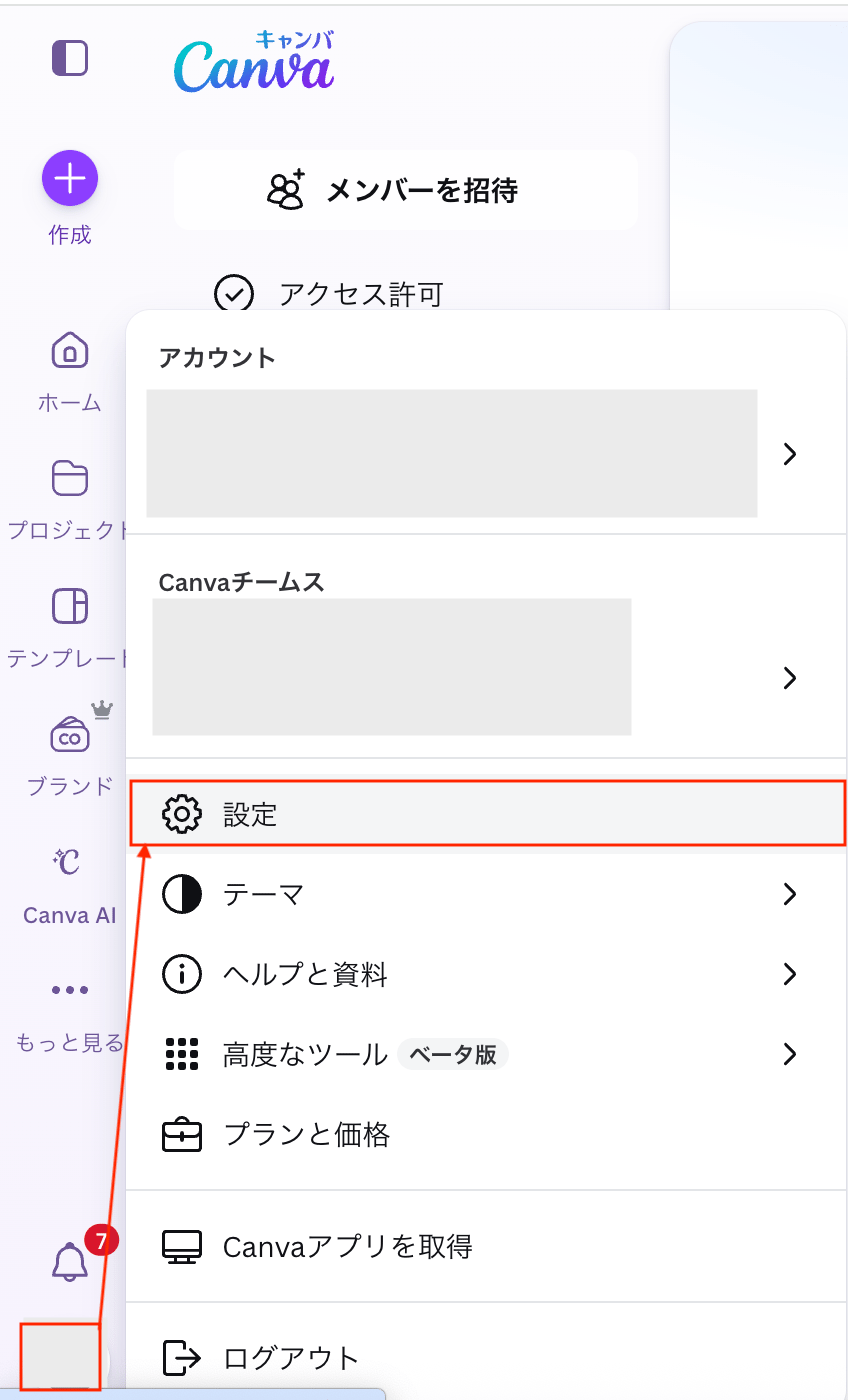
1. Canvaにログインし、左下のアカウント > \[設定] をクリックします。
<img src="https://mintcdn.com/moneyforwardi/QzbS1Vmxd8p6iTrg/images/integrations/ww8qpvqk37/1774952995119-2026-03-31-19-09-38.png?fit=max&auto=format&n=QzbS1Vmxd8p6iTrg&q=85&s=99cd5af1870c13657dc602c3b0092cb3" alt="アカウント設定" width="848" height="1400" data-path="images/integrations/ww8qpvqk37/1774952995119-2026-03-31-19-09-38.png" />

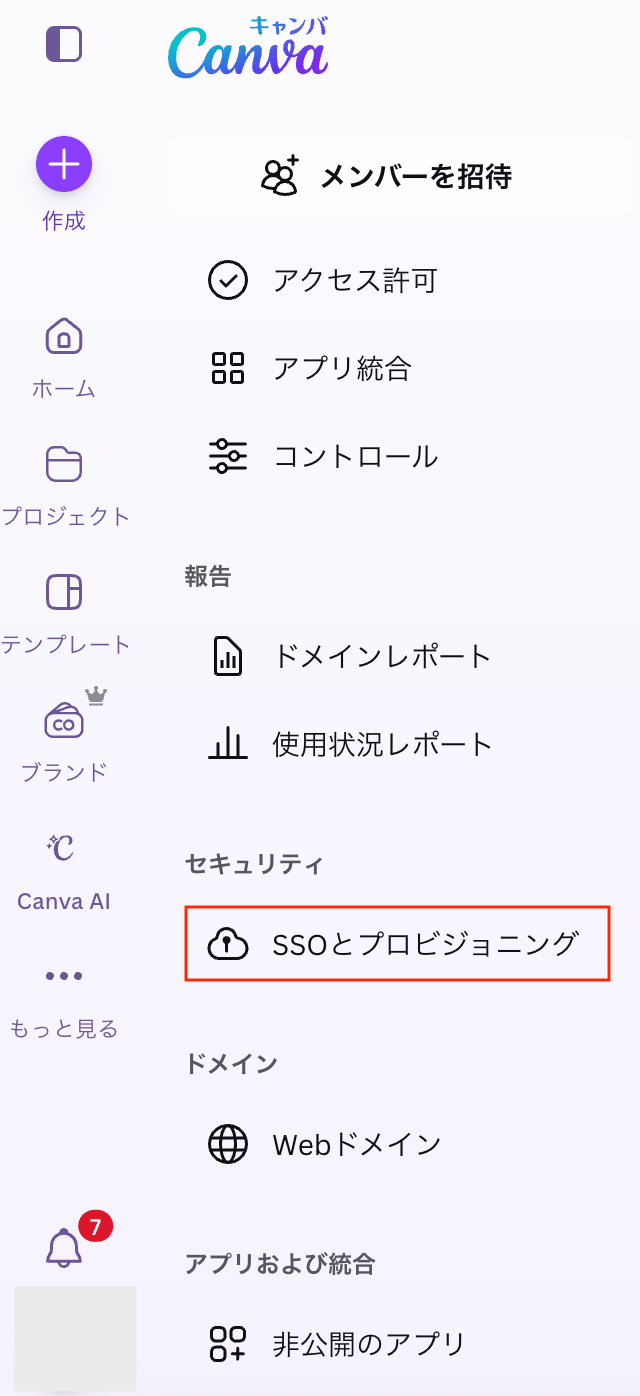
2. \[SSOとプロビジョニング] をクリックします。

<img src="https://mintcdn.com/moneyforwardi/QzbS1Vmxd8p6iTrg/images/integrations/ww8qpvqk37/1774953017584-2026-03-31-19-09-50.png?fit=max&auto=format&n=QzbS1Vmxd8p6iTrg&q=85&s=2d3baeccec7d8485e66ba07e5e8e1e36" alt="SSOとプロビジョニング" width="640" height="1396" data-path="images/integrations/ww8qpvqk37/1774953017584-2026-03-31-19-09-50.png" />

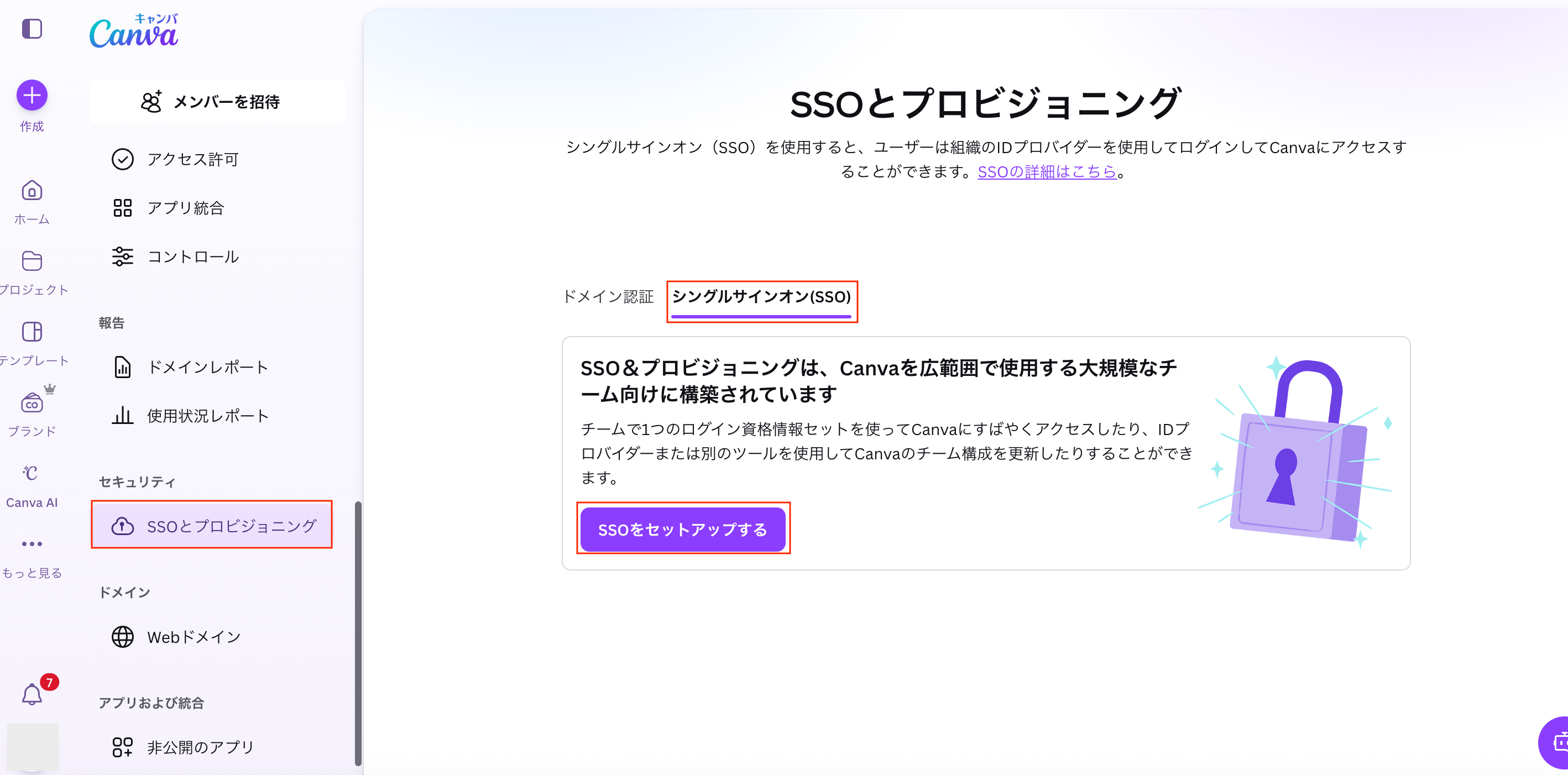
3. 「SSOとプロビジョニング」画面の「シングルサインオン(SSO)」タブ > \[SSOをセットアップする] をクリックします。
<img src="https://mintcdn.com/moneyforwardi/QzbS1Vmxd8p6iTrg/images/integrations/ww8qpvqk37/1774953077762-2026-03-31-19-10-01.png?fit=max&auto=format&n=QzbS1Vmxd8p6iTrg&q=85&s=89307d0c615e29dee7e5296c37457966" alt="SSOをセットアップする" width="2836" height="1402" data-path="images/integrations/ww8qpvqk37/1774953077762-2026-03-31-19-10-01.png" />

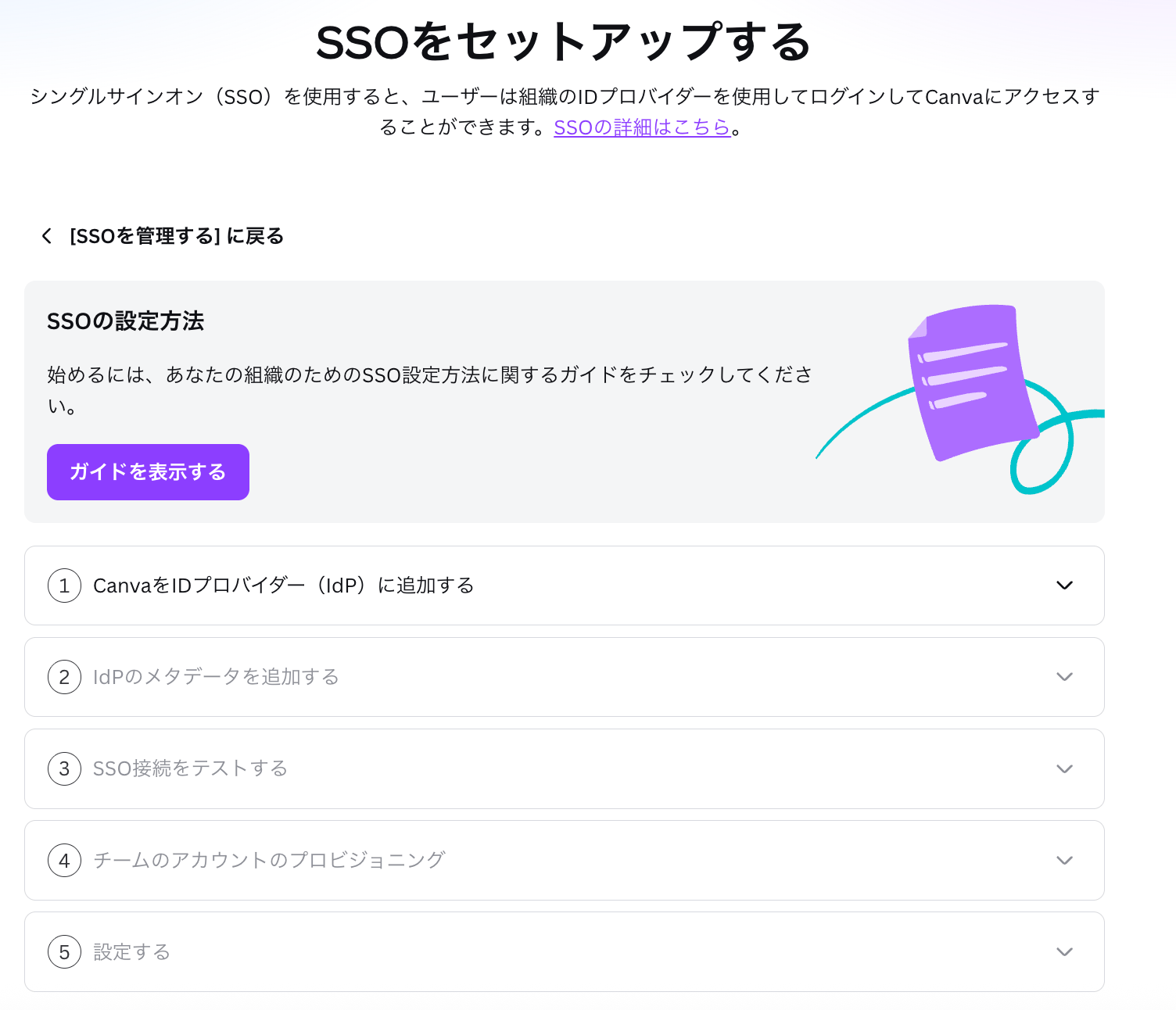
4. 「SSOをセットアップする」画面を設定します。
   設定方法は[エンタープライズ用にシングルサインオン（ SSO ）を設定する（外部サイト）](https://www.canva.com/help/set-up-sso/)をご参照ください。
<img src="https://mintcdn.com/moneyforwardi/QzbS1Vmxd8p6iTrg/images/integrations/ww8qpvqk37/1774953182817-2026-03-31-19-20-55.png?fit=max&auto=format&n=QzbS1Vmxd8p6iTrg&q=85&s=4193b2ff7d87beba6c7daa8b3f061cf2" alt="SSOセットアップ画面" width="1504" height="1292" data-path="images/integrations/ww8qpvqk37/1774953182817-2026-03-31-19-20-55.png" />

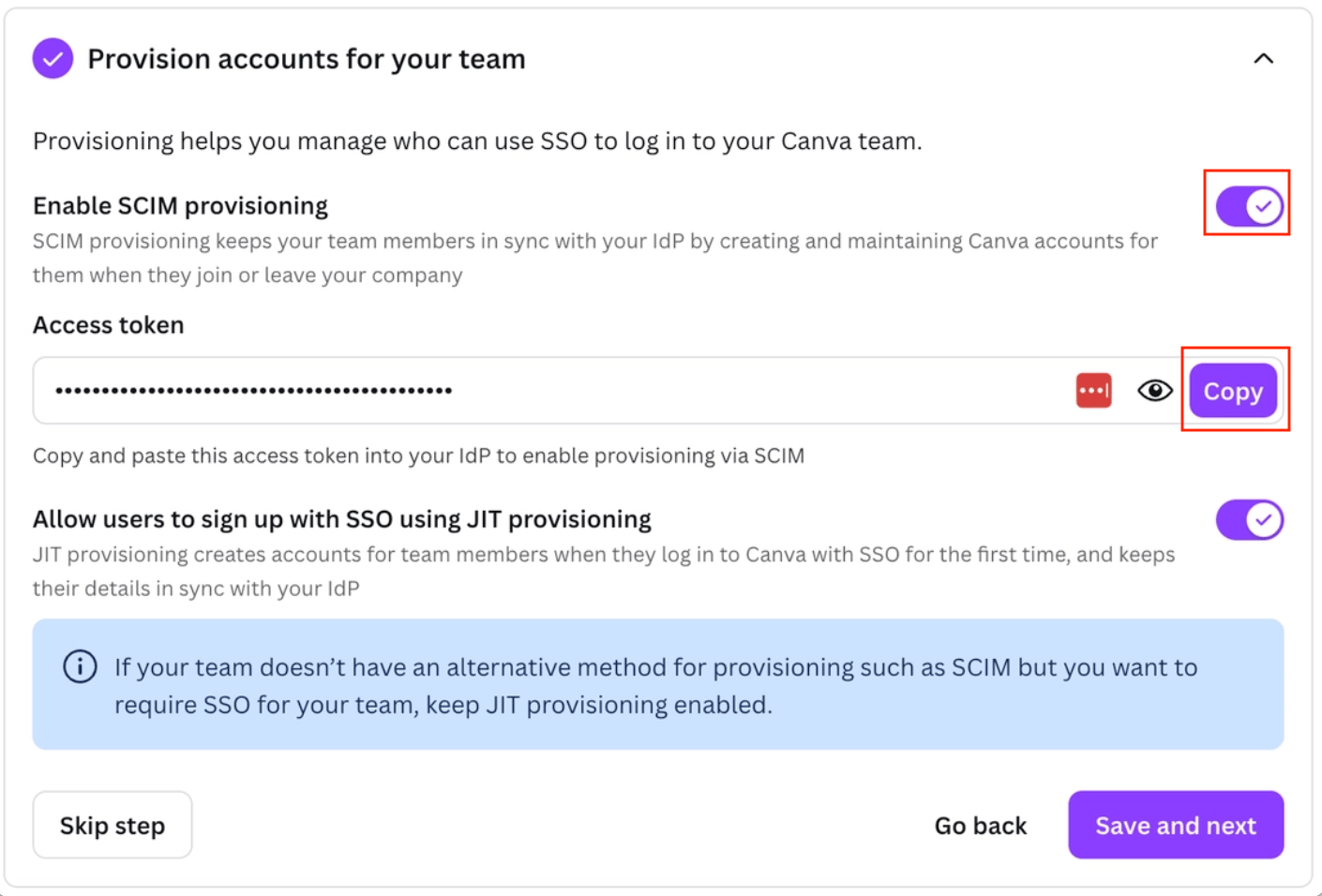
5. 「チームのアカウントのプロビジョニング」画面でアクセスキーを発行します。
   ※画像は「Provision accounts for your team」画面です。以下の設定し、アクセスキーをコピーします。
<img src="https://mintcdn.com/moneyforwardi/QzbS1Vmxd8p6iTrg/images/integrations/ww8qpvqk37/1774953666201-2026-03-31-19-39-23.png?fit=max&auto=format&n=QzbS1Vmxd8p6iTrg&q=85&s=1a3007d10cc94f5aca0ae0c048ba23d8" alt="アクセスキー発行" width="1410" height="956" data-path="images/integrations/ww8qpvqk37/1774953666201-2026-03-31-19-39-23.png" />

## インテグレーションのセットアップ

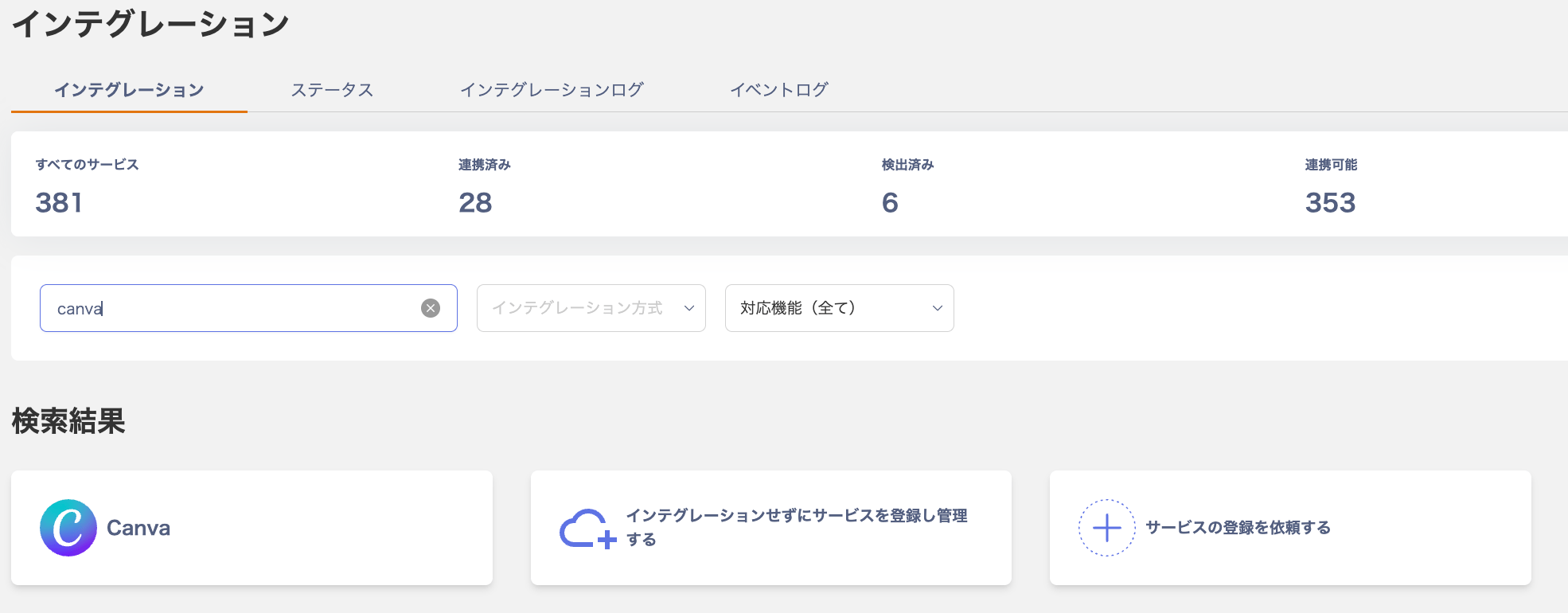
1. Adminaのインテグレーション画面にて、**Canva**を検索します。
<img src="https://mintcdn.com/moneyforwardi/QzbS1Vmxd8p6iTrg/images/integrations/ww8qpvqk37/1774865337643-2026-03-30-19-06-47.png?fit=max&auto=format&n=QzbS1Vmxd8p6iTrg&q=85&s=58246b1d7170bf9ec26c9f76a033d3b7" alt="Admina連携画面でCanvaを検索" width="1970" height="770" data-path="images/integrations/ww8qpvqk37/1774865337643-2026-03-30-19-06-47.png" />

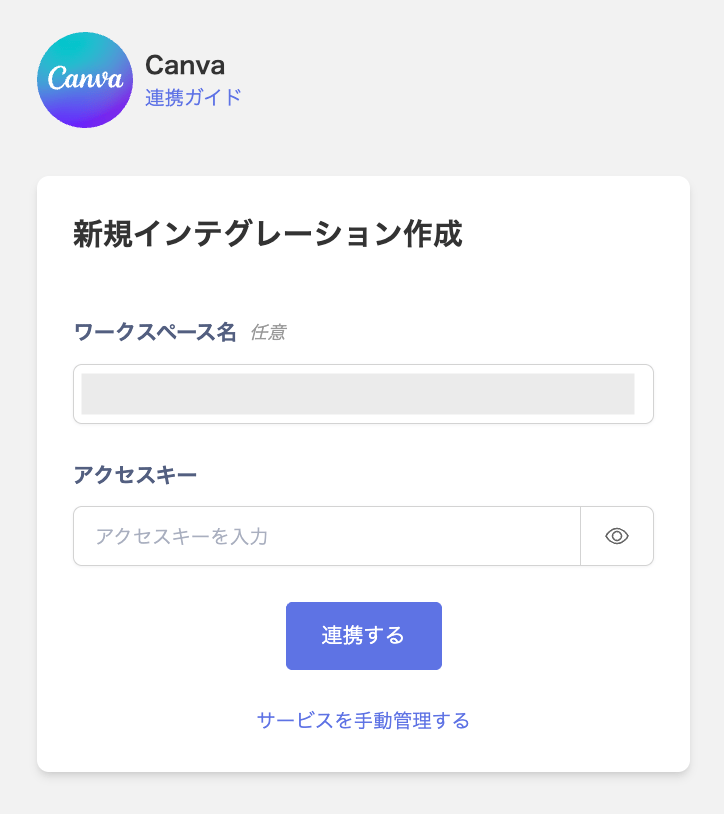
2. **管理者権限を持つメールアドレス・パスワード、前の手順で取得したワークスペースキー**を入力し、**連携する**をクリックします。
<img src="https://mintcdn.com/moneyforwardi/QzbS1Vmxd8p6iTrg/images/integrations/ww8qpvqk37/1774865379406-2026-03-30-19-06-57.png?fit=max&auto=format&n=QzbS1Vmxd8p6iTrg&q=85&s=67a980de70088b7be515116b28f15439" alt="連携情報の入力" width="724" height="814" data-path="images/integrations/ww8qpvqk37/1774865379406-2026-03-30-19-06-57.png" />

3. 連携に成功すると、アカウント一覧に登録済みのユーザー情報が表示されます。

正常に完了しない場合は、インテグレーション画面のステータスタブから**編集**し、再度連携をお試しください。

解決しない場合はチャットにてお問い合わせください🙏