> ## Documentation Index
> Fetch the complete documentation index at: https://support.i.moneyforward.com/llms.txt
> Use this file to discover all available pages before exploring further.
# Exment
> Exmentの連携方法です。マネーフォワードAdminaからExmentへの、管理者のログインから、連携方法まで一連の手順を解説します。
## サポートする機能
アカウント削除
## 事前準備
### Exmentへのログイン方法
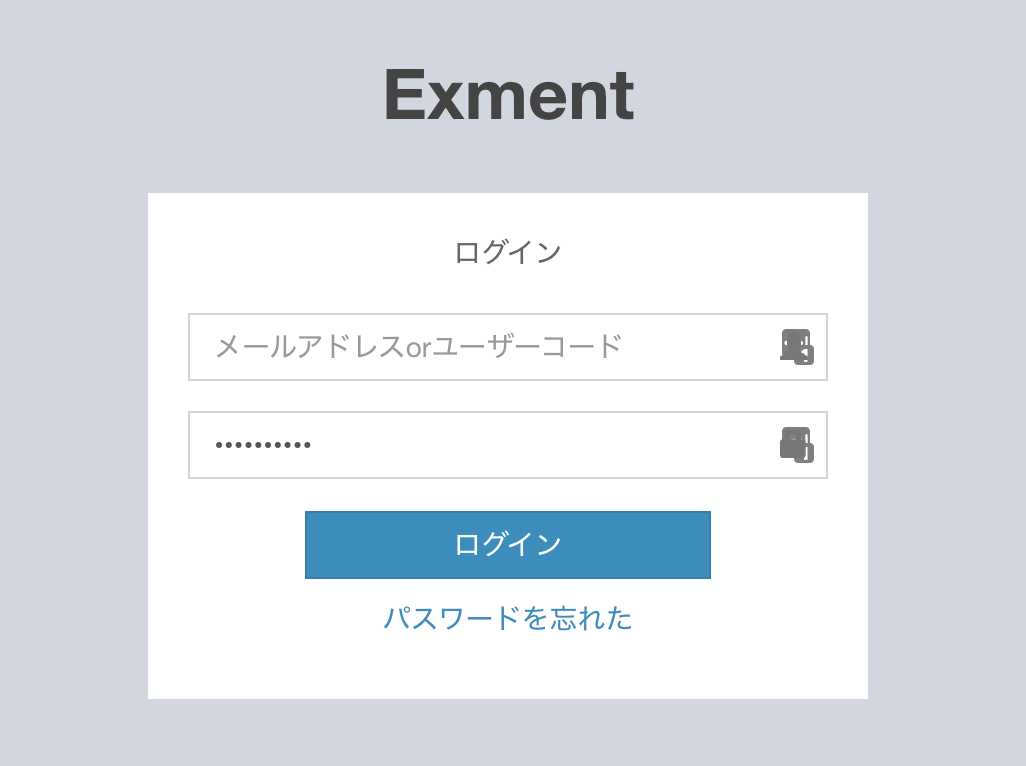
Exmentのログインページにて、メールアドレス(もしくはユーザーコード)・パスワードを入力しログインします。
 ### ワークスペースキーの取得方法
Exmentログイン後、URLの一部がワークスペースキーとなるので、保存しておきます。
https\://`{ワークスペースキー}`.exment.net
### ワークスペースキーの取得方法
Exmentログイン後、URLの一部がワークスペースキーとなるので、保存しておきます。
https\://`{ワークスペースキー}`.exment.net
 ### APIの有効化
ExmentでAPIを利用するため、以下のドキュメントを参考にAPIを有効化ください。
[Exmentマニュアル:API設定](https://exment.net/docs/#/ja/api?id=api%e8%a8%ad%e5%ae%9a)
### クライアントID、シークレットキーの確認方法
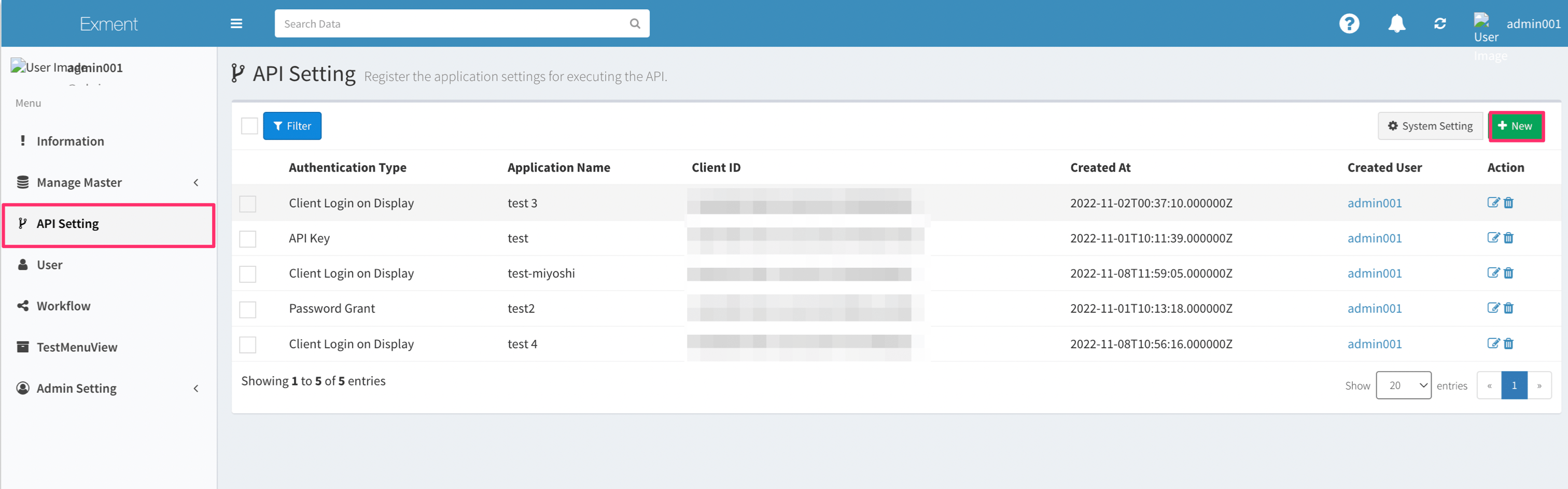
管理者画面のAPI設定に移動し、右上の「New」ボタンをクリックします。
### APIの有効化
ExmentでAPIを利用するため、以下のドキュメントを参考にAPIを有効化ください。
[Exmentマニュアル:API設定](https://exment.net/docs/#/ja/api?id=api%e8%a8%ad%e5%ae%9a)
### クライアントID、シークレットキーの確認方法
管理者画面のAPI設定に移動し、右上の「New」ボタンをクリックします。
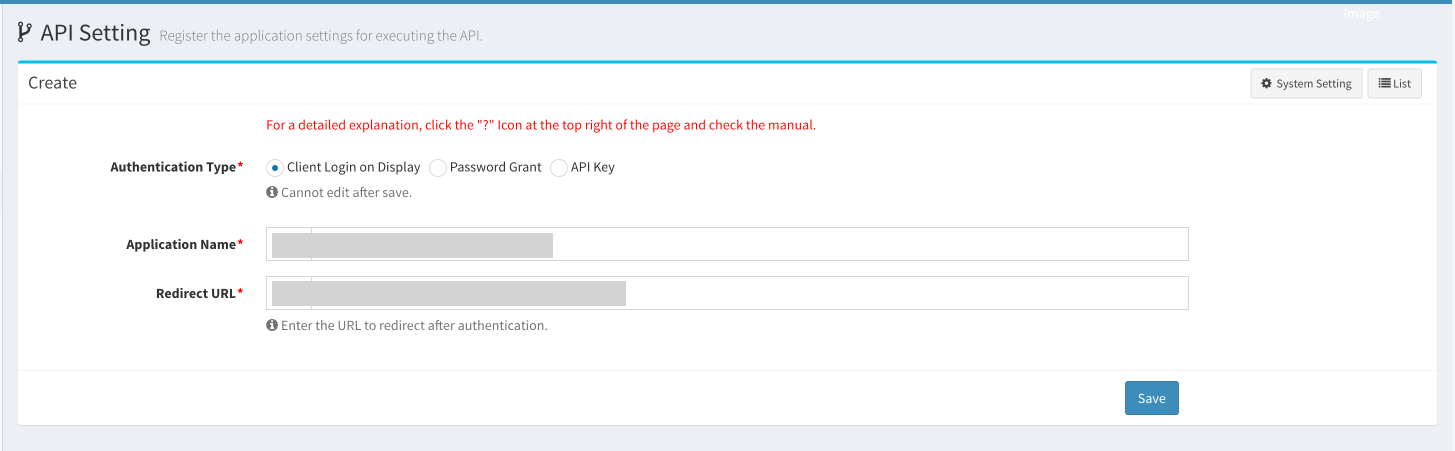
 API keyを作成します。以下の通り入力し、**Save**をクリックします。
* Authentication Type:`Client Login on Display`
* Application Name:`Moneyforward IT Management Cloud`
* Redirect URL:`https://itmc.i.moneyforward.com/oauth/callback`
API keyを作成します。以下の通り入力し、**Save**をクリックします。
* Authentication Type:`Client Login on Display`
* Application Name:`Moneyforward IT Management Cloud`
* Redirect URL:`https://itmc.i.moneyforward.com/oauth/callback`
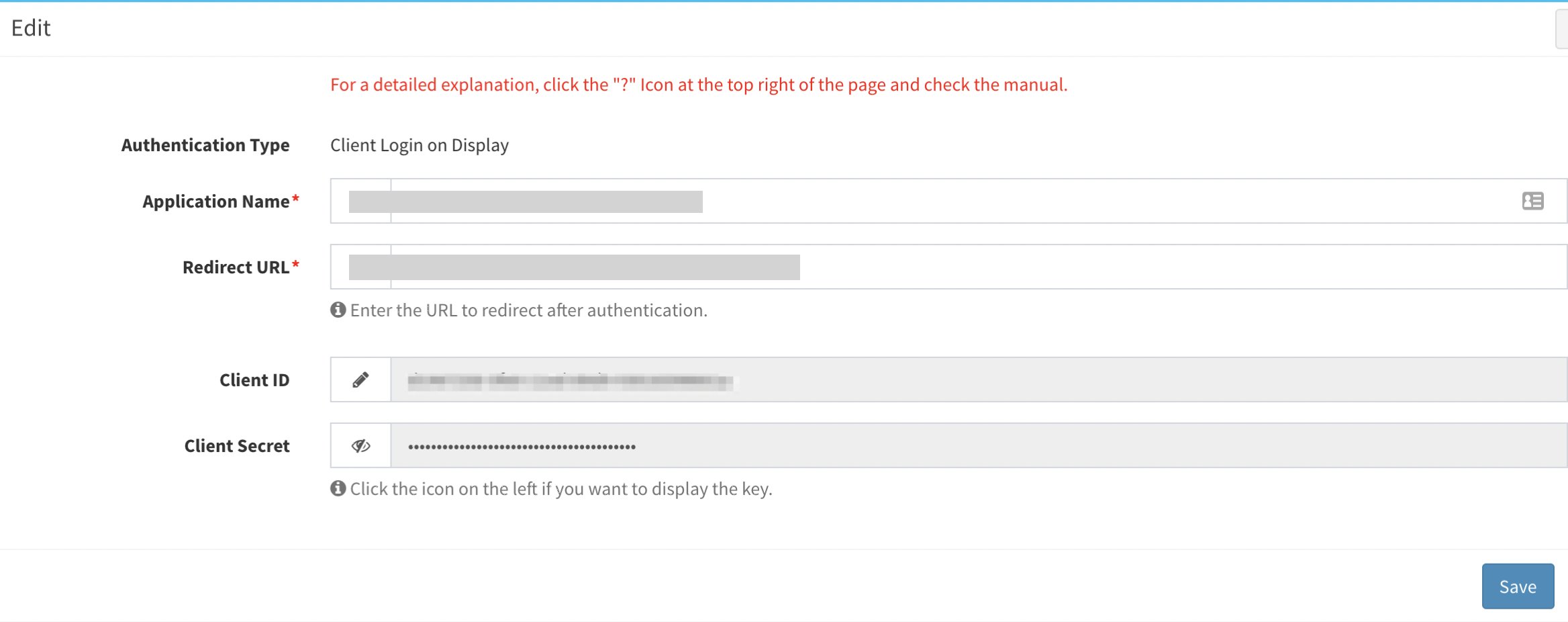
 Client IDとClient secretが表示されます。Client IDがクライアントID、Client secretがクライアントシークレットとなるので、それぞれ保存します。(画面を閉じた後もコピーは可能です)
 ## インテグレーションのセットアップ
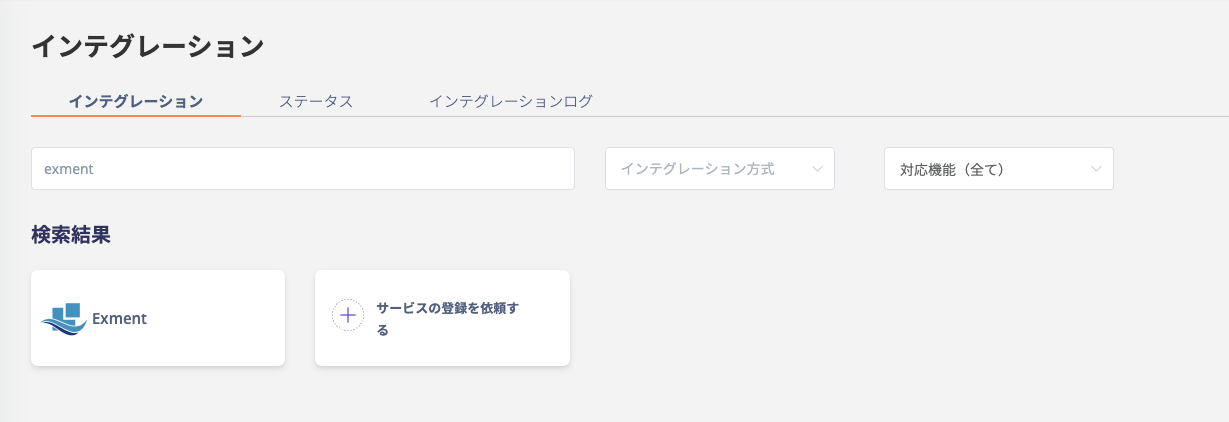
マネーフォワードAdminaのインテグレーション画面に、**Exment**で検索します。
## インテグレーションのセットアップ
マネーフォワードAdminaのインテグレーション画面に、**Exment**で検索します。
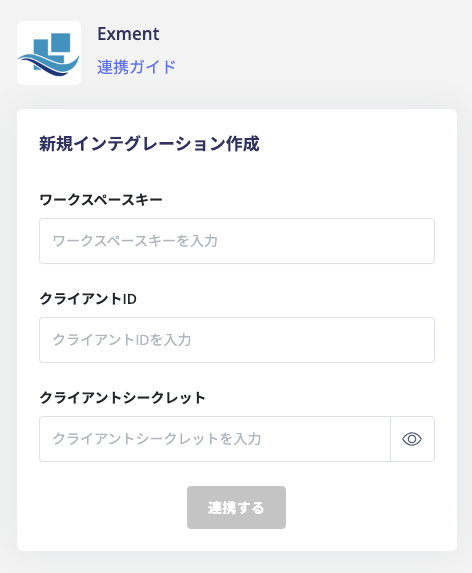
 前の手順で取得した**ワークスペースキー、クライアントID、クライアントシークレット**を入力し、**連携する**をクリックします。
 Exment との連携に成功すると、アカウント一覧に登録済みのユーザー情報が表示されます。
正常に完了しない場合は、インテグレーション画面のステータスタブから**編集**し、再度連携をお試しください。
解決しない場合はチャットにてお問い合わせください。
Exmentの連携概要については[連携ページ](http://admina.moneyforward.com/jp/integrations/exment)をご覧ください。
Exment との連携に成功すると、アカウント一覧に登録済みのユーザー情報が表示されます。
正常に完了しない場合は、インテグレーション画面のステータスタブから**編集**し、再度連携をお試しください。
解決しない場合はチャットにてお問い合わせください。
Exmentの連携概要については[連携ページ](http://admina.moneyforward.com/jp/integrations/exment)をご覧ください。