> ## Documentation Index
> Fetch the complete documentation index at: https://support.i.moneyforward.com/llms.txt
> Use this file to discover all available pages before exploring further.
# Huntress
> Huntressとの連携方法です。マネーフォワードAdminaからHuntressへの、管理者のログインから、連携方法まで一連の手順を解説します。
## 事前準備
### Huntressへのログイン方法
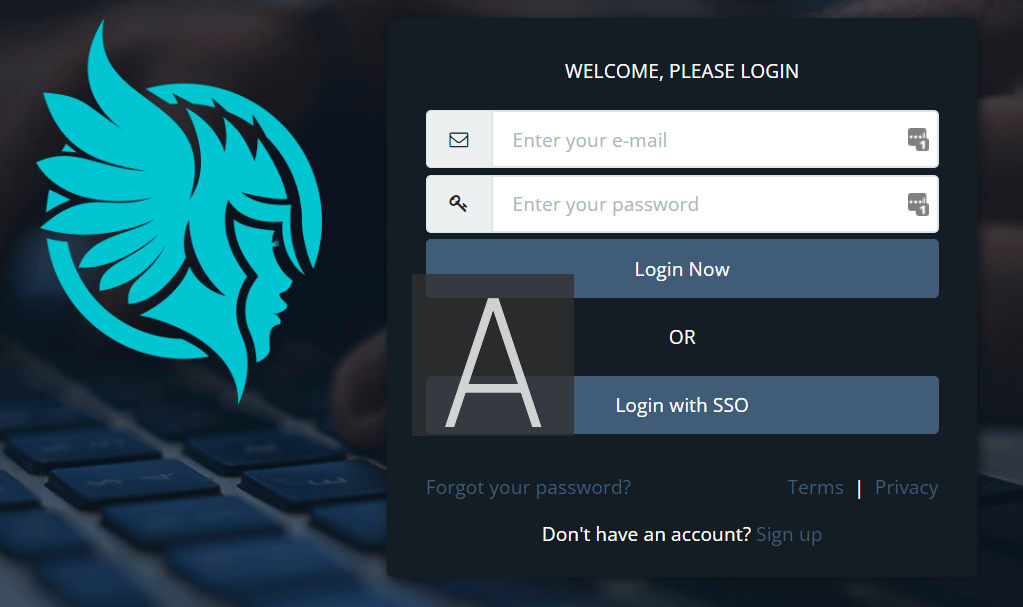
[Huntressログインページ](https://huntress.io/login)にて、メールアドレス・パスワードなどを入力しログインします。
 ### ワークスペースキーの取得方法
Huntressにログイン後、上部メニュータブから**Organization > 連携するOrganization**を選択します。
### ワークスペースキーの取得方法
Huntressにログイン後、上部メニュータブから**Organization > 連携するOrganization**を選択します。
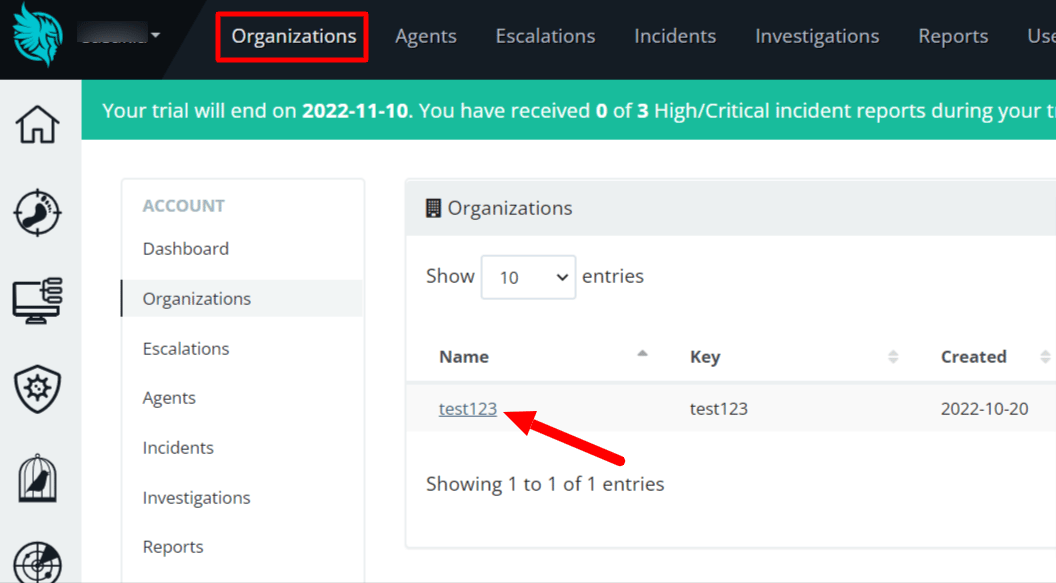 連携するOrganizationページの**URLの一部がワークスペースキー**となるので、保存します。
https\://****.huntress.io/org/ **`{ワークスペースキー}`**
### 2段階認証(QRコード、秘密鍵)の取得方法
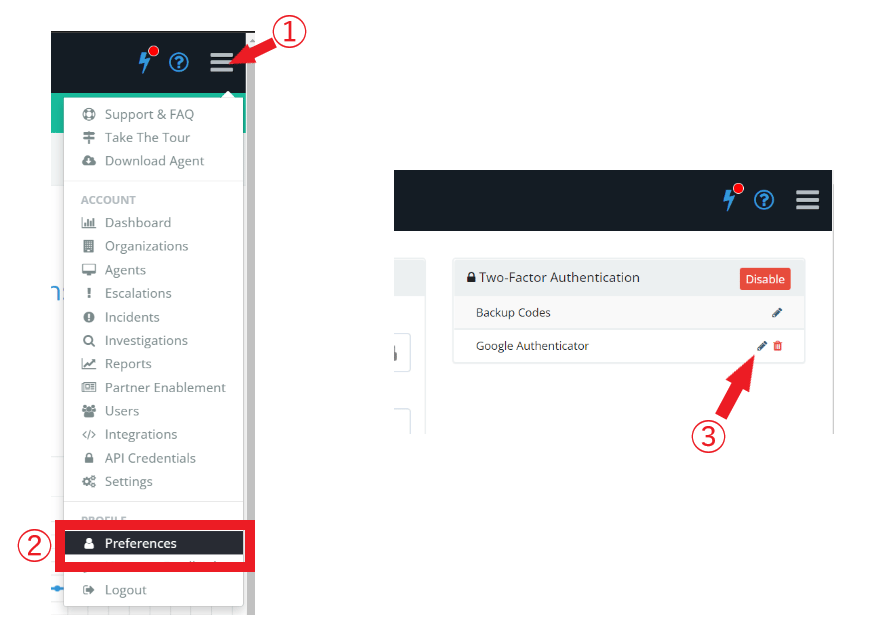
**右上のメニューアイコン > Preferences**と進み、Two-Facter Authenticationの**Google Authenticator** の **編集** ✎をクリックします。
連携するOrganizationページの**URLの一部がワークスペースキー**となるので、保存します。
https\://****.huntress.io/org/ **`{ワークスペースキー}`**
### 2段階認証(QRコード、秘密鍵)の取得方法
**右上のメニューアイコン > Preferences**と進み、Two-Facter Authenticationの**Google Authenticator** の **編集** ✎をクリックします。
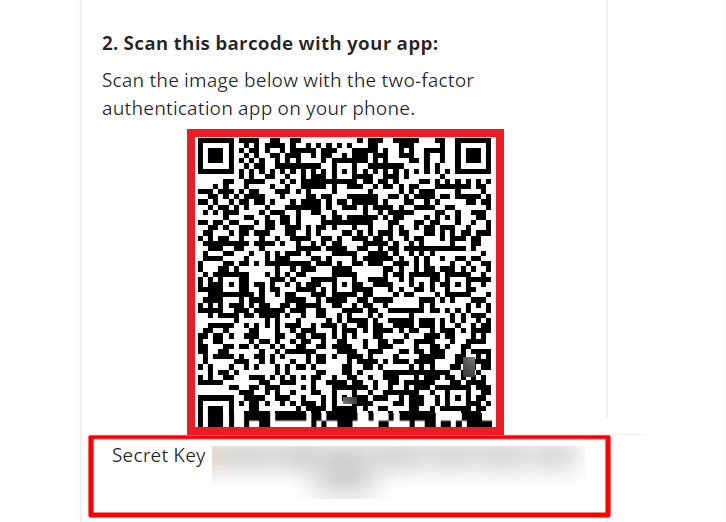
 **QRコードとSecret Key**が表示されますので、
* QRコードで連携する場合は、表示されている**QRコードをスクリーンショットし保存**します。
* 秘密鍵で連携する場合は、**Secret Key を保存**します。
**QRコードとSecret Key**が表示されますので、
* QRコードで連携する場合は、表示されている**QRコードをスクリーンショットし保存**します。
* 秘密鍵で連携する場合は、**Secret Key を保存**します。
 ## インテグレーションのセットアップ
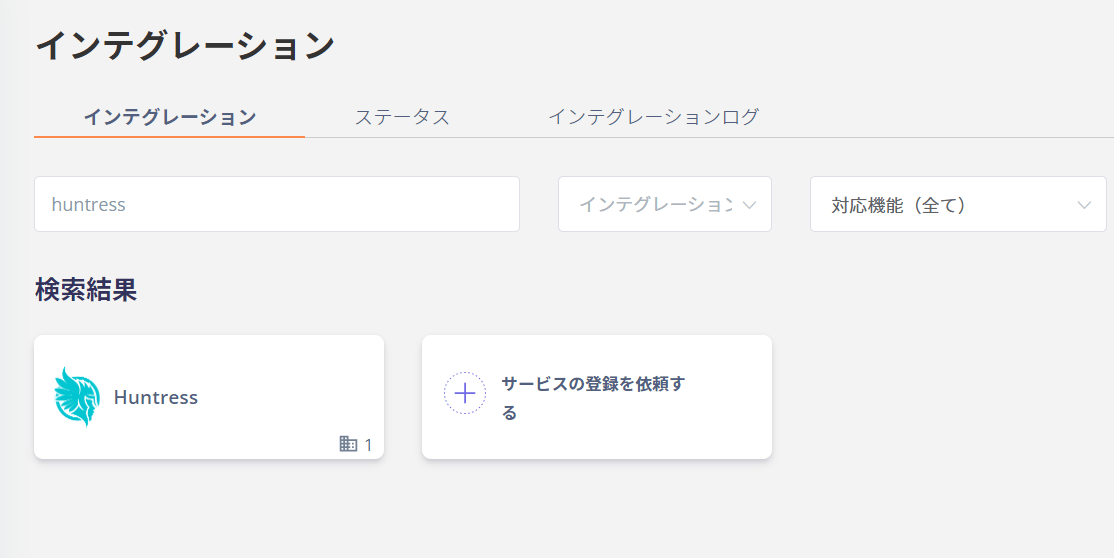
インテグレーション画面にて、**Huntress**で検索します。
## インテグレーションのセットアップ
インテグレーション画面にて、**Huntress**で検索します。
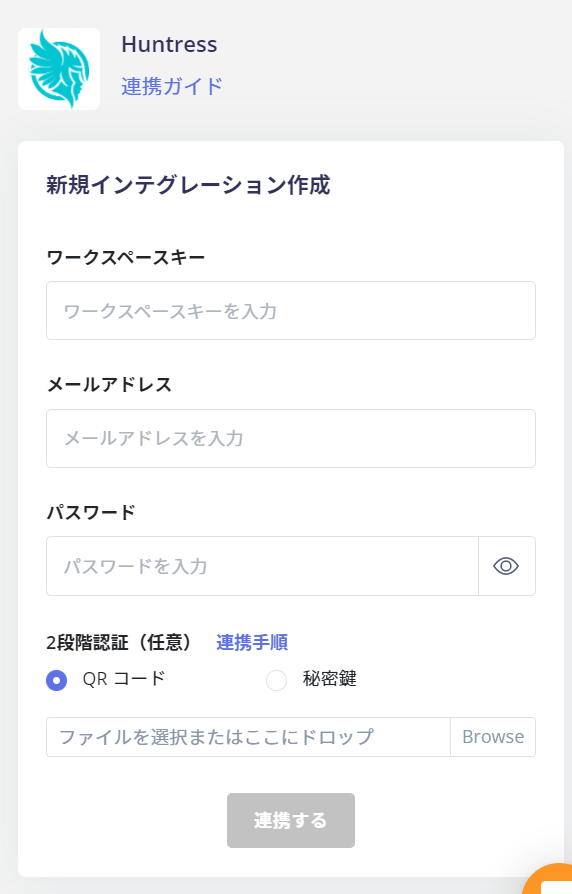
 前の手順で取得した**ワークスペースキー** と **2段階認証**、Huntressログイン用の**メールアドレス・パスワード**を入力し、**連携する**をクリックします。
 Huntressとの連携に成功すると、アカウント一覧に登録済みのユーザー情報が表示されます。
正常に完了しない場合は、インテグレーション画面のステータスタブから**編集**し、再度連携をお試しください。
解決しない場合はチャットにてお問い合わせください。
Huntressの連携概要については[連携ページ](http://admina.moneyforward.com/jp/integrations/huntress)をご覧ください。
## 補足
サインアップ直後では、Organizationにサインアップしたアカウント自身が含まれていません。
マネーフォワードAdminaはOrganizationのアカウントを取得しますが、サインアップしたアカウントが取得されないため、手動でOrganizationにサインアップアカウントを追加し、再度同期を実行ください。
Huntressとの連携に成功すると、アカウント一覧に登録済みのユーザー情報が表示されます。
正常に完了しない場合は、インテグレーション画面のステータスタブから**編集**し、再度連携をお試しください。
解決しない場合はチャットにてお問い合わせください。
Huntressの連携概要については[連携ページ](http://admina.moneyforward.com/jp/integrations/huntress)をご覧ください。
## 補足
サインアップ直後では、Organizationにサインアップしたアカウント自身が含まれていません。
マネーフォワードAdminaはOrganizationのアカウントを取得しますが、サインアップしたアカウントが取得されないため、手動でOrganizationにサインアップアカウントを追加し、再度同期を実行ください。