> ## Documentation Index
> Fetch the complete documentation index at: https://support.i.moneyforward.com/llms.txt
> Use this file to discover all available pages before exploring further.
# 2-4.【カスタムアプリ】アイコンを編集する
> カスタムアプリのアイコンを編集する方法を説明します。
カスタムアプリのアイコンを編集する方法です。
1. サービス > カスタムアプリを選択し、画面右上の\[**アイコンを編集**]をクリックします。
 2. 「アイコンを編集」画面で\[**ファイルを選択**]をクリックし、アイコンに使用する画像ファイルを選択します。
対応しているファイル形式と要件は以下の通りです。
| 項目 | 内容 |
| ------- | ---------------- |
| 対応形式 | PNG / JPEG / SVG |
| ファイルサイズ | 最大1MBまで |
| 解像度 | 最小128×128px以上 |
2. 「アイコンを編集」画面で\[**ファイルを選択**]をクリックし、アイコンに使用する画像ファイルを選択します。
対応しているファイル形式と要件は以下の通りです。
| 項目 | 内容 |
| ------- | ---------------- |
| 対応形式 | PNG / JPEG / SVG |
| ファイルサイズ | 最大1MBまで |
| 解像度 | 最小128×128px以上 |
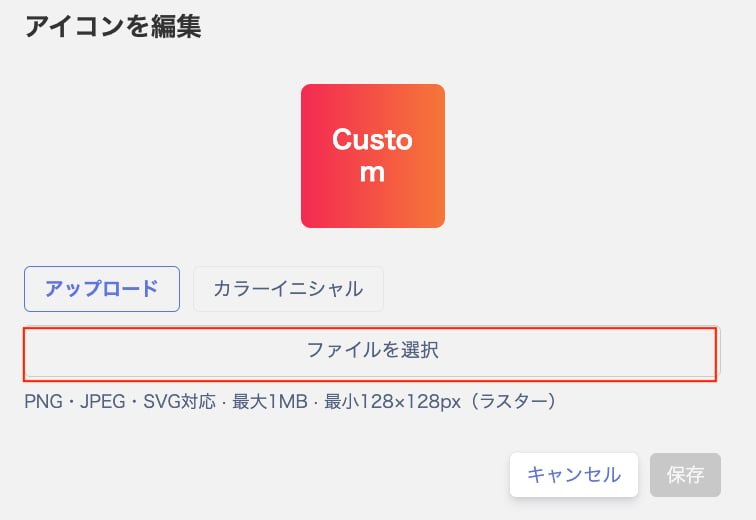 3. ファイルを選択後、\[**保存**]をクリックすると、アイコンの変更が反映されます。