> ## Documentation Index
> Fetch the complete documentation index at: https://support.i.moneyforward.com/llms.txt
> Use this file to discover all available pages before exploring further.
# Google Workspaceのデータを移管する
> google workspaceのアカウントのデータ移行方法をご説明します。
Google Workspaceでデータ移管を行う際、**特権管理者権限**が必要です。
## 概要
Google Workspaceのデータ移管機能では、組織内のデータを別のGoogle Workspaceアカウントへ移管(移行)できます。本機能ではユーザーのカレンダー、ドキュメント、ドライブ内のファイルなどを、新しいアカウントに安全かつ効率的に移動できます。
組織再編やドメイン名の変更、ユーザーアカウントの整理といった際に、手作業による煩雑なデータ移行の手間を省き、スムーズな移管を実現します。
## データの移行手順
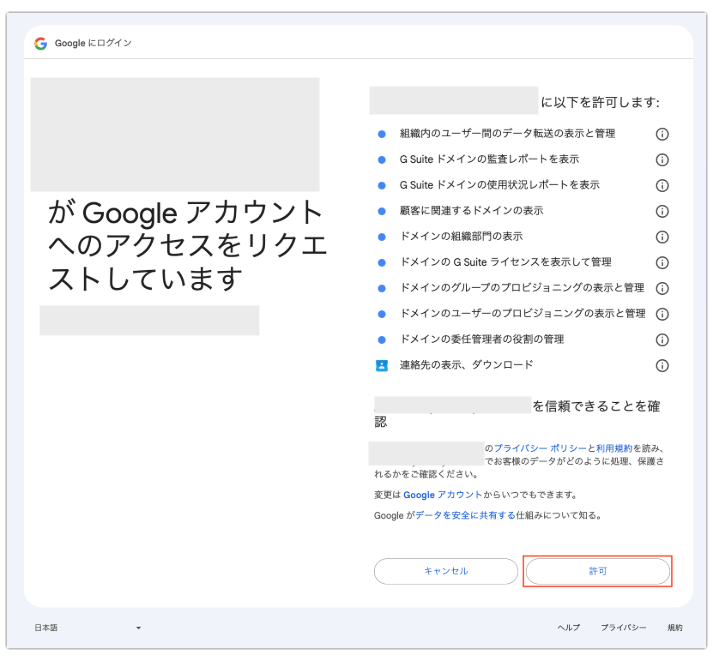
1. サービス > GoogleWorkspace > 情報 > 再連携してください。再連携については[**再連携の実施**](/it-management/saas-management/93nahw45is-trouble#re-linking)をご参照ください。
再連携時に「Googleアカウントへのアクセスをリクエストしています」と表示されますので、確認して[許可]します。
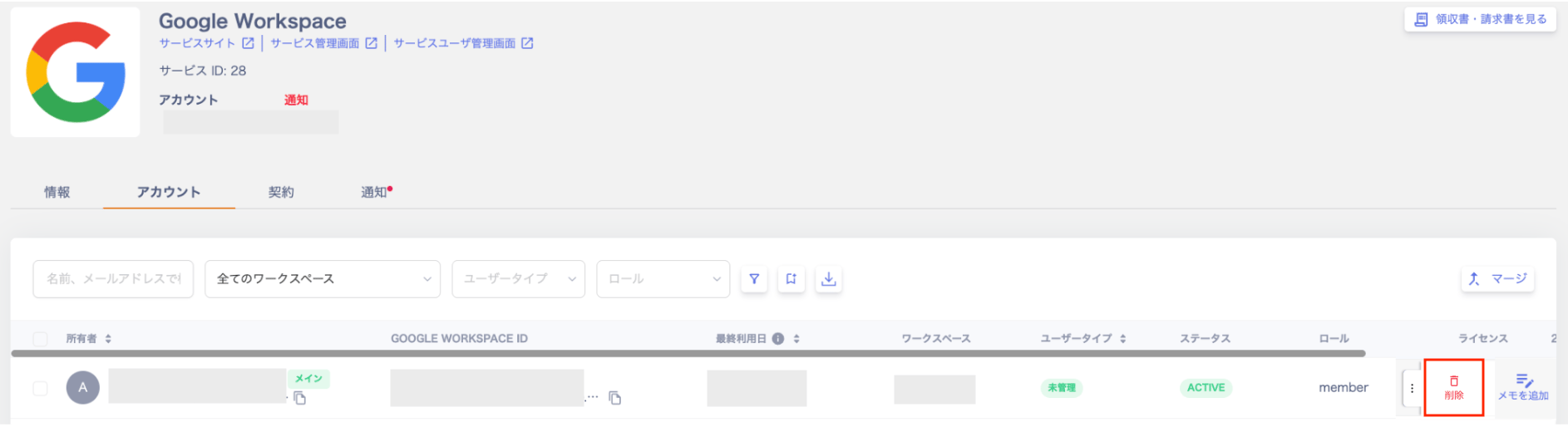
 2\. サービス > GoogleWorkspace > アカウント>移行するアカウントの右端の三点リーダーから[削除]を選択してください。
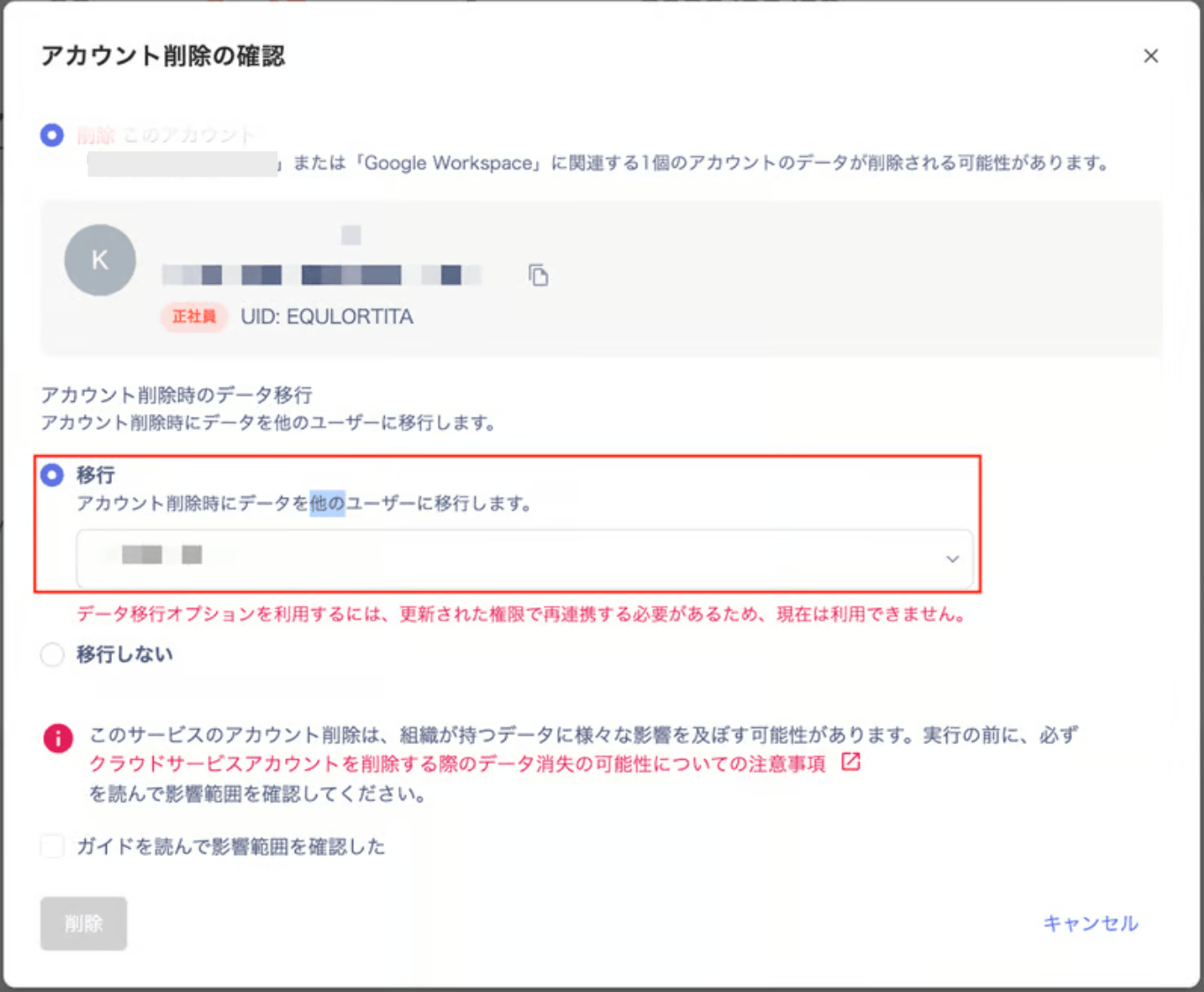
 3\. 「アカウント削除の確認」画面で「移行」を選択して、移行するユーザーを選択してください。
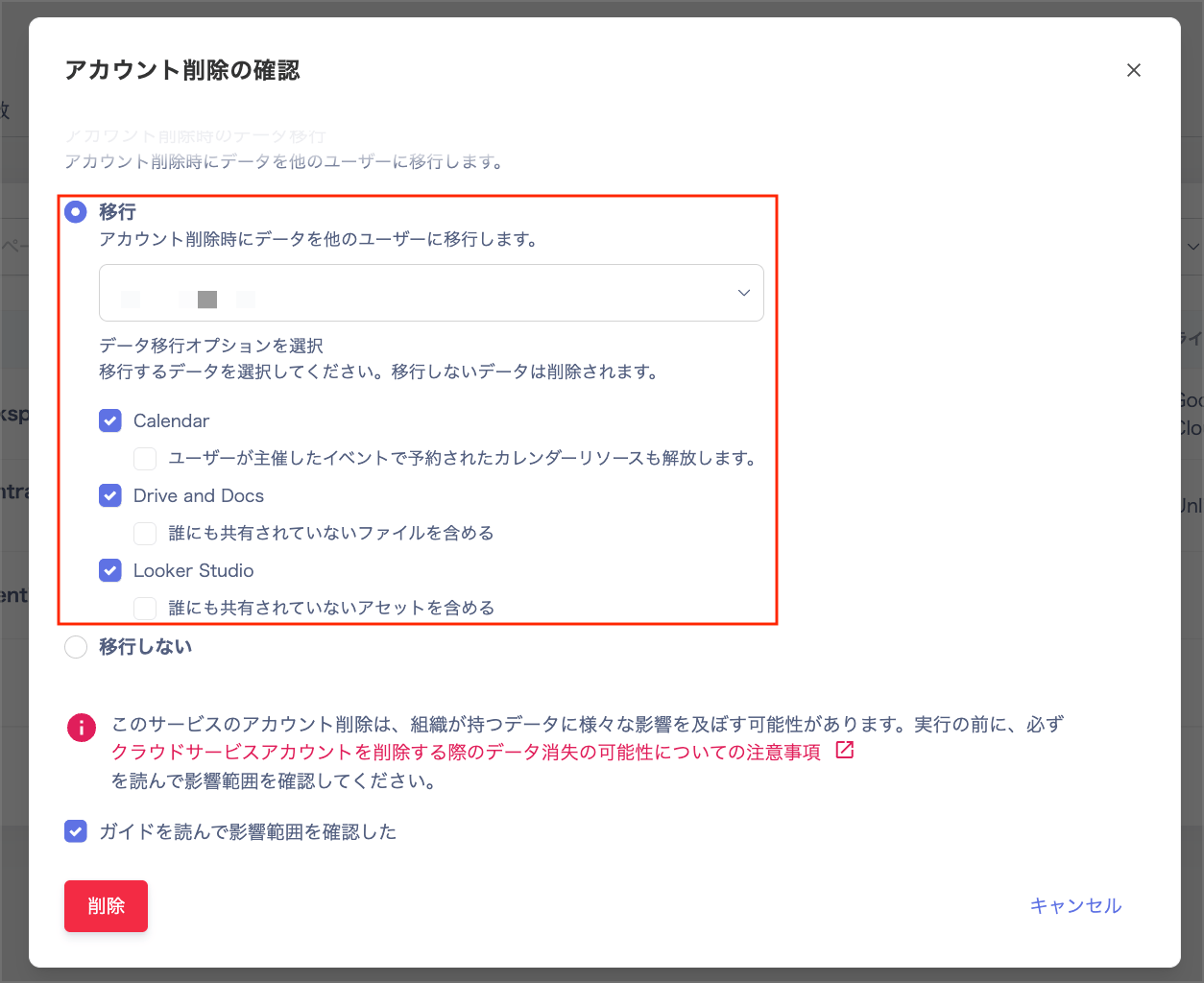
 4\. 以下のチェックボックスが表示されますので、何を移行するか選択してください。
・Calendar
・Drive and Docs
・Looker Studio
4\. 以下のチェックボックスが表示されますので、何を移行するか選択してください。
・Calendar
・Drive and Docs
・Looker Studio
 5\. [削除]をクリックします。
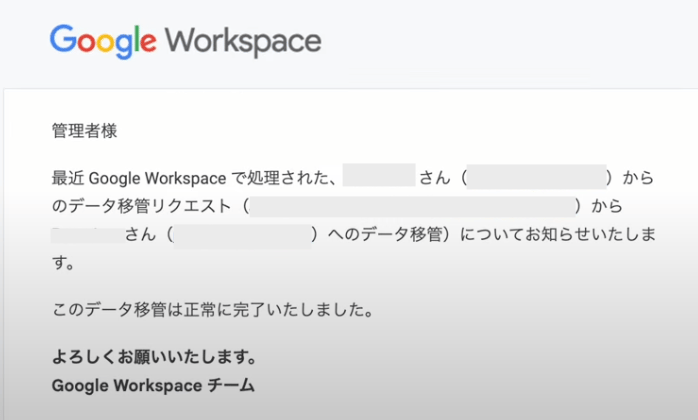
データ移管処理が完了すると「(アカウント名)さんから(アカウント名)さんへのGoogleWorkspaceデータ移管処理は正常に完了しました」と表示されます。
また、Google Workspaceから以下のメールが届きます。
5\. [削除]をクリックします。
データ移管処理が完了すると「(アカウント名)さんから(アカウント名)さんへのGoogleWorkspaceデータ移管処理は正常に完了しました」と表示されます。
また、Google Workspaceから以下のメールが届きます。
 ## 参考資料
[組織からユーザーを削除する](https://support.google.com/a/answer/33314)(外部サイト)
[離職した従業員のデータを保持するためのオプション](https://support.google.com/a/answer/11524030)(外部サイト)
## 参考資料
[組織からユーザーを削除する](https://support.google.com/a/answer/33314)(外部サイト)
[離職した従業員のデータを保持するためのオプション](https://support.google.com/a/answer/11524030)(外部サイト)