> ## Documentation Index
> Fetch the complete documentation index at: https://support.i.moneyforward.com/llms.txt
> Use this file to discover all available pages before exploring further.
# 2-6.サーベイでブランディングを設定する
> サーベイ設定画面の「ブランディング」で、サーベイ回答ページに表示するロゴ・ブランド名・ボタンカラーをカスタマイズする方法です。
本機能の操作は**Admin権限** / **Survey Managerロール**、閲覧は**Member権限** / **Survey Viewerロール**が必要です。
詳細は[管理ユーザと権限(ロール)の設定](/it-management/settings/yne7fl2lcy-role-new)をご参照ください。
対象タイプ「デバイス」のご利用には、別途「デバイス機能」が必要です。
## ブランディングを設定する
1. サーベイの右上の[サーベイ設定]をクリックします。
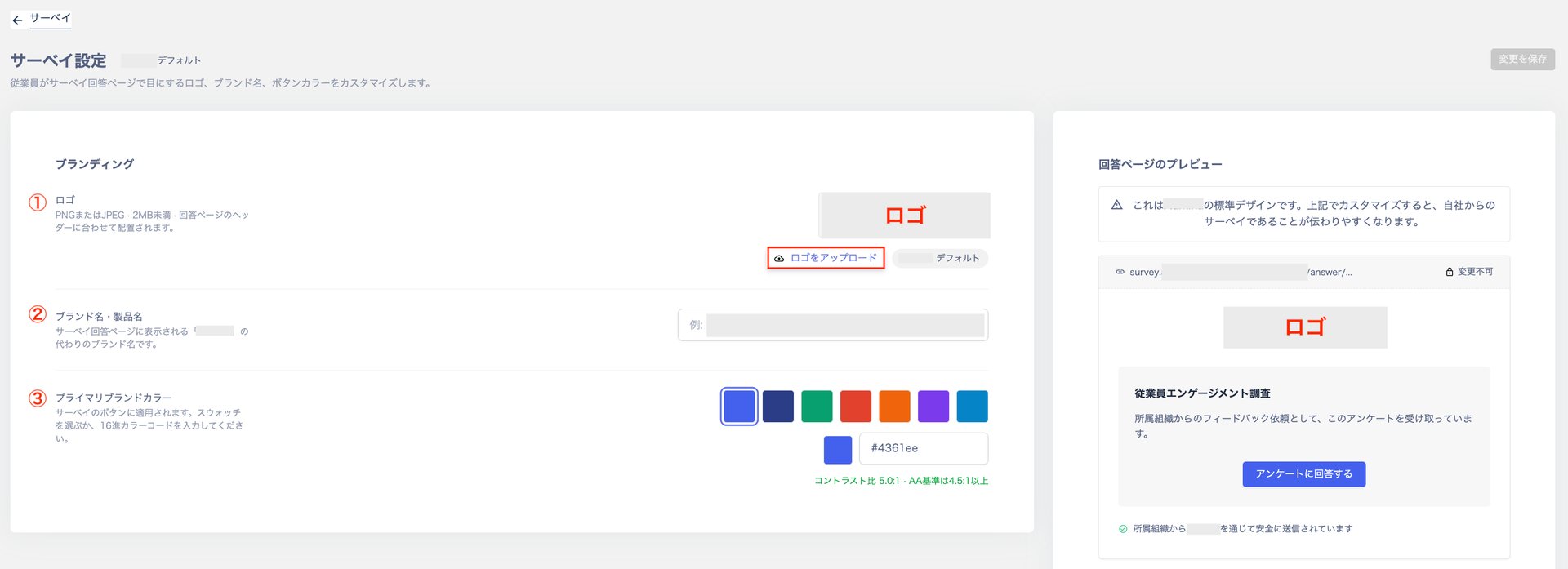
 2. 「サーベイ設定」画面の「ブランディング」で、サーベイ回答ページに表示される「ロゴ」「ブランド名・製品名」「プライマリブランドカラー」をカスタマイズします。
| 項目 | 内容 |
| ------------- | -------------------------------------------------------------- |
| ①ロゴ | [ロゴをアップロード]からロゴを設定できます。PNGまたはJPEG・2MB未満・回答ページのヘッダーに合わせて配置されます。 |
| ②ブランド名・製品名 | 「ブランド名・製品名」を設定できます。設定後、サーベイ回答ページに反映されます。 |
| ③プライマリブランドカラー | サーベイのボタンに適用されます。スウォッチを選ぶか、16進カラーコードを入力してください。 |
| ④回答ページのプレビュー | 設定内容を回答ページのプレビュー画面で確認できます。 |
2. 「サーベイ設定」画面の「ブランディング」で、サーベイ回答ページに表示される「ロゴ」「ブランド名・製品名」「プライマリブランドカラー」をカスタマイズします。
| 項目 | 内容 |
| ------------- | -------------------------------------------------------------- |
| ①ロゴ | [ロゴをアップロード]からロゴを設定できます。PNGまたはJPEG・2MB未満・回答ページのヘッダーに合わせて配置されます。 |
| ②ブランド名・製品名 | 「ブランド名・製品名」を設定できます。設定後、サーベイ回答ページに反映されます。 |
| ③プライマリブランドカラー | サーベイのボタンに適用されます。スウォッチを選ぶか、16進カラーコードを入力してください。 |
| ④回答ページのプレビュー | 設定内容を回答ページのプレビュー画面で確認できます。 |
 3. 右上の[設定を保存]をクリックします。
## 設定内容を確認する
1. サーベイのメールを確認し、[今すぐアンケートに回答する]をクリックします。
詳細は[届いたサーベイに回答する](/it-management/survey/tn6l6eo3jx-survey)もご参照ください。
3. 右上の[設定を保存]をクリックします。
## 設定内容を確認する
1. サーベイのメールを確認し、[今すぐアンケートに回答する]をクリックします。
詳細は[届いたサーベイに回答する](/it-management/survey/tn6l6eo3jx-survey)もご参照ください。
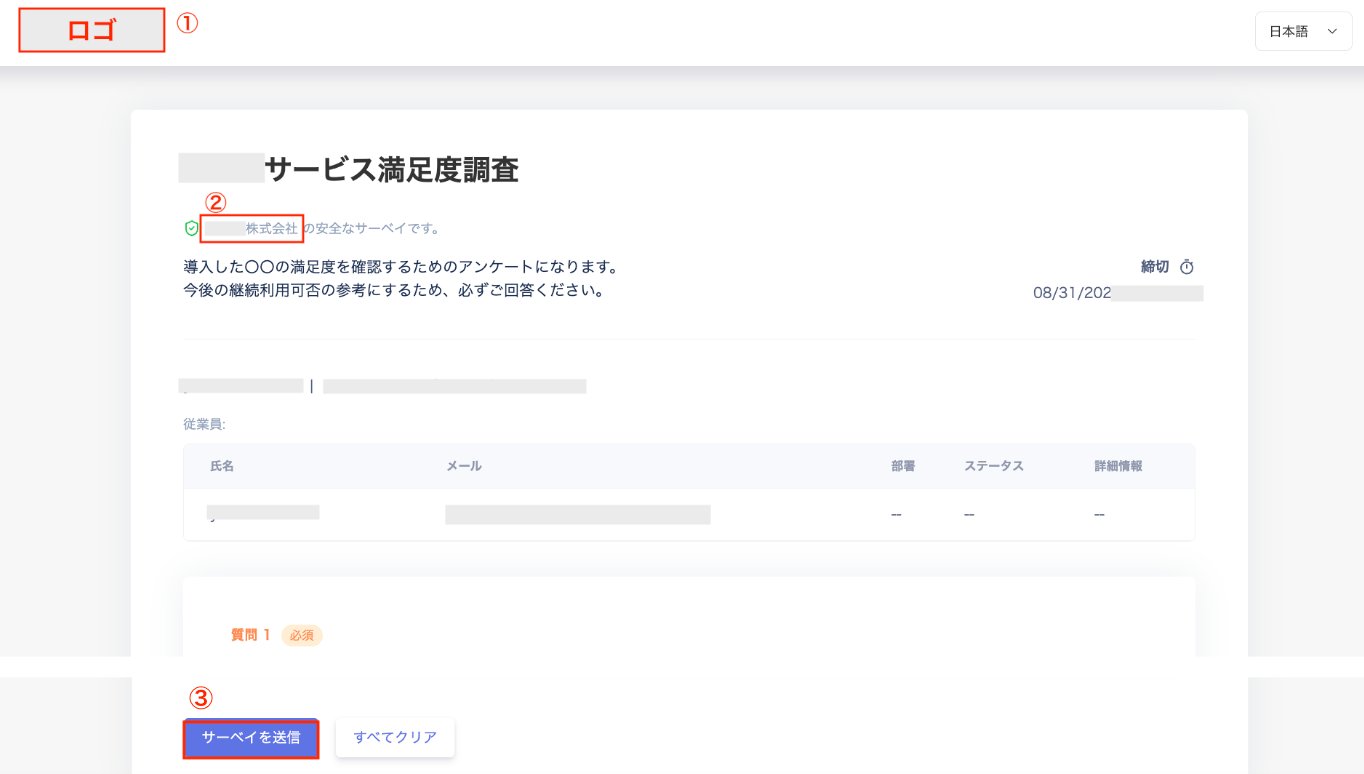
 2. 回答ページで、設定内容が反映されていることを確認します。