

Overview
With IP restriction on, the web app allows access to this organization only from the IP addresses you register. Access from other networks is blocked.- The setting applies per organization. A login user who belongs to more than one organization is restricted only in organizations that have it turned on.
- It applies to browser access, whichever way you log in (Money Forward ID or SSO).
- IP restriction doesn’t apply to API keys yet (support is planned for the near future).
- You can register IPv4 addresses and CIDR ranges. IPv6 is not supported.
Set up IP restriction
-
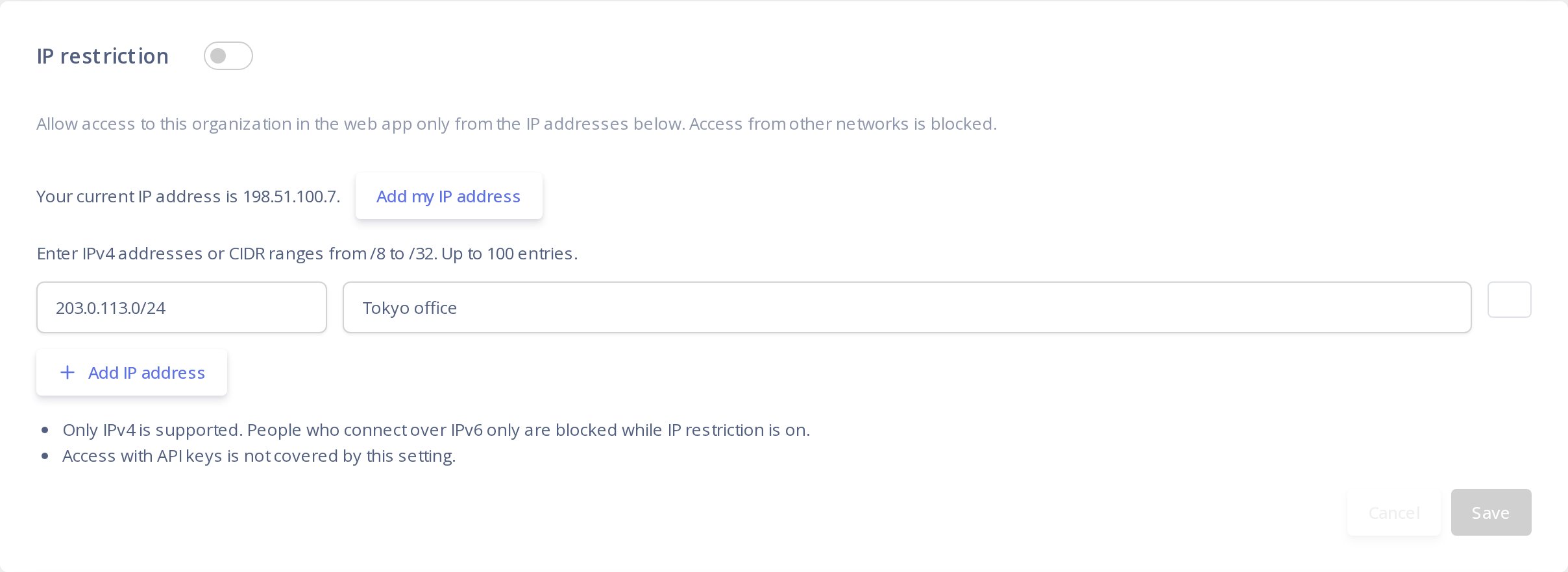
Go to Settings > Security and find IP restriction.
-
Click Add IP address. Enter the IP address or CIDR range to allow, and an optional Description.
For the values you can enter, see Values you can enter.
To add the IP address you’re connected from now, click Add my IP address (it adds that one address as
/32).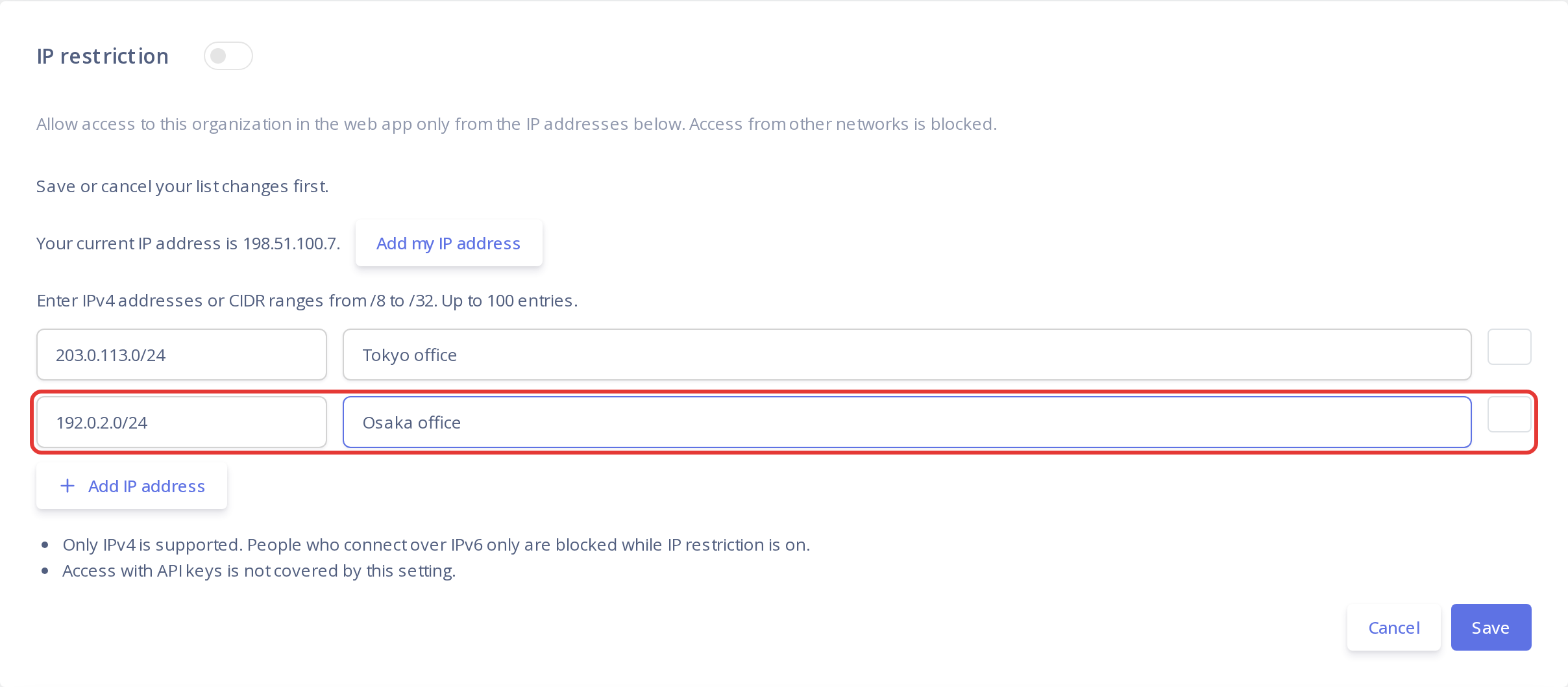
- After you add all the networks you need, click Save.
- Turn on the IP restriction switch.
-
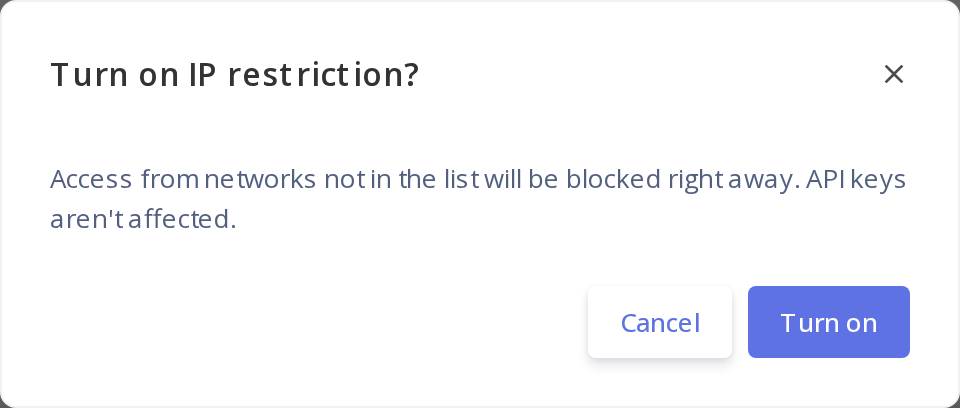
In the confirmation dialog, click Turn on.
If your current IP address isn’t in the list, click Add my IP and turn on.
For the other dialogs, see Confirmation dialogs.
You can’t change the switch until you save or cancel your list changes.
The switch takes effect when you click the button in the confirmation dialog.
Confirmation dialogs
A confirmation dialog appears when you change the switch. When you save the list while IP restriction is on, a dialog appears only in these cases:- Your current IP address isn’t in the list you’re saving.
- Your current IP address can’t be detected.
Add my IP and turn on and Add my IP and save first add your current IP address to the list.
Values you can enter
You can’t add the following ranges:
- A range that is already in the list
- A range that includes an address the service uses internally
Turn off IP restriction
- In Settings > Security, turn off the IP restriction switch.
- In the confirmation dialog, click Turn off.
Access from a network that isn’t allowed
On the organization selection screen, an organization blocked by IP restriction can’t be opened. It shows “This organization only allows access from approved networks.” Click Details to see why.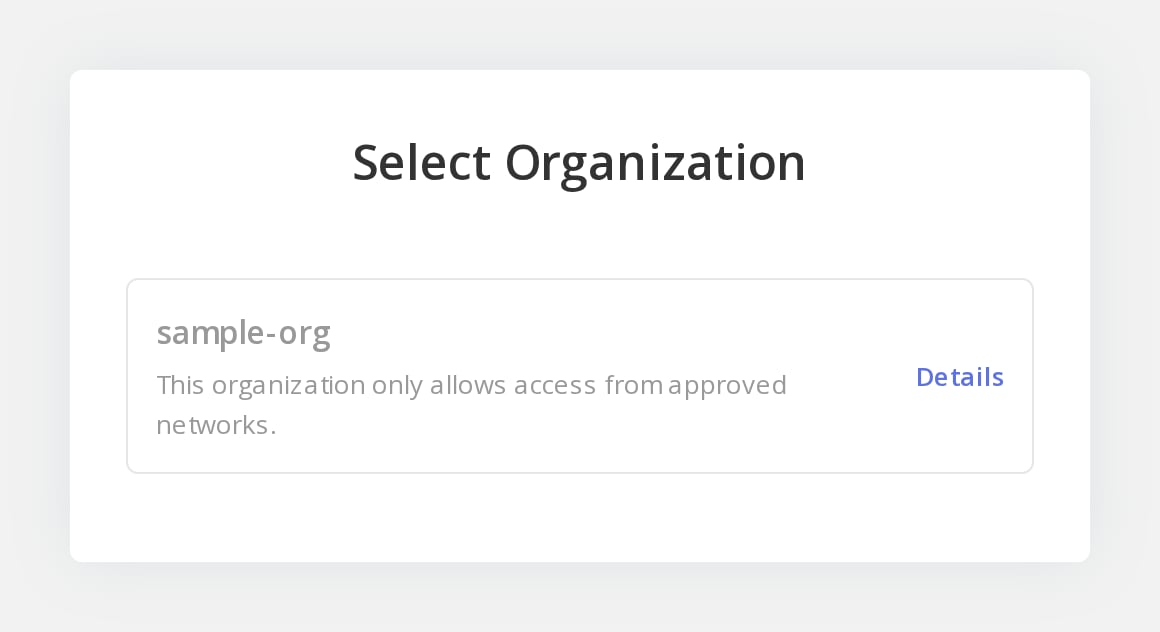
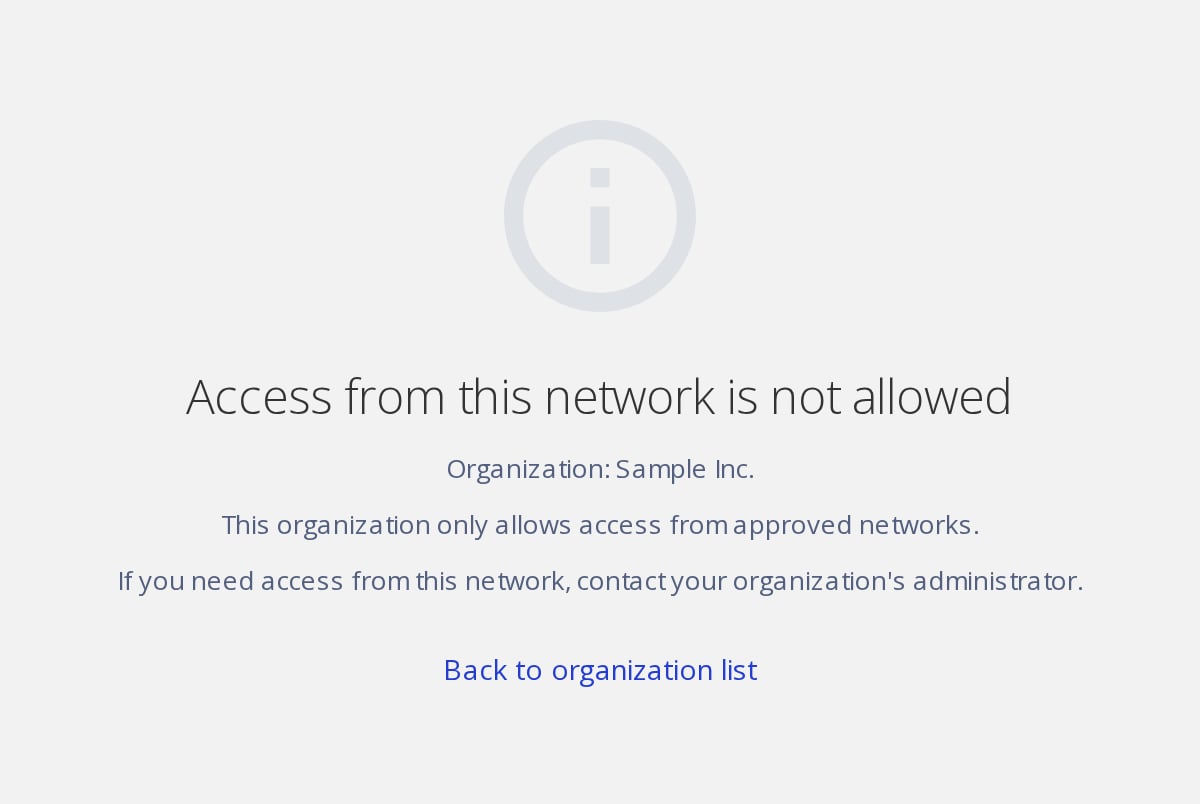
- Ask an admin who can access from an allowed network to add your network or turn off IP restriction.
- If no admin can get in, contact Admina support.