

About Audit Logs
The audit log records operations performed in the service. This includes important actions and changes executed within the system. Note that detailed change histories for data are not included in this log. The log tracks actions performed by users and the system, and it is used for security audits and compliance purposes. It records not only user actions but also system operations (such as automatic sync) and API calls. For operations performed on connected SaaS services, refer to the Integration Log in the Integrations menu.How to Retrieve Audit Logs
You can retrieve audit logs in the following ways:- Settings menu > Audit Log tab
-
Export as a CSV file with specified conditions
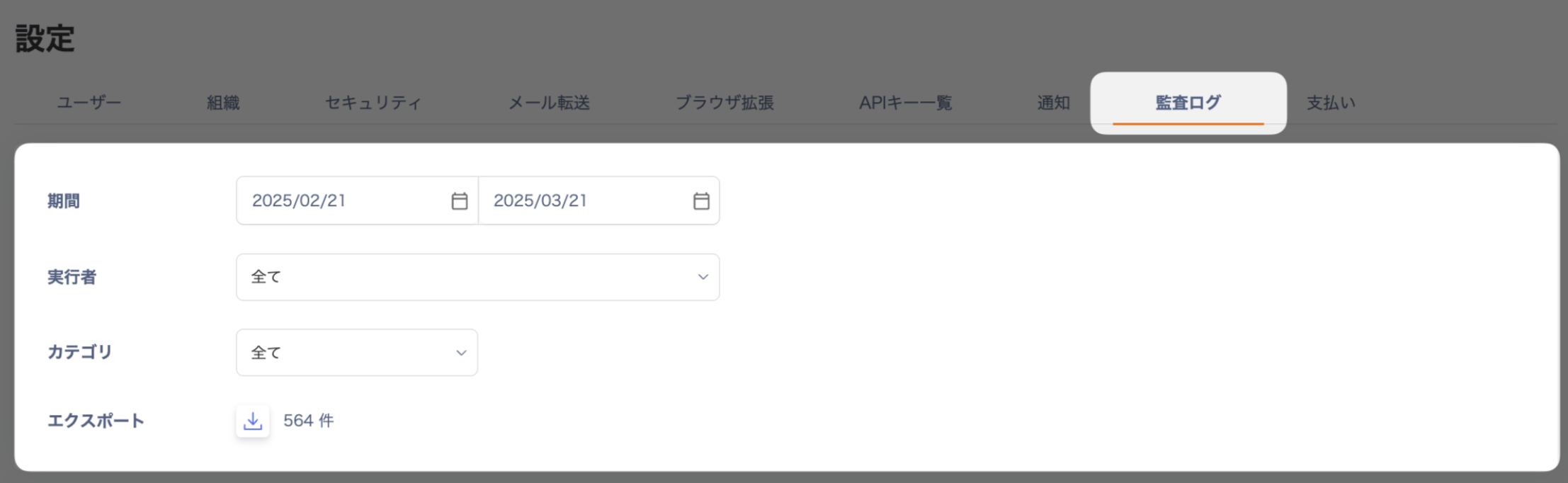
Retrieve audit logs with the API
You can retrieve audit logs as a CSV file with the API. The export runs asynchronously, so follow these steps:- Run Export audit logs csv. The response returns a request ID (
requestId). - Run Get requests by requestId with the request ID, and confirm that the export has finished.
- Download the CSV file from the URL (
downloadUrl) in the response after the export finishes.
To check the number of logs in advance, run Count audit logs with the same parameters.
For API rate limits, see IT Management API rate limits.
Log Retention Period
This audit log is recorded as an operation log for both customers and our company. Logs are retained for a period of three years.Types of Audit Logs
The audit log primarily stores records of write operations. Read-only actions (such as viewing a page) are not included. Data exports are included. Audit logs are classified into the following categories:A device or directory CSV import creates one audit log entry per import. The audit log does not record a separate entry for each device or ID that the import adds or updates.
Reading the Exported Data (CSV)
Standard Columns
Basic information included in all audit logs:Additional Columns
Depending on the type of action, the following additional columns may appear:-
For device-related actions
- device ID / device Name: information about the target device
- deviceHistory ID / deviceHistory Name: information about device usage history
- deviceCustomField ID / deviceCustomField Name: information about custom fields, etc.
-
For service-related actions
- service ID / service Name: information about the target service
- serviceAccount ID / serviceAccount Name: information about the service account
- workspace ID / workspace Name: information about the workspace, etc.
-
For directory-related actions
- identity ID / identity Name: information about the directory
- people ID / people Name: information about the account
- identityCustomField ID / identityCustomField Name: information about custom fields, etc.
- If a single action involves multiple targets, additional columns are added for each target.
When you export multiple categories or actions into a single file, additional columns are appended to the right.
Sample Data
The following is sample data: