Configuration Steps
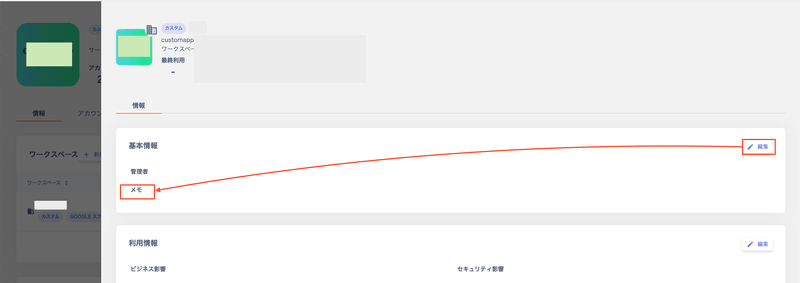
- Go to Services > SaaS > select a service > open the Info tab > select a workspace.
- The Info tab displays Basic Information, Usage Information, and Procurement Information. Click Edit to fill in each field.
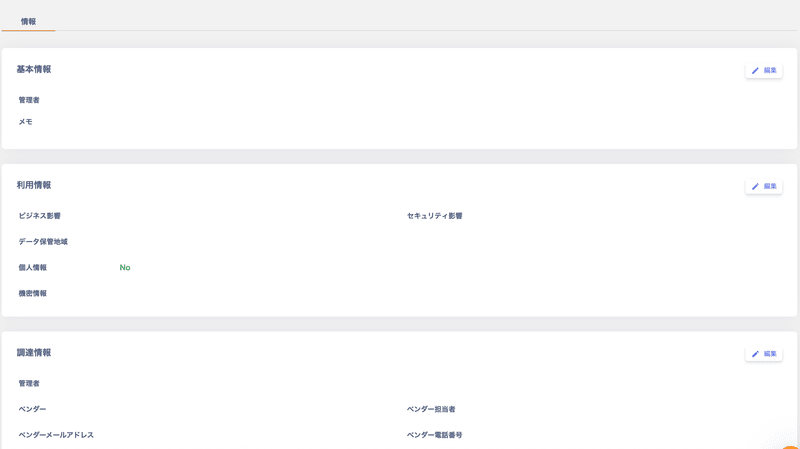
- After editing, click Save to apply your changes.
Fields in the Info Tab
| Category | Field | Values / Options | Audit Significance |
|---|---|---|---|
| Basic Information | Administrator | Select an internal user via user search | Ensures accountability (identifies the responsible owner) |
| Usage Information | Business Impact Level | Low / Moderate / High | Basis for business continuity planning (BCP) decisions |
| Security Impact Level | Low / Moderate / High | Determines the level of security controls required | |
| Data Storage Region | Japan / United States / Other countries | Tracks data location (supports GDPR and similar compliance) | |
| Personal Information | ON (Yes) / OFF (No) | Indicates whether the service is subject to personal data protection laws | |
| Confidential Information | Unclassified to Top Secret | Classifies the importance of information assets | |
| Procurement Information | Administrator | Assign the procurement / contract manager | Clarifies contract renewal and termination processes |
| Vendor Information | Company name, contact person, contact details | Supports vendor management and supplier risk management | |
| Notes | Special contract terms, etc. | Records individual agreements or exceptions |
Export Steps
- Go to Settings > Organization > Export and click All Accounts List.
See also the All Accounts List (All Data) export for more details. - Open the Services tab in the downloaded file.
Output Fields in the All Accounts List — Services Tab
| Column | Header | Description |
|---|---|---|
| A | Service Name | Name of the service |
| B | Workspace Name | Name of the workspace |
| C | Provided By | Service provider |
| D | Country of Origin | Country of origin |
| E | Certifications | Certifications held |
| F | Document Links | Links to related documents |
| G | People In Charge | Person(s) responsible |
| H | Basic Information Note | Notes on basic information |
| I | Business Impact Level | Business impact level |
| J | Security Impact Level | Security impact level |
| K | Data Store Region | Data storage region |
| L | Personally Identifiable Information (※1) | Personal identification information |
| M | Personally Identifiable Information (※1) | Personal identification information |
| N | Confidential Info | Confidential information classification |
| O | Billing Manager | Billing manager |
| P | Vendor | Vendor name |
| Q | Vendor Relationship | Relationship with the vendor |
| R | Vendor Mail Address | Vendor email address |
| S | Vendor Phone Number | Vendor phone number |
FAQ
Q. Is there a way to manage canceled SaaS services in our service?
A. To keep records in the Services tab for IT audit purposes, register canceled services as custom apps. Add a note such as “Canceled” in the notes field.