

This page explains the following ways to export account lists.

Export all accounts

Export account lists for all connected SaaS services to Excel.
The Settings screen is available only to accounts with Admin privileges. For details, see Managing admin users and roles.

Steps to export the account list

  1. Go to Settings > Organization > Account List, then click Export all data.
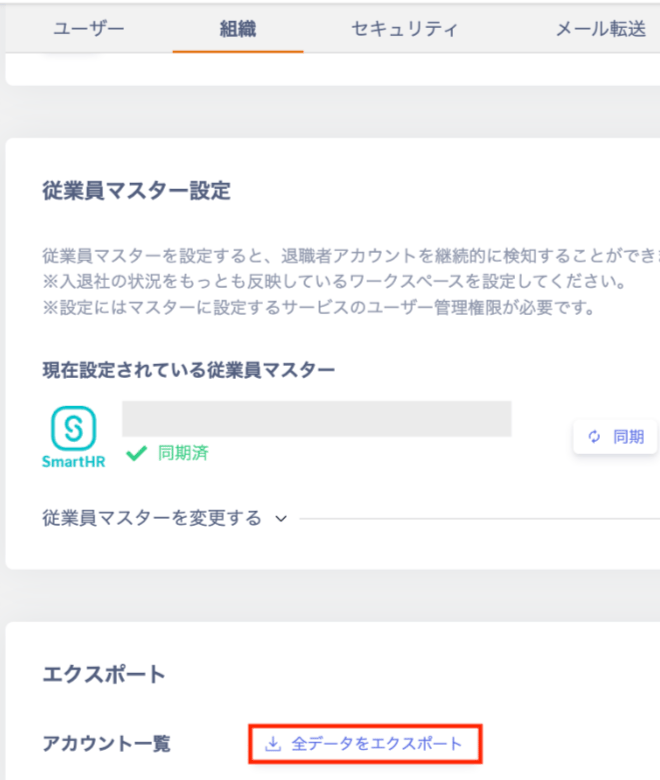
    The Settings > Organization > Account List screen showing the Export all data button
  2. An Excel file (.xlsx) will download. Save it to your preferred location.

Export contents (all accounts)
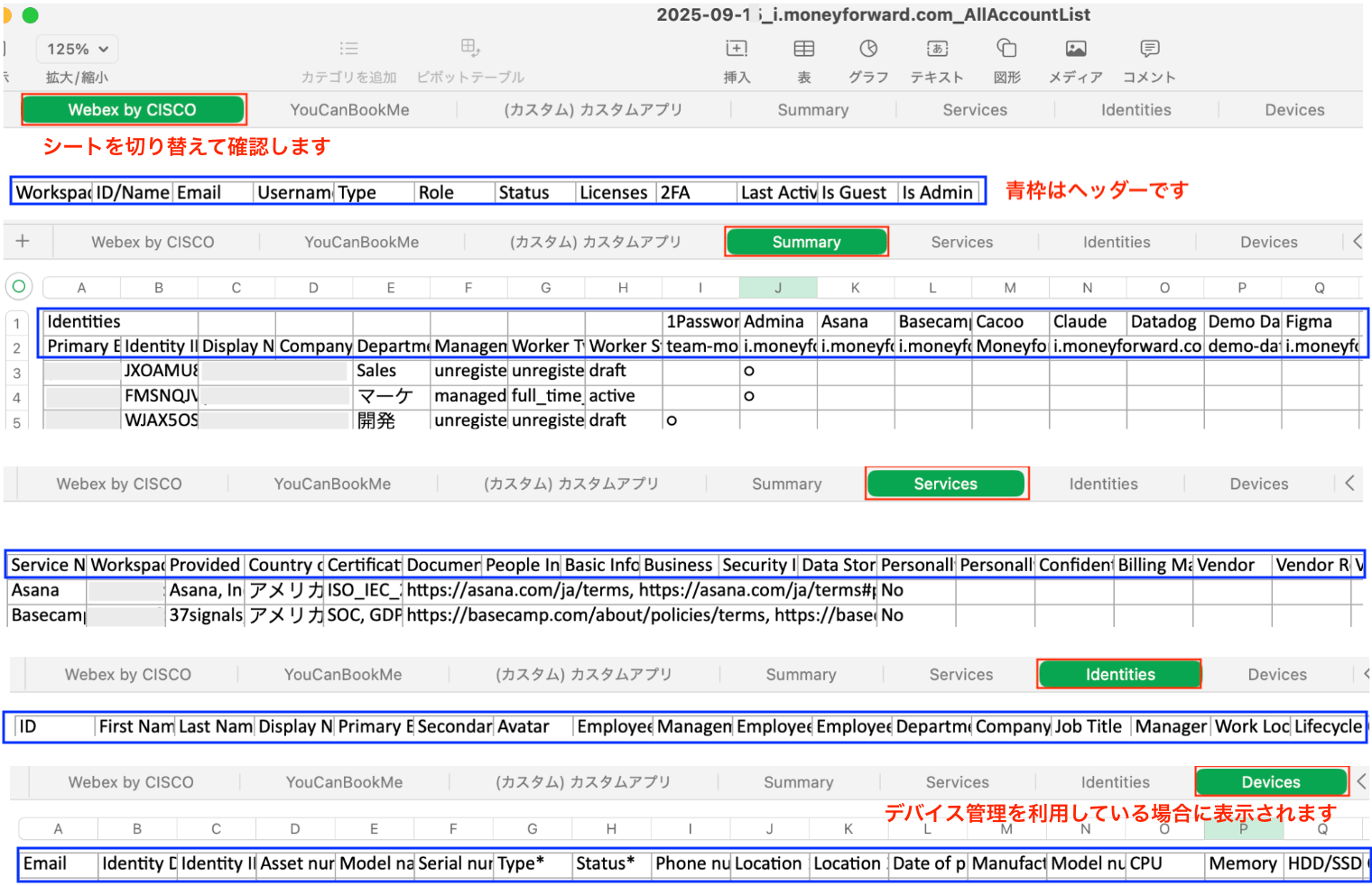
SheetContents
Account list per SaaSOutputs accounts in separate Excel sheets for each SaaS service.
SaaS SummaryOutputs a SaaS summary with a list of email addresses and a SaaS table on a single sheet.
IdentitiesOutputs the directory list on a single sheet.
DevicesOutputs the device list on a single sheet. (Displayed when device management is enabled.)
Sheet structure of the exported Excel file (account list per SaaS, SaaS Summary, Identities, Devices)

Export service accounts

Export the account list for a SaaS service to CSV.

Export contents (account list)

  • Account list for a SaaS service: Outputs accounts in CSV format.

Example of a SaaS service account list exported to CSV

Steps to export service accounts

  1. Go to Services > select a service > Accounts, then click Export.

    The service Accounts screen showing the Export button
  2. The Export Service Accounts screen appears. Select one of the following options and click Export.
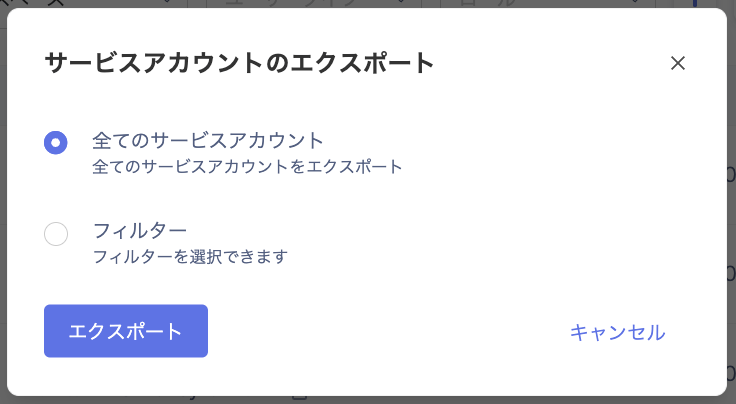
    OptionContents
    All service accountsExports all accounts shown on the service’s Accounts screen.
    FilterExports accounts based on the filter conditions applied on the service’s Accounts screen.
    The Export Service Accounts screen where you choose All service accounts or Filter
  3. A CSV file (.csv) will download. Save it to your preferred location.

Export directory list

Export the Identities list from the directory to CSV.

Export contents (directory list)

  • Directory list: Outputs the Identities list in CSV format.
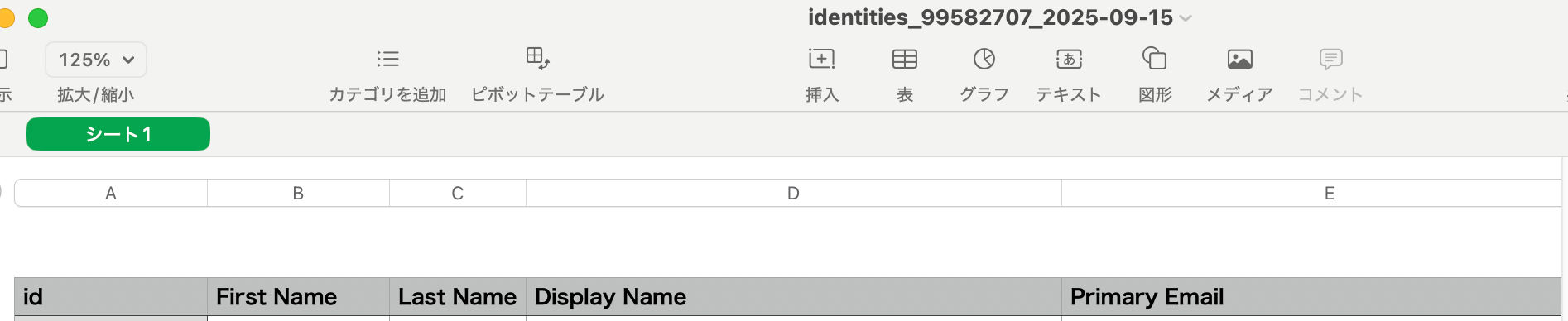
Example of the directory Identities list exported to CSV

Steps to export the directory list

  1. Click Export in the directory.
    The directory screen showing the Export button
  2. The Export screen shows Exporting. Wait until the export completes.
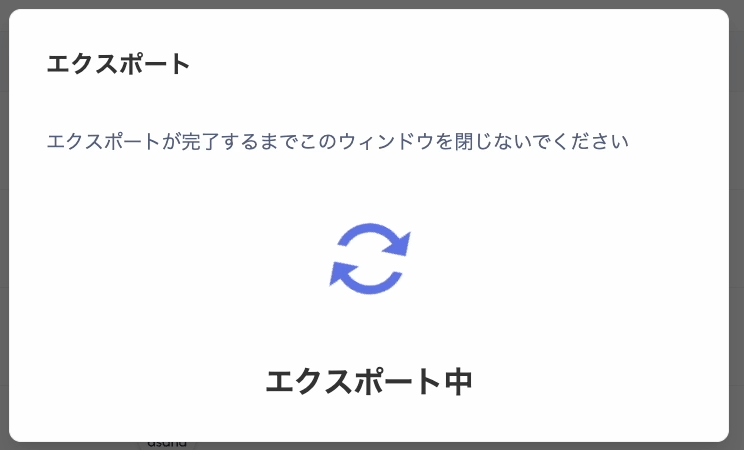
    The Export screen showing the Exporting status
  3. A CSV file (.csv) will download. Save it to your preferred location.
Last modified on July 13, 2026
