

SaaS status: The target SaaS must already be connected, with administrator privileges (including API permissions) needed to create and delete accounts.
Automation (Workflow) Execution Flow
- Configure automation mapping
- Configure a workflow Set up an automation workflow for new employee onboarding Set up an automation workflow for employee offboarding
- Set trigger items in the directory
- Check the queue
- Workflow execution timing
- Check automation execution history
Set Trigger Items in the Directory
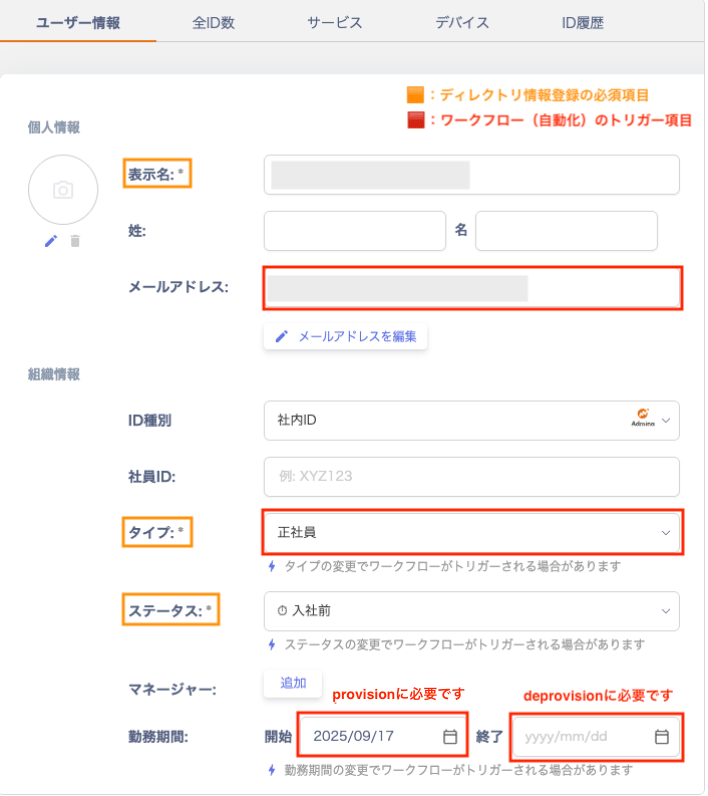
In Directory > Directory Information, configure the following fields that trigger the workflow (automation).- Email address
- Employment period: Start date (hire date) / End date (departure date)
- Type: Select from “Executive / Full-time employee / Contract employee / Temporary employee / Part-time employee”. Additional options include “Seconded employee / Fixed-term employee / Collaborator / Group address / Shared address”. You can also choose “Test address / Other / Unknown / Unmanaged”.
Check the Queue
After you configure Directory > Directory Information, the workflow is triggered. The triggered workflow then shows its scheduled executions in the Queue section. If the queue remains empty, check the FAQ.
Workflow Execution Timing
Automation can run a configured workflow either automatically or manually. Choose the method that best fits your operation.Check Execution / Logs
Go to Automation > Automation tab > select a workflow > Execution/Logs to see triggered queues.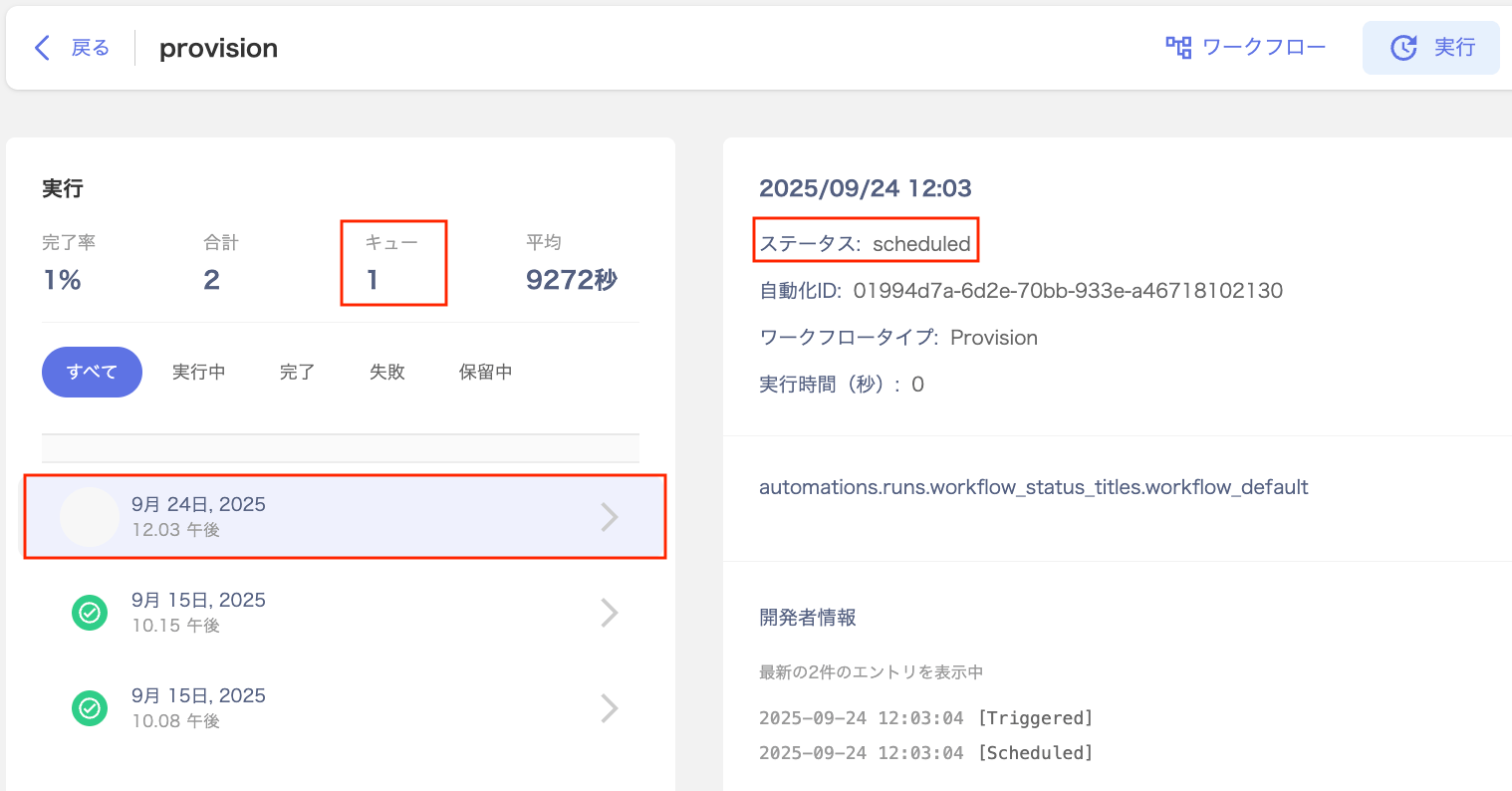
Check Automation Execution History
Go to Automation > Automation tab > workflow list > Last Run to check execution status.
Check the Execution Log
Go to Automation > select a workflow > Execution to view execution details.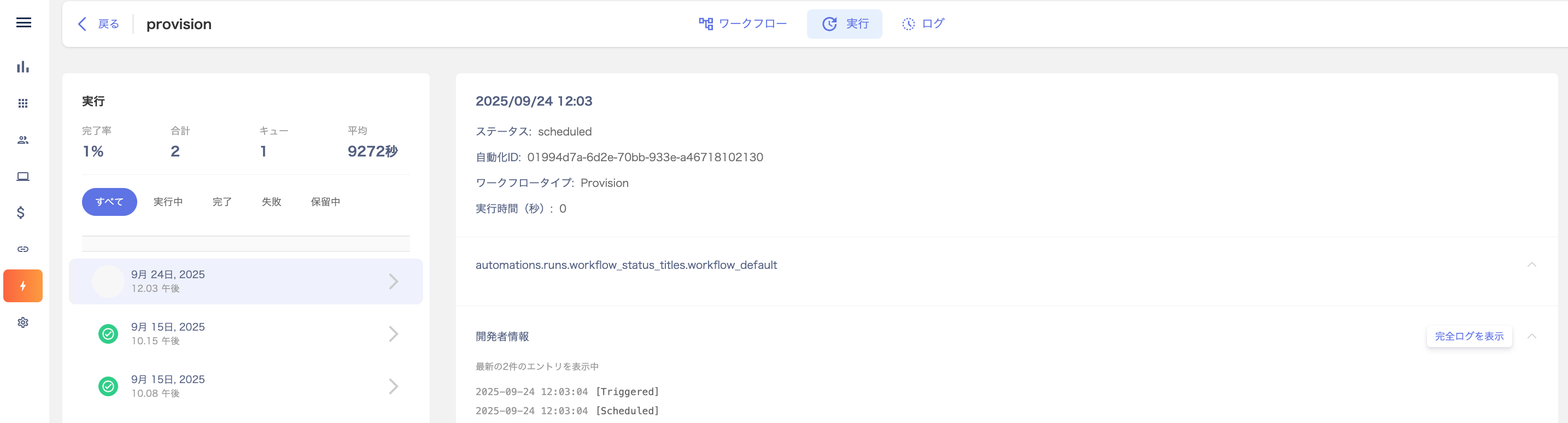
Check Execution History in Logs
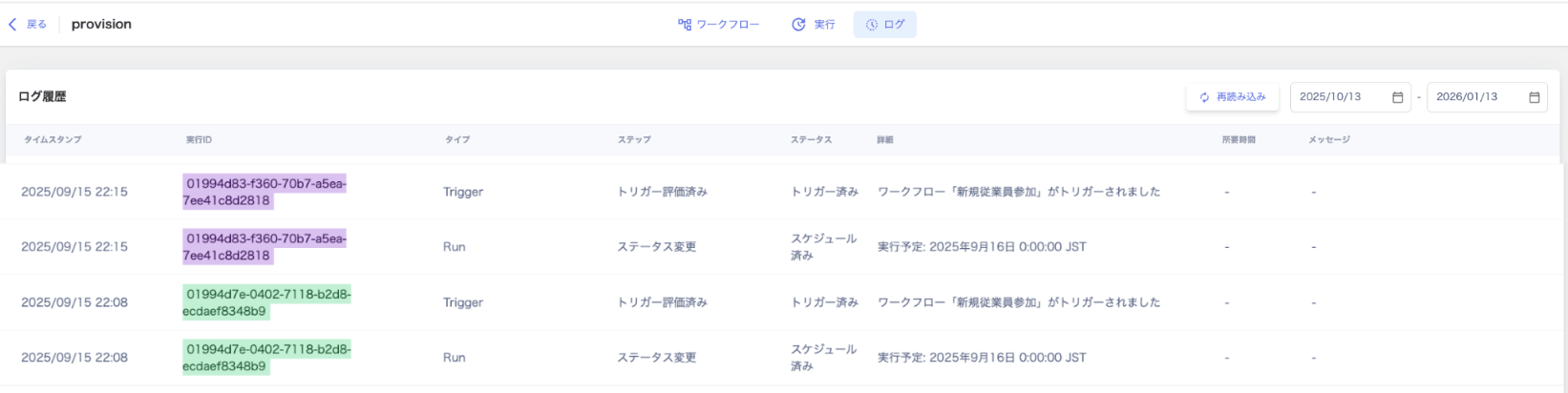
Go to Automation > Automation tab > select a workflow > Logs to review execution history.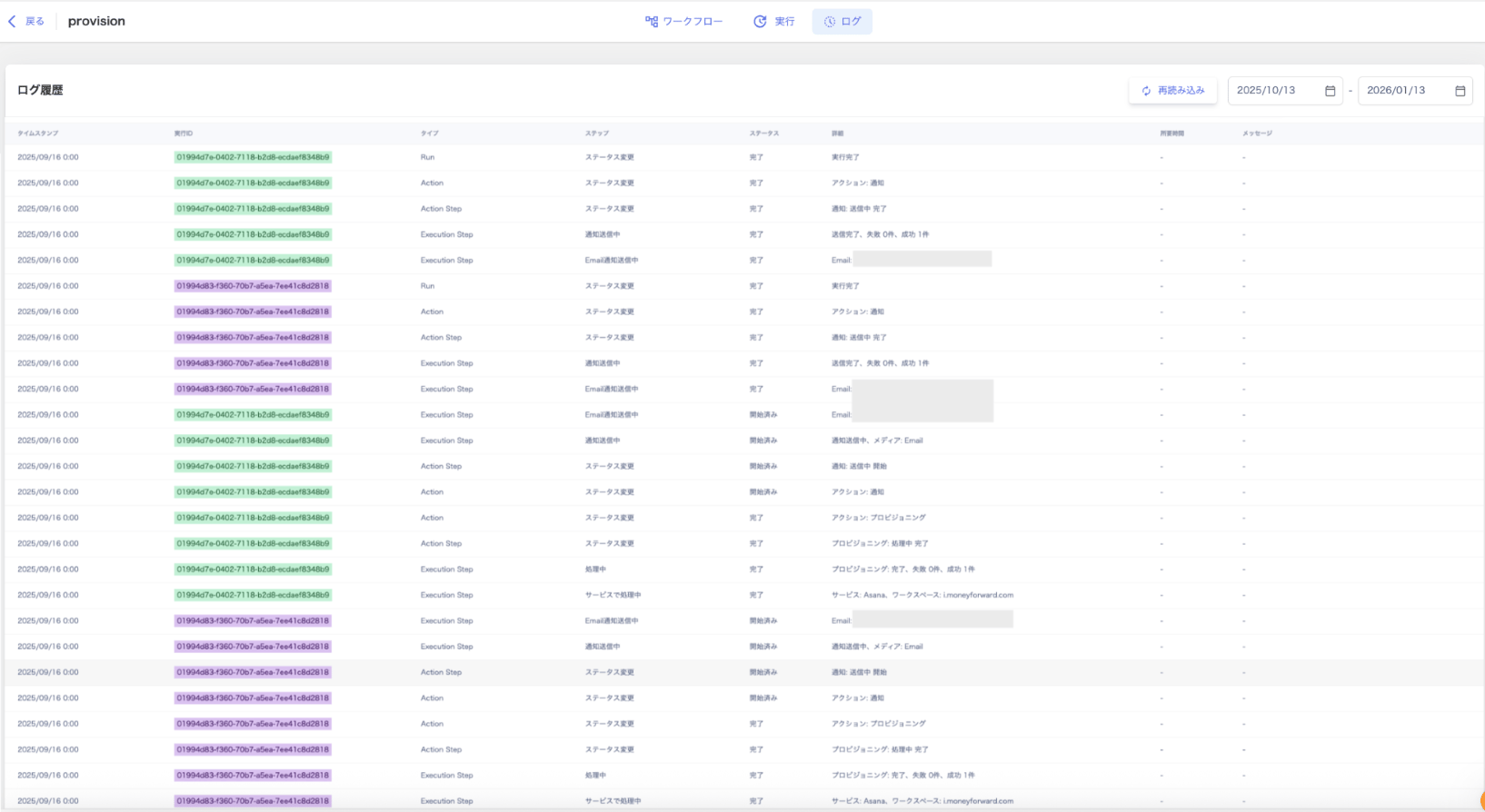
FAQ
Q. When does a workflow run?
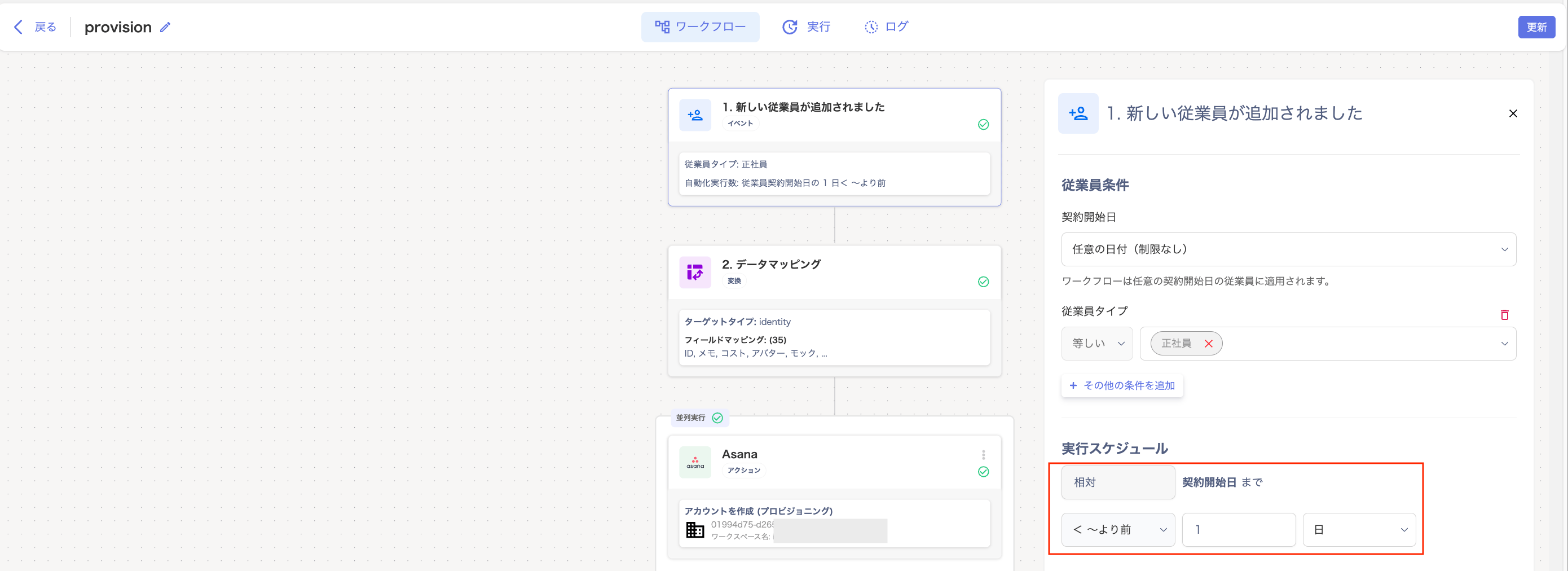
A. If the execution schedule is a future date, the workflow runs at 0:00 on the scheduled date. If the execution schedule falls on the same day as the contract date, the automation runs at 23:59 (23:59:59). For instructions on running a workflow manually, see Run a workflow manually.Q. Can I specify the execution time for a workflow?
A. Currently, you cannot specify an exact time for workflow execution.Q. What should I check when a workflow does not enter the queue?
A. Check the following.- Confirm that the trigger items for the workflow (automation) are correctly set in Directory > Directory Information.
- Verify that you set the contract start date or contract end date as the trigger after configuring the workflow.
- When testing automation, do not set the contract start date and contract end date at the same time. Doing so prevents the item from entering the queue.
- Verify that the workflow execution schedule is not set to a past date.
Q. I have set up a “provisioning” workflow for Google Workspace. What should I check if the item does not enter the queue?
A. Check the following settings.- Confirm that you have set trigger items in the directory.
- Go to Services > Google Workspace > Workspace to check the connected domains.
- Verify that the email address in Directory > User Information > Email Address includes one of the connected domains.
- To provision an account with a different domain, connect it via Integration > Integrations.
- For details, see Manage multiple workspaces (tenants).
- Check the automation mapping.
- If you have multiple workspaces, you must configure settings for each workspace. Confirm that the domain for the email address you want to create is registered.