SaaS connection status: The target SaaS must be connected with administrator privileges (including API permissions) required for account creation and deletion.
Workflow Execution Methods
Automation lets you run created workflows either automatically or manually. Choose the method that fits your operations.Run a Workflow Manually
Follow these steps to run a workflow immediately from the Directory screen. Note: Workflows run immediately and cannot be undone. Review the details before proceeding.-
In the directory list, click the ︙ (three-dot menu) to the right of the target user, then click Run Workflow.

-
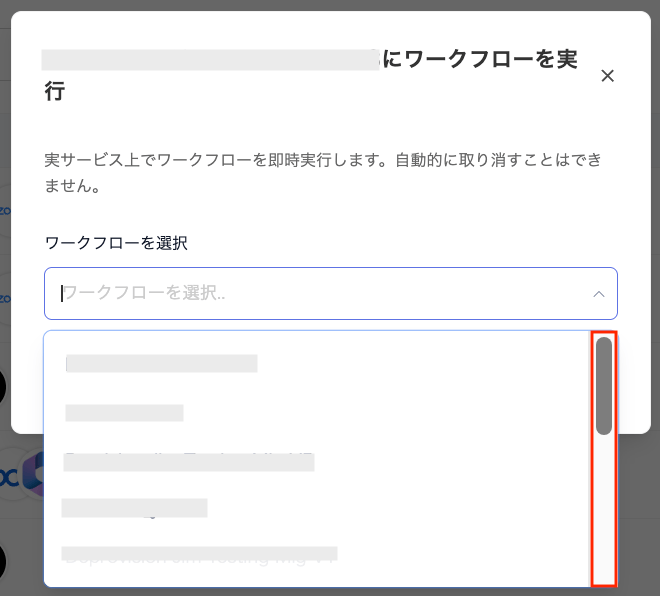
On the “Run Workflow” screen, select the workflow you want to run from the Select Workflow dropdown menu.
Note: Before running a workflow, complete steps ① through ③ described in Onboarding and offboarding automation flow.
Note: Confirm the workflow name registered under Automation > Automation tab > Automation Name in advance.
-
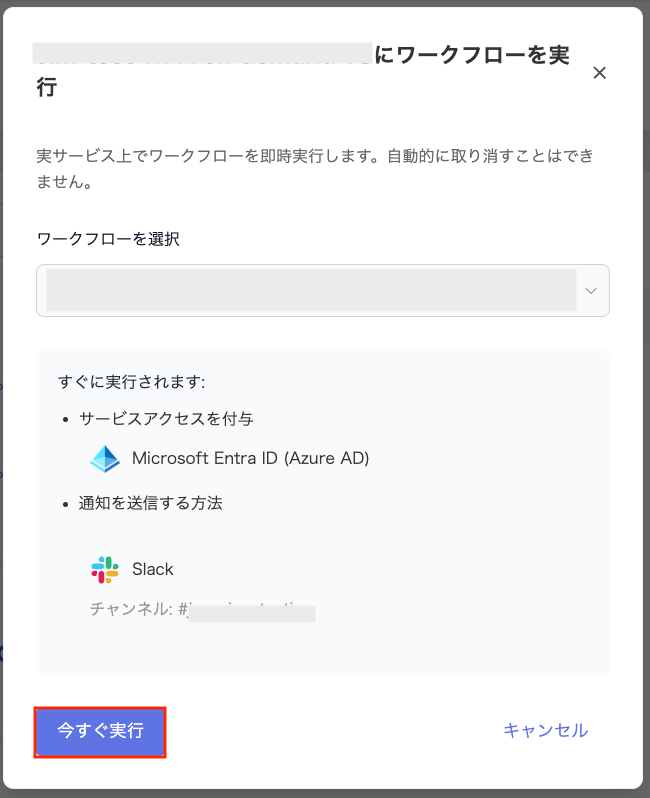
Review your selection on the “Run Workflow” screen, then click Run Now to start processing immediately.
Note: Once a workflow runs, it cannot be cancelled from the system. Verify the details before running the workflow.