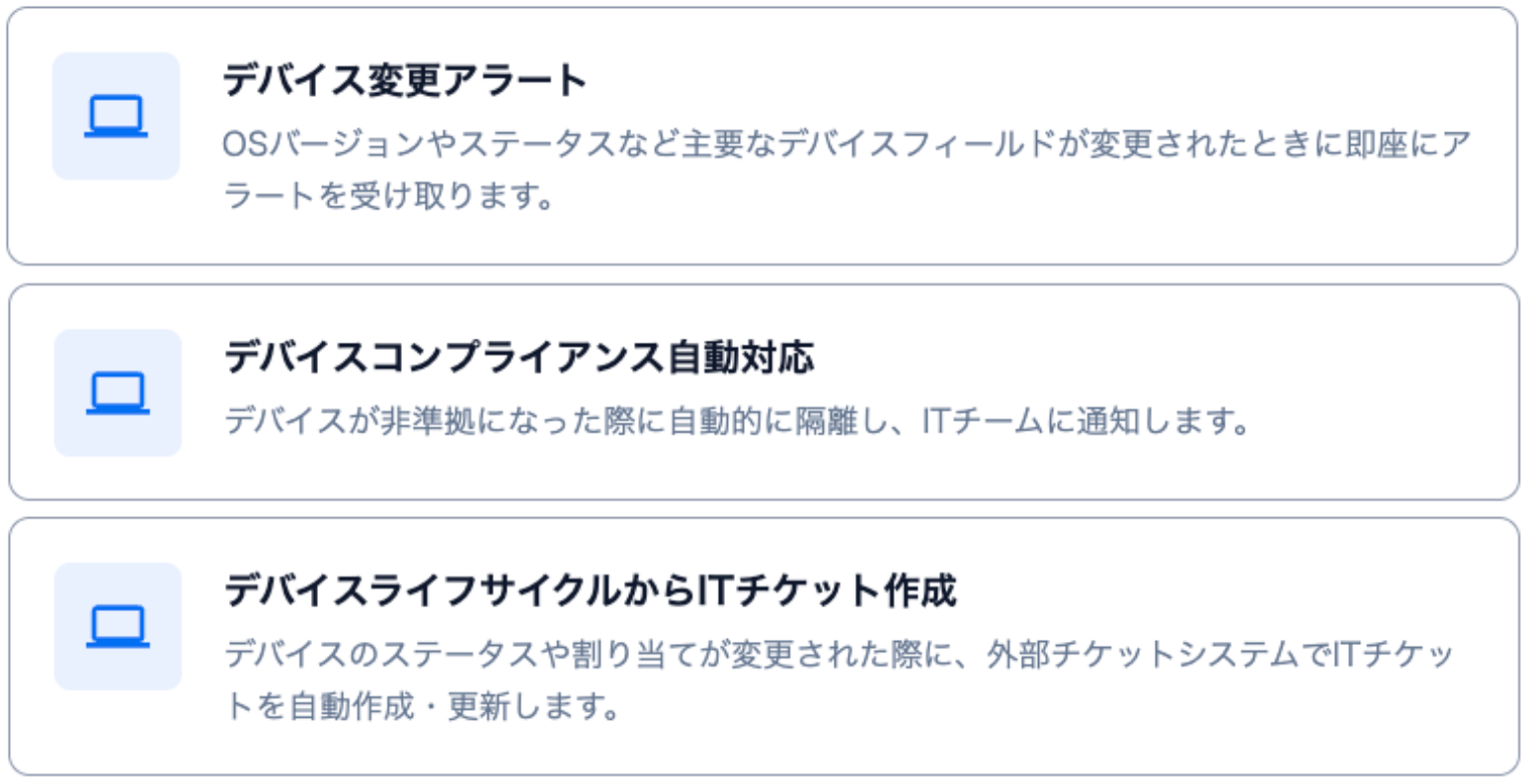
This feature automatically executes workflows and sends notifications when device information is updated.It automatically detects OS version updates, asset number changes, MDM location updates, and more. This lets you start operations quickly without building workflows from scratch.
Create IT Ticket from Device Lifecycle: Click [Create from Template].
Device Change Alert: Click [Create from Template].
Device Compliance Auto-Response: Click [Create from Template].
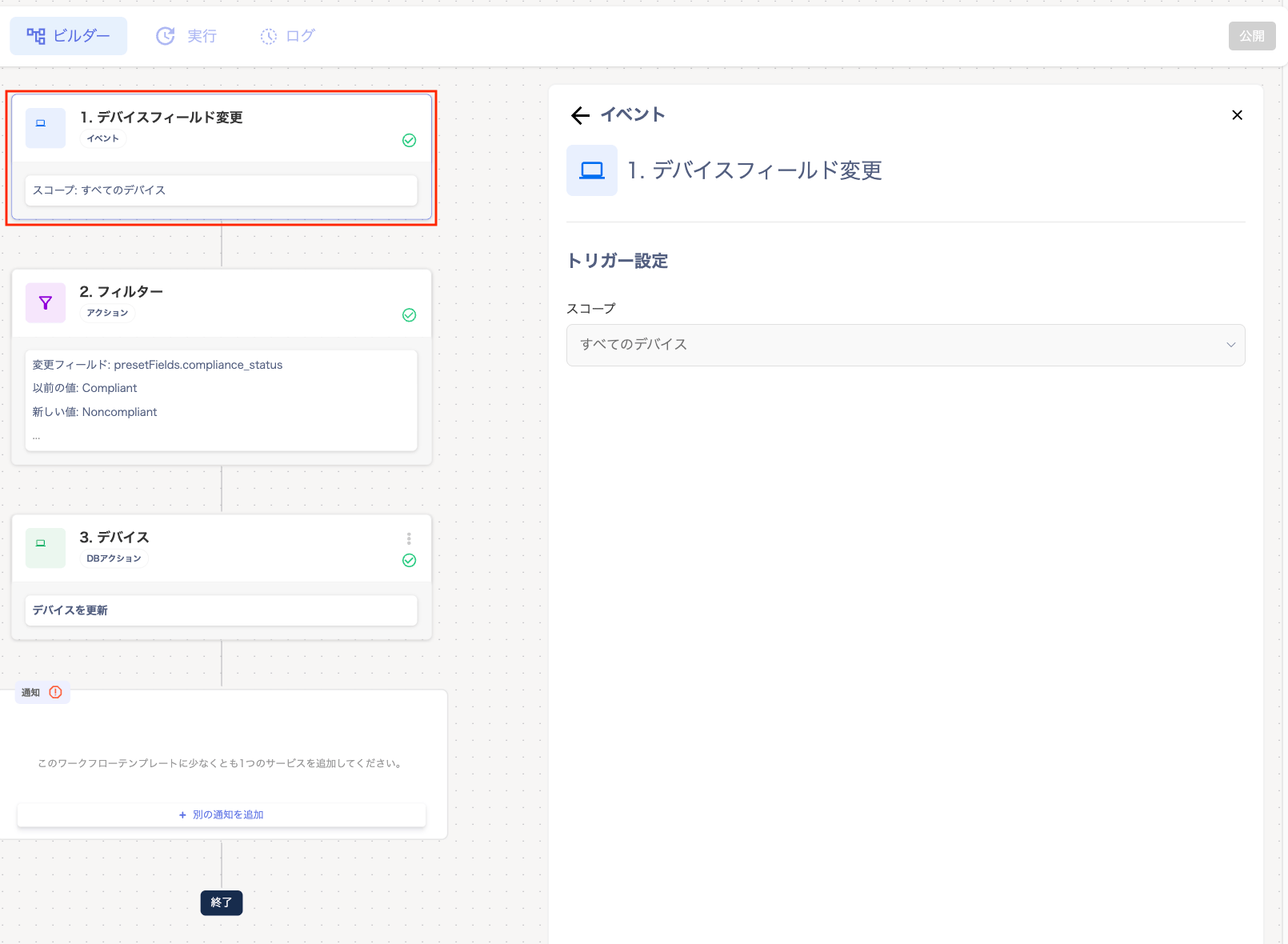
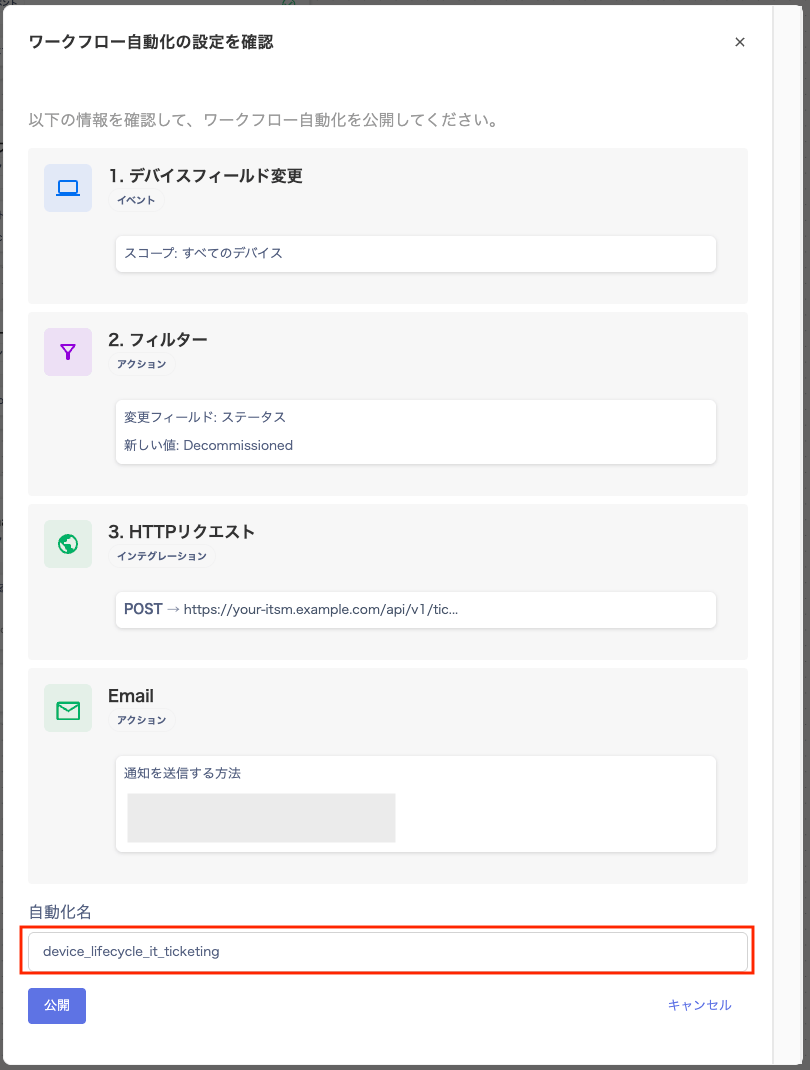
In the “Builder” screen, configure “1. Device Field Change”.
The scope “All Devices” is displayed under “Trigger Settings”.
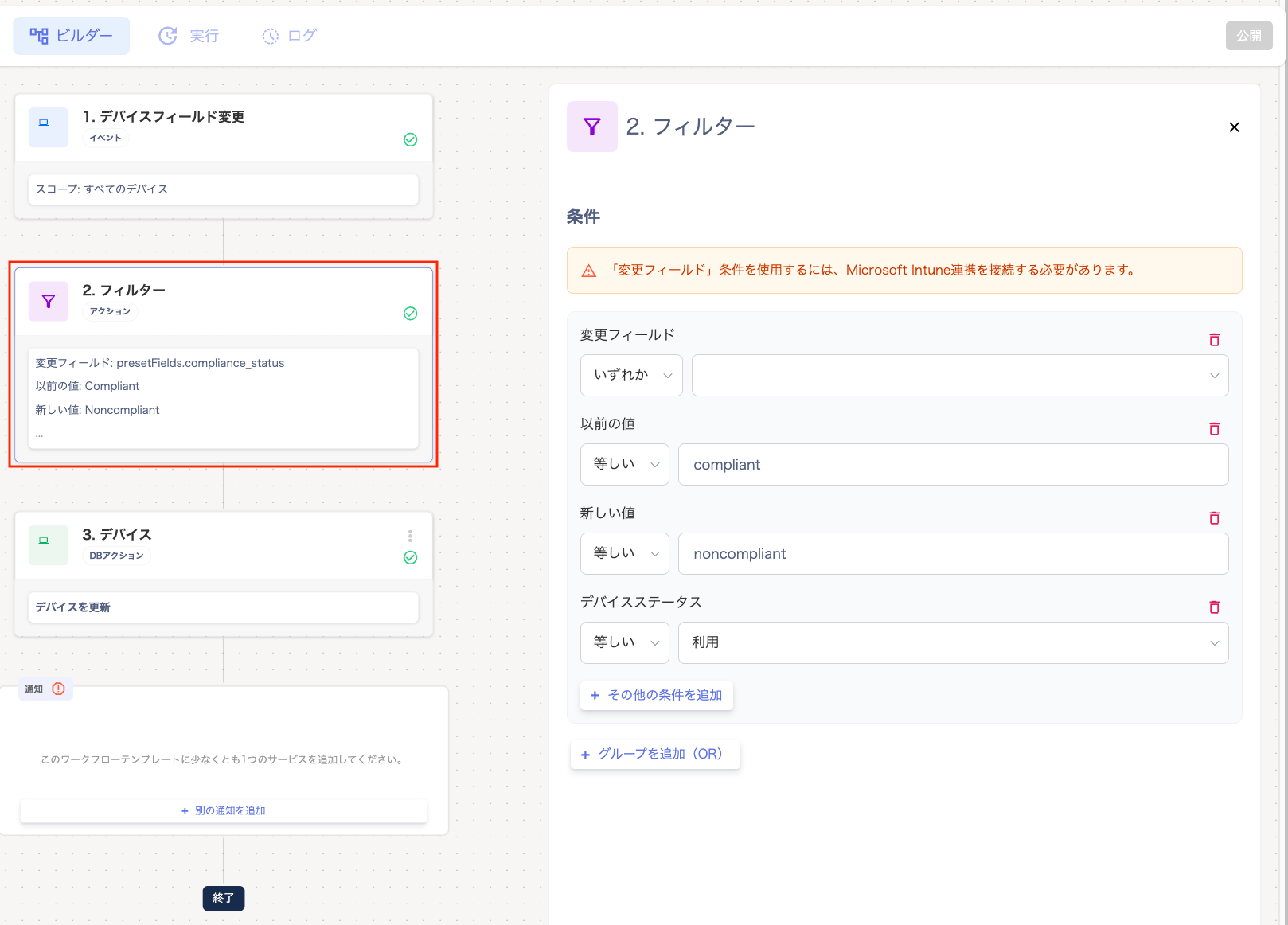
In “2. Filter”, set the conditions for notifications. If multiple conditions are selected, a notification is sent when any one of them changes.
Condition: From the “Changed field” dropdown, select [Is one of / Is not].
Value: Select the field value to monitor (asset number, OS version, serial number, etc.) from the dropdown.
[+ Add other condition]: Adds a new condition within the same group. Add “New value” or “Previous value” to filter by the value before or after the change (see FAQ).
[+ Add another group (OR)]: Adds a new condition group. Groups are combined with “OR”.
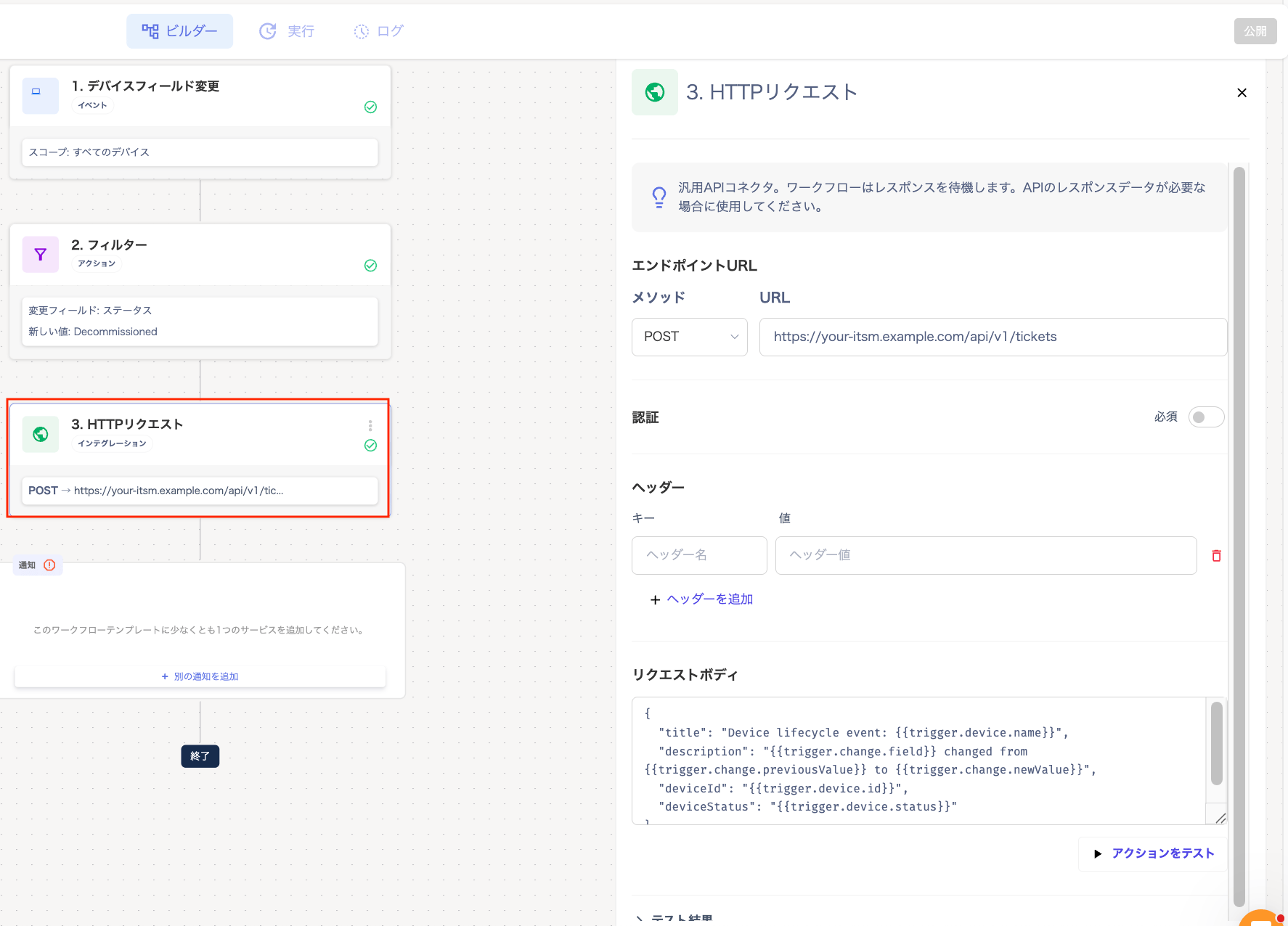
After “2. Filter”, the screens displayed differ depending on the selected template. Please also refer to the linked instructions for details.
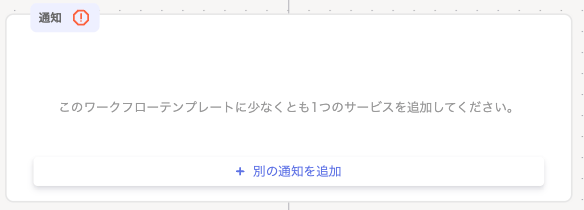
In the “Builder” screen, under “Notification”, perform the following:
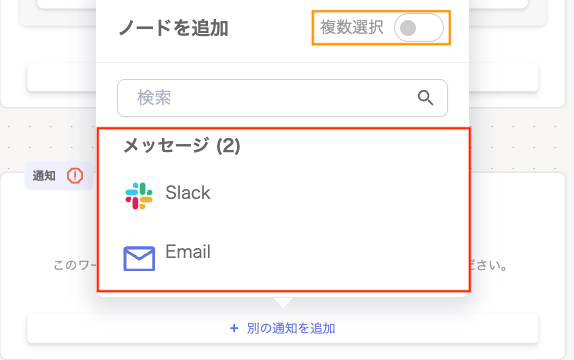
Under “Notification”, click [+ Add Another Notification].
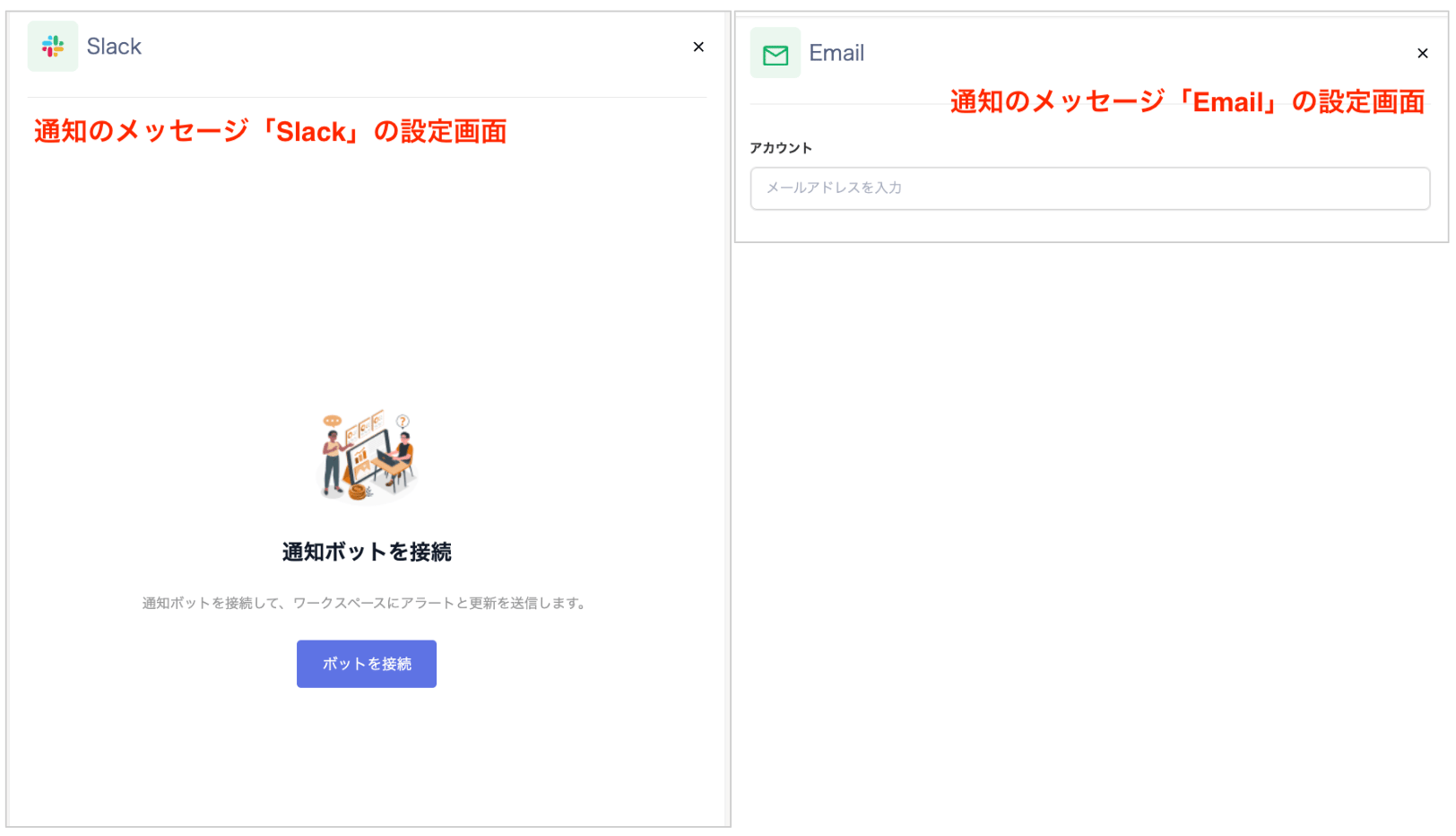
On the “Message” screen, select the notification method “Slack/Email”. If you want to set up multiple notifications, turn on “Multiple Selection”.
For Slack setup steps, see Notification Method “Slack” Setup Instructions.
On the “Notification” screen, click the selected message to display the “Settings” panel on the right.
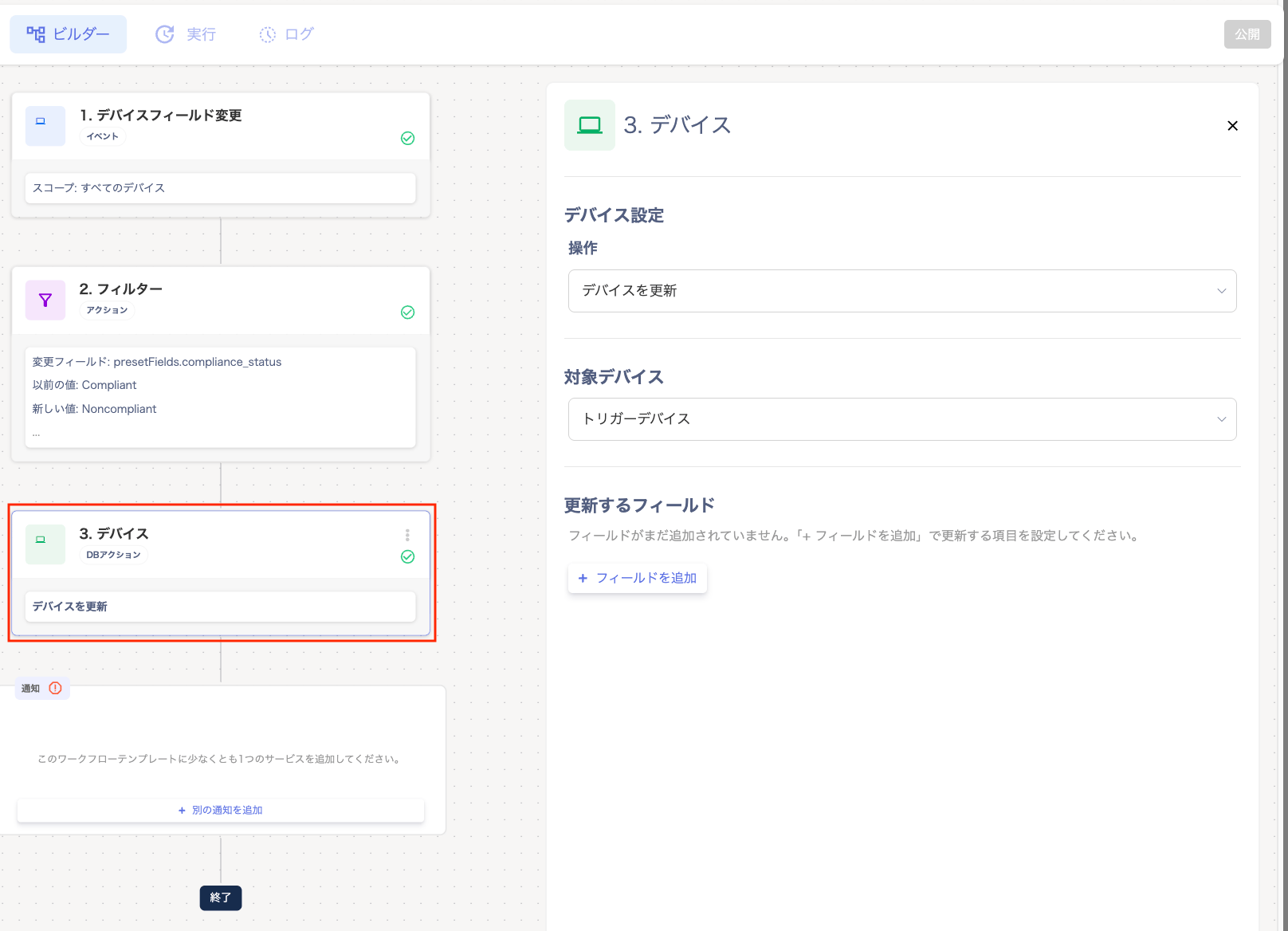
In the “Builder” screen, under “3. Device”, perform the following:
Item
Setting
Action
From “Device Settings”, select an action: “Delete Devices / Unassign Devices / Update Device”.
Target Device
Select from “Triggering Device / Other Device (by filter)”.
Fields to Update
Click [+ Add Field] to select the target items. You can choose standard fields that have options (such as status, type, and manufacturer) and your organization’s custom fields.
Q. Can I filter notifications by the value before or after the change?A. Yes. In the filter, add “New value” or “Previous value” from [+ Add other condition]. Then specify the value with [Is / Is not / Contains]. If you select only one field that has options in “Changed field”, you can pick the value from that field’s options. This includes custom fields with the “Select” data type.Q. Can I use the same condition twice in one group?A. No. Each condition type can be added only once per group. [+ Add other condition] shows only the condition types not yet used in that group. To use the same condition type again, add another group with [+ Add another group (OR)].Q. Can I monitor only a specific single device?A. This is not currently supported. The trigger scope is “All Devices”. Narrow it down by setting conditions in the “Changed field” filter.Q. Will I be notified of past changes?A. No, only changes that occur after the workflow is published are targeted.Q. How quickly will I receive a notification?A. After the change is recorded in this service, notifications typically arrive within a few seconds.Q. Can I pause a workflow?A. Toggle off the target workflow in the automation list.