Answers to common automation questions, such as when workflows run, what to check if a workflow is not queued, and whether you can assign Google Workspace groups, roles, and organization units.
A. If the scheduled date is in the future, the workflow runs automatically at midnight (00:00:00) on the specified date. (You cannot specify a time.)If the scheduled date matches the contract start date, the workflow runs at 11:59 PM (23:59:59) on that day. (You cannot specify a time.)
Q.What should I check if a workflow is not queued?
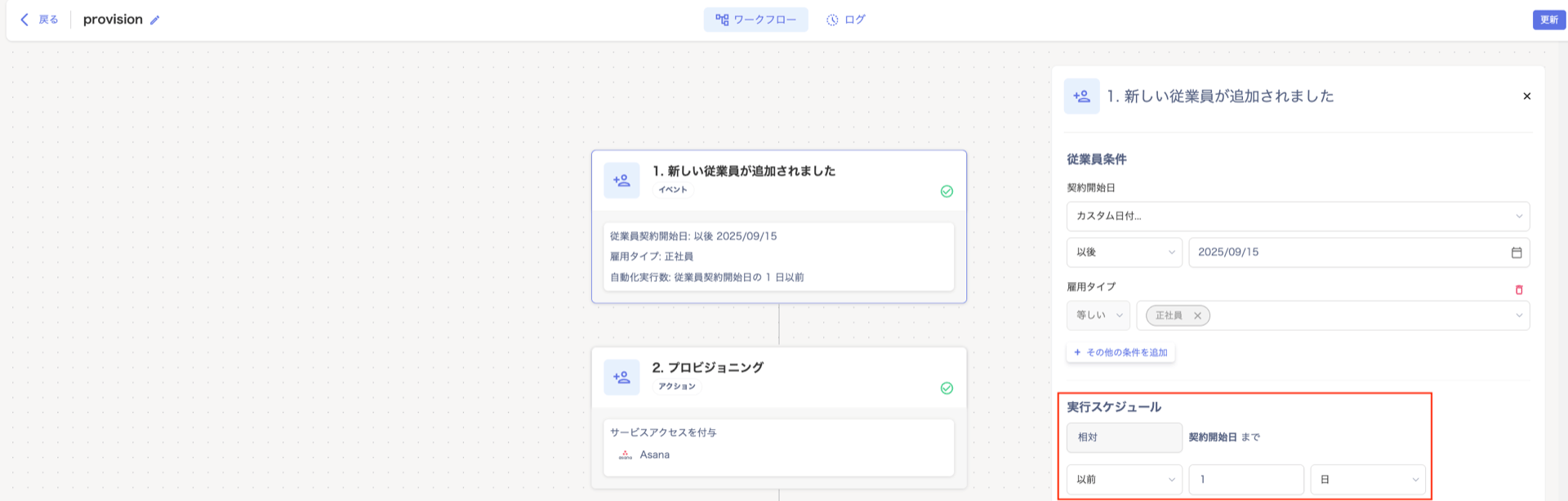
A. Go to Directory > Directory Information. Verify that the trigger items for the workflow (automation) are configured correctly.Also check that the workflow’s scheduled run date is not set to a past date.Example: If you set the provision schedule to “1 day before the contract start date” and the hire date is 2025/9/16:
The workflow is scheduled to run on 2025/9/15 (at midnight).
Set the employment start date “2025/9/16” in Directory > User Information by September 14, 2025 at the latest.
If you set the employment start date on September 15, 2025, the workflow will not be queued and will be skipped.
Q.Does a workflow run automatically for employees registered in the directory before I published the workflow?
A. No, it does not. A workflow triggered by an employee joining or leaving checks entries added or changed in Directory > User Information. It checks only entries made after you publish the workflow.If you set the employment start date or other values before publishing, the workflow does not check that employee.To run the workflow for employees who are already registered, follow the steps in Run a Workflow Manually.
If you have multiple workspaces, you need to configure settings for each workspace. Confirm that the domain of the email address to create is registered.
Q.Can I assign groups, roles, and an organization unit when a workflow creates a Google Workspace account?
A. Yes. When you add an account, you can assign Google Workspace Groups, Roles, and an Organization Unit. You can select multiple groups and roles, and up to one organization unit.Specify the values in Connection settings of Configure automation mapping. Use static mapping to assign the same values to everyone, or dynamic mapping to switch them by employee attributes.Automation adds the created account to the specified groups as a member. If adding it to a group fails, the account still remains.
Q.Where can I check which services support automation?
A. Go to Automation > “Services” screen > “Add Service Connection” > “Select Service”. This screen lists the services that support Provisioning and Deprovisioning.Services not listed are currently unsupported. See also the setup guide for details.You can also check this in the Supported SaaS & Feature List. Look at the “Account Lifecycle” section for services that support Provisioning and Deprovisioning.
Q.In a workflow that deprovisions multiple services, what happens if the employee has no account in some of those services?
A. An error is recorded only for the services where the employee has no account. Deprovisioning continues for the other services, and the workflow does not stop.The run status becomes “Completed with errors”. You can check which service had the error in the run log. For details, see Read automation logs.
Q.In a workflow that creates accounts in multiple services, what happens if account creation fails in some of those services?
A. An error is recorded only for the services where account creation failed. Account creation continues for the other services, and the workflow does not stop.The run status becomes “Completed with errors”. You can check which service had the error in the run log. For details, see Read automation logs.
Q.When a workflow automation creates a Microsoft EntraID (Azure AD) account, which value is used for the display name in Microsoft EntraID?
A. This service generates the display name automatically from the first and last name. This service’s “display name” field is not reflected in EntraID.This service’s first and last name are reflected directly as the first and last name in EntraID.
Q.When an automation creates an account in a service, what rules are used to generate the initial password?
A. Some services create the account with a password. For these services, the automatically generated initial password is 16 characters long. It contains at least one uppercase letter, one lowercase letter, one number, and one symbol. The available symbols may differ by service.
Q.The “Device” option is grayed out and cannot be selected in a workflow.
A. You cannot select “Device” if the device management feature is not enabled.The same applies if device permissions have not been granted. Check your usage status and permission settings.
Q.The “Workflow” / “Event Type” dropdown is grayed out and cannot be changed.
A. In either of the following cases, the trigger type cannot be changed by design.
You are editing a workflow created from a template.
You are editing a workflow that has already been saved and published.
Nodes after the trigger (actions and conditions) are configured based on the specific trigger. This prevents inconsistencies that could occur if you change the trigger later.If you want to automate a different workflow or event, create a new workflow using [Create from scratch].For an existing workflow, only edit the conditions and actions after the trigger.
Q.A “Broad trigger” warning appears in the device scope.
A. No filter node (a node that narrows down conditions) is configured after the trigger.As is, the workflow runs whenever any device field changes.Click [Add filter node] in the warning, or manually add a filter node before the provisioning or notification action. This narrows down the trigger conditions.
Q.I cannot use “Changed field” as a device condition.
A. The “Changed field” condition is available only when a Microsoft Intune integration is connected.If connecting Microsoft Intune is not feasible, use fields such as device status or assigned target instead.
Q.Why can’t I change the workflow / event type on a published workflow?
A. You can only change the trigger when creating a workflow using [Create from scratch].For workflows created from a template or already saved, every node after the trigger depends on that specific trigger. Changing only the trigger could cause the workflow to behave unexpectedly, so this is locked to prevent that.
Q.If I switch the trigger while building a workflow with [Create from scratch], what happens to the nodes after it?
A. Nodes other than the trigger (conditions, actions, etc.) are kept as they are. Only the trigger node’s settings are reset. A confirmation dialog appears when you switch triggers.
Q.Can I combine multiple conditions in the device scope?
A. Yes. Device scope filtering uses the same filter nodes as elsewhere in the workflow.You can combine multiple conditions (AND/OR) the same way as with any other filter node.
Q.Can I edit or pause a workflow after creating it?
A. Click the workflow, then edit it from the Builder tab. To pause a workflow, turn off the toggle for that workflow in the workflow list. Any scheduled or queued runs will be canceled.
Q.Can the “HTTP Request” action call an external API that requires OAuth2.0 client credentials?
A. The “HTTP Request” action sends only one HTTP request per run. It supports adding headers and Basic Auth. It does not support authentication methods that need multiple requests, such as fetching an access token first. For example, this includes APIs like the Microsoft Graph API.To call an external API that requires this, set up an intermediary server for the token retrieval and the API call. Call that intermediary server from the HTTP Request action instead of calling the external API directly.