Set your organization ID and API key in the Shadow IT Management Ledger for Google Sheets to import event logs. Then classify the detected SaaS into a whitelist or blacklist.
What you can do with the Shadow IT Management Ledger
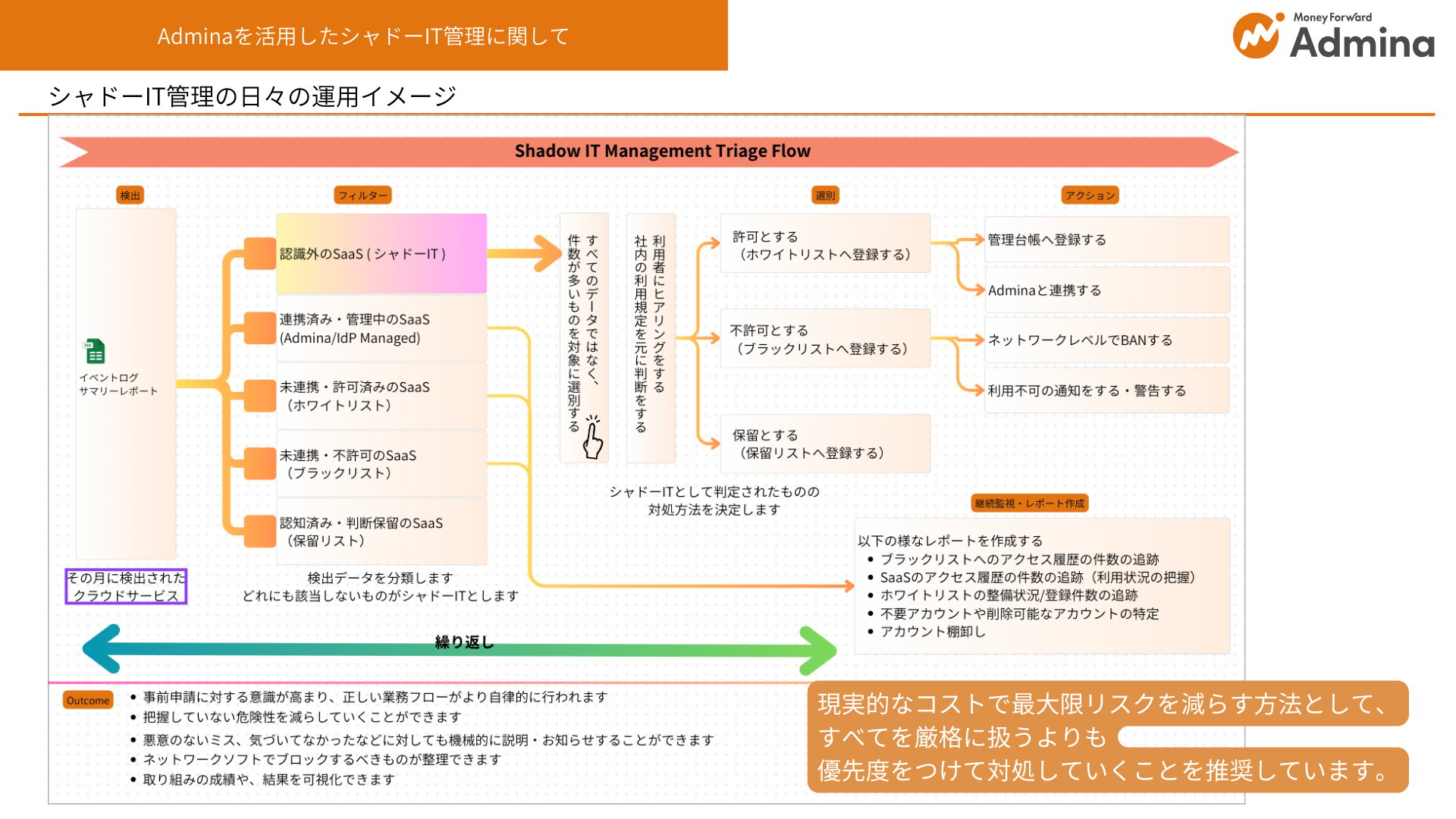
The tool uses SaaS access history from event logs to identify SaaS services the IT department has not yet noticed.You can then categorize those services into a whitelist or blacklist.
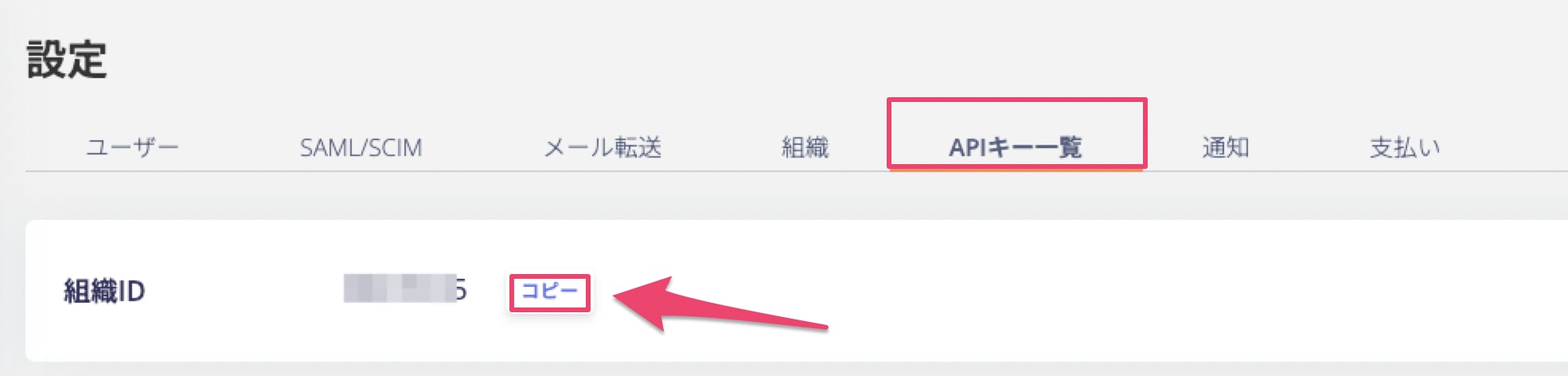
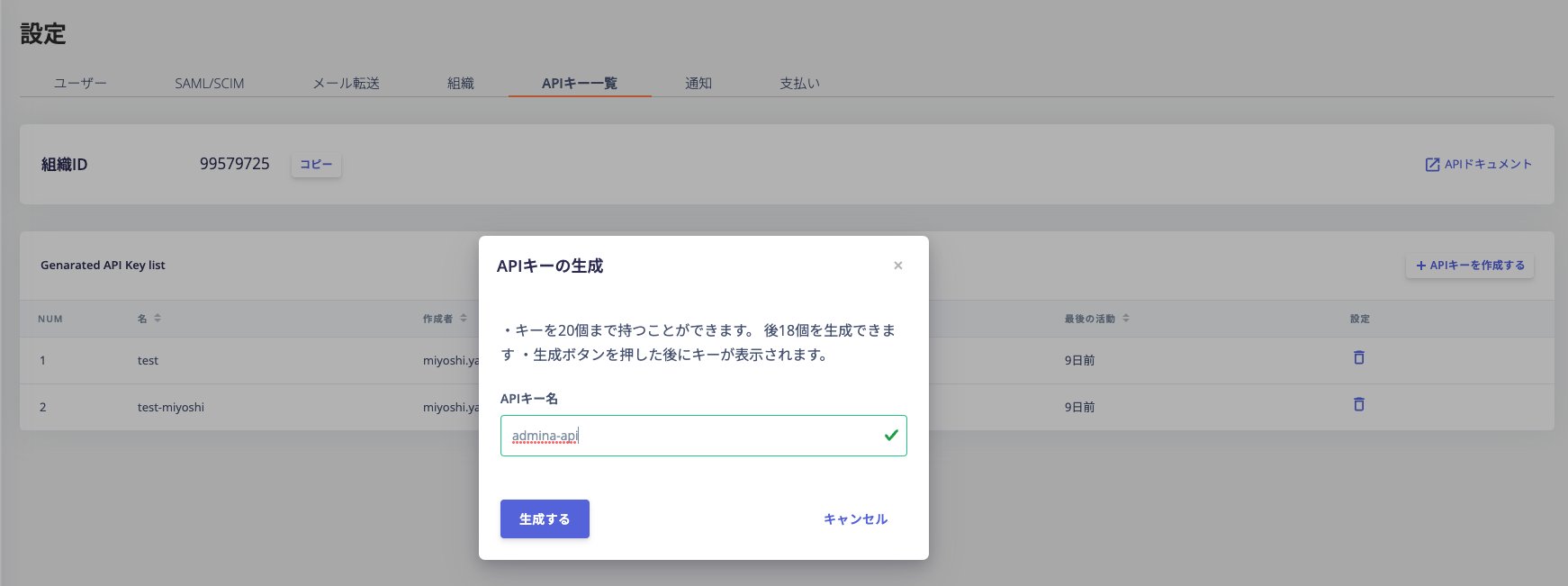
Go to Settings > API Key List to obtain your Organization ID and API Key.
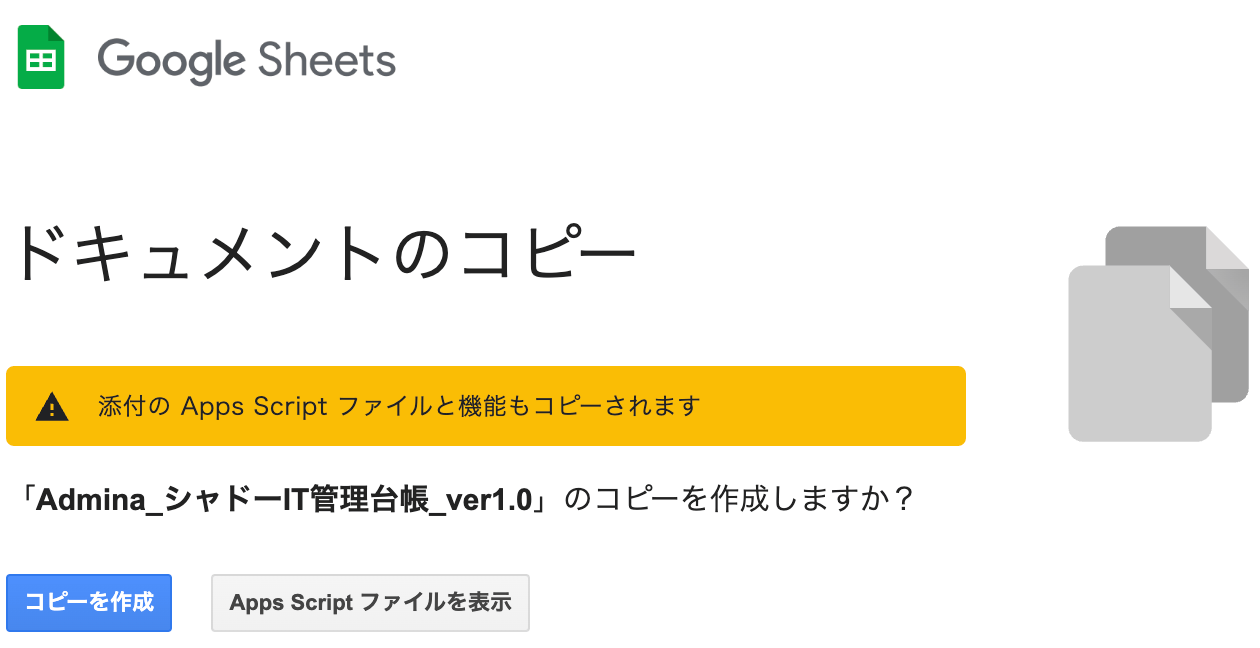
Download the ledger using the link below.Admina_Shadow IT Management Ledger_ver1.0A screen like the one shown below will appear. Save the file to your own environment to start using it.
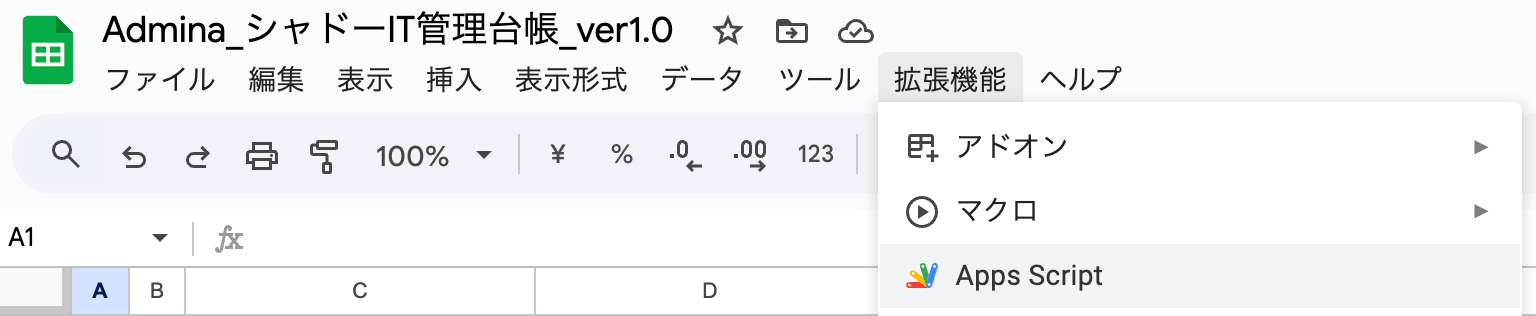
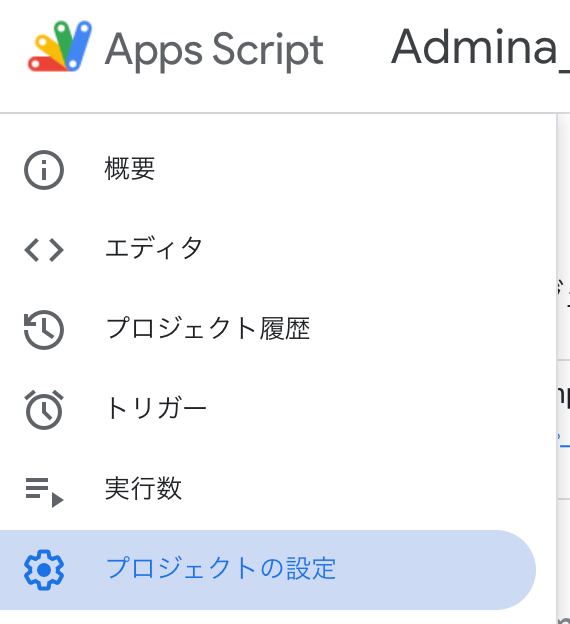
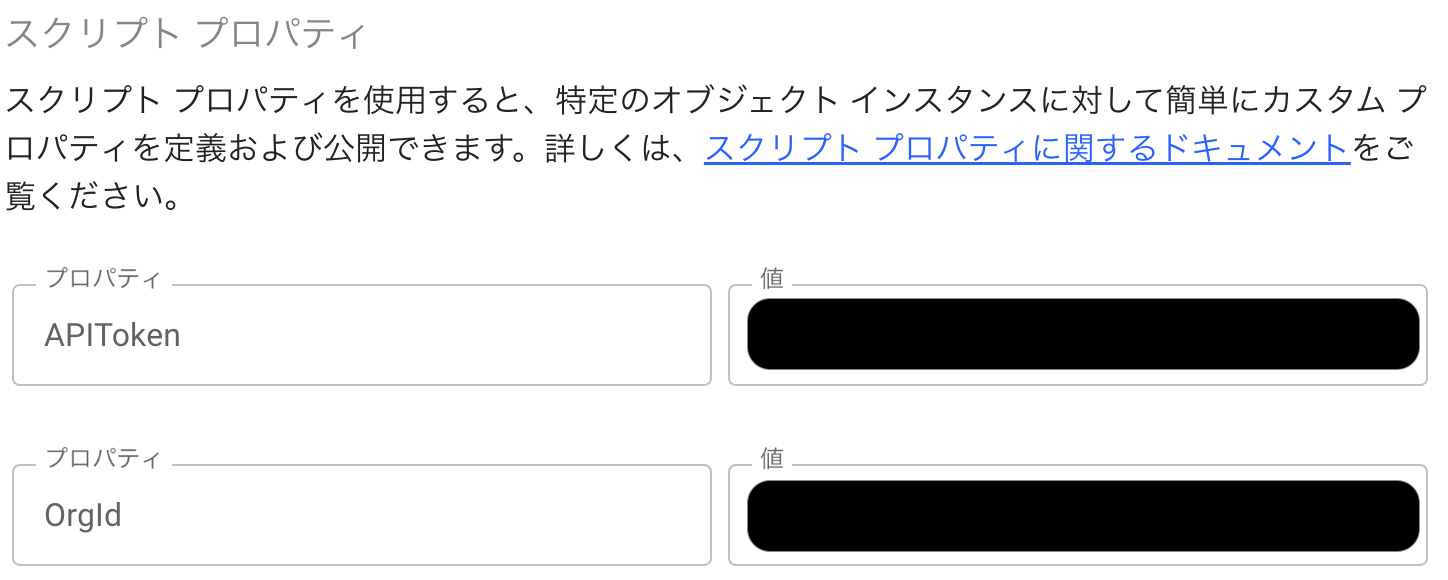
Open Extensions > Apps Script, then go to Project Settings > Script Properties.
Add properties named APIToken and OrgId, and enter the API Key and Organization ID you obtained in step 1.
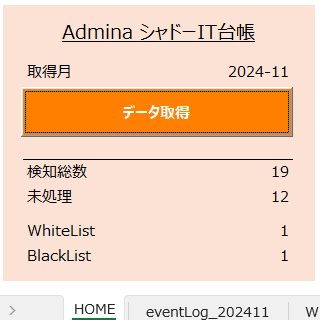
On the HOME sheet, enter the year and month you want to review (in yyyy-mm format).Click Fetch Data to retrieve the data.
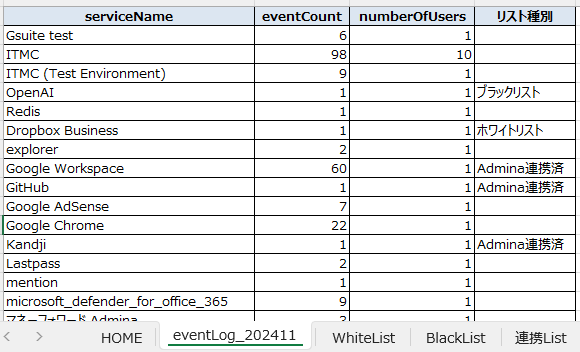
The event log for the entered month is generated as a sheet named eventLog_yyyymm.
The eventLog sheet updates on a per-sheet basis.
Event logs for months other than the one you entered are not updated,
so past months remain as historical records, one sheet per month.
Update the List Type using the LinkedList, WhiteList, and BlackList sheets.The list of SaaS services already connected is also generated as the LinkedList sheet.
The eventLog_yyyymm and LinkedList sheets are generated using the Admina API.[/en/api-reference/it-management/introduction)[/en/api-reference/it-management/introduction)
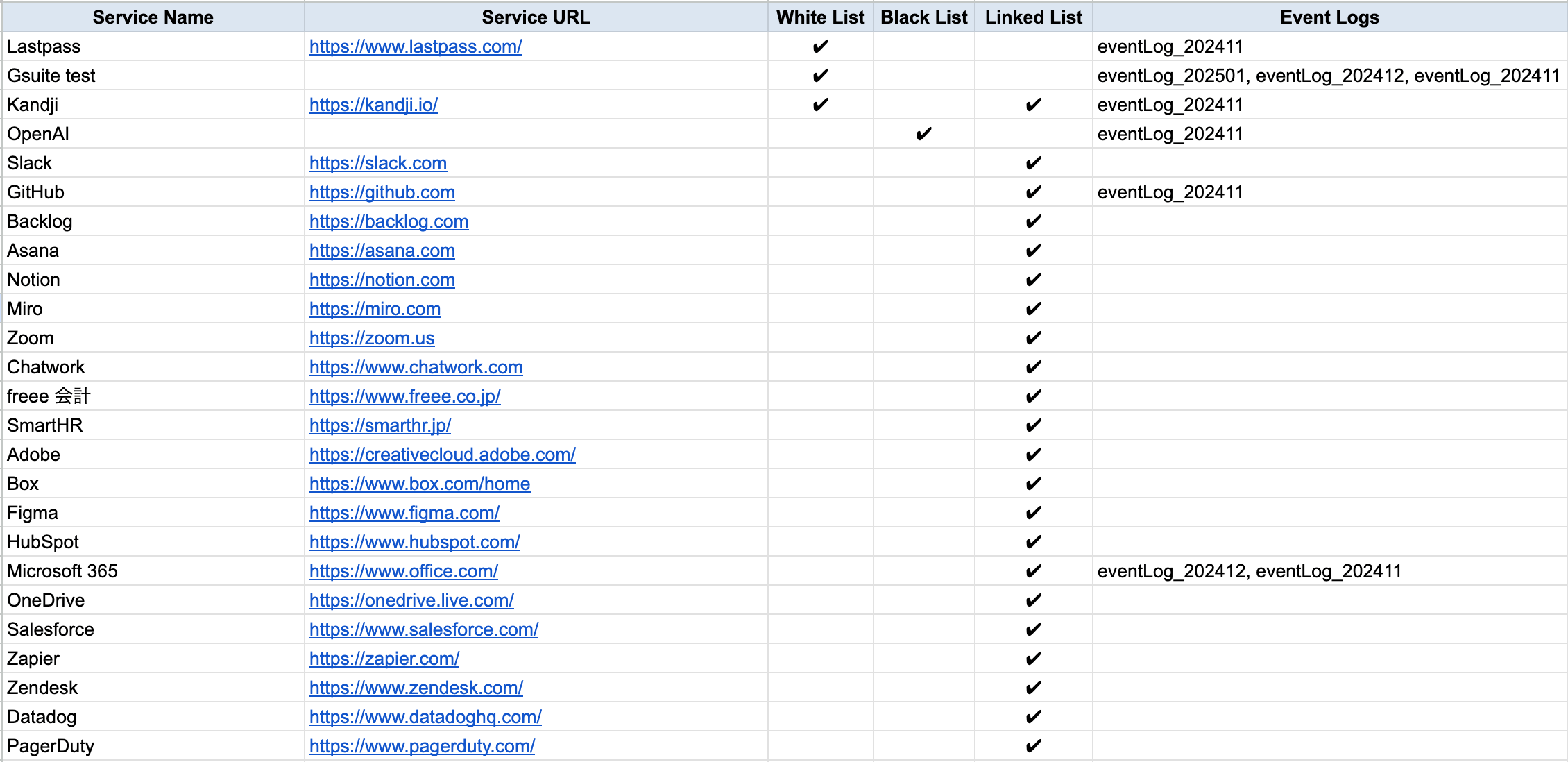
A Service Matrix is also generated at the same time.This table combines data from WhiteList, BlackList, LinkedList, and all eventLog_yyyymm sheets. It includes past months and shows which list each service belongs to.
Define your WhiteList and BlackList in accordance with your security policy.
To reflect new integrations or updates to the WhiteList and BlackList, click Fetch Data again on the HOME sheet.The following items are overwritten:
LinkedList
eventLog_yyyymm (the existing sheet for the same month is overwritten; a new sheet is created if none exists)
Detection Total and Unprocessed counts on the HOME sheet
Service Matrix
This completes the guide on how to use the Shadow IT Management Ledger.If you have any questions or need assistance, please contact our chat support.




 A Service Matrix is also generated at the same time.The