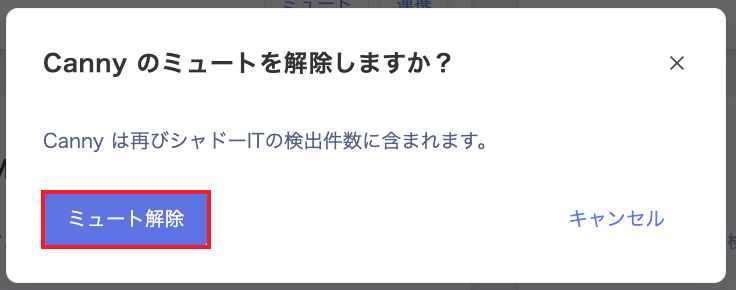
Muted services remain in the list, but they are no longer counted in the Shadow IT detection count. You can unmute a service at any time.
Mute a service
-
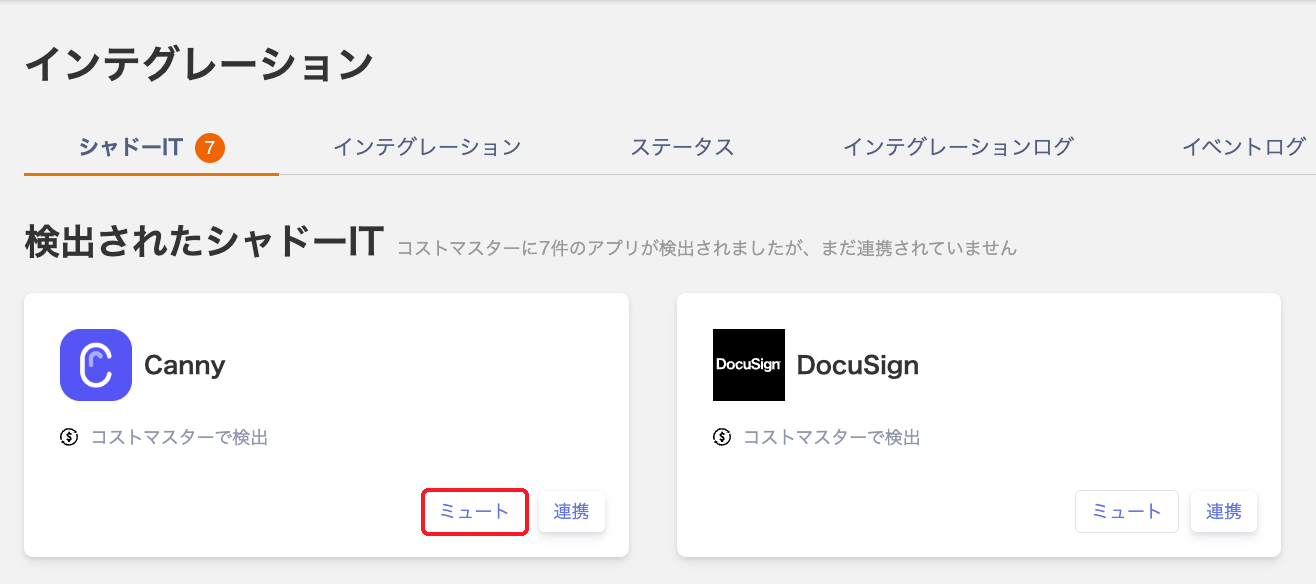
Under Integrations > Shadow IT, in “Detected Shadow IT,” click Mute on the target service.
-
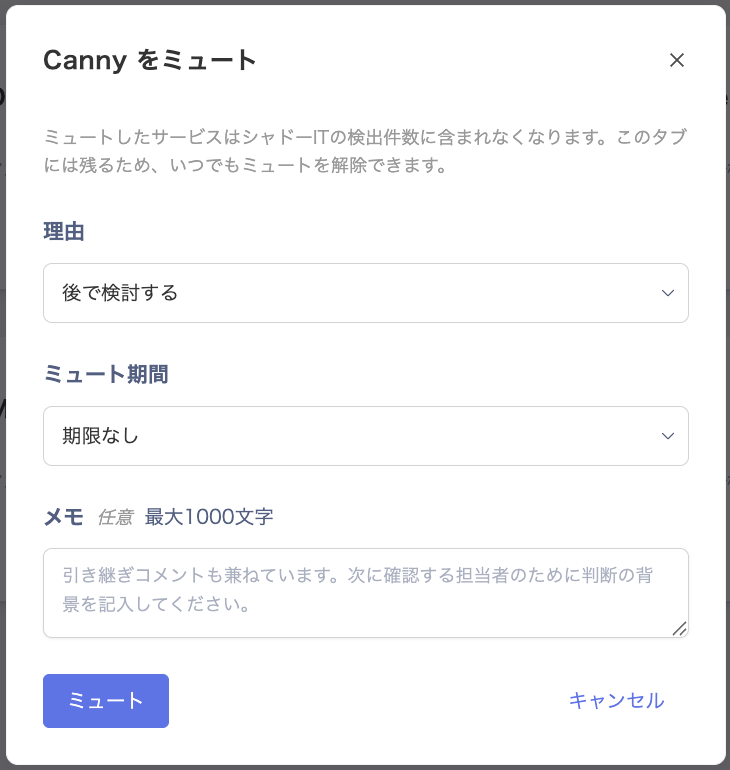
On the “Mute <service name>” screen, set the following items, then click Mute.
-
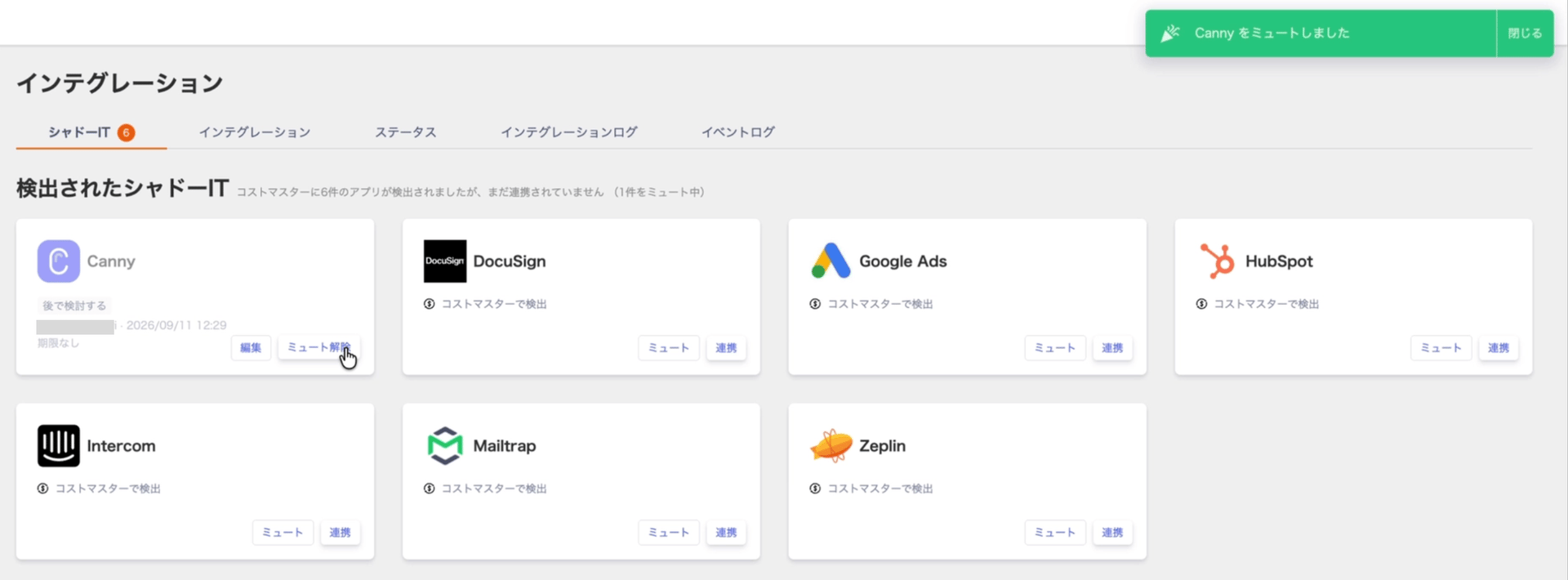
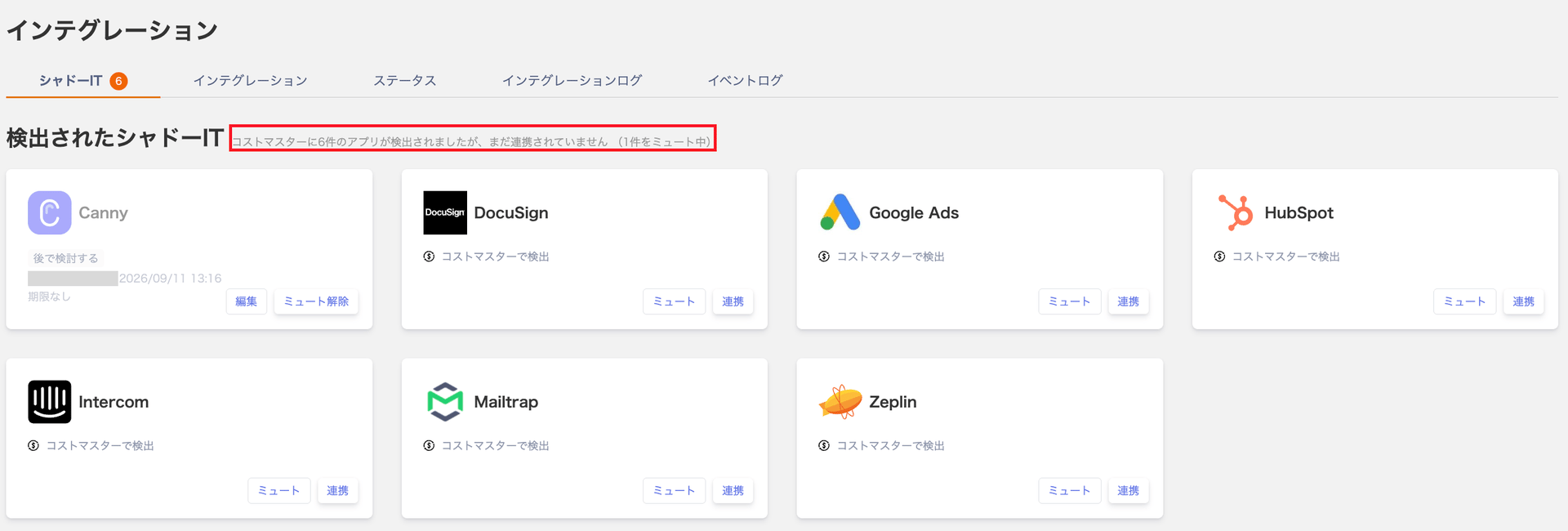
Once muted, the service’s card appears grayed out with Edit and Unmute options. The card shows the selected reason, who performed the action, when, and the mute duration.
Check the muted count
“Detected Shadow IT” also shows the number of currently muted services. Example:6 apps appearing in your Cost Center Integration but not yet integrated. (1 muted)
Edit a mute
-
On a muted service card, click Edit.
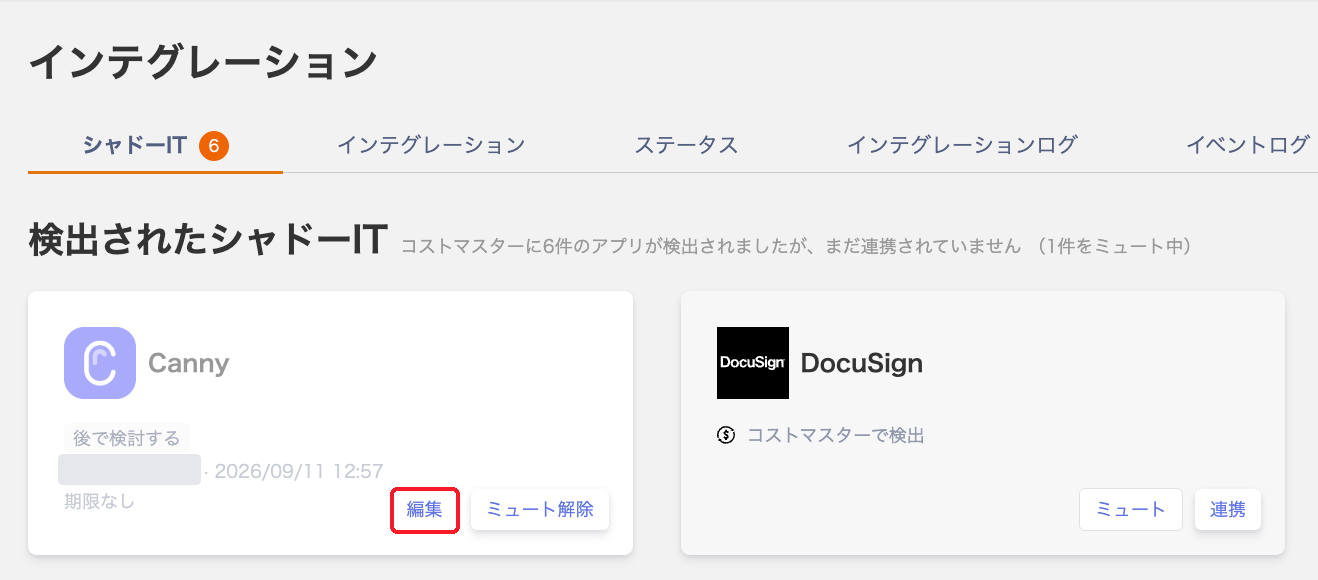
- On the “Edit mute for <service name>” screen, change the reason, mute duration, or note.
- Click Save.
Unmute a service
- On a muted service card, click Unmute.
-
On the confirmation screen, click Unmute.