Checking Service Access Status
The following methods are available to check service access logs.- Access status via Google login. If you have integrated Google Workspace, you can view access status for services accessed using Google login. See Shadow IT Detection via Google Workspace (Details) for more information.
- Access status via Microsoft 365 / Microsoft Entra ID. This requires integrating Microsoft 365 / Microsoft Entra ID using an account with an Entra ID Premium P1/P2 license. Once integrated, you can view access history for services accessed through Microsoft 365 / Microsoft Entra ID login.
- Access status via browser extension You can view access status from browsers with the extension installed. For details, see Distribute and install the browser extension.
- Usage status via Admina Tracker You can view service usage from apps running on devices with Admina Tracker. This includes desktop apps that are not used through a browser. For details, see About Admina Tracker.
Viewing the Event Log
Navigate to Integration > Event Log. You can filter by service name or email address.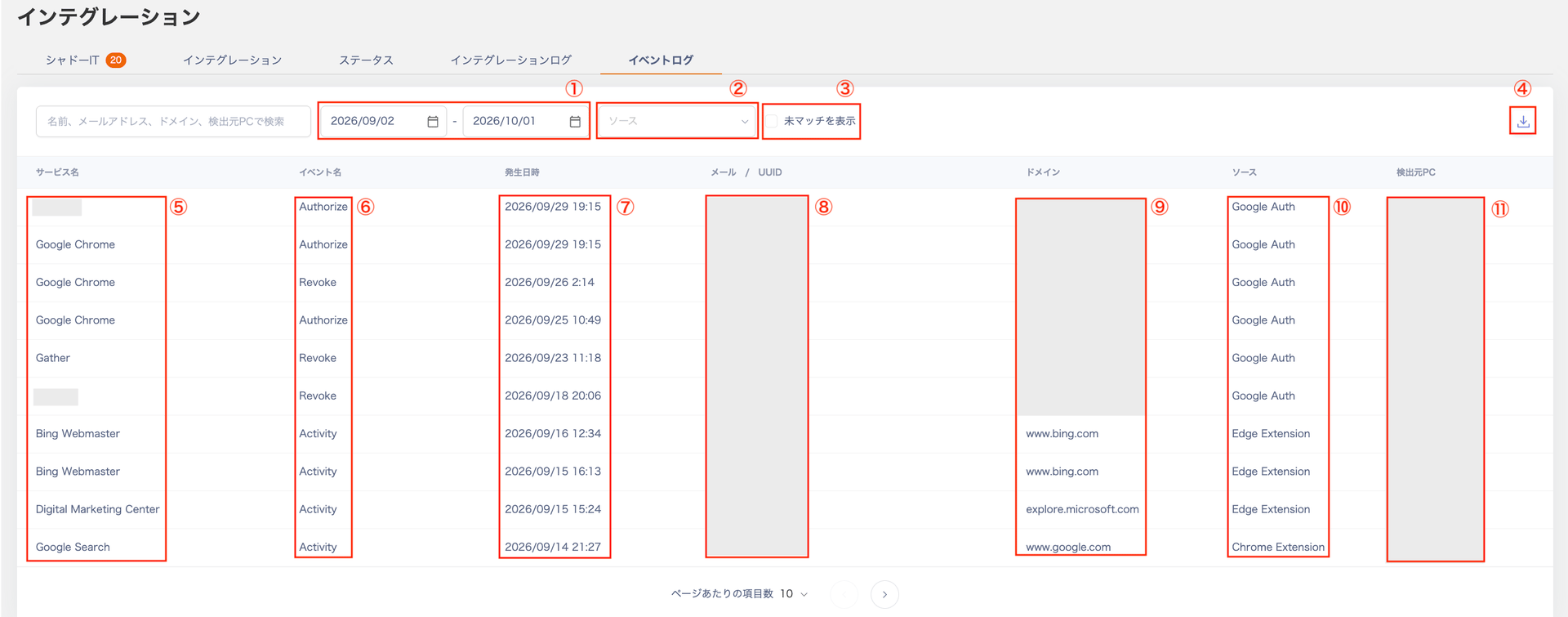
The event log records entries even when the value in Email / UUID does not match any employee in the Directory, including when it is a UUID. Admina does not link such entries to an employee, and Email / UUID shows the collected value as is.
Exporting the Event Log
You can export two types of reports from the event log. Click [Export] in the upper right, select the format, and export. · Raw data (CSV) · Monthly summary (XLSX)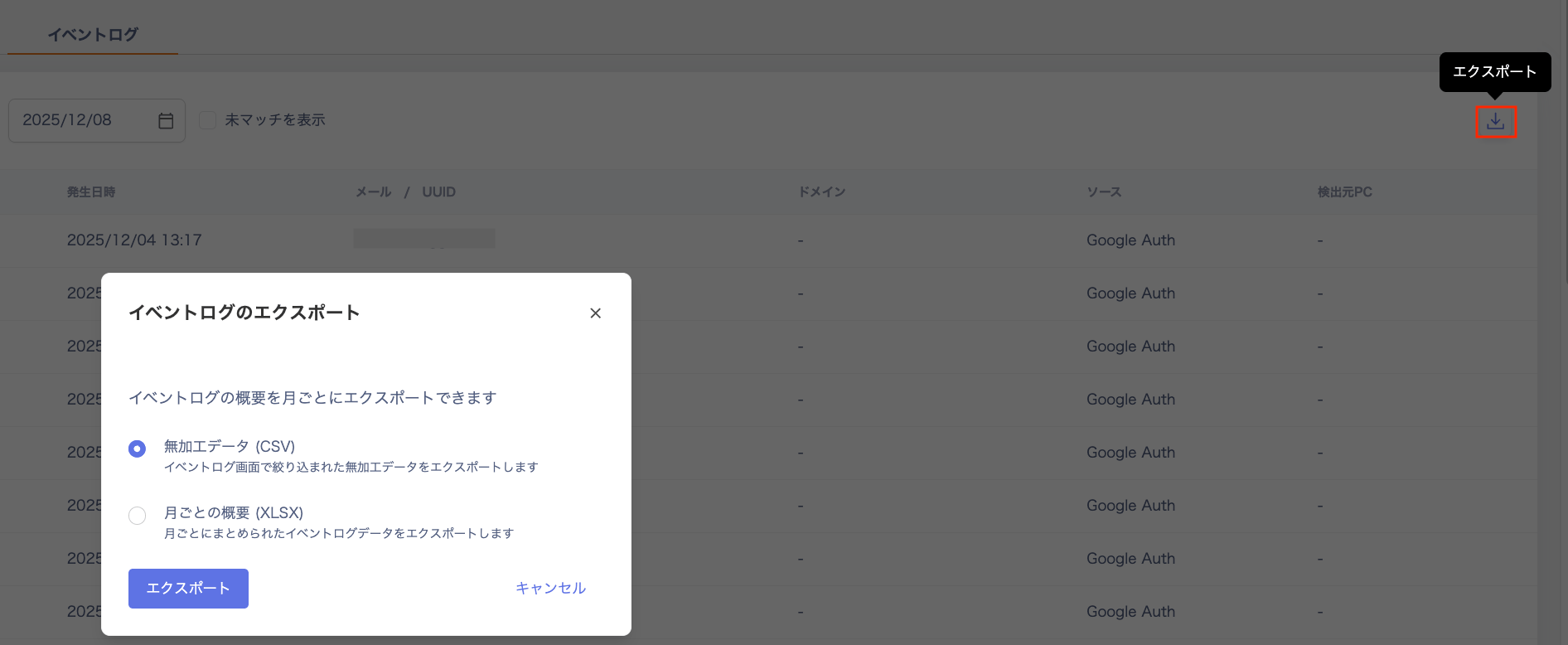
Raw Data (CSV)
Exports the filtered data on the event log page to a CSV file.If the period exceeds 3 months or the data exceeds 20,000 records, use the filter to narrow the date range and export in multiple batches.
Export the event log for a specific employee
To export only the event log for a specific employee, follow these steps.- In Integration > Event Log, enter the employee’s email address to filter the list.
- Select [Export] > [Raw data (CSV)].
identityId parameter of List event logs.
Summary Report (XLSX)
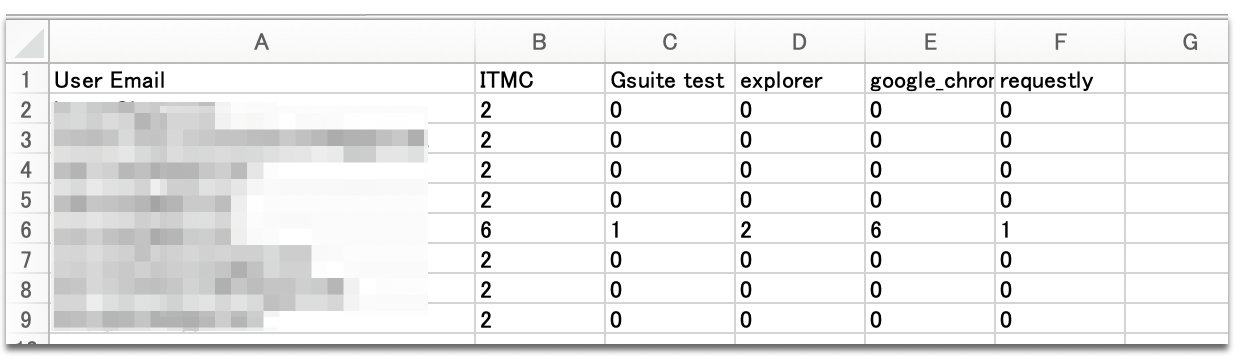
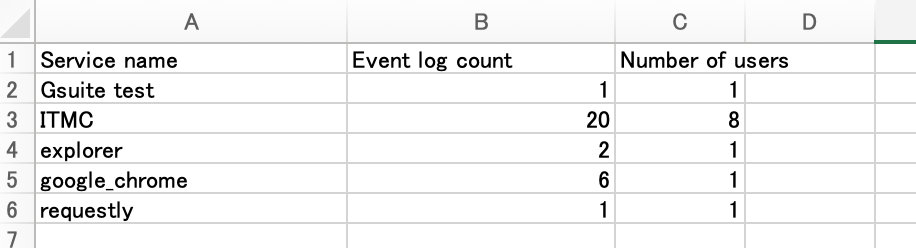
Exports a monthly aggregated report to an Excel file. You can specify a period of up to 1 year. The exported data is organized into the following two tabs by month.- service tab
- service_email tab