Answers to common Shadow IT questions, such as why nothing is detected after integrating Google Workspace, why the extension sends a UUID, and why event log times differ from the actual access time.
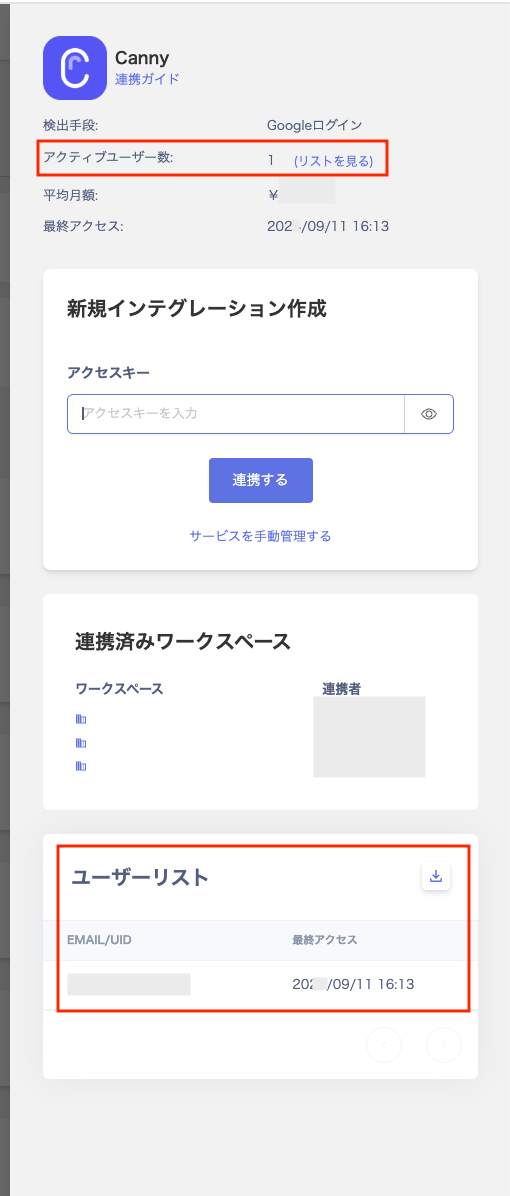
Q. The active user count shown after clicking a SaaS in the Shadow IT tab does not match the user list.
A. The active user count is based on event logs from the past three months. Users whose last activity occurred before that window do not appear in the list.
Q. Shadow IT is not detected after integrating Google Workspace.
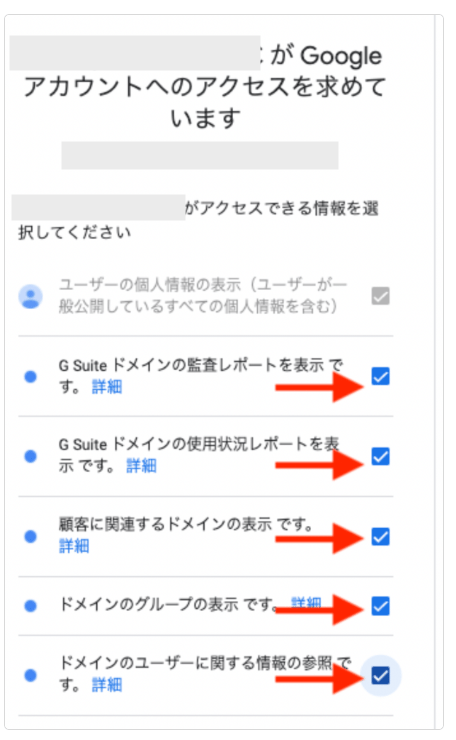
A. The Google Workspace user account used for the integration may lack the required permissions. Check that the items below are visible and enabled. If the permissions are missing, add them to a custom admin role or re-integrate using a super admin account.
Q. Can Shadow IT distinguish personal tenants from company tenants?
A. There is no feature that automatically distinguishes personal tenants from company tenants.Detection with Google Workspace covers SaaS that users access with Google login. The email address must belong to the integrated Google Workspace. Detection does not cover logins with personal Google accounts. For details, see How Shadow IT detection works with Google Workspace.
A. The extension inspects the URLs and domains of pages accessed in Chrome or Edge. This includes browser history from the time of installation. The event log records the following information.For details on event logs, see Event Log: Check SaaS Usage.
A. The browser extension cannot collect it. The browser extension records only browser-based access.To view application usage, install Admina Tracker on your devices. It collects the applications running on each device. This lets you detect desktop apps that are not used through a browser as Shadow IT. You can view the collected usage in the event log with the source “Admina Tracker”.
Q. What does “Occurrence Date/Time” in the event log refer to? Why might it differ from the actual access time?
A. “Occurrence Date/Time” in the event log refers to the time the user ended a session. The extension batches data and sends it to the server once every 30 to 60 minutes. As a result, the recorded time may differ from the actual start of access. The latest timestamp within each batch (the session end time) is what gets recorded on the server.
Q. Does the last-used date for SaaS retrieved via API get updated?
A. If the browser extension detects more recent use, it updates the last-used date to that detection time. At the next sync, the date returns to the value retrieved from the API. For details, see Check the Last Activity date.
Q. Can custom apps (such as internal systems) be detected?
A. Detection is possible after you create a custom app and register URLs for that custom app.To record the last used date as well, set up the custom app before you distribute the extension. Create the custom app by searching the service list and selecting a service name. Then register its URLs and accounts. A custom app created with a free-form name does not get a last used date. This applies to internal systems that are not in the service list. If you have already distributed the extension, recording starts from accesses after you register the account. For the recording conditions, see Distribute the browser extension (Google Workspace). They are in the “Check the last used date for SaaS” step. These conditions apply regardless of how you distribute the extension.
Q. Does the browser extension require proxy settings at the OS level?
A. If your environment routes internet traffic through a proxy, the extension automatically uses that proxy. This works as long as proxy settings are configured in the browser or OS. No additional configuration is needed. You cannot specify a proxy that is separate from the OS or browser proxy settings.
Q. After distributing the extension, events are not detected in the event log. What should I check?
A. If events do not appear, follow the Diag data collection steps to obtain Diag data. Then review it using the Interpret Diag data steps. If steps ① through ⑤ do not resolve the issue, include the collected Diag data and contact the support desk.
Q. Can configuration profiles be used without MDM?
A. This is not currently supported. Due to Chrome extension security restrictions, manually created plist files are loaded by the browser. However, the extension cannot read them.
A. We recommend setting a unique email per user. The extension sends the email address to the server as the “operator” identifier.Any value in email format is technically acceptable. For example, you can use the PC hostname as the local part (e.g., HOSTNAME@example.com).The value you send appears on the web interface as the email address. However, if it does not match a real user, this can make the data difficult to use for meaningful analysis. This includes data such as the last-used date. (It remains sufficient for Shadow IT detection purposes.)
Q. Some entries arrive at the server as a UUID (random string). Why?
A. The EMAIL setting may be missing. This can happen when no EMAIL is configured and the user is not signed into the browser (or has Chrome sync disabled). In that case, the extension cannot identify an email address and sends a UUID instead.
Q. Can a UUID be traced back to a specific person?
A. This is challenging. All employees would need to check their extension settings page individually.Consider distributing the EMAIL configuration to avoid this situation.
Q. Why did the UUID change, or why did a manually entered email address disappear?
A. Removing and reinstalling the extension deletes the data it stored in the browser. The extension creates a new UUID. Reinstalling also removes any email address you entered manually on the extension settings page.With EMAIL distributed through MDM or OS policies, the extension uses that address after reinstalling. It does not restore a manually entered value. The change may take some time to appear. If you plan to reinstall the extension, consider distributing the EMAIL configuration.
Q. For a specific SaaS, some users are detected in the event log and others are not. Is there anything I can do?
A. Re-logging in to the SaaS may resolve the issue. Ask the affected users to sign out and sign back in to the SaaS, then check whether detection resumes.