

Steps to Retrieve Diag Data
The following steps describe how to retrieve Diag data from the extension icon in Chrome.For Chrome or Edge, open the following HTML page directly and follow step 3 onward in these steps.Chrome:
chrome-extension://bdeanmdeckegmfjpbnngomallcedjold/options.htmlEdge (latest): chrome-extension://flggmhlpipcopffjfkpgkoljghfkmfcg/options.html-
Click the extension icon in the upper-right corner of your browser.

-
Click the gear icon in the upper-right corner of the extension screen.

-
Click Diagnostic Data in the lower-right corner of the extension.
-
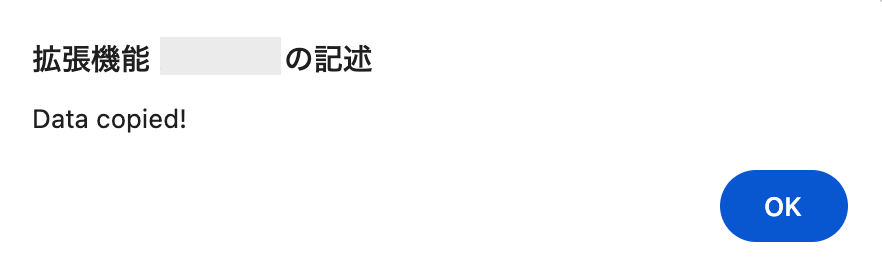
Click OK, then paste the copied data into a text editor and save it.
How to Interpret Diag Data
Reviewing Diag data lets you quickly determine whether data is being sent correctly. It also helps you identify where a configuration issue may exist.-
Check the four required fields
All four of the following fields must be present for data to be sent successfully. If any are missing, proceed to step 2 and beyond.
-
Required parameter details (Email priority order)
The
emailproperty displays whichever of the following three values is currently in use. Which one takes priority depends on the policy state (extension v1.6.14 or later). If an unexpected address appears, check whether a value exists in the higher-priority fields in the table below.- manualEmail: The value entered manually on the settings screen
- managedEmail: The value distributed by a policy (retrieved from the OS or MDM (mobile device management))
- profileEmail: The value retrieved from the browser login information. It doesn’t use personal email addresses such as gmail.com (extension v1.6.15 or later). For details, see How the user’s email address is determined
When a policy distributes the email address, you can’t enter an address manually on the settings screen by default. The Email address field is read-only. To allow manual entry, addAllowOverwriteto the policy and set it to the stringtrue. On a Mac, add it to the plist in the configuration profile. For how to write it on Windows and Mac, see Q. How do I let users overwrite policy values on the settings screen?. Overwriting is allowed only when the value istrue. IfAllowOverwriteis unset,false, or any other value, overwriting isn’t allowed.AllowOverwritealso applies in the same way toApiKey,OrganizationID, andUserPC. Step 2 of the Diag data retrieval steps opens the extension settings screen. On this screen, a label next to the Email address field shows where the current email address comes from. The label doesn’t appear when the email address is empty.You may have distributed the address by a policy but still see Profile. In that case, the distributed value may not have reached the browser. Check it in step 4 of this section (verify the distribution status of the extension). For the label while editing and the Reset button, see the FAQ. - If apiKey, OrganizationID, or CreatedDate are not visible Go to Settings > Browser Extension > Extension policy and copy the value. Set the value inside the extension policy.
-
Verify the distribution status of the extension: Confirm that the extension is installed.
Open the policy page in your browser (for example,
chrome://policy) and verify that the settings have been applied. If no values appear in the policy, check the registry or configuration settings on the OS side. If they are also absent there, check the settings in the distribution source (such as MDM). - Review the FAQ below and follow the steps on each help page, then recheck the values in the Diag data.
- If the issue persists after following the steps above, include the retrieved Diag data and contact the support desk.
FAQ
Q. What should I watch out for when configuring the registry?
A. The registry path differs between Chrome and Edge. (Reference: Step 4: Register 3rdparty/policy (HKCU) under User Configuration) If you configured the wrong path, remove the extension from the browser’s management console and reinstall it.- Chrome path:
Software\Policies\Google\Chrome\3rdparty\extensions\bdeanmdeckegmfjpbnngomallcedjold\policy - Edge path:
SOFTWARE\Policies\Microsoft\Edge\3rdparty\extensions\flggmhlpipcopffjfkpgkoljghfkmfcg\policy
Q. Can I use a configuration profile without MDM?
A. This is not currently supported. Due to Chrome extension security restrictions, a manually created plist loads in the browser. However, the extension cannot read it.Q. Do I need to set a different EMAIL for each user?
A. We recommend doing so. The extension sends the email address to the server as the identifier of the operator. In principle, any value in email address format works. For example, you can use the PC name as the local part (e.g.,HOSTNAME@example.com).
The sent email address appears on the web console as-is. However, it does not link to an actual user account. As a result, it may be difficult to use for data such as last-used dates. (It is sufficient for Shadow IT purposes.)
Q. How do the Manual label and the Reset button work in the Email address field?
A. The label shows Manual when the extension uses an email address that you entered and saved. While you edit the Email address field, the label also shows Manual even before you save. Click Save to use the edited address as the manually set value. The Reset button appears only after you save a manually set email address. Click Reset to delete the manually set email address. The extension then retrieves the address again, first from the policy and then from the browser account. By default, a policy-distributed email address blocks manual entry on the settings screen (extension v1.6.14 or later). To allow manual entry, setAllowOverwrite to true.