

Setup Summary (Fastest Path)
With a single GPO, configure the following three locations. See Chapter 3 for details.
Verification after applying (fastest):
- Link the GPO to the target OU →
gpupdate /forceor sign in again - Run
check_extension_registry.bat(HKLM=ExtensionSettings / HKCU=policy show [OK]) - Reload
chrome://policy/edge://policyin the browser. Check the values on the extension options page (refresh with ↻ if not reflected).
Chapter 1: Overview
Purpose
This document is a setup guide for mass-distributing the browser extension via Active Directory GPO (Group Policy). It focuses on distribution using GPMC Registry Preferences and a logon script.Intended Audience
IT administrators (Active Directory administrators) and information systems staff.Prerequisites
Allow the following destinations.
The extension needs to reach only one of
api.ipify.org and ifconfig.me to check the external IP address.
Extension ID
Bundled Files
Chapter 2: Overall Configuration
The setup consists of two layers: the registry (GPO Preferences) and a user environment variable (logon script).Chapter 3: GPO Setup Steps
GPO Editor Terminology (English UI / Japanese UI)
This document uses the English (Japanese) format. Follow the corresponding item based on your GPMC display language.
How to read a GPO path: follow the GPO editor tree from left to right, as in Computer Configuration → Preferences → …
3.1 Obtaining Values from the Admin Console
Sign in and open Settings > Organization > Browser Extension > Extension Policy. Note the three values ApiKey, CreatedDate, and OrganizationID (fixed values common to all devices).3.2 Creating the GPO
- Open GPMC and create a new GPO linked to the target OU (for example,
Admina Extension). - Link it to a verification OU first, then roll it out to the production OU once confirmed.
3.3 Computer Configuration — ExtensionSettings (HKLM)
GPO path: Computer Configuration → Preferences → Windows Settings → Registry Common settings: Hive = HKEY_LOCAL_MACHINE, Action = Update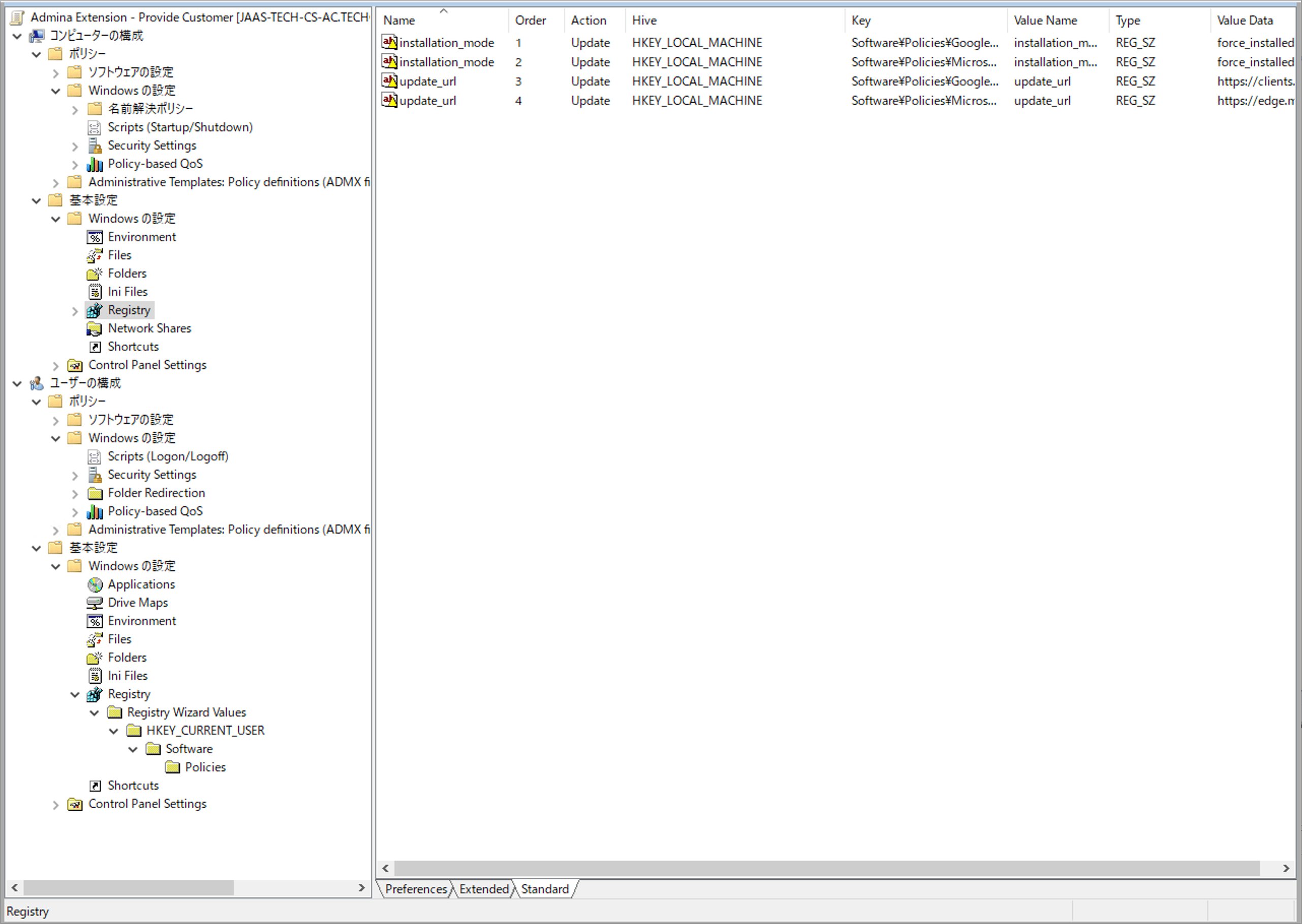
3.3.1 Chrome — ExtensionSettings
Key Path:Software\Policies\Google\Chrome\ExtensionSettings\bdeanmdeckegmfjpbnngomallcedjold
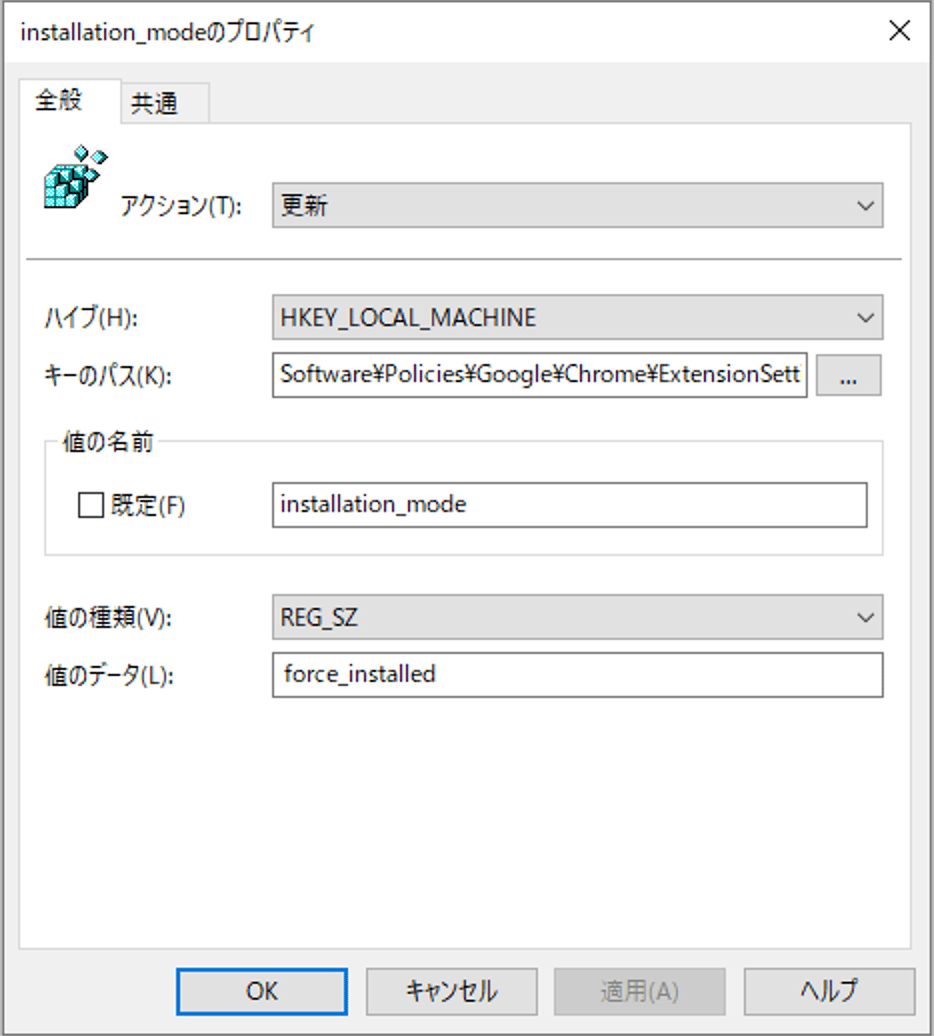
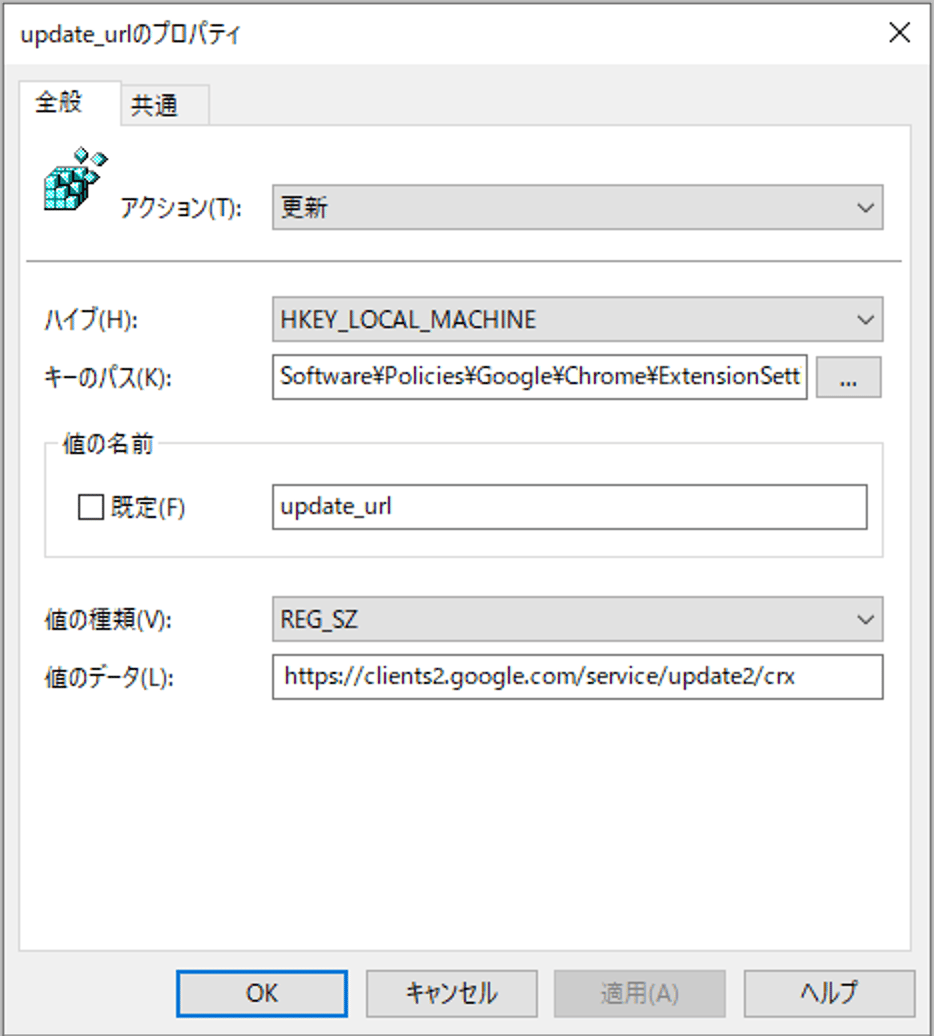
3.3.2 Edge — ExtensionSettings
Key Path:Software\Policies\Microsoft\Edge\ExtensionSettings\flggmhlpipcopffjfkpgkoljghfkmfcg
Writing ExtensionSettings in both HKLM and HKCU causes a conflict and one side is ignored (see Note 3). Always place it only in Computer Configuration (HKLM).
3.4 User Configuration — 3rdparty/policy (HKCU)
GPO path: User Configuration → Preferences → Windows Settings → Registry Common settings: Hive = HKEY_CURRENT_USER, Action = Update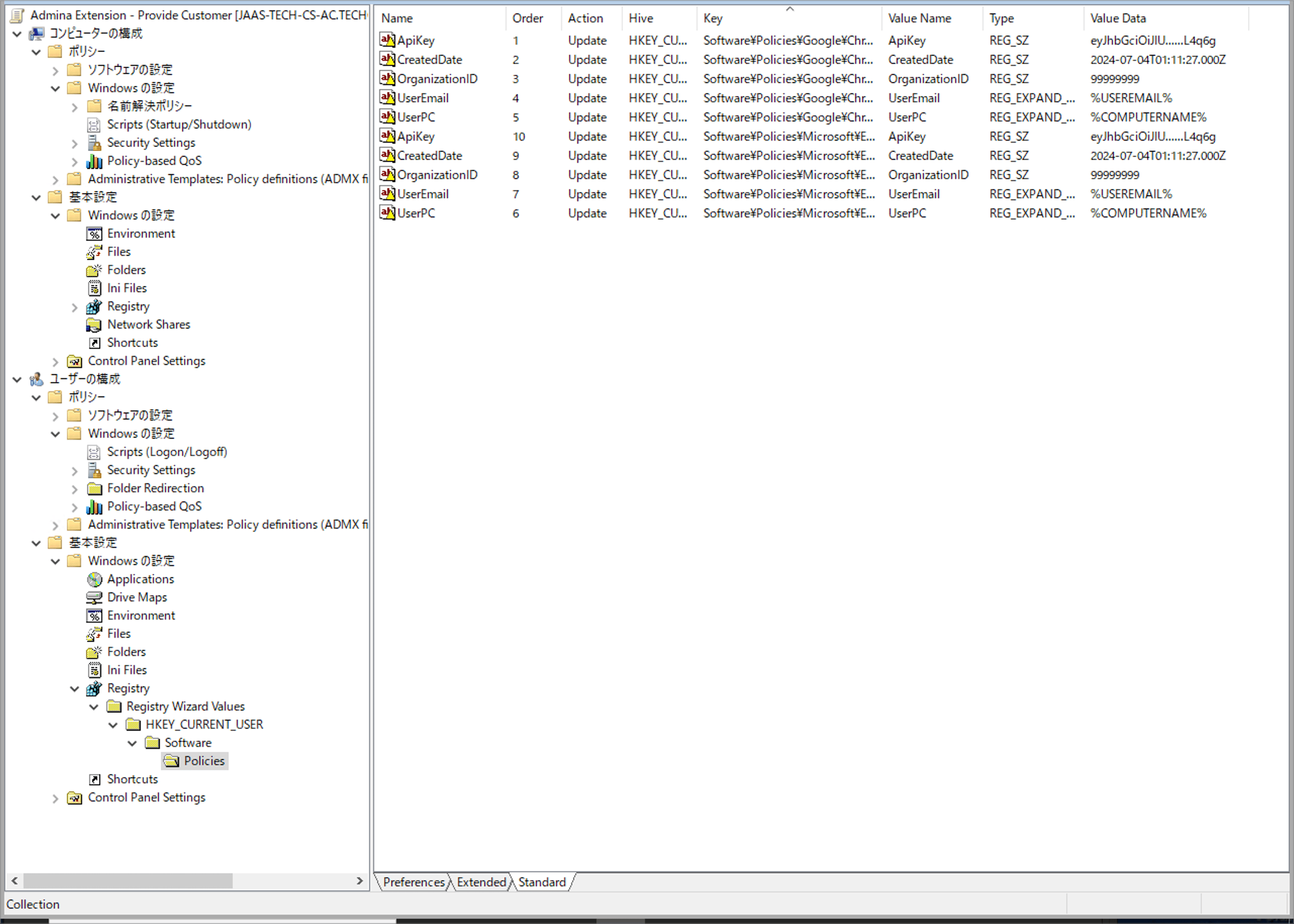
3.4.1 Chrome — 3rdparty/policy
Key Path:Software\Policies\Google\Chrome\3rdparty\extensions\bdeanmdeckegmfjpbnngomallcedjold\policy
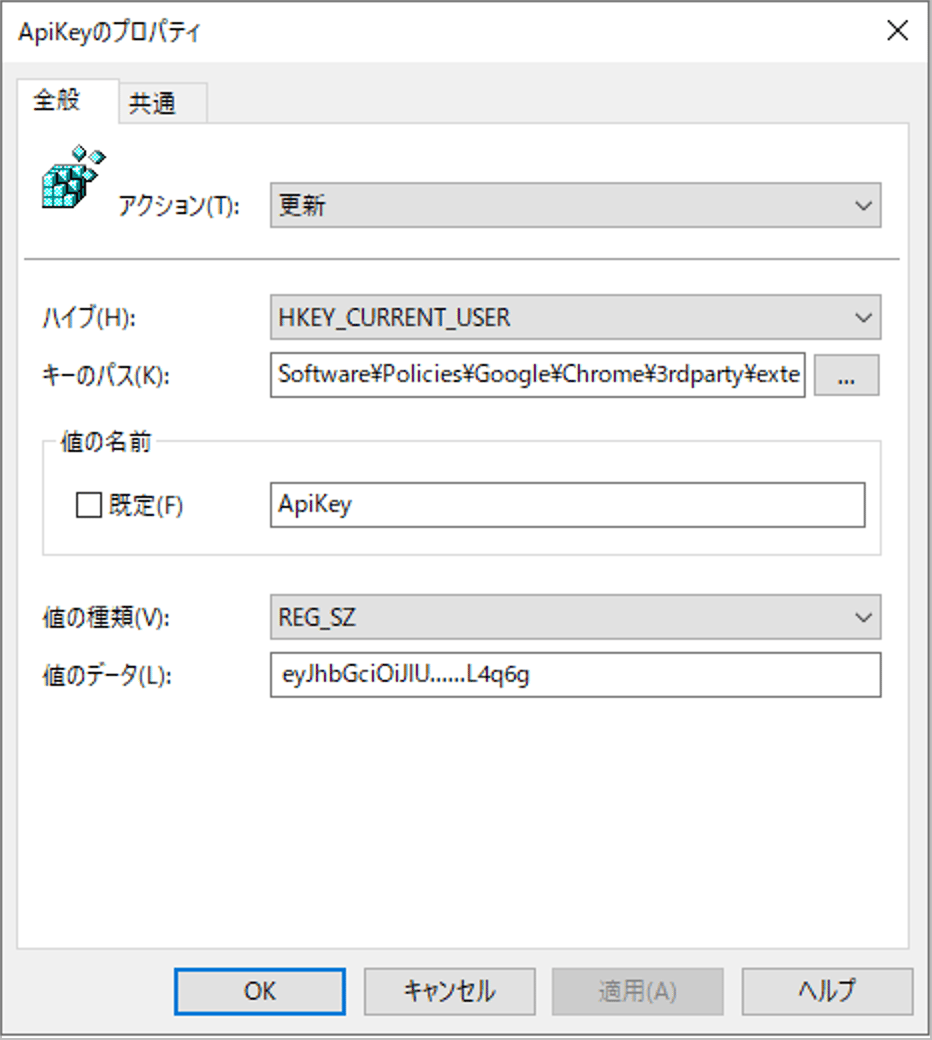
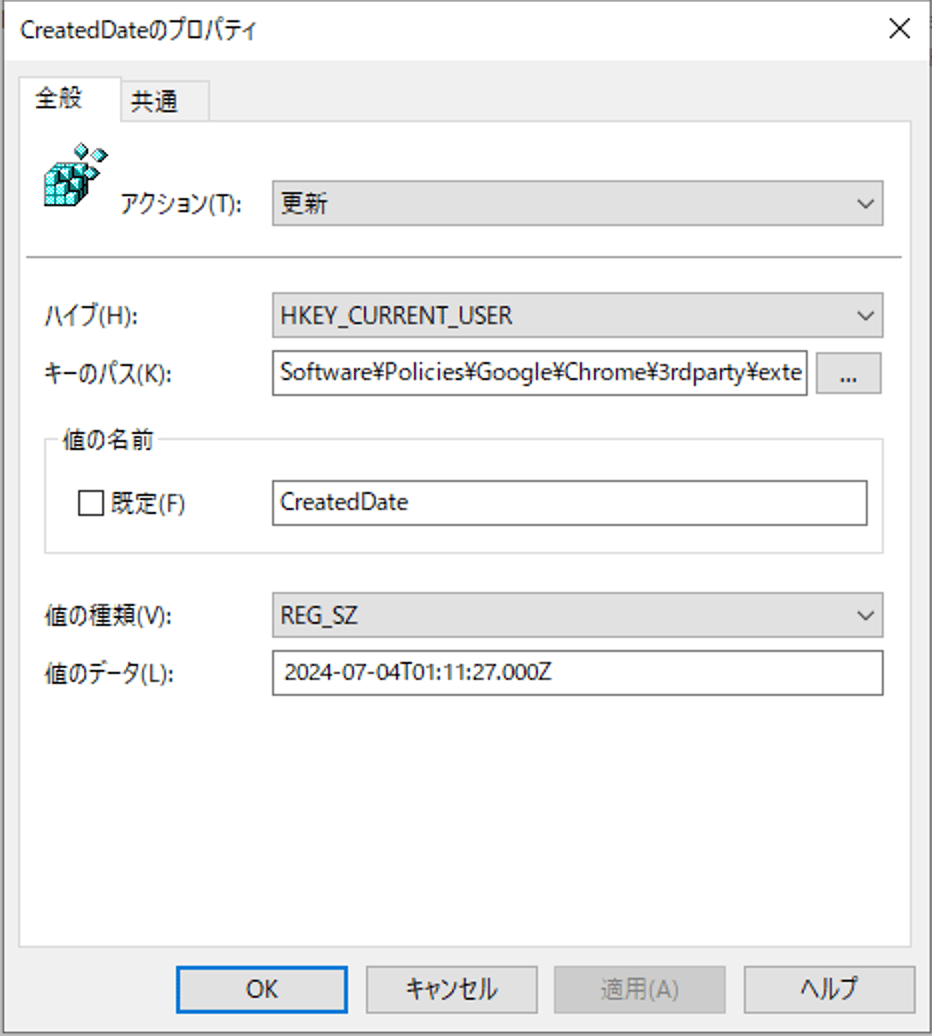
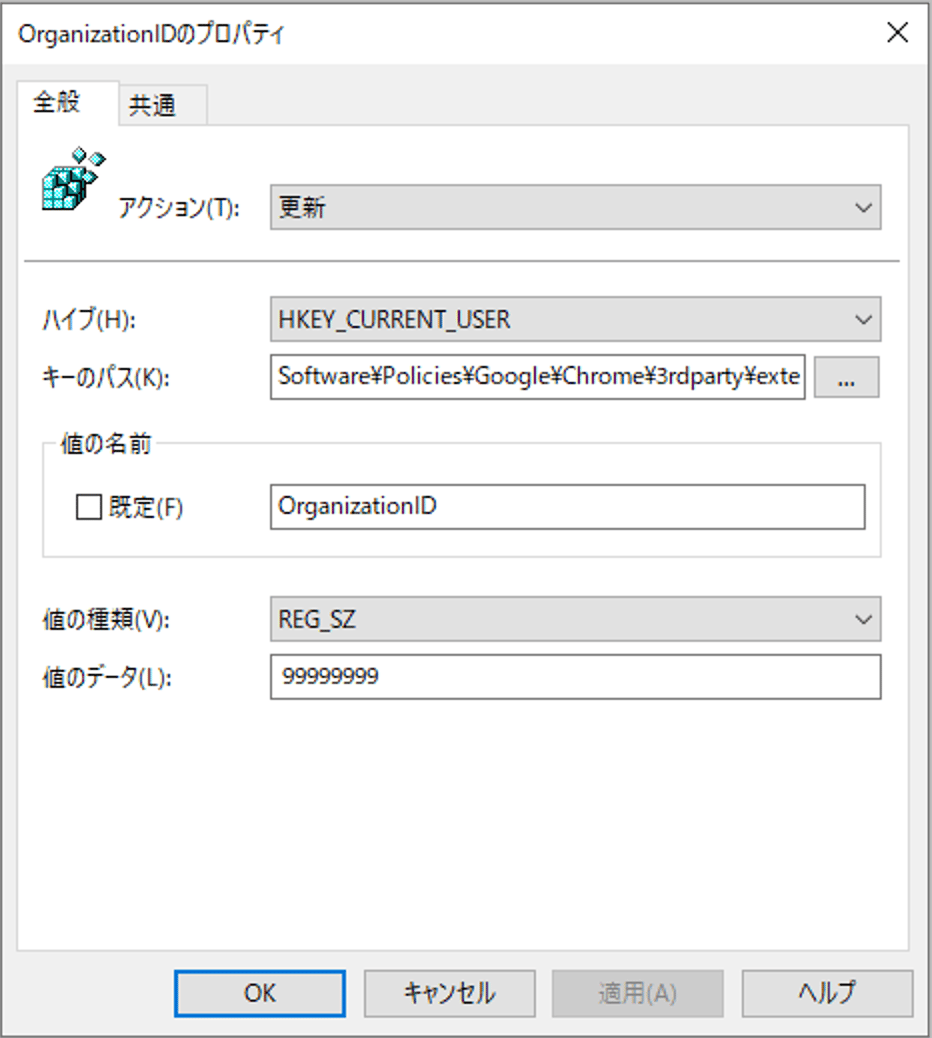
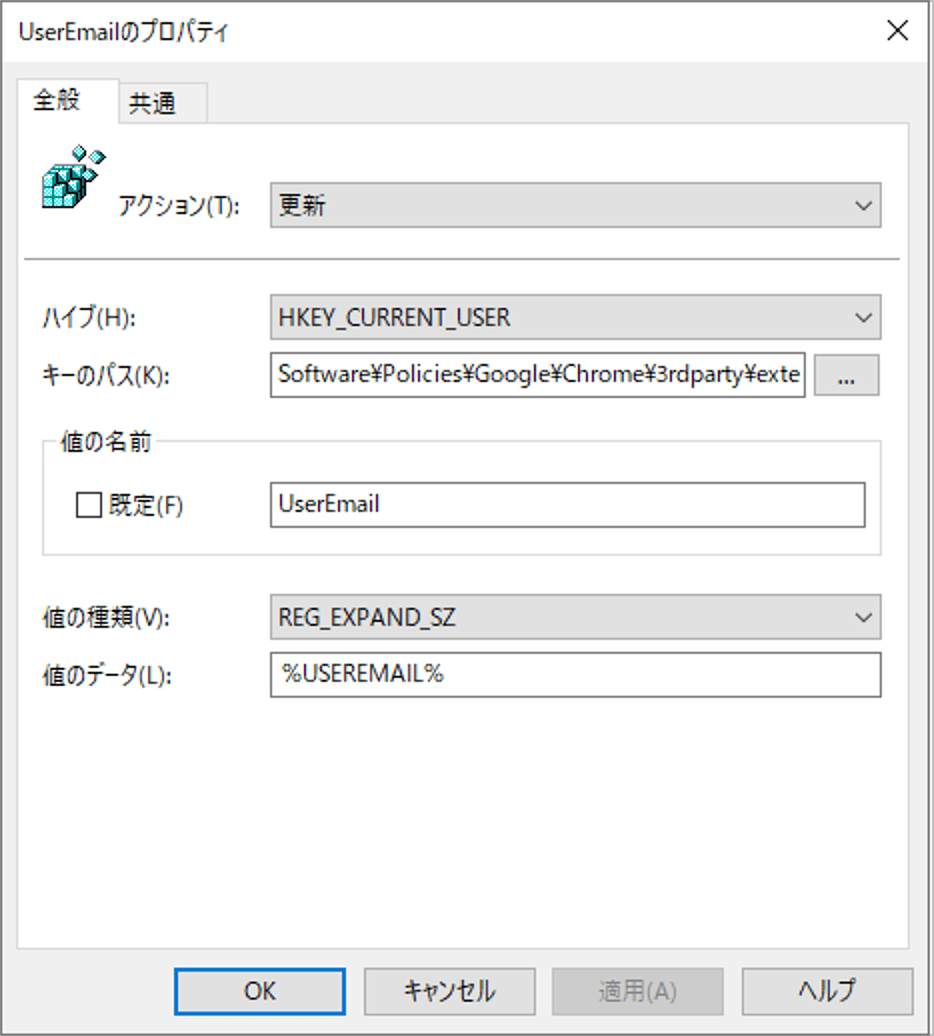
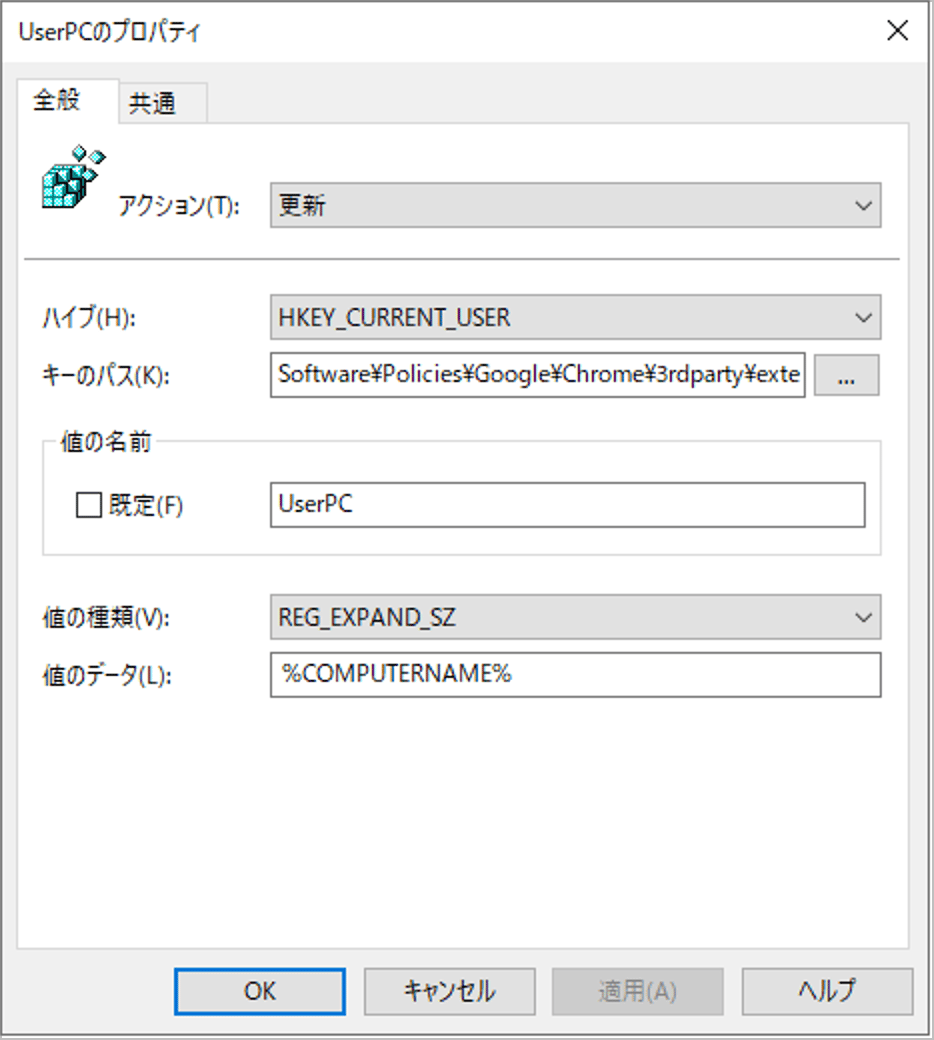
3.4.2 Edge — 3rdparty/policy
Key Path:Software\Policies\Microsoft\Edge\3rdparty\extensions\flggmhlpipcopffjfkpgkoljghfkmfcg\policy
Create the same five items as Chrome (Value name / Value type / Value data are identical) under the Edge Key Path. Do not also write 3rdparty/policy under Computer Configuration (HKLM) (see Note 4).
3.5 Logon Script — USEREMAIL Environment Variable
If you distribute UserEmail as a %USEREMAIL% reference, you need a logon script. It must set the USEREMAIL environment variable at each user’s logon (see Note 5). GPO path: User Configuration → Policies → Windows Settings → Scripts (Logon/Logoff) → Logon
Steps:
-
Edit the DomainPart in Set-UserEmailEnv.bat to your company domain (e.g.,
example.com). -
Place it in
scripts\admina\under SYSVOL. -
Register it as a Logon script using the GPO path above.
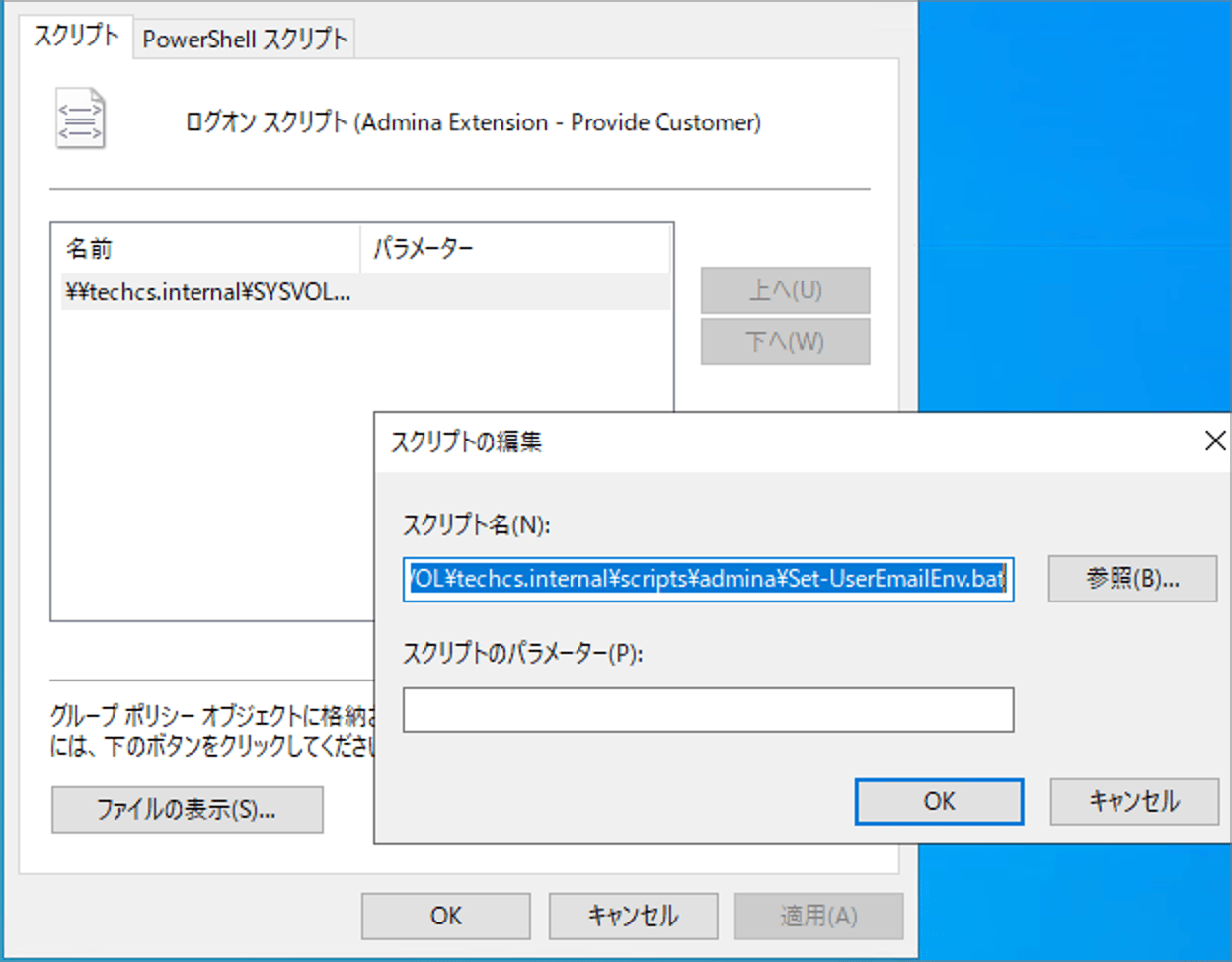
Set-UserEmailEnv.bat sets the user’s UPN (user principal name) in
USEREMAIL. If it cannot get the UPN, it builds the value from the user name and DomainPart. You can set only one domain in DomainPart. Some environments use multiple email domains, or a UPN suffix that differs from the email domain. For setup in such an environment, contact the support desk.3.6 Applying the GPO
- Link the GPO to the target OU.
- Run
gpupdate /forceon a verification device, or sign in again. - Run
check_extension_registry.batusing the steps in Chapter 4.
3.7 Alternative: Startup Script Method
Instead of Registry Preferences, you can place edge_chrome_extension.bat in SYSVOL. Register it as a Startup script using the following GPO path. Computer Configuration → Policies → Windows Settings → Scripts → Startup Edit the constants in the bat file.
The USEREMAIL setting via the logon script (3.5) is still required.
Chapter 4: Verifying Operation
4.1 Verification via the Check Script
Runcheck_extension_registry.bat as the target user (read-only).
Criteria for a normal result:
The Summary’s 14 found / 14 missing is normal because both HKCU and HKLM are scanned. The [—] for “intentionally not placed” is not an error.
Example output (verification environment):
4.2 Verifying Installation in the Browser
Even if the registry settings are correct, there is a delay before they are reflected in the browser.
To check immediately, perform the following two steps in order.
- Explicitly reload the policy page (4.2.1)
- Open the extension options page and press refresh (↻) if not reflected (4.2.2)
4.2.1 Explicitly Reloading the Policy
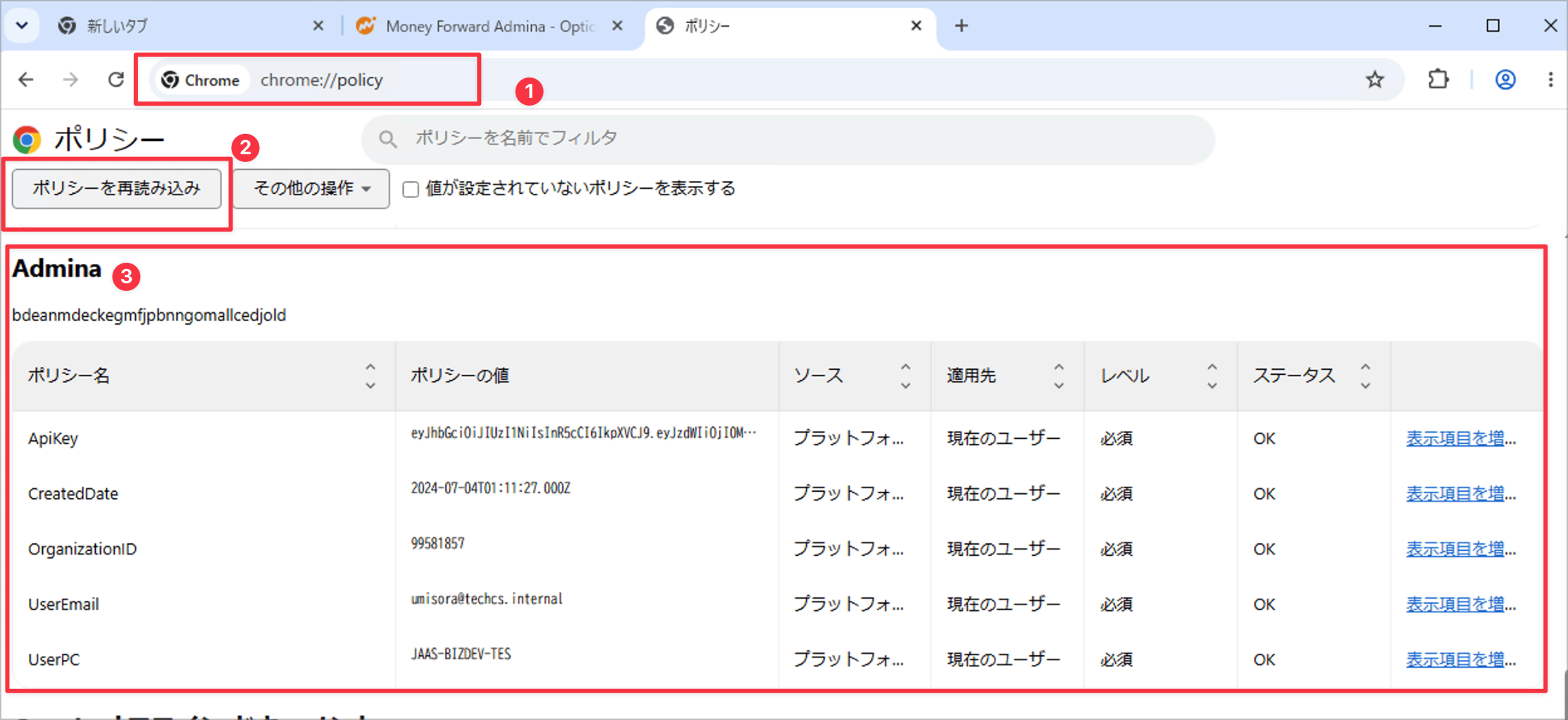
Chrome-
Enter
chrome://policyin the address bar and open it. - Click Reload policies.
-
Confirm that each value (ApiKey, OrganizationID, UserEmail, etc.) shows OK under Extension policies below.
-
Enter
edge://policyin the address bar and open it. -
Click Reload policies.
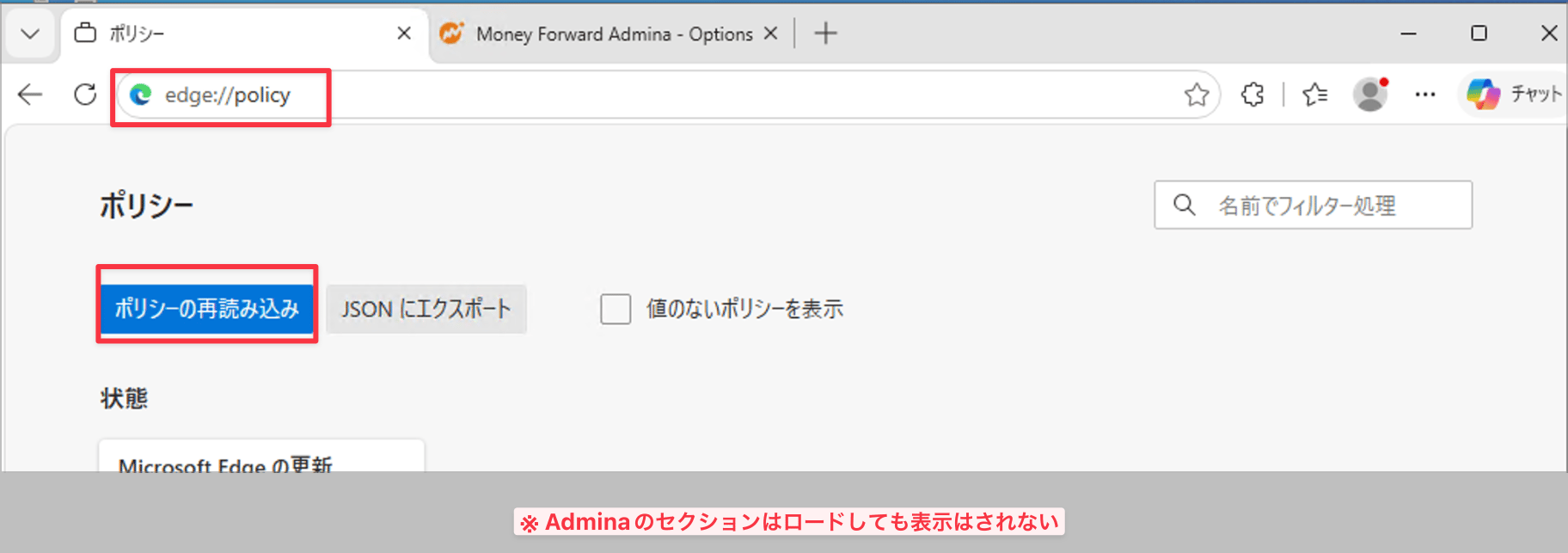
edge://policy (known behavior). Reload the policy anyway, and verify the values on the options page in 4.2.2 (see Note 7).
4.2.2 Verifying on the Extension Options Page
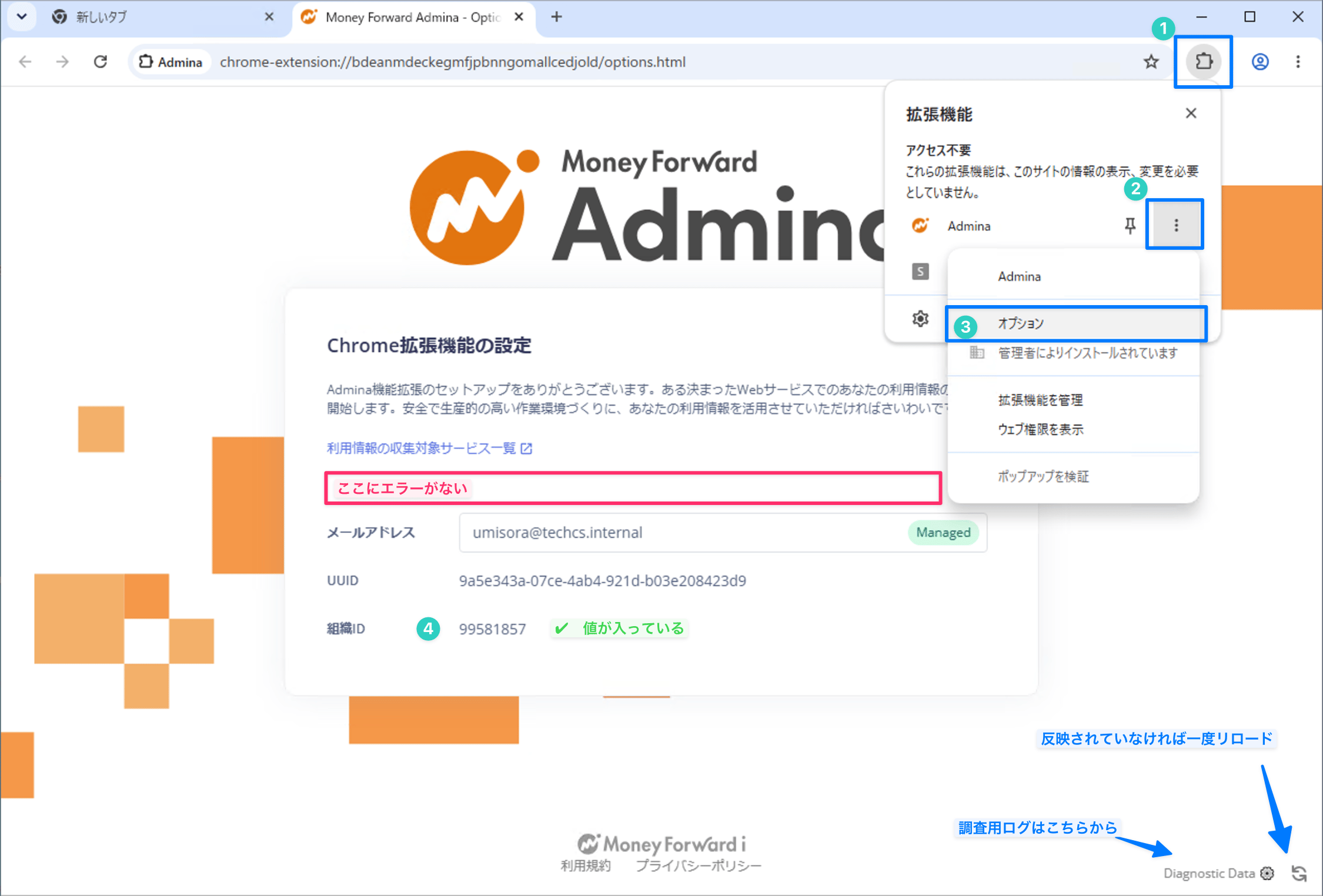
Chrome- Toolbar extension icon → the extension’s ︙ (More) → open Options.
- Confirm that “Installed by your administrator” appears in the extension menu.
-
On the options page, confirm the following.
- The email address has a Managed tag and a value
- The organization ID has the value from the admin console
- No error appears at the top of the screen
-
If a value is still empty, press refresh (↻) once at the bottom right of the page.
- Toolbar extension icon → the extension’s ︙ (More) → open Extension options.
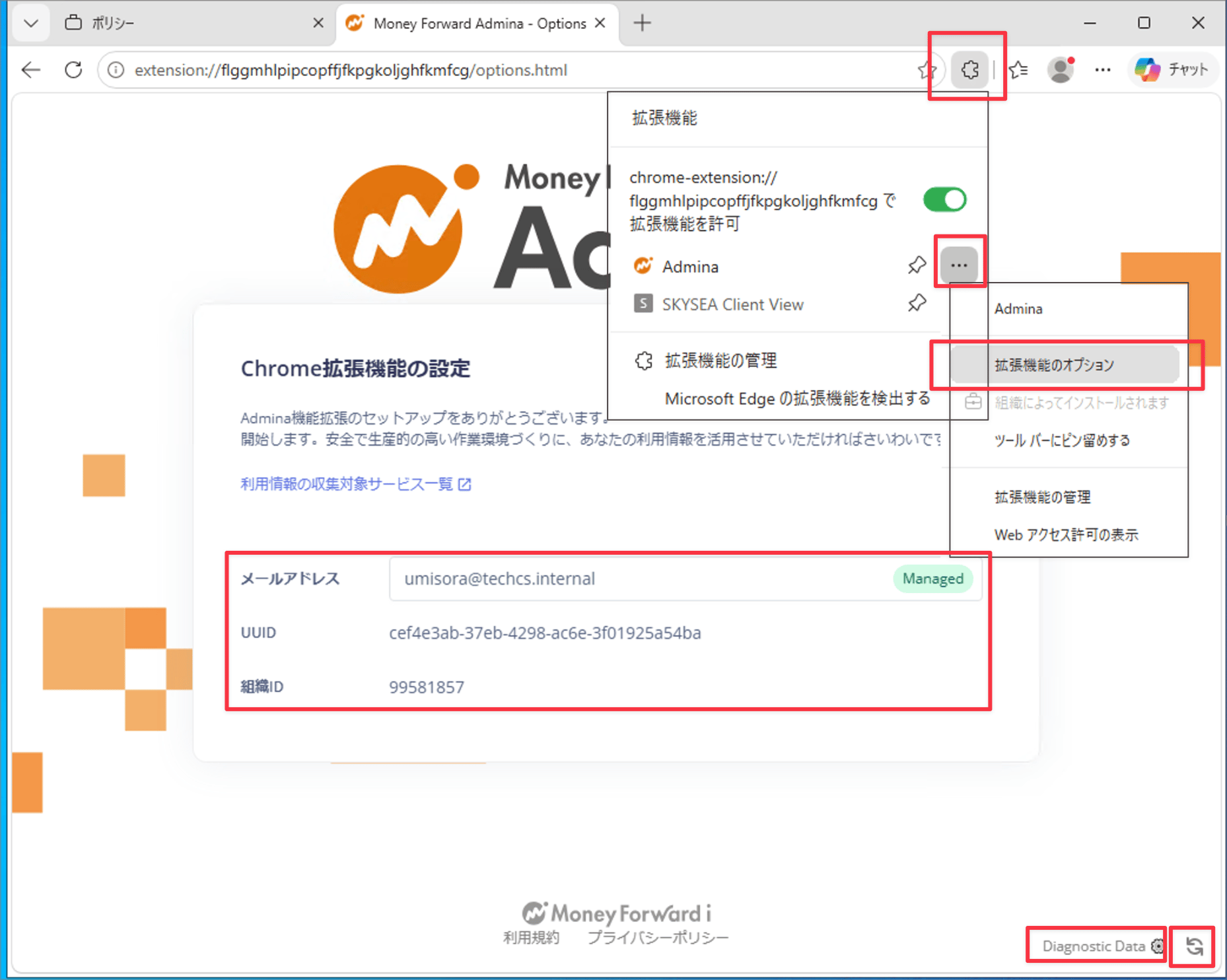
- As with Chrome, confirm the email address (Managed), organization ID, and no errors.
-
If not reflected, press refresh (↻) once at the bottom right of the page.
4.2.3 Verifying in the Extensions List (Reference)
- Chrome:
chrome://extensions - Edge:
edge://extensions
4.3 Diag Data (For Investigation)
You can obtain investigation logs from Diagnostic Data at the bottom right of the options page. If there is no connectivity, see Chapter 5.Chapter 5: Connectivity and Data Verification
5.1 Data Arrival Verification
Within about an hour, entries from the Chrome / Edge source appear under “Integrations > Event Log”.5.2 When There Is No Connectivity
Check for warnings via the extension icon → Settings (⚙️). For details, see Interpret Diag data.5.3 Network Verification
Chapter 6: Technical Notes
Note 1: ExtensionSettings = HKLM, 3rdparty/policy = HKCU
ExtensionSettings is a per-machine setting. Because the UserEmail in 3rdparty/policy differs per user, it is placed in User Configuration (HKCU).Note 2: Action = Update
Creates the entry if it does not exist and overwrites it if it does. Replace re-creates the entire key and has side effects.Note 3: ExtensionSettings HKLM/HKCU Conflict
If it exists in both HKLM and HKCU, only the HKLM side is used.Note 4: 3rdparty/policy HKLM/HKCU Conflict
If the same value name exists in both, HKLM takes precedence.Note 5: Why UserEmail Uses an Environment Variable Reference
When Computer Configuration is applied, USEREMAIL is not expanded because it runs in the SYSTEM context. The combination of User Configuration and a logon script is required.Note 6: Permissions for HKCU\Software\Policies
Only GPO Preferences (User Configuration) can write to HKCU\Software\Policies. A logon script can only set the USEREMAIL environment variable.Note 7: 3rdparty/policy Not Shown on edge://policy
The values themselves reach the extension. See Appendix A.2.Chapter 7: Uninstalling
Removing items from the GPO alone leaves the registry values on the device (the GPP “tattoo” effect).7.1 Method A: GPO Delete Action (Recommended)
Also remove the logon script from the GPO.
7.2 Method B: Uninstall bat
Run edge_chrome_extension_uninstall.bat with administrator privileges. It removes both the HKLM / HKCU keys and the USEREMAIL environment variable. After running it, reload the policy atchrome://policy / edge://policy.
Appendix A: Verifying Policies in the Browser
For detailed steps and screenshots, see Section 4.2.A.1 Chrome: chrome://policy
After “Reload policies”, check the Extension policies section. Verify the Scope (Machine / User) and each value’s Status (OK).A.2 Edge: Verifying 3rdparty/policy
3rdparty/policy is not shown onedge://policy. Verify it on the options page in 4.2.2, or as follows.
- Method 1: Check the HKCU values with
check_extension_registry.bat. - Method 2: In the Service Worker console (
edge://extensions→ Developer mode → Inspect Service Worker), run:chrome.storage.managed.get(null, (data) => console.log(data))
Appendix B: Q&A
Q. Does the extension disappear just by unlinking the GPO?
A. No. Remove it explicitly using the Delete action in Chapter 7 or edge_chrome_extension_uninstall.bat.Q. The check script shows “Some values are missing”.
A. In the recommended GPO configuration, this is normal. The HKCU-side ExtensionSettings and the HKLM-side 3rdparty/policy show [—] (see Section 4.1).Q. The registry is OK but the extension does not appear in the browser.
A. There is a delay in downloading the extension and loading the policy. Try the steps in Section 4.2 (reload the policy → refresh ↻ on the options page).Q. The email address on the options page shows “%USEREMAIL%” as is.
A. Windows has not replaced%USEREMAIL% in UserEmail with the user’s email address. Check the following four points.
- Make sure the Value type of UserEmail is
REG_EXPAND_SZ(see Section 3.4.1). - Run
check_extension_registry.batas the target user (see Section 4.1). User Environment should showUSEREMAIL: definedand the user’s email address. If it does not, check the Logon Script registration (see Section 3.5). - In the same output, HKLM — 3rdparty Policy should show [—] NOT SET for all values. If you register UserEmail under Computer Configuration, USEREMAIL does not expand (see Note 4 and Note 5).
- The Logon Script sets USEREMAIL at logon. After you register the Logon Script, the target user must sign out and sign in again. Then restart the browser.