How to deploy and configure the Chrome extension on Mac using managed configuration profiles (plist).
This page explains how to configure the Chrome extension on Mac. It uses managed configuration profiles distributed via MDM (plist). For instructions on how to distribute configuration profiles, refer to your MDM product’s documentation.For the extension’s capabilities and specifications, see Deploy the browser extension to collect SaaS activity.If you use Google Workspace, distribution is easier. See Distribute the browser extension (Google Workspace).
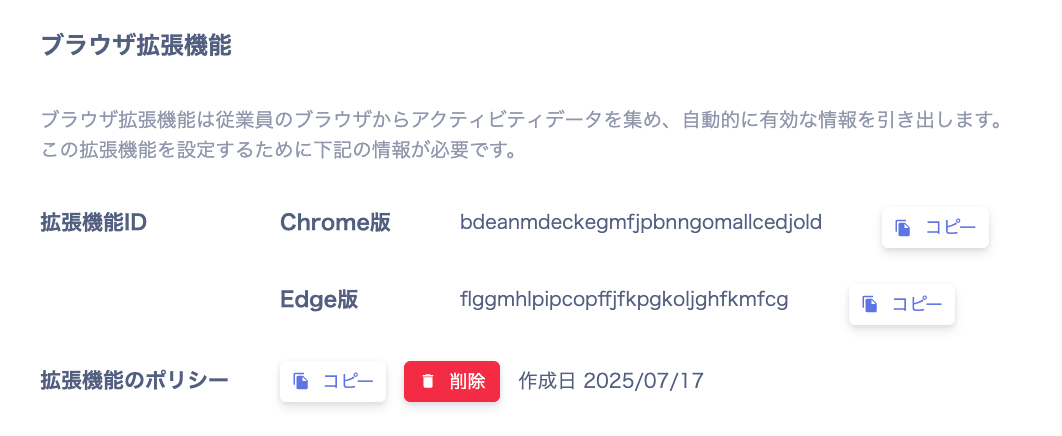
Retrieve the extension ID and policy contents.In advance, go to Settings > Browser Extension > Browser Extension. Copy the values for Extension ID and Extension Policy, then save them.
The following uses JAMF Pro as an example.Use a configuration profile in your MDM to distribute the forced installation parameter for the Chrome extension. Your environment may already distribute a password manager or similar via a configuration profile. In that case, add the entry to the existing profile rather than creating a duplicate.
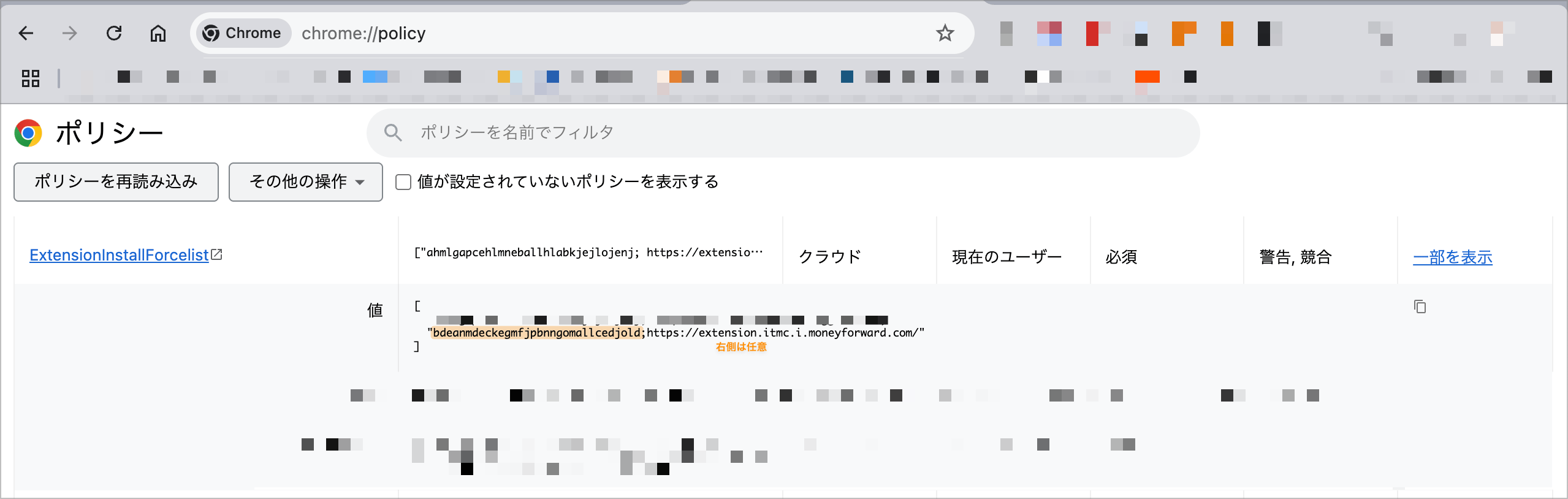
https://chromeenterprise.google/policies/#ExtensionInstallForcelistWhen successful, the ID appears under “ExtensionInstallForcelist” on the chrome://policy page.The extension will be installed automatically. Once installed, you can open the following URL:chrome-extension://bdeanmdeckegmfjpbnngomallcedjold/options.html
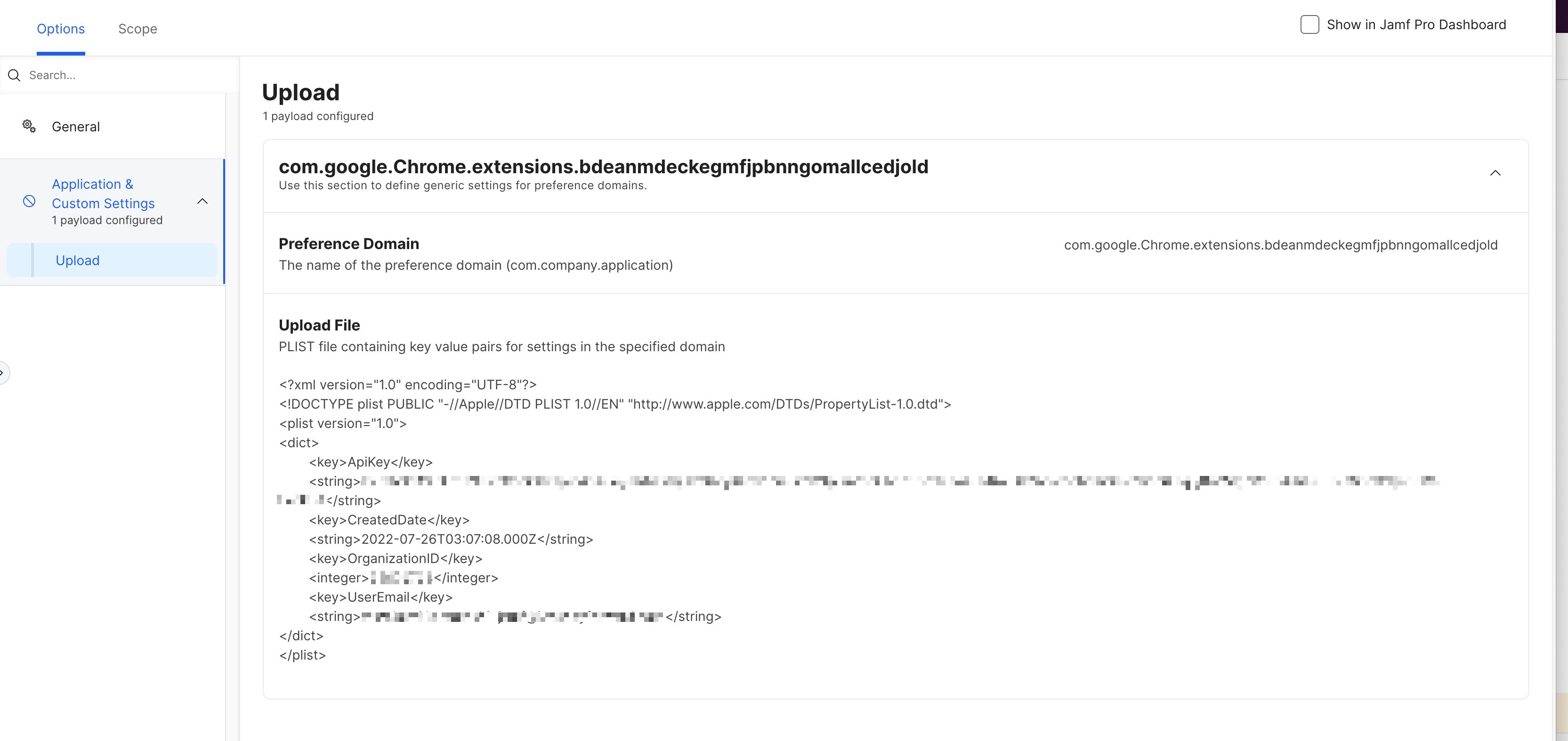
After distributing the extension, distribute the extension configuration via a configuration profile.Fill in ApiKey, CreatedDate, and OrganizationID as constants using the extension policy information retrieved earlier. Set the values for each KEY inside <dict>.UserEmail is optional but recommended. When you distribute a unique value per device or per user, the server receives data with identity information. Without it, the server receives anonymized data.Set a dynamic value for UserEmail.
UserPC is also optional. If you add <key>UserPC</key> to the property list, the string you set appears in Source PC in the event log. Examples include a hostname or asset number. To set a per-PC value such as the hostname, see the guide for your MDM product.Then distribute the profile.
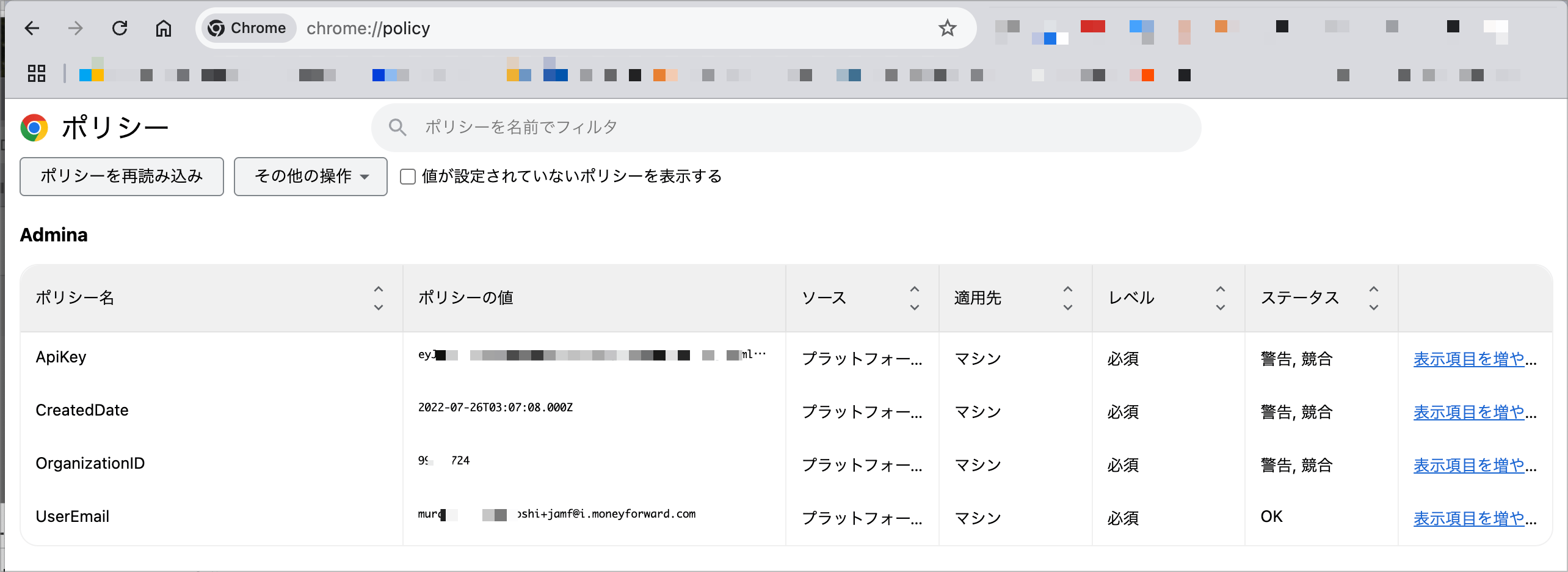
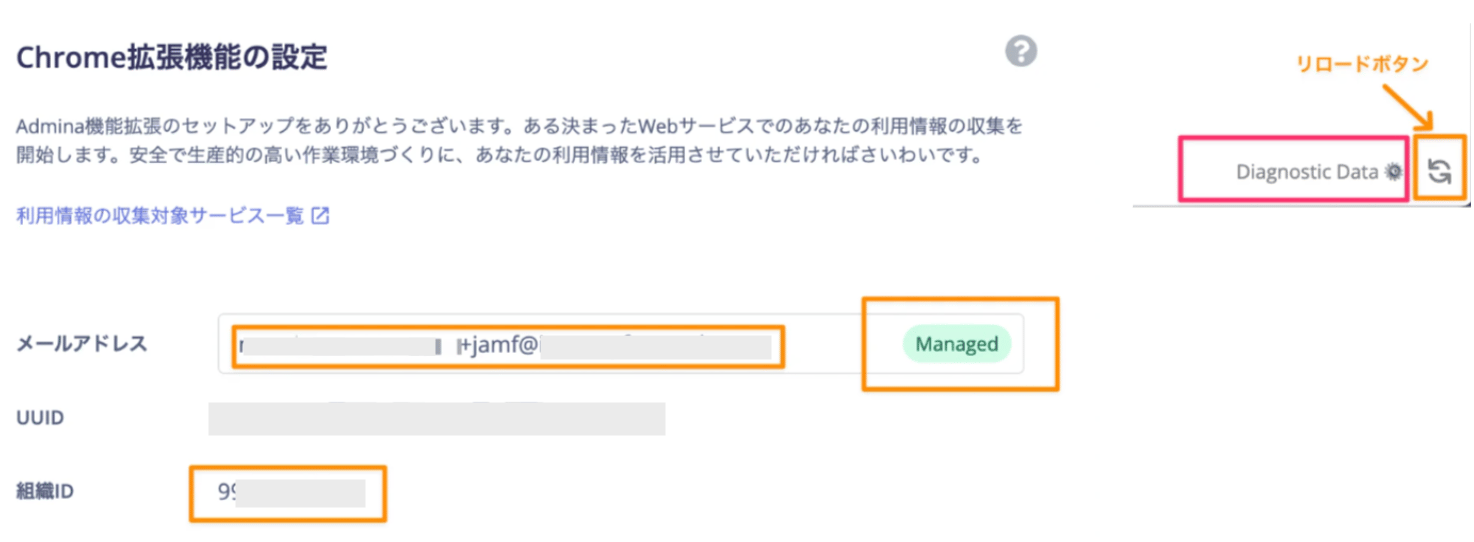
Chrome-level verificationThe “Admina” entry appears on the chrome://policy page. (The extension must be installed first.)If it does not appear, click “Reload policies” once.Extension-level verificationOpen chrome-extension://bdeanmdeckegmfjpbnngomallcedjold/options.html.If your email address and organization ID appear on screen, the setup is complete.If they do not appear, click the reload button at the bottom right. If that does not resolve the issue, click “Diagnostic Data”, copy the output, and send it to support.
The first data transmission begins approximately 5 minutes after setup.Refer to the activity verification guide and confirm that the extension is working correctly.
There are three ways to set the Email value. The priority order is as follows:
Priority
Source
No.1
A manually updated email address has the highest priority. An email address set manually in the Extension settings view always takes top priority.
No.2
An email address set via plist is the second priority. Restart the browser or PC after configuring the plist to ensure the value loads reliably.
No.3
The email address used to sign in to the browser is the third priority. If this value loads first, it may take several hours before the No.2 value takes effect.
The following describes how to remove the plist settings configured above.
Updating Chrome’s ExtensionInstallForcelist
Remove only this service’s extension ID from the ExtensionInstallForcelist. Removing it from the Forcelist triggers automatic uninstallation (unless the extension was installed manually).
Deleting the extension’s configuration profile
Delete the configuration profile for the extension.
A. This is not currently supported. Chrome loads a manually created plist at the browser level. However, Chrome extension security restrictions prevent the extension from reading it.
Q. Do I need to set a different EMAIL for each user?
A. Setting a unique email per user is recommended. The extension sends the email address to the server as the “operator” identifier.Any value in email format is technically acceptable. For example, you can use the PC name as the local part (e.g., HOSTNAME@example.com).The value appears on the web interface as the sent email address. However, because it may not link to actual users, data such as last-used dates may be harder to use. (It is still sufficient for Shadow IT purposes.)
Q. Why does the server receive a UUID (random string) instead of an email?
A. The EMAIL setting may be missing. To identify the email address, the extension needs an EMAIL setting or a signed-in browser with Chrome Sync enabled. Without either, it sends a UUID instead.
Q. Can a UUID be traced back to a specific person?
A. This is challenging. All employees would need to check their extension settings page individually. Consider distributing the EMAIL setting to avoid this situation.