

1. Prerequisites
This guide assumes the following are already in place.- Target devices are enrolled in Microsoft Intune (visible under Devices in the Intune admin center and syncing normally)
- Devices are joined to Microsoft Entra ID
- An Entra ID security group exists for the users you will deploy to
- The operator holds the Intune Administrator role
Values to obtain from the Admina admin console
Before you start, note the following three values from the Admina admin console.2. Distribution files
Upload
.admx and .adml files as matching name pairs.
Download the files below and use them when uploading to Intune.
Clicking a link below opens the file in the same tab. Use your browser’s back button to return to this page after downloading.
To get everything at once, use Download all files as ZIP.
Set-UserEmailEnv.ps1 is saved as UTF-8 with BOM, CRLF line endings. Windows PowerShell (5.1) needs this format to interpret the script’s encoding correctly, so keep this format if you edit the file.3. How distribution works
Intune has no built-in way to embed the signed-in user’s email address into configuration values automatically. This guide combines two components. ① Configuration template (ADMX) distributes force-install of the extension and related parameters. ForUserEmail, it writes a reference to the environment variable %USEREMAIL%, not the actual email address.
② Script (Set-UserEmailEnv.ps1) sets each user’s own email address in the USEREMAIL environment variable at sign-in.
When the browser loads configuration, %USEREMAIL% expands to the actual email address. Each user sends the correct value to Admina. Even when multiple users share one device, each user is recorded with their own email address.
The distributed script sets the signed-in user’s UPN (user principal name) as is in
USEREMAIL. If the Microsoft Entra ID (or Active Directory) UPN suffix differs from your email domain, the extension receives a value that is not the user’s actual email address. For setup in such an environment, contact the support desk.4. Configuration steps
Step 1: Import configuration templates
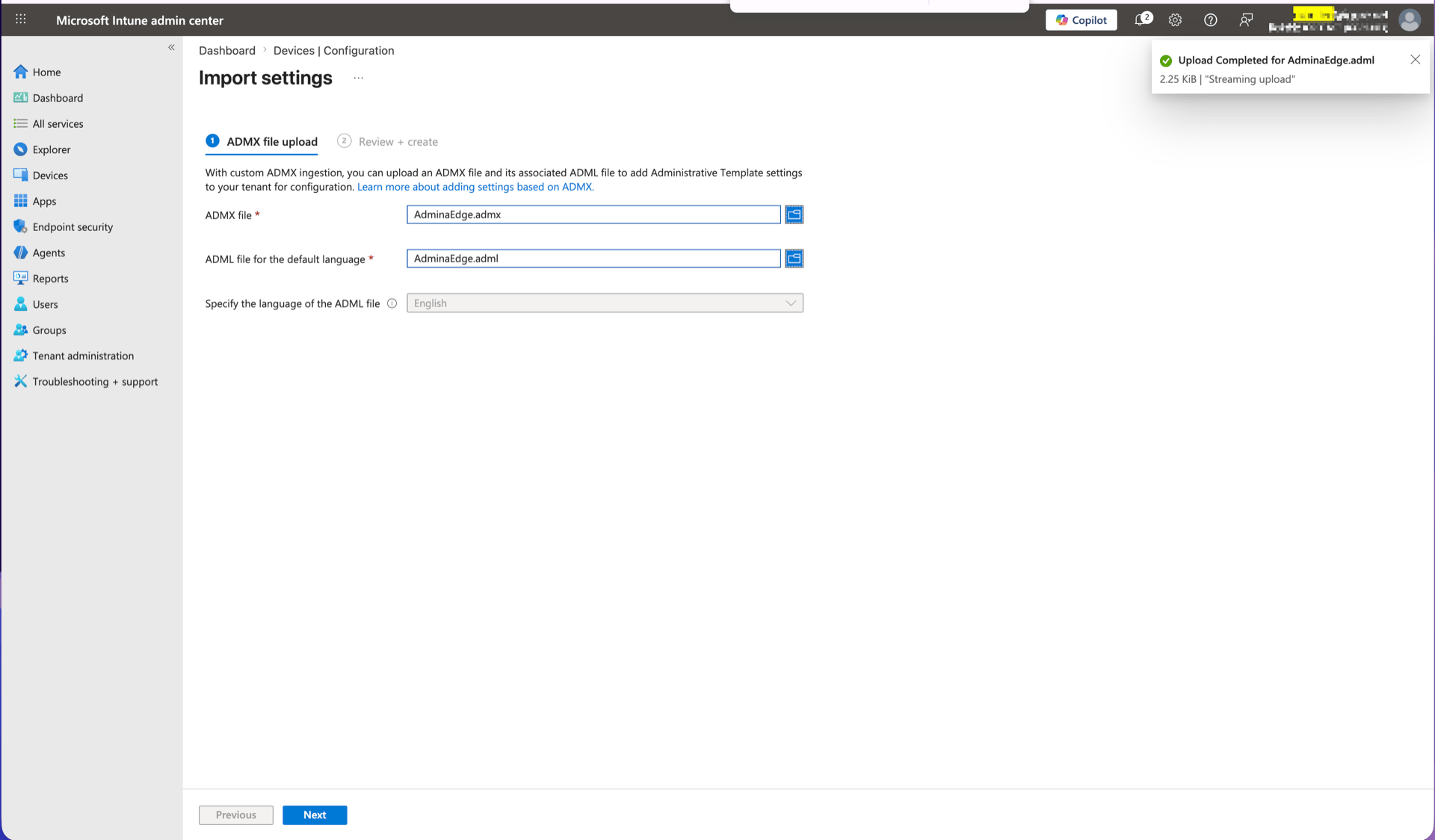
In the Intune admin center, open:Devices → Configuration → Manage → Templates → Import ADMXImport Chrome and Edge separately in two runs.
- First run: upload
ExtensionChrome.admxandExtensionChrome.adml - Second run: upload
ExtensionEdge.admxandExtensionEdge.adml
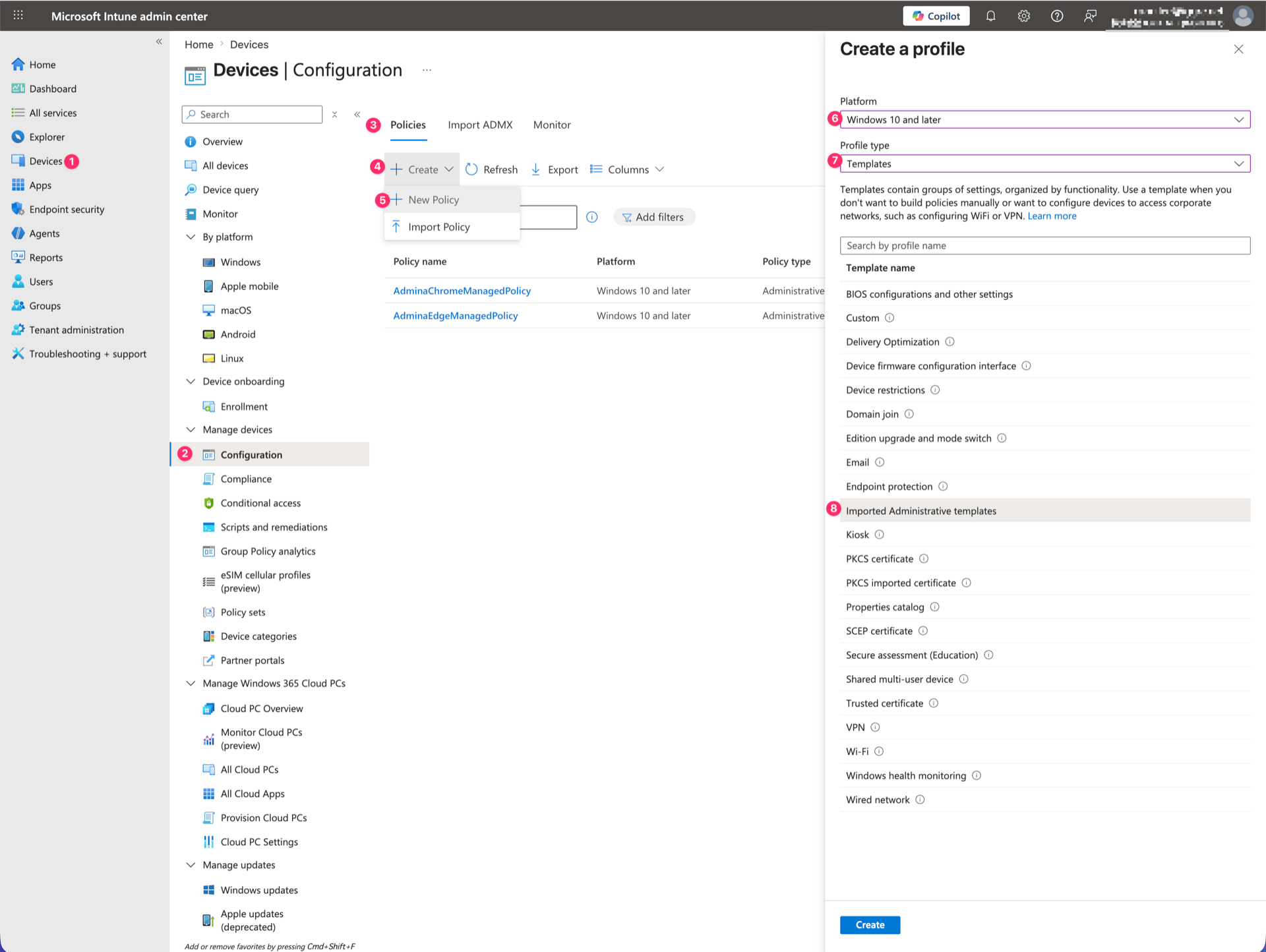
Step 2: Create a configuration profile
Devices → Configuration → Create → New Policy
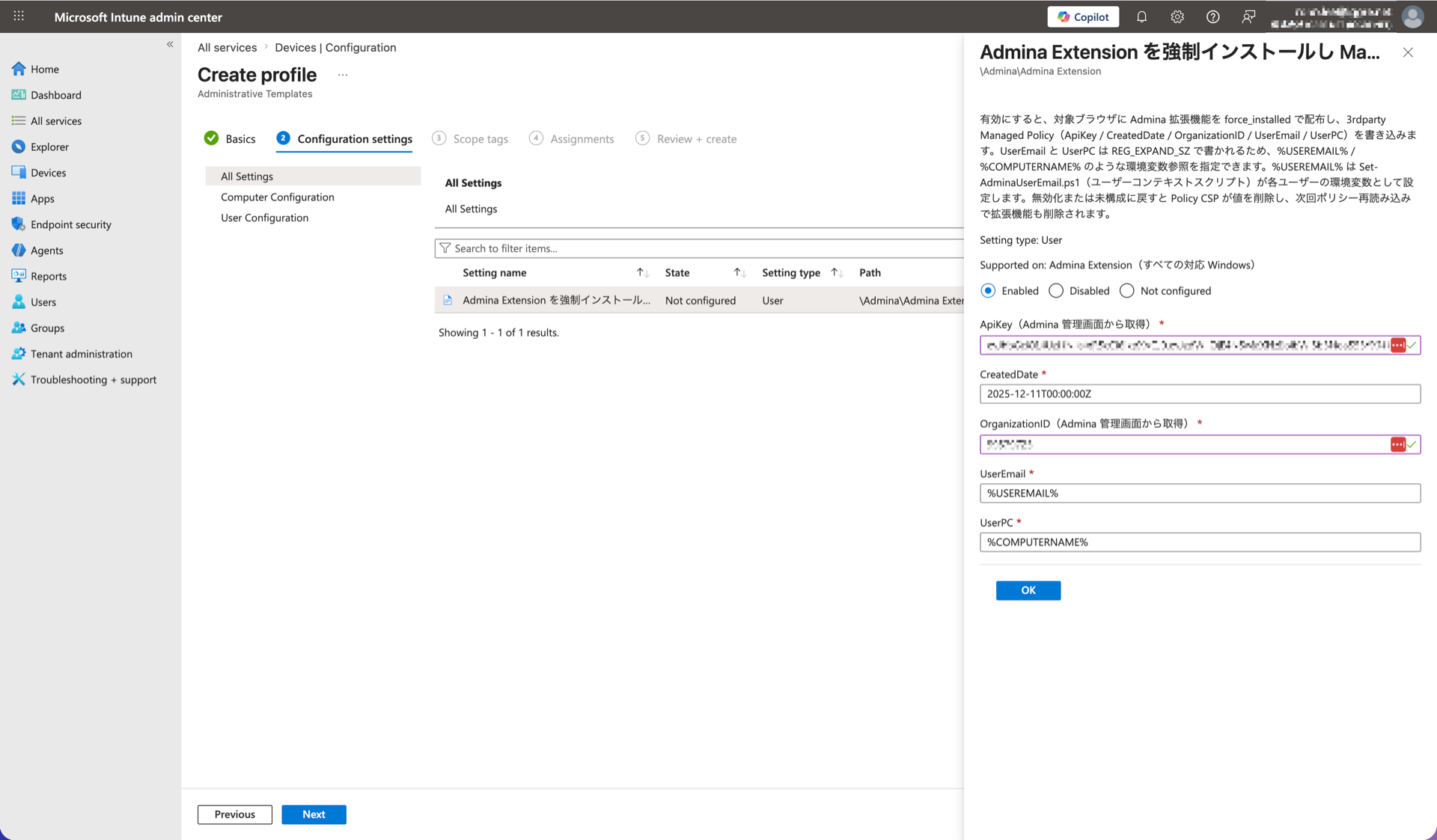
On the Configuration settings page, search for
Admina. Two policies appear. Select the browser you want to deploy.
[Chrome] Admina Extension を強制インストールし Managed Policy を配布する[Edge] Admina Extension を強制インストールし Managed Policy を配布する
Do not replace UserEmail and UserPC with actual values. Enter%USEREMAIL%and%COMPUTERNAME%as literal strings. The browser expands them to per-user values when it loads configuration.
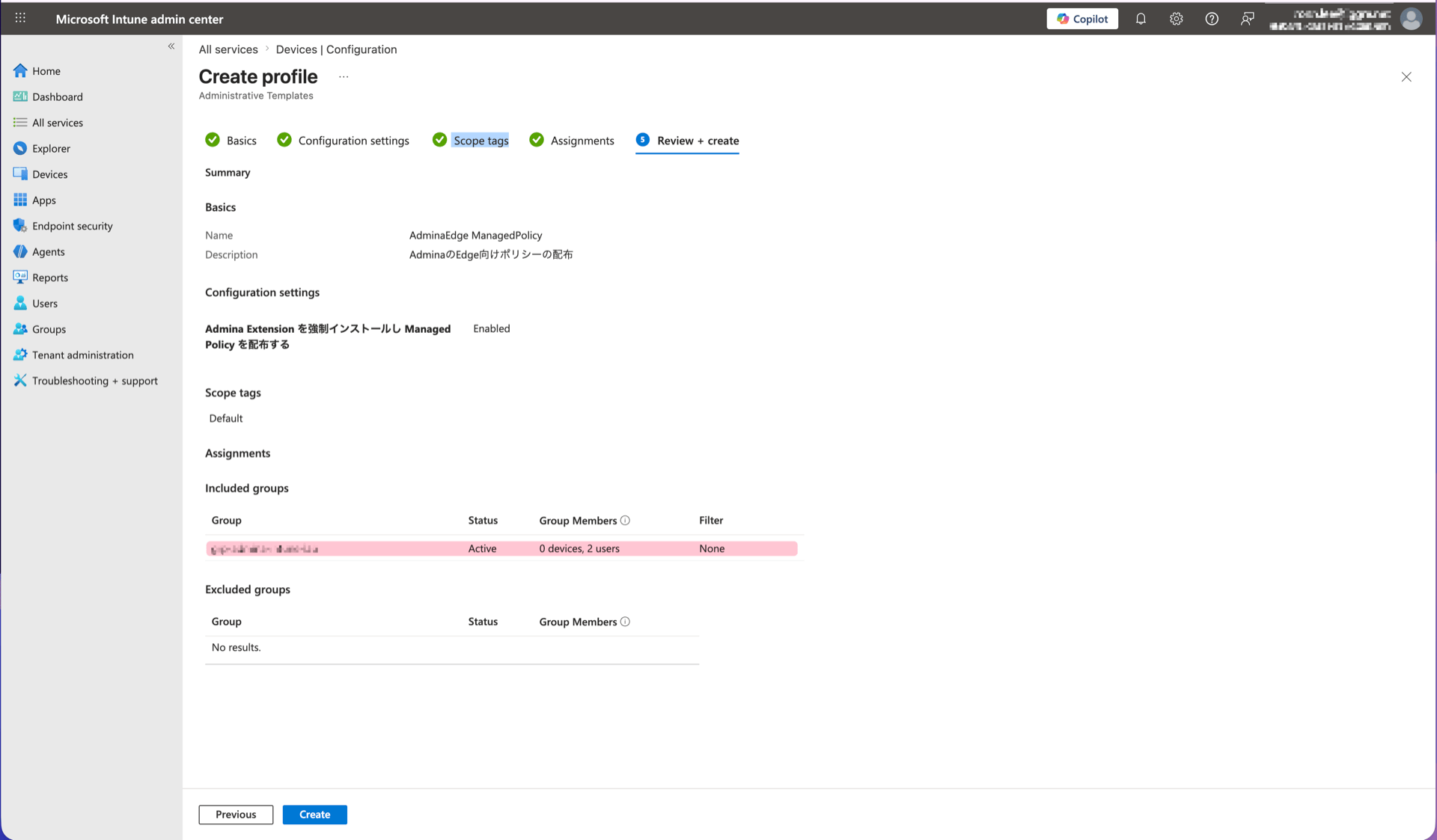
Assign a user group, not a device group. This template applies per user.
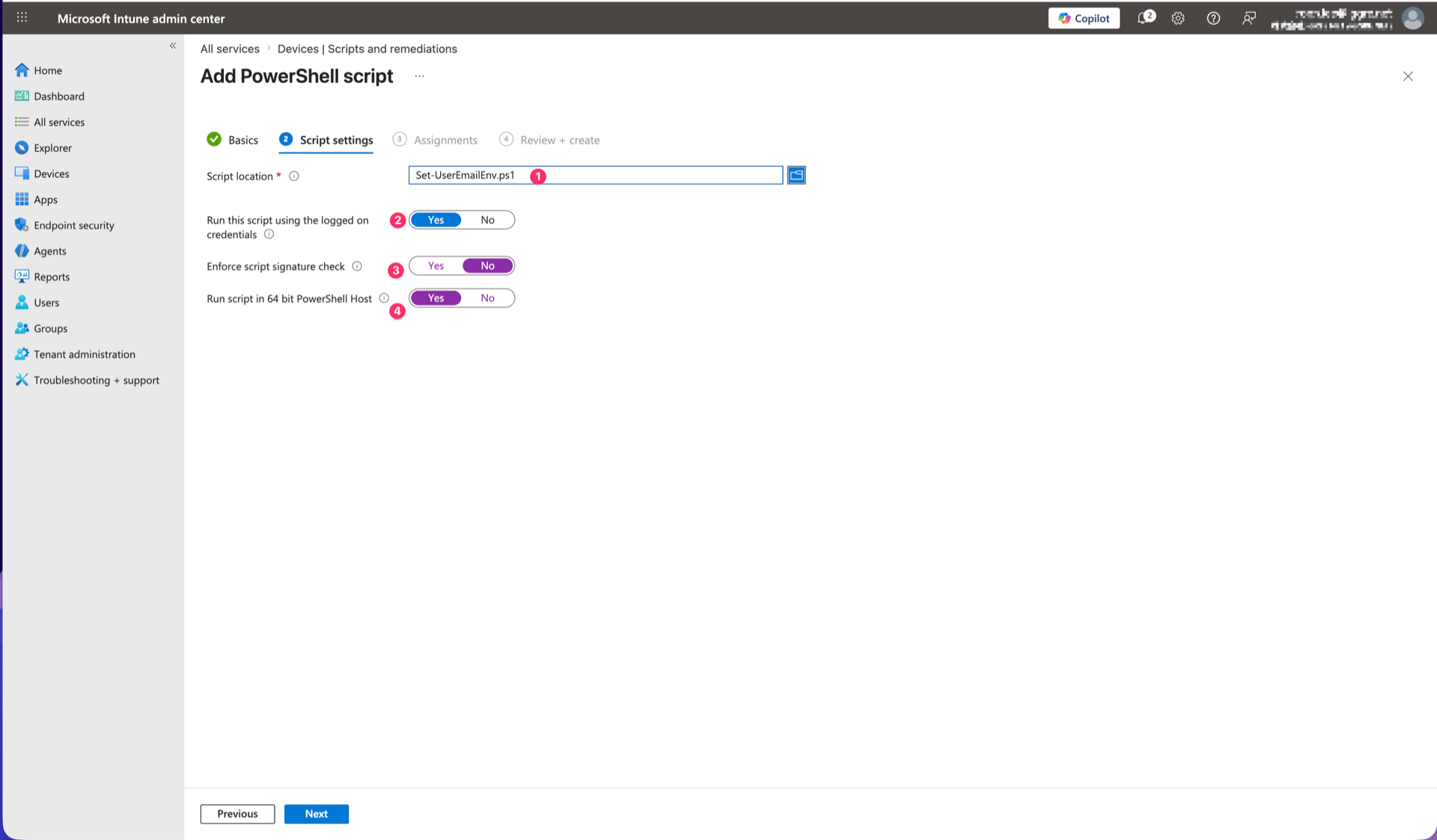
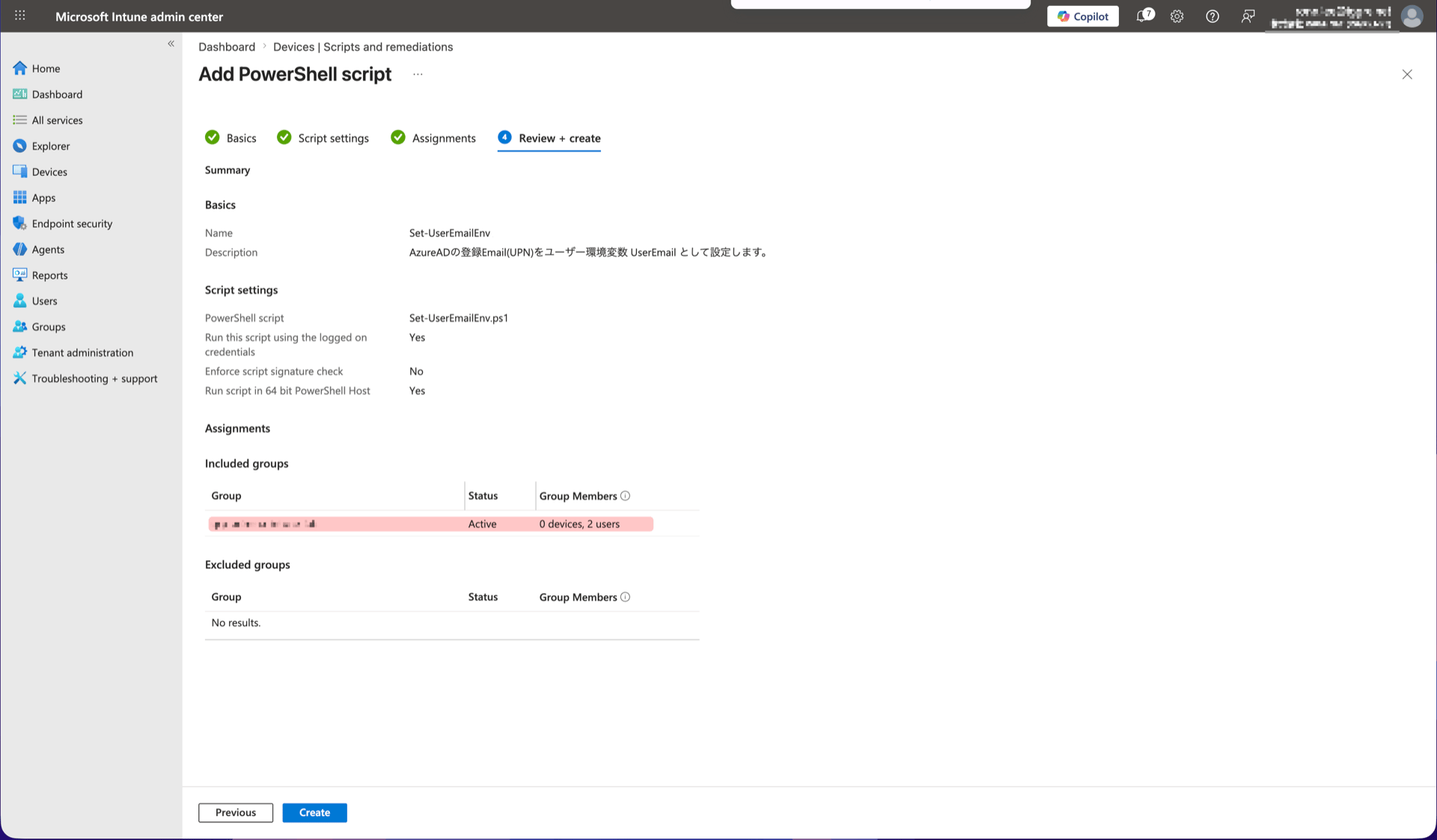
Step 3: Deploy the email address script
Devices → Scripts and remediations → Platform scripts → Add → Windows 10 and later
Set “Run this script using the logged on credentials” to Yes. If left as No, each user’s email address will not be set correctly.
5. Verification
Configuration can take from a few minutes to tens of minutes to apply. After the target user signs in to the device, verify the following.Check 1: Environment variable
Open a new PowerShell window and run:Check 2: Extension
Openchrome://extensions (or edge://extensions for Edge) and confirm the Admina extension is installed. It shows as “Installed by your organization”.
Check 3: Extension settings page
Open the Admina extension options page. Confirm the Email address field shows the signed-in user’s email and displays Managed. If you encounter issues, see How to check Diag data.6. FAQ and troubleshooting
Deployment errors during any step
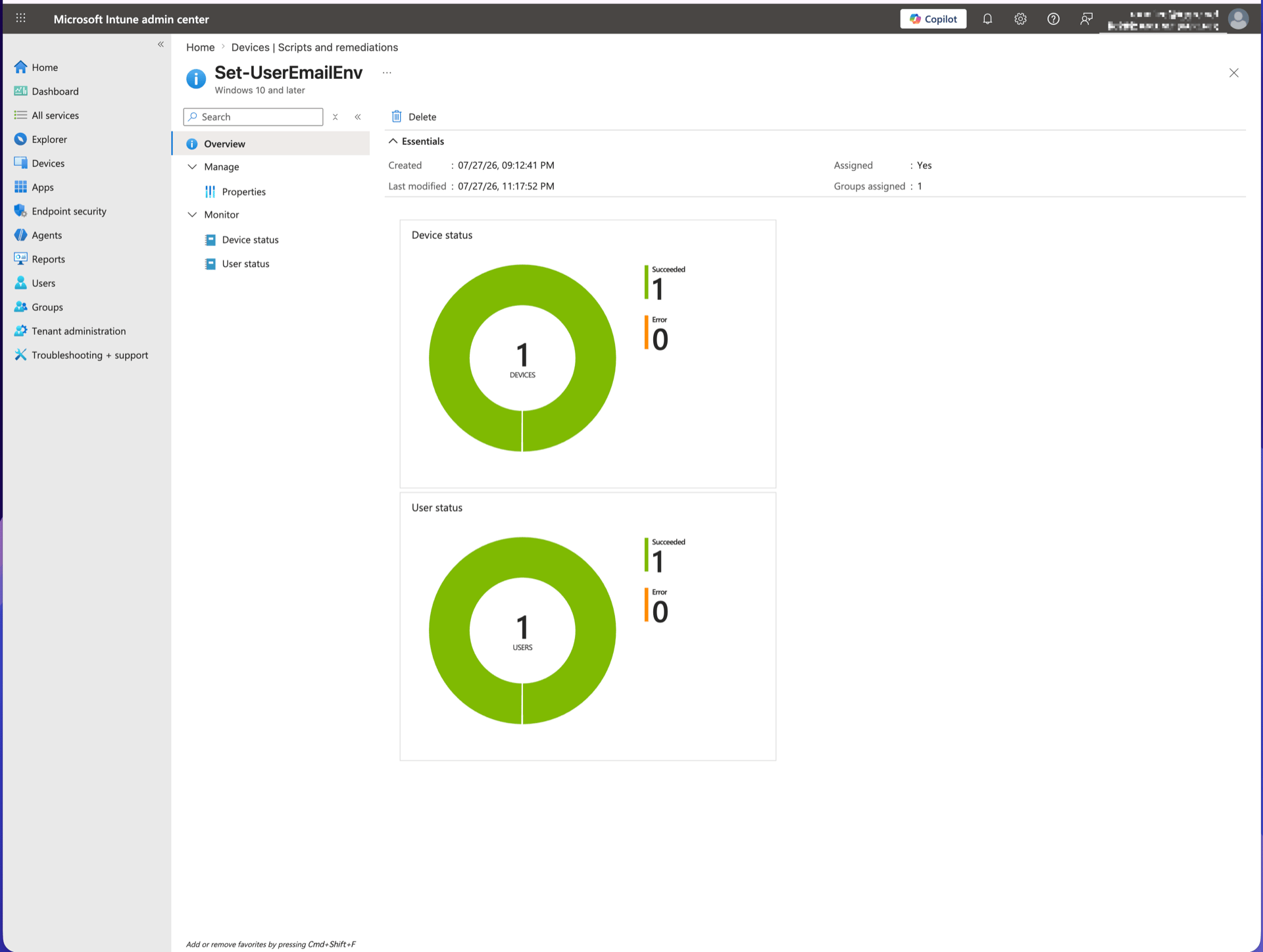
If Step 2 (configuration profile) or Step 3 (script) fails to deploy, check that step’s execution log. You can find it in the Intune admin center. For the configuration profile, go to Devices → Configuration → the profile → Device status. This page shows the deployment result (Succeeded, Error, etc.) for each device.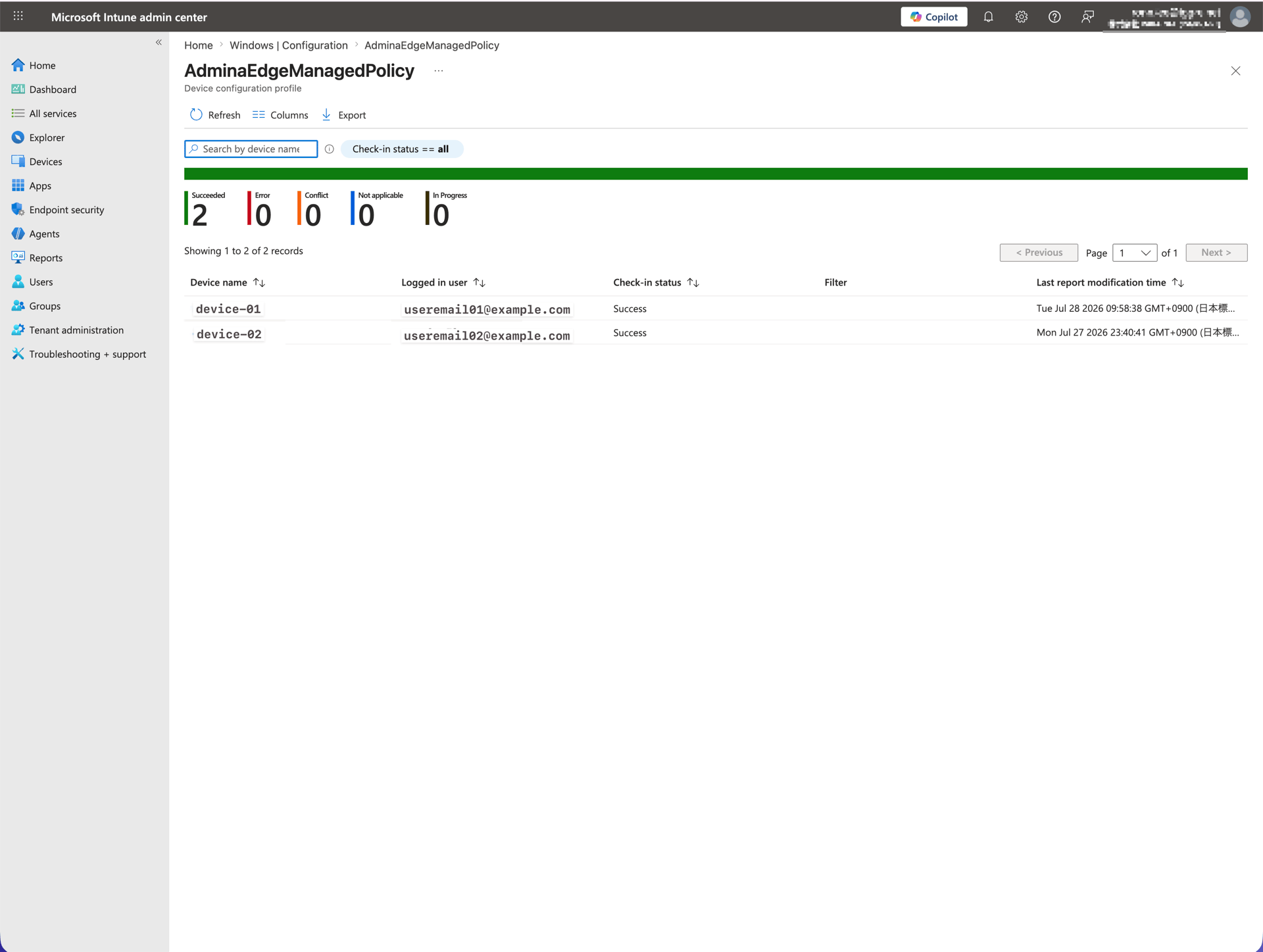
Settings do not apply right after configuration
Intune configuration has a time lag before it applies. It may also sync on re-sign-in. Wait for a period (one to a few hours) on a good network connection, or try signing off and back on.Extension shows %USEREMAIL%
This happens when data is sent before the environment variable expands. It normally resolves itself once the environment variable expands, so wait a while first. If it still does not resolve, check whether distribution failed using the steps below.
- “Run this script using the logged on credentials” is Yes
- Under Devices → Scripts and remediations → the script → Device status, the target device shows Success
Change configuration values (ApiKey, etc.)
Open the configuration profile from Step 2, update the values, and save. Changes apply to each device at the next sync. Re-uploading files is not required.Stop distribution
Remove the assignment from the Step 2 configuration profile or delete the profile itself. At the next policy refresh, settings are removed and the browser uninstalls the extension automatically. TheUSEREMAIL environment variable remains and is not removed. It holds a general user email value, not Admina-specific data. Remove it separately if needed.