

Support contact directory
This is a directory of support contacts for this service. Please contact the appropriate channel based on your inquiry.Please read before contacting us
- Information to prepare before contacting us For a smooth response, please tell us the “Organization name” shown when you log in.
- Contact channels See the Support contact directory.
- Response hours Inquiries submitted outside business hours will be handled from the next business day onward.
- AI chat response format Operator responses are not real-time chat; they are sent sequentially. You can check responses even after closing the screen — see “Messages” at the bottom right of the screen.
Support contact directory
How to contact us about Admina
You can contact us via the orange icon at the bottom right of the screen or the menu at the top right. AI will respond automatically based on your inquiry. For questions about how to use the service or its specifications, also check the FAQs in the Help Center.Orange icon at the bottom right of the screen
-
Click the orange icon at the bottom right of the screen.

- Click Ask a question on [Home] or [Messages].
Menu at the top right of the screen
-
Click “Contact <This Service> Support” from the menu at the top right of the screen.
For requests, use “Request a feature”; for bugs, use “Report a bug.”
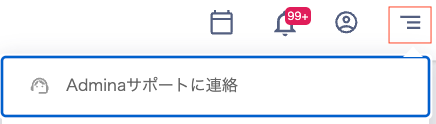
-
Enter your message in the chat screen that appears and click (↑).
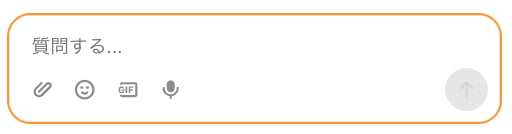
How to submit an inquiry to AI
-
Enter your inquiry in the “Ask a question” field. The AI will respond within seconds.
Please enter your inquiry in sentence form with specific details. Providing specific information about which screen and what content you are inquiring about enables more accurate responses. Images can also be read. Responses are continuously improved through learning, but the AI may occasionally provide incorrect answers. If you have any doubts about an AI response, please contact a support representative.
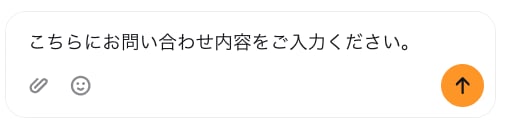
-
If you received an appropriate answer, click the [My question has been resolved] button. The inquiry will be closed, after which we ask for your feedback.
 After an AI response, the inquiry will automatically close after 1 hour. You can submit additional inquiries at any time.
Contacting a support representative
Please contact a support representative for inquiries where AI cannot provide an appropriate response. This includes issues the AI cannot resolve or reports of unexpected events.-
Click [Ask a question] using the contact method.
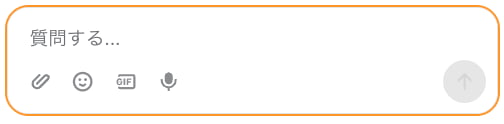
- Enter your inquiry and click (↑); the AI will respond first.
-
If the AI cannot resolve your issue, enter “Connect me to a representative” in the chat. The AI will then transfer you to a support representative.
- Error messages, reports of unexpected events, or investigation requests. To help us assess the situation quickly, please include the following: Steps taken: Please describe the steps you performed for us to understand the situation. (e.g., Operated XX on screen XX, entered △△) Issue encountered: Please describe specifically. (e.g., The screen stopped responding, error “XXX” appeared) Screen: Please send a screenshot or video (screen recording).
- When entering “Connect me to a representative,” please provide specific details about your inquiry. This includes which screen, what content, and other relevant details.