For details on the permissions required to use this feature, see Configure login users and roles.
Cost Management via CSV Data
You can customize and import CSV data exported from accounting or expense systems. This lets you manage SaaS costs (Insights and Spending).Import Steps
-
Go to Spending and click [
Import Spending Data] in the upper right of the Spending section.
-
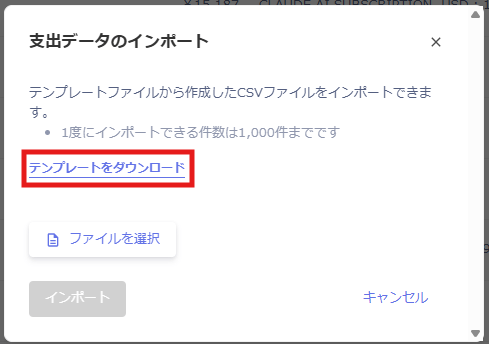
The Import Spending Data screen appears.
Download the CSV template for import and save it to a folder of your choice.
-
Open the downloaded template file and fill in each field according to the format.

- Row 7 contains a default description row — delete it before importing.
- Delete any unnecessary blank rows, as they will cause the import to fail.
-
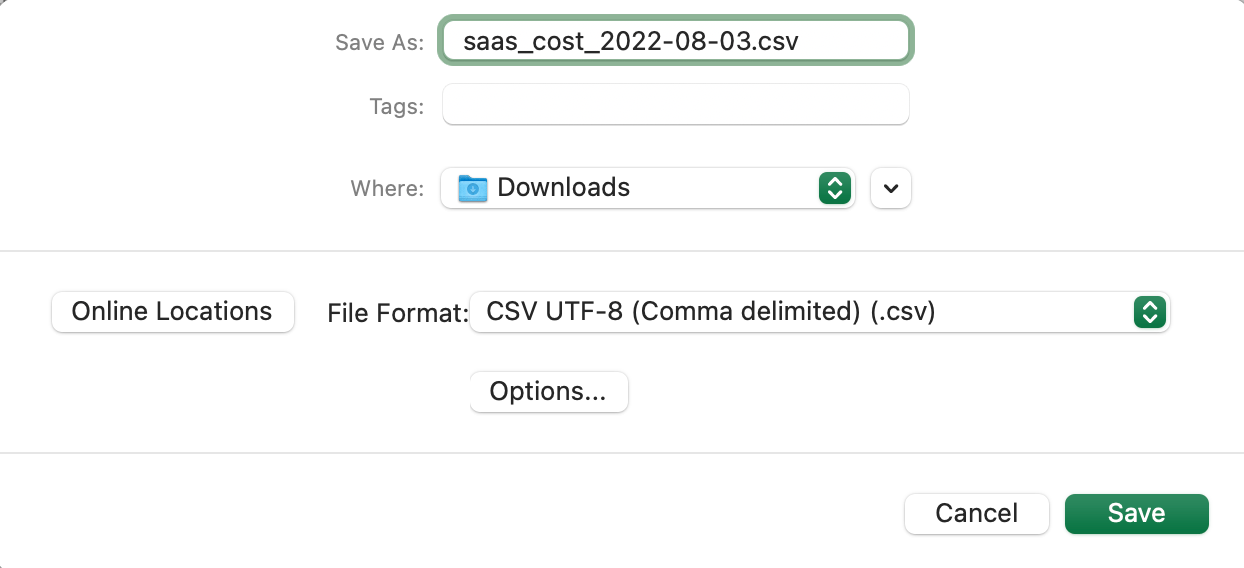
After creating the file, save it in CSV format.
- Including the date in YYYY-MM-DD format in the file name makes it easier to identify later.
- Supported character encodings for CSV files are UTF-8, EUCJP, JIS, and SJIS.
- Device-dependent characters are not supported.
-
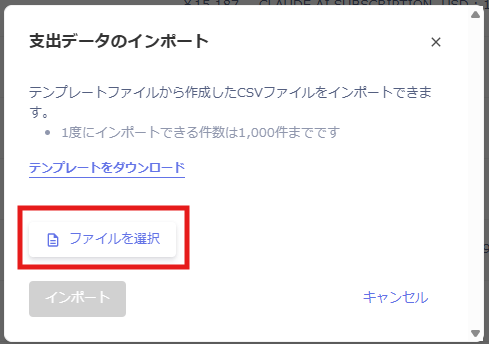
Drag and drop the file onto the Import Spending Data screen to start the import.
-
When the import completes successfully, a confirmation message appears. If it fails, correct the CSV file according to the error message.

Reviewing Imported Data
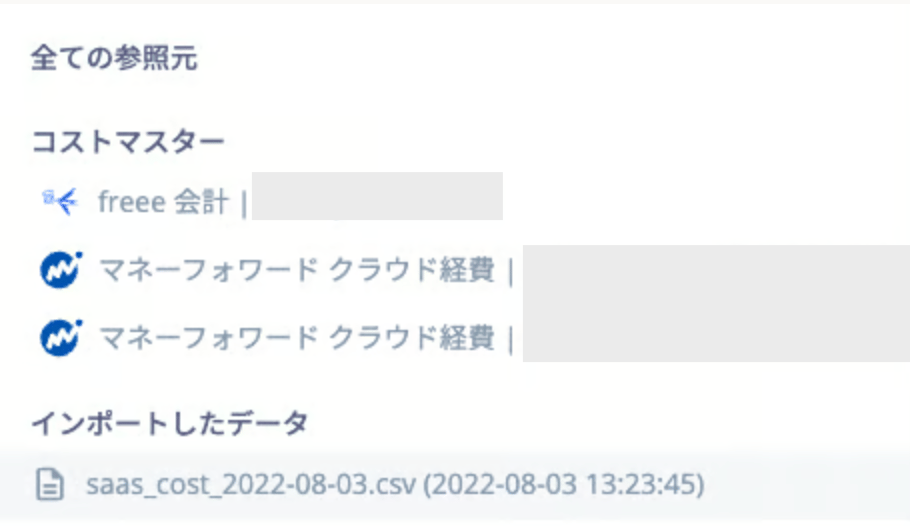
Go to Spending and click the All Sources filter to view the imported file names and import timestamps.