

Contract Management

Manage SaaS payment and contract cycles. Set reminder notifications to avoid missing contract renewals or cost-reduction timing.
In addition to automatically integrated SaaS, you can also register and manage contracts for manually registered (custom apps). Use this feature to manage contracts for applications and systems beyond standard SaaS.

Register a New Contract

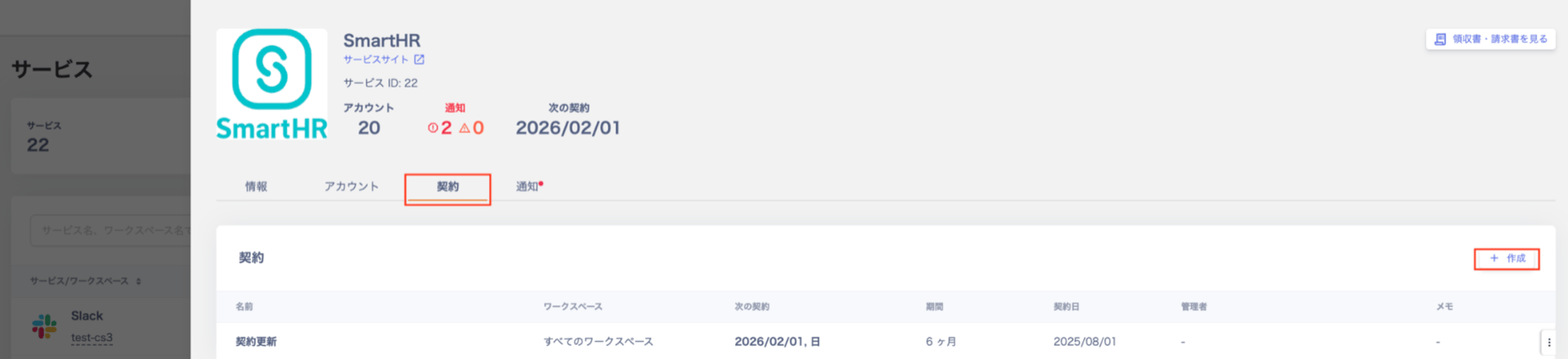
  1. Go to Services > SaaS, then click [+ Create] on the [Contracts] tab. Clicking the + Create button on the Contracts tab of a service screen
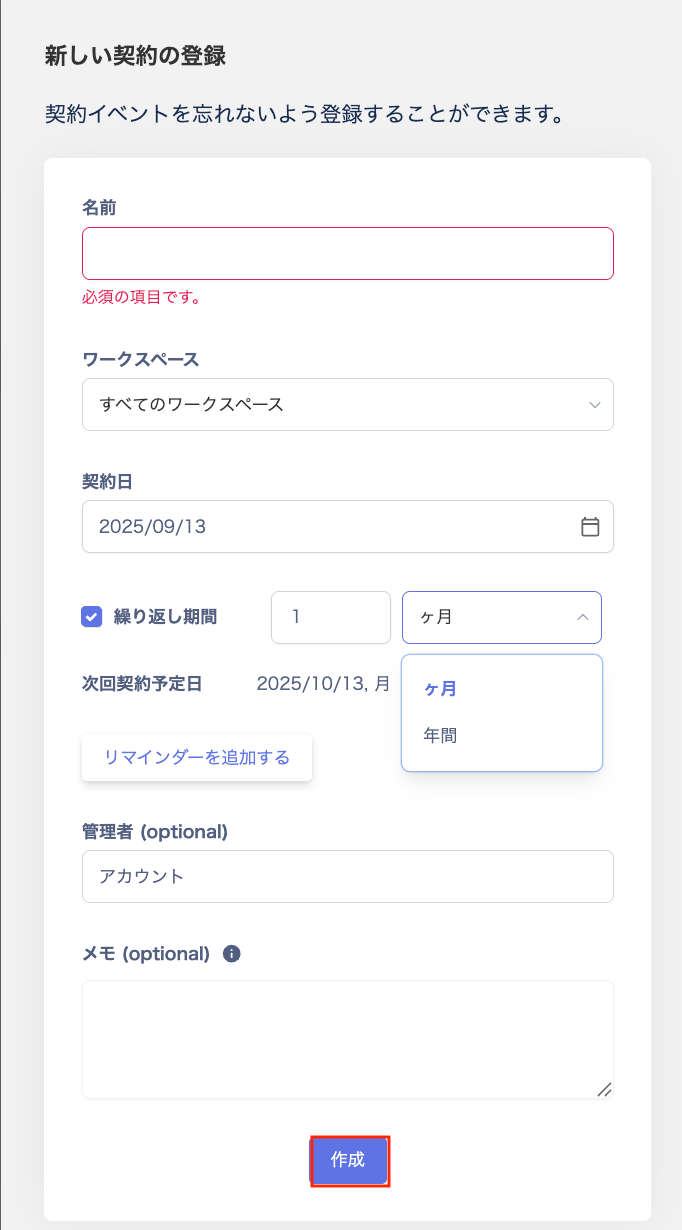
  2. In the “Register New Contract” screen, fill in the following fields and click [Create] to save. Register New Contract screen
    FieldDescription
    NameEnter any name for the contract.
    WorkspaceManage contract details per workspace. Select “All Workspaces” if the contract applies equally across all workspaces.
    Contract DateSelect the SaaS contract start date.
    RecurrenceSelect the recurrence interval in months or years. The next contract date is set automatically. Setting a recurrence enables reminder notifications via Slack or Email.
    Administrator (optional)Assign a contract administrator.
    Notes (optional)Enter any text. Markdown formatting is supported.
  3. The registered contract appears in the contract list.

Edit or Delete a Contract

Screen for editing or deleting a registered contract
No.FieldDescription
1EditClick the registered contract to modify its details.
2DeleteClick the three-dot menu [︙] and select [Delete].

View the Contract List

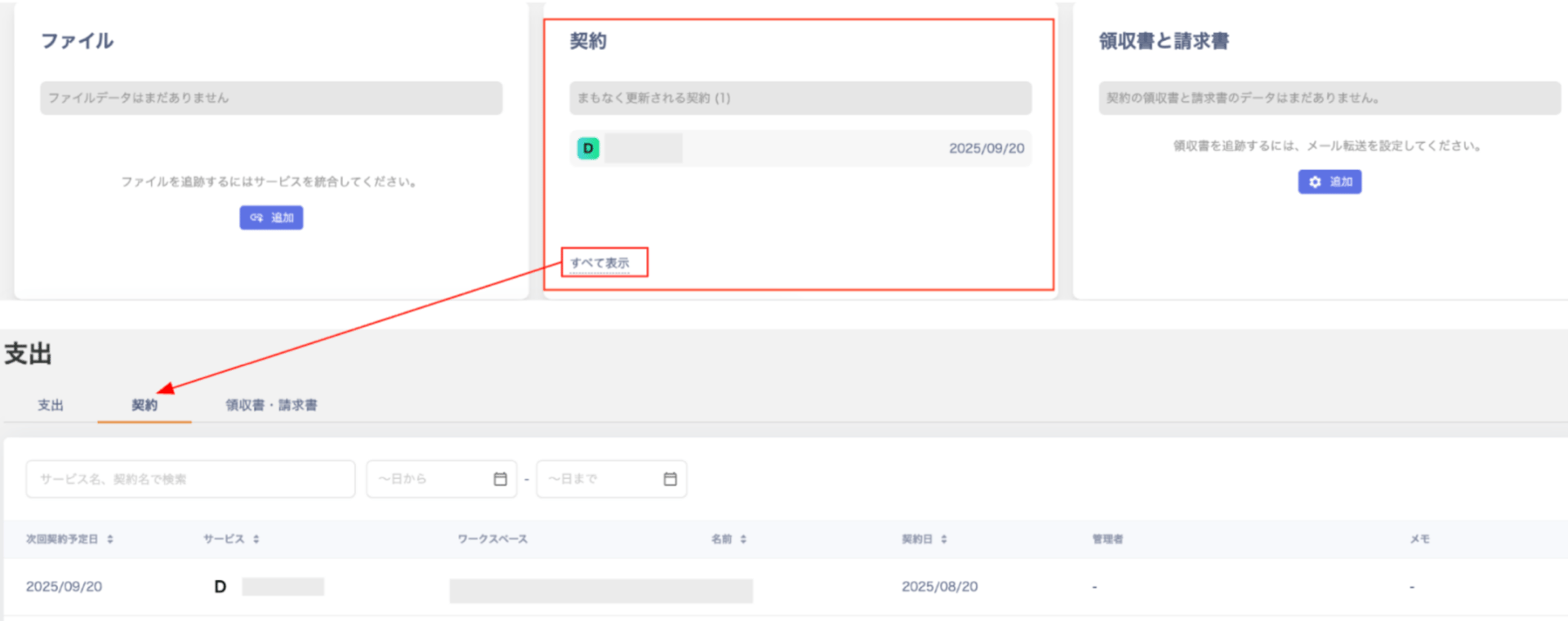
View registered contracts under Insights > Contracts or Spend > Contracts. Contract list view under Insights or Spend
Reminder Notifications

Set a recurrence interval for a contract date to receive notifications via Slack or Email before the next renewal.

Slack Reminder Notifications

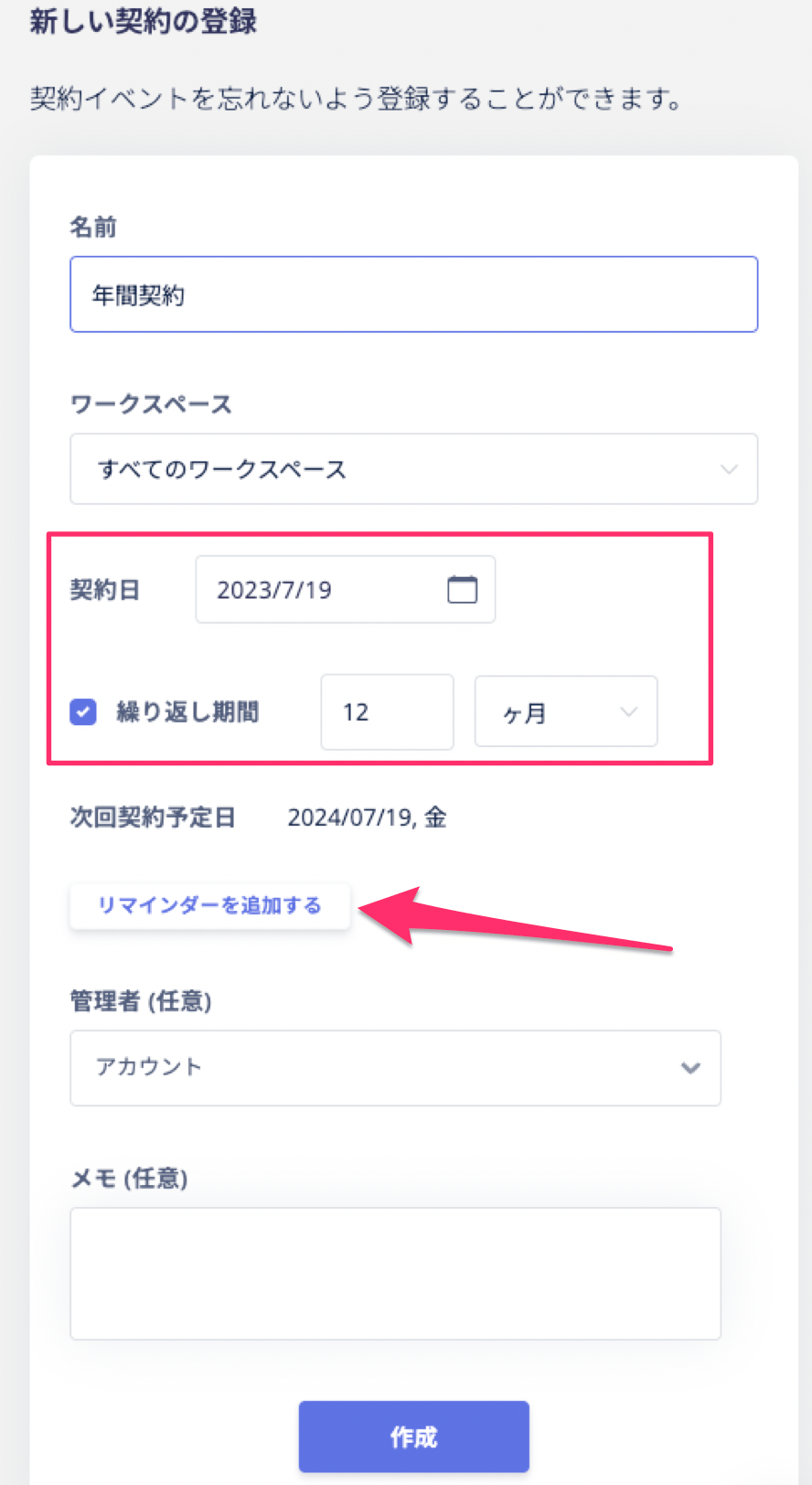
  1. Set the SaaS contract date and recurrence interval, then click [Add Reminder]. Clicking the Add Reminder button
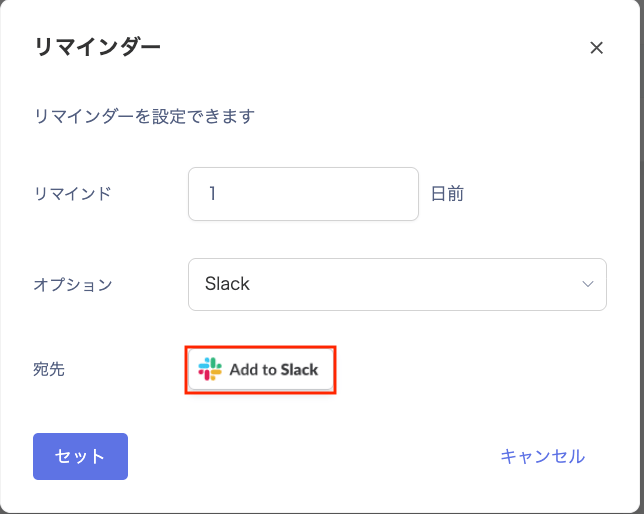
  2. In the “Reminder” screen, select the reminder option [Slack]. Reminder: Choose how many days before the next renewal date to send the notification. Selecting the Slack option on the reminder screen
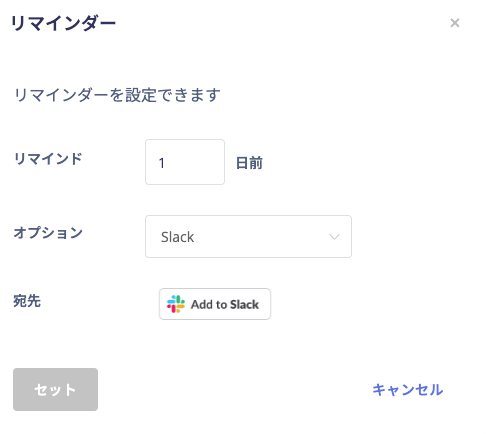
  3. Select a Slack channel and click [Add to Slack]. Selecting a Slack channel and clicking Add to Slack
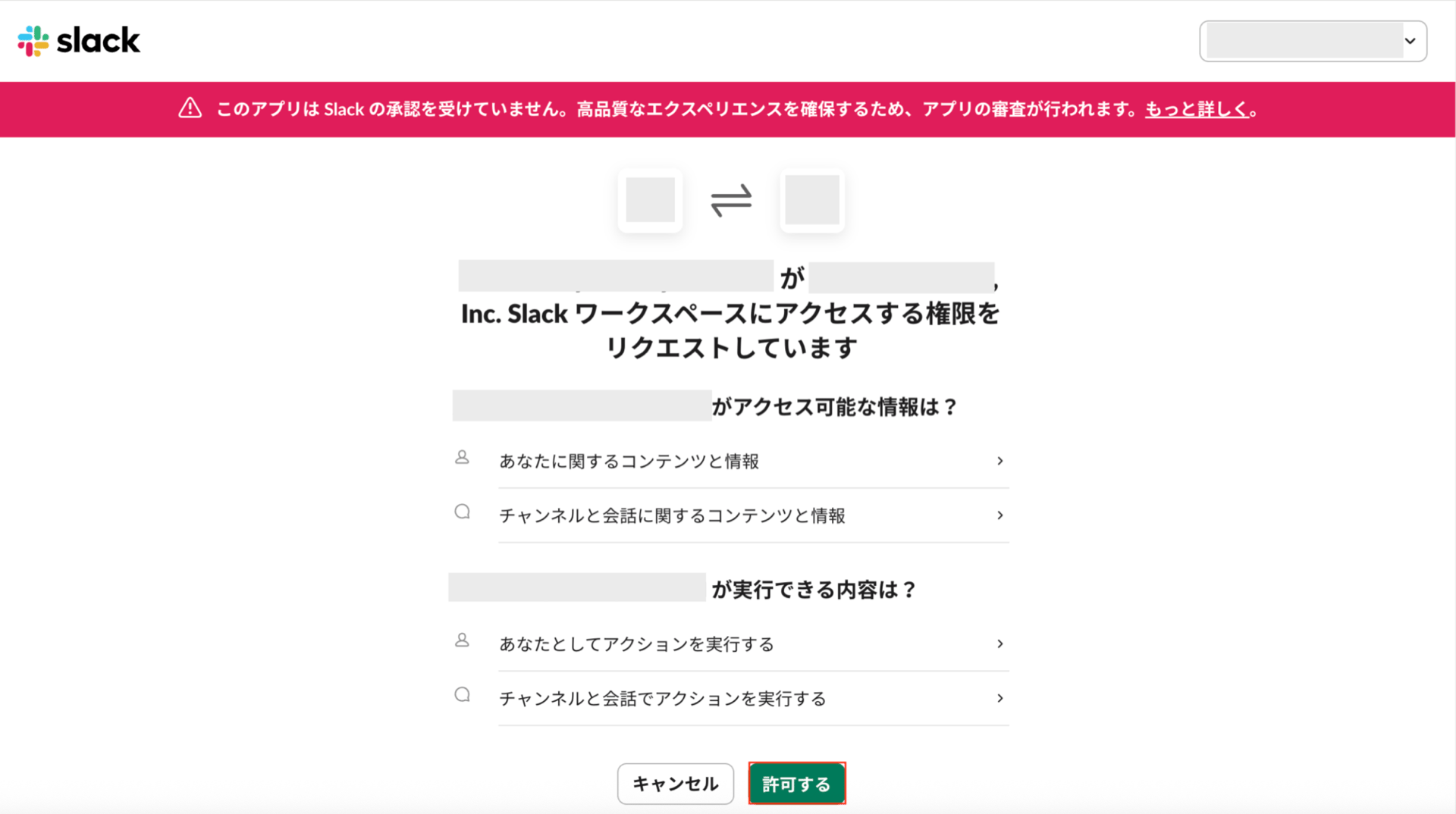
  4. Select the workspace to add the notification app to, then click [Allow]. Selecting the workspace to add the notification app to
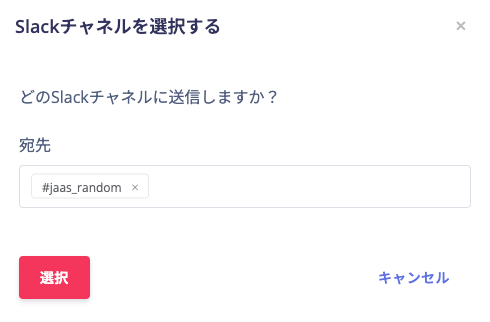
  5. Select the channel to send notifications to. Multiple channels are supported. Selecting the channel to send notifications to
  1. Click [Set] to complete the configuration. Once configured, Slack reminder notifications arrive at the scheduled time. Notifications are sent at 10:00 AM.
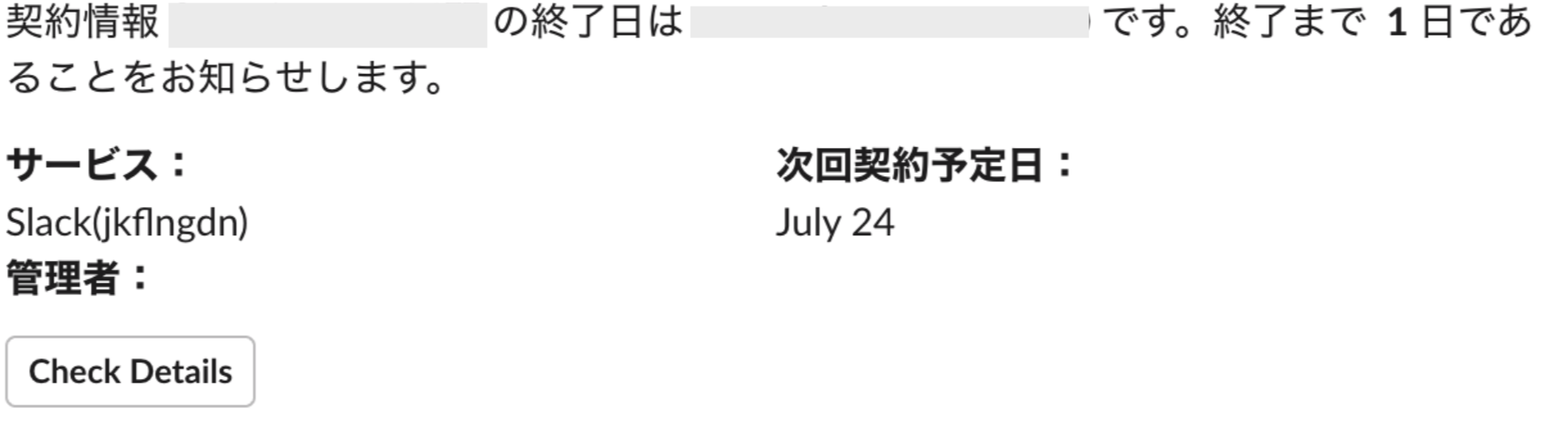
Completed Slack reminder notification setup

Email Reminder Notifications

  1. Set the SaaS contract date and recurrence interval, then click [Add Reminder]. Clicking the Add Reminder button
  2. In the “Reminder” screen, select the reminder option [Email]. Reminder: Choose how many days before the next renewal date to send the notification.
  3. Enter the destination email address. Because multiple recipients are not supported, use a group email address. Entering the destination email address for the reminder
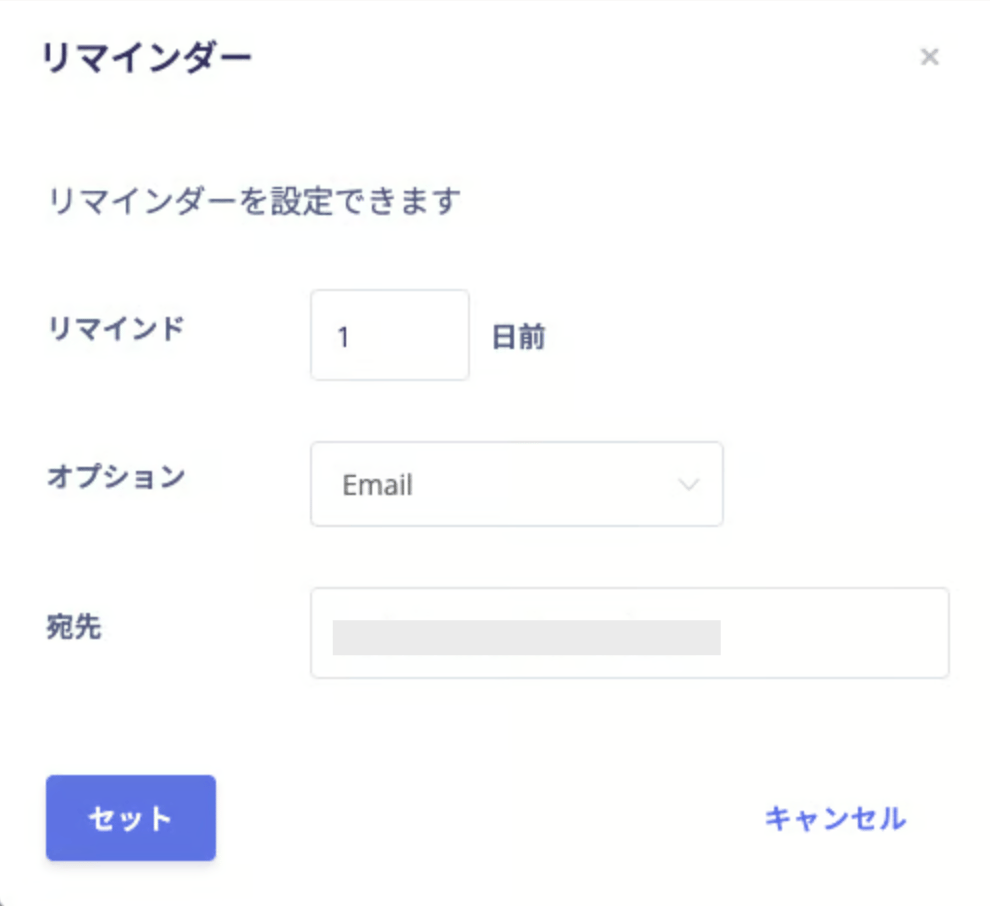
  4. Click [Set] to complete the configuration. Once configured, Email reminder notifications arrive at the scheduled time. Notifications are sent at 10:00 AM.
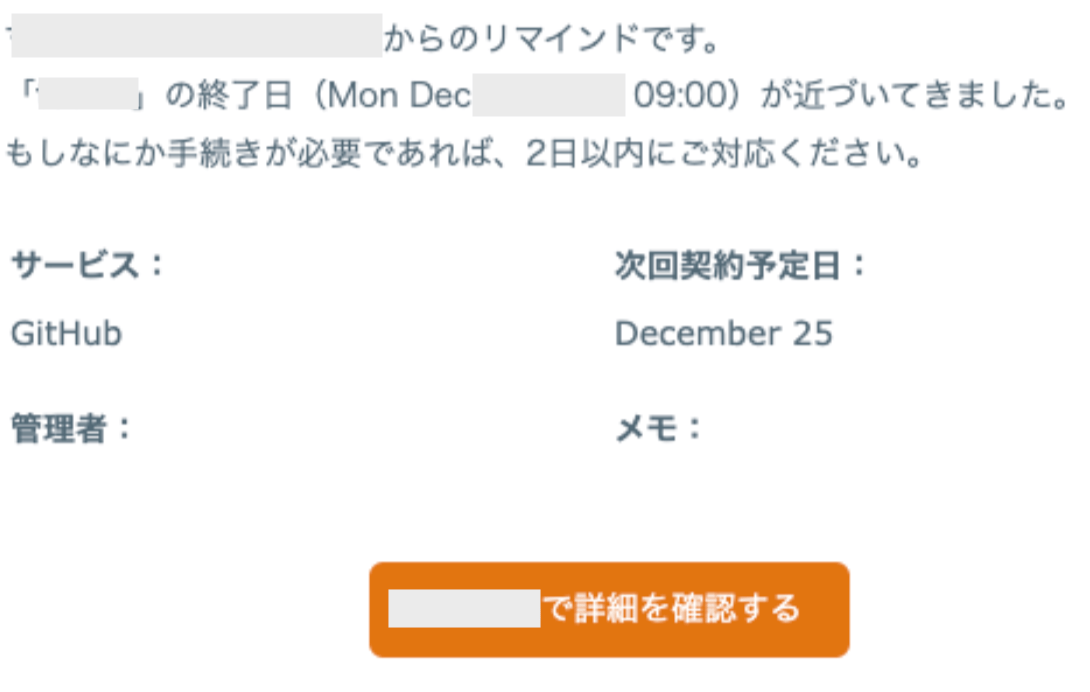
Completed Email reminder notification setup

Notification Timing

Reminder notifications arrive a set number of days before the contract renewal date. You choose the number of days in the reminder settings.
DescriptionExample
The system checks every day at 9:00 AM whether to send a notification. This check accounts for the exact time, not just the date. If the remaining days do not match at 9:00 AM on the expected day, the system skips that day’s notification. The system sends the notification once the 9:00 AM check on the following day confirms the remaining days threshold.The contract renewal date is September 30, and you set a reminder for 31 days in advance. Based on the date alone, the notification would arrive on August 30 itself. However, the 9:00 AM system check that day also verifies the exact remaining days, including time. If the days fall short, the system does not send the notification. The system checks again on August 31 and sends the notification at that point.
Last modified on July 13, 2026