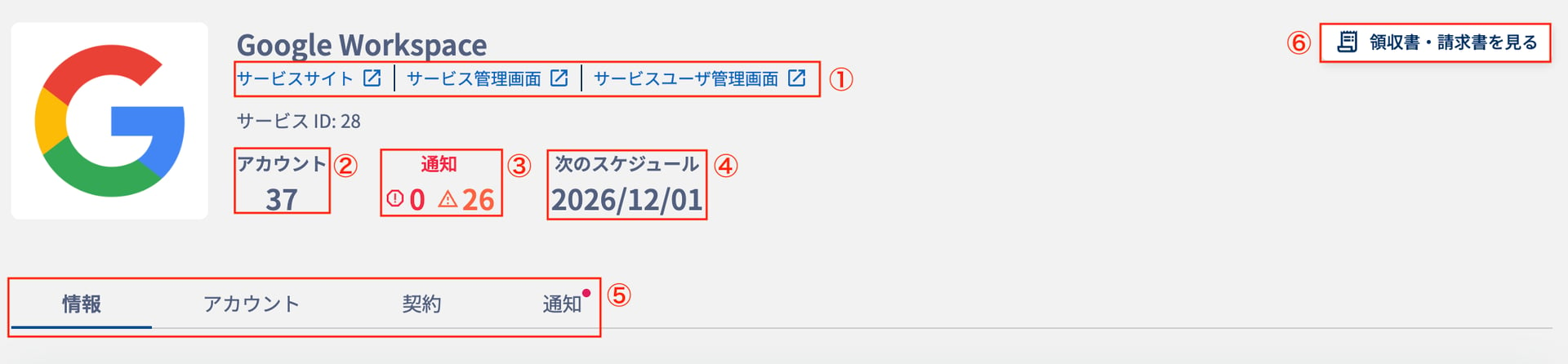
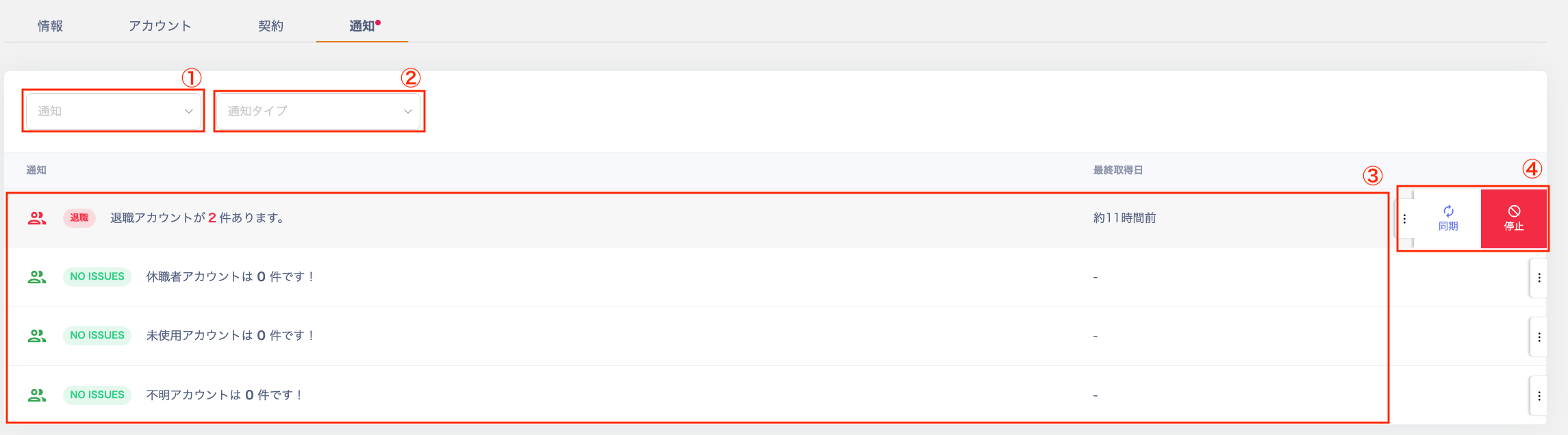
Explains each item on the Services screen, including filtering the service list, monthly spend and engagement score, and what you can check in the Info, Accounts, Contracts, and Notifications tabs of service details.
Displays the number of accounts linked to the service. Avatars appear when accounts are retrieved from the service.
4
Monthly spend
Displays the previous month’s spend. Arrows indicate whether spend increased or decreased compared to the prior month. An upper-right arrow means an increase, and a lower-right arrow means a decrease. You can also check this under Spend > Spend (search by service name).
5
Engagement score
Displays the engagement score. Access frequency is scored on a 10-point scale. The more users who access frequently, the higher the score.
6
Add account
Add an account directly from the Services screen. This option appears only for SaaS services that support provisioning. For supported services, see Connected SaaS & Feature Support List, under “Account Lifecycle” > “Provisioning (New / Additional Registration).”
Displays connected workspace names. You can register multiple workspaces. Click a workspace name to add information for that workspace. For details, see Manage multiple workspaces (tenants).
2
Status
Displays the current status.
3
Settings
Click the three-dot menu [︙] to access “Delete / Rename / Reconnect / Sync / Details.” For details, see Reconnect and Sync.
Displays the role. Click a row in the table to open the Accounts screen with the corresponding filter applied. This is retrieved when the SaaS supports Role under “FetchData” in Connected SaaS & Feature Support List.
2
ID type
Displays the ID type. Click a row in the table to open the Accounts screen with the corresponding filter applied. This is retrieved when the SaaS supports Role under “FetchData” in Connected SaaS & Feature Support List.
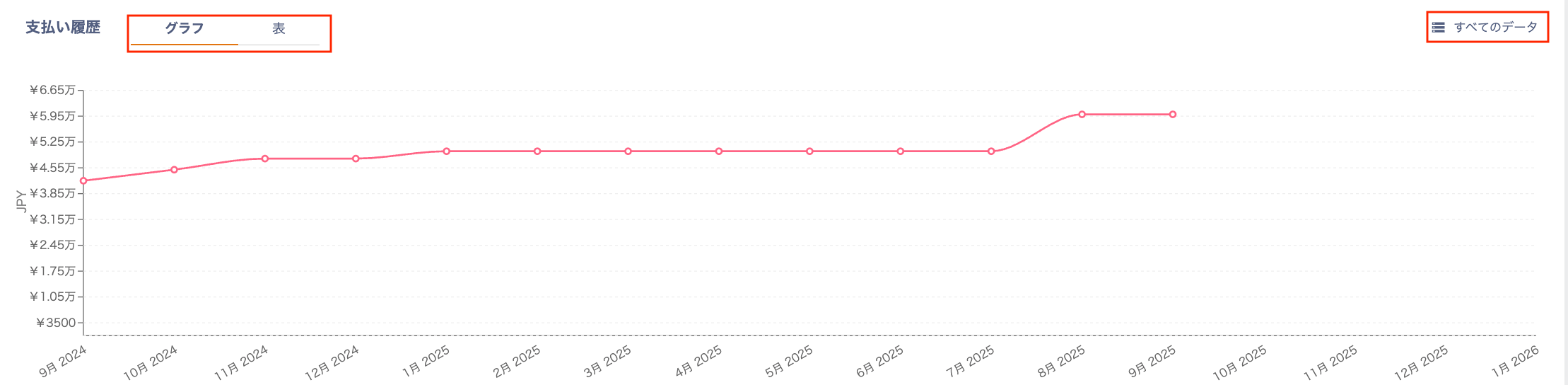
Toggle between “Graph / Table” views to review payment history. Click “All data” to navigate to Spend > Spend.Info (Basic Information)View the service’s developer, certifications, and terms of service here. You can also check the privacy policy, data security policy, and country of development.Basic information is available for services that appear on the Services screen. You can’t view it for services that don’t appear there, such as services you’re considering signing up for. For services without registered information, the Basic Info section doesn’t appear.The Certifications field shows only certifications with registered information. Click a certification to open a page with information about it.
Filter by “User type,” “Role,” or “2FA status, suspended accounts.”
3
Save search
Save your search conditions and filter using the saved conditions.
4
Exporting service accounts
Export all service accounts, or a subset filtered by conditions. For details, see Exporting Service Accounts.
5
Merge
Manually link a retrieved service account to another account. For details, see Account Linking (Merge).
6
Owner
Click an owner’s account to navigate to the Directory screen.
7
Service ID
Displays the account information registered on the service side.
8
Last used
The service’s last-used date. To check whether Last Activity data is available, see “FetchData” > “Last Activity” in Connected SaaS & Feature Support List.
9
Settings
Click the three-dot menu [︙] to access “Delete / Merge / Add note.” Delete: you can delete an account for services that list “Delete” under “Account Lifecycle” in Connected SaaS & Feature Support List. Add note: leave an individual note for each account.