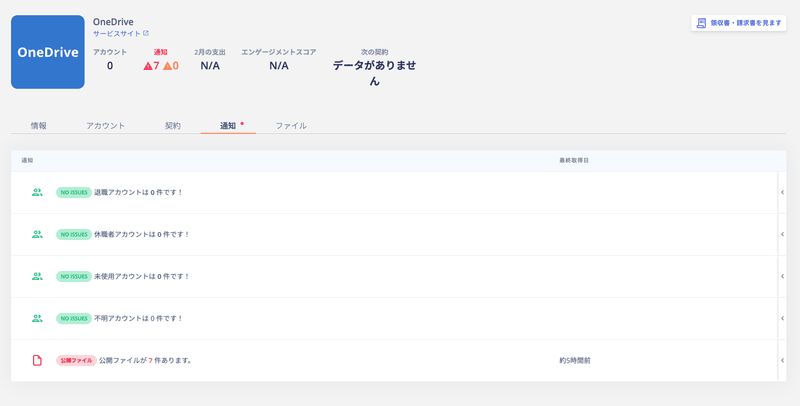
Learn about the types of alerts and notifications available. You can check alerts under the Notifications section for each directory or service.

Alerts for Services

There are five types of alerts for services.
AlertDescription
Resigned accountsNotifies accounts with the “Resigned” status.
Leave of absence accountsNotifies accounts with the “Leave of absence” status.
Unused accountsNotifies accounts whose last activity date was 45 days or more ago.
Unknown accountsNotifies accounts with the “Unknown” status.
Public filesNotifies about files shared with everyone. For more on managing public files, see External Shared Content Management.
For the criteria used to determine each status, see the Status Determination Criteria: Quick Reference.
Alert types view

Exporting Alerts

You can export accounts and services with active alerts from the Service screen or the Directory screen.

Service Screen

Select a SaaS > Notifications, then click the notification to export. Use the export button in the upper right to download it as a CSV file. Export notifications from the Service screen

No.ItemDescription
1Search and filterSearch by name or email address, and filter by workspace or notification type using the dropdowns.
2SyncClick Sync to manually trigger a sync.
3ExportExport the accounts listed in the notifications for each service.

Directory Screen

Go to Notifications in the upper right > Show all → > Warnings, then click the account to export. Use the export button in the upper right to download it as a CSV file. Export notifications from the Directory screen
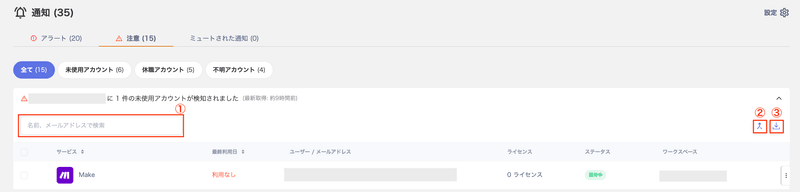
No.ItemDescription
1Search by name or email addressSearch for accounts shown in notifications by name or email address.
2MergeButton to merge accounts. For details, see Linking (Merging) Accounts.
3ExportExport the SaaS and account information shown in notifications for each account.

Slack Alert Notifications

Some notifications can be sent to a Slack channel. For details, see Send Alerts via Slack.

Stopping Alert Notifications

To stop a notification, click Stop to mute the alert. For details, see Stop (Mute) Alert Notifications.

Enabling/Disabling All Alert Notifications

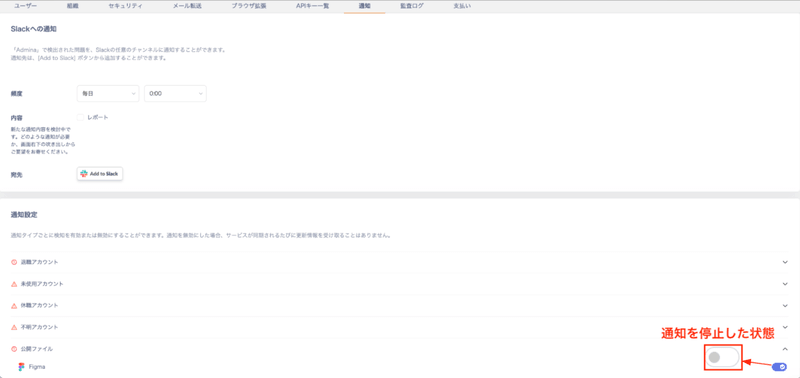
Go to Settings > Notifications to enable or disable all alert notifications at once. The Settings menu is only visible to accounts with Admin privileges. On the Notification Settings screen, turn off the toggle switch for each notification type you want to disable. Notification settings screen
FAQ

Q. How can I check the last activity date for unused accounts?

A. Go to Service or Directory > Notifications > Unused Accounts to see each account along with its last activity date. The last activity date is retrieved using the method described in How Last Activity Is Retrieved. You may also find results by going to Directory > People > Event Log and searching by SaaS name.
Last modified on July 13, 2026