What you can do with the Merge identity with addressless entities Tool
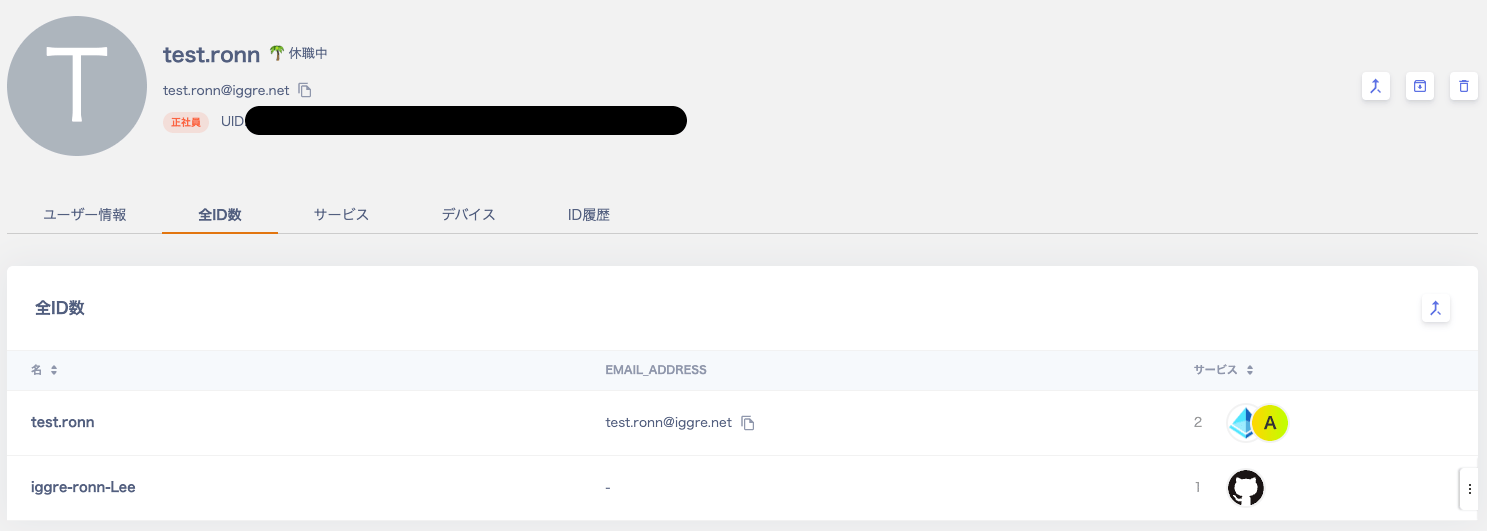
Use this tool and the API to merge (match/link) SaaS accounts with no email address into another directory.The tool also uses the API to automatically retrieve the PeopleID required for merging.Some accounts appear as unknown, such as GitHub accounts where no email address is available. This tool links that data to the correct directory more easily than doing so manually.Reference: Manually merge SaaS accounts
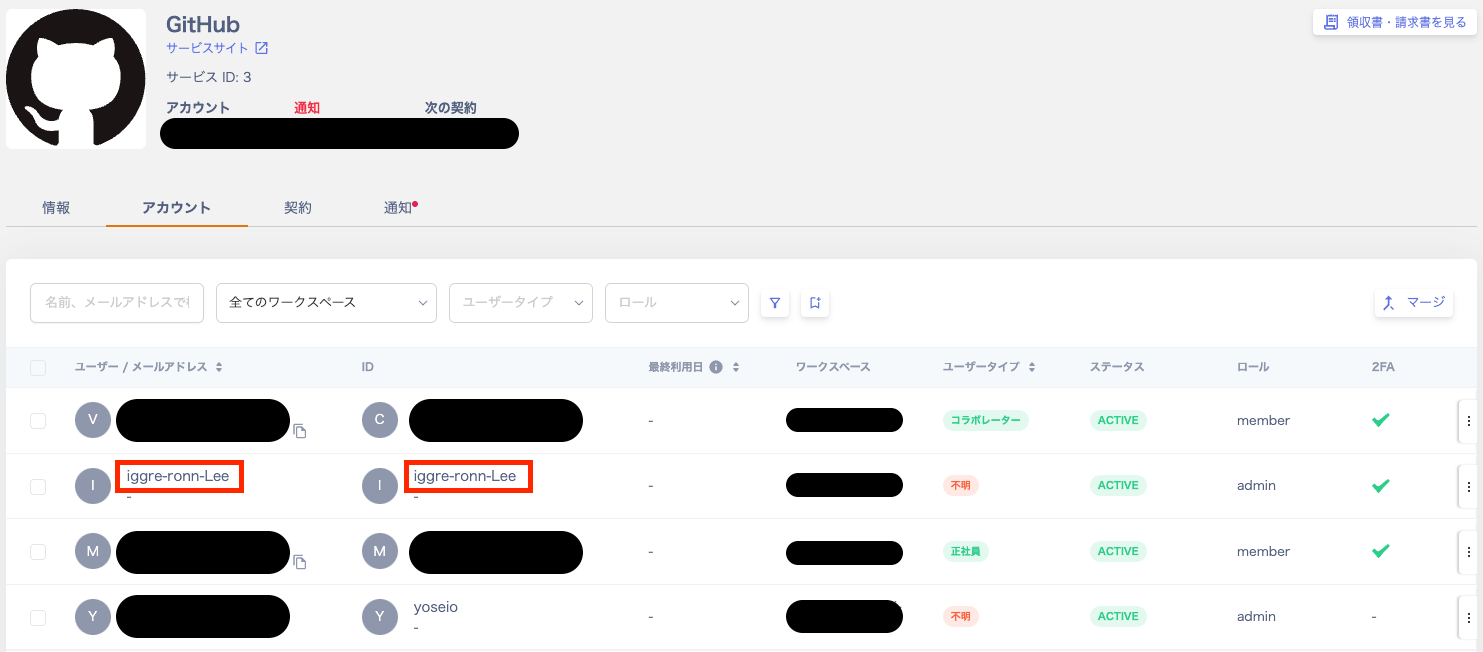
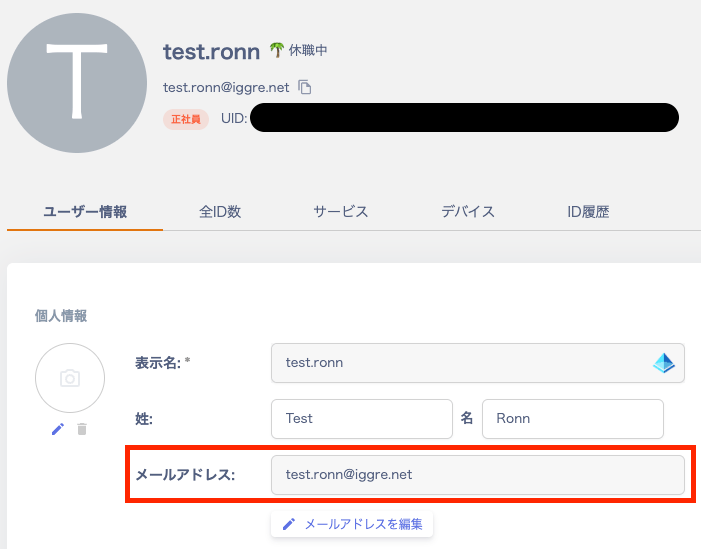
Prepare a list of the merge source directory (the directory without email addresses). Also list the merge target directory (the directory with email addresses). Pair the display name (equivalent to the SaaS ID) of the source with the email address of the target.
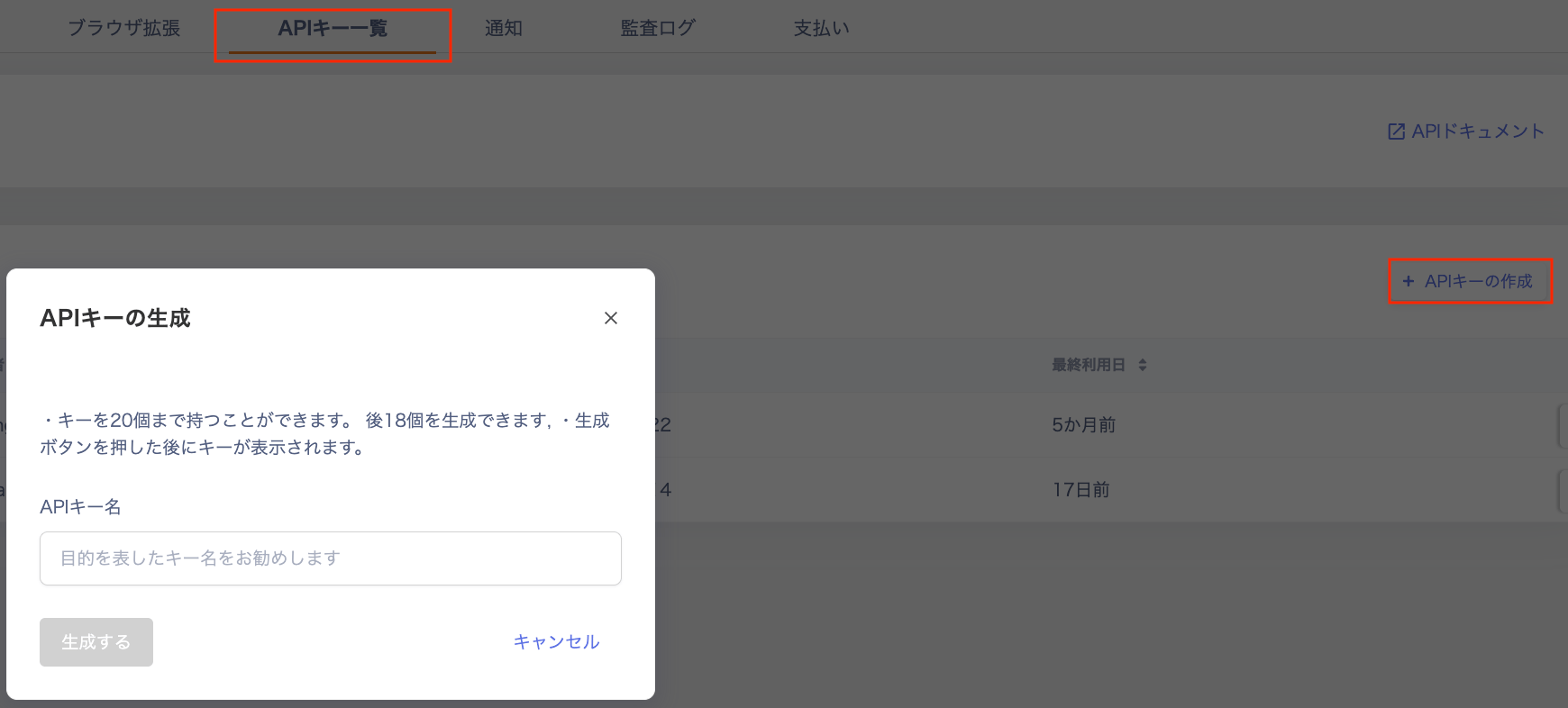
Go to Settings > API Keys, and obtain your Organization ID and API Key.
Download the spreadsheet from the link below.
[Spreadsheet]
Merge identity with addressless entities
A screen like the one in the screenshot will appear. Save a copy to your own environment to start using it.
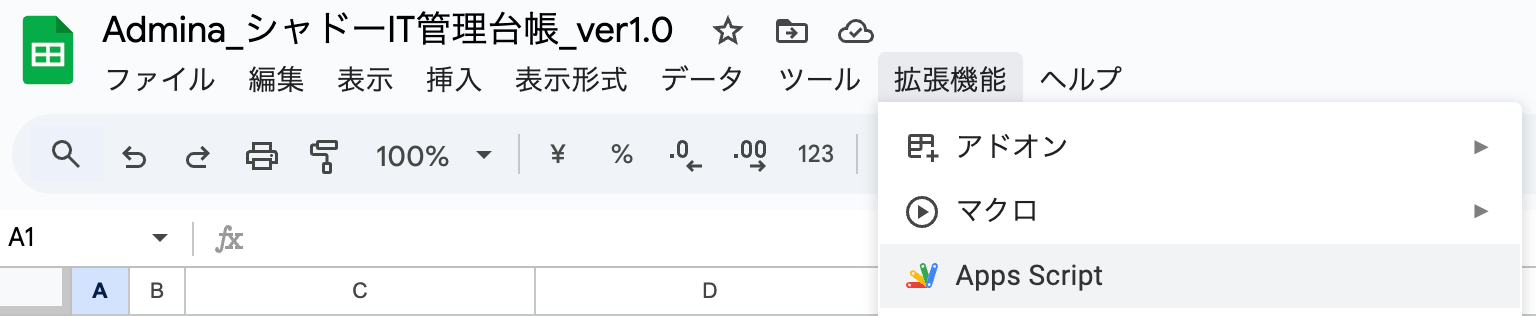
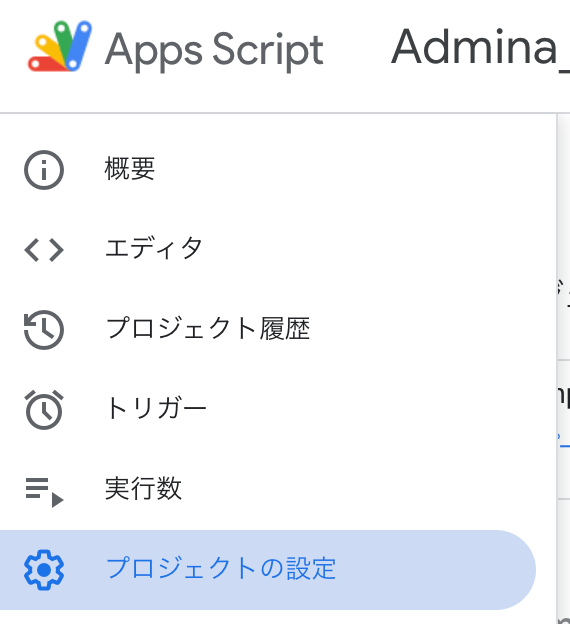
Open Extensions > Apps Script, then go to Project Settings > Script Properties.
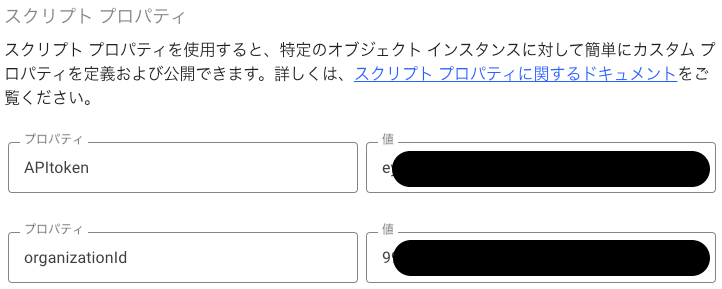
Add APItoken and organizationId as property names, and enter the API Key and Organization ID you obtained in step 1.
How to use the Merge identity with addressless entities Tool
In the “Merge” sheet, configure the serviceId and workspaceIds fields under Setting.
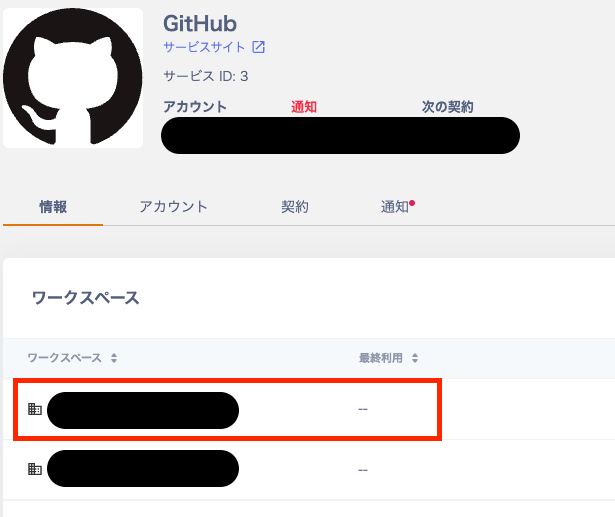
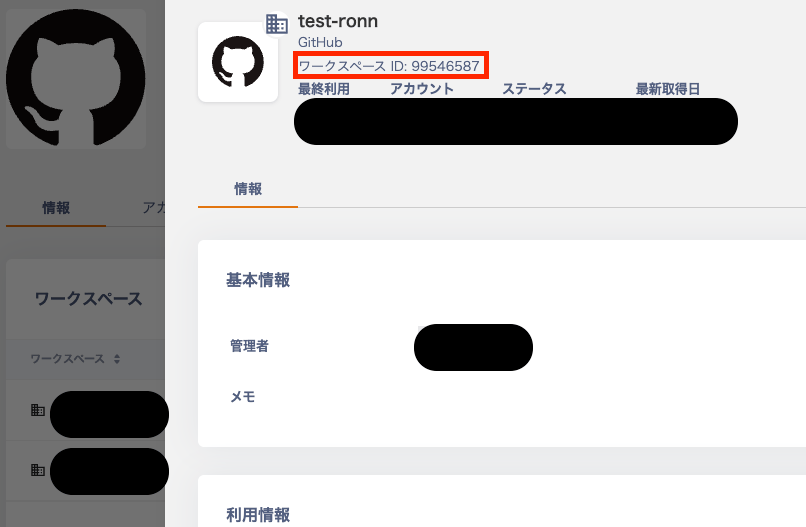
serviceId: Go to Services > the target SaaS (e.g. GitHub) > Service ID to find the value.workspaceIds: Go to Services > the target SaaS (e.g. GitHub) > the relevant workspace > Workspace ID to find the value.Enter the serviceId and workspaceIds you found into the Setting section of the “Merge” sheet.
Prepare the list described in the Prerequisites section and enter the SaaSID and MailAddress values.SaaSID: The display name or username from the merge source directory that contains the SaaS ID or similar identifier.When a match is found for the display name or username, values are returned in identityId and fromPeopleId.MailAddress: The email address that serves as the key linking the merge source and merge target.When a match is found for the directory email address, a value is returned in toPeopleId.
Click the Get PeopleID button in the spreadsheet.When retrieval succeeds, values are populated in identityId, fromPeopleId, and toPeopleId.
Click the Run Merge button in the spreadsheet.When the merge succeeds, the result is recorded in postMerge and you can confirm the merge in this service.
That completes the guide for using the Merge identity with addressless entities Tool.If you have any questions or concerns, please contact us through chat support.