You can view logs for SaaS integrations. In addition to integration and sync logs, the log also includes account deletion and deactivation operation logs.

Key specifications

  • Data is available from February 25, 2022, when this feature was introduced.
  • The UI displays logs for the past 3 months.
  • Logs for disconnected integrations are not currently included.
  • Logs are retained even after an integration is disconnected.

View logs

You can view logs in the integration log and status views.

Integration log

Under Integration, select Integration Log. Integration menu with Integration Log selected
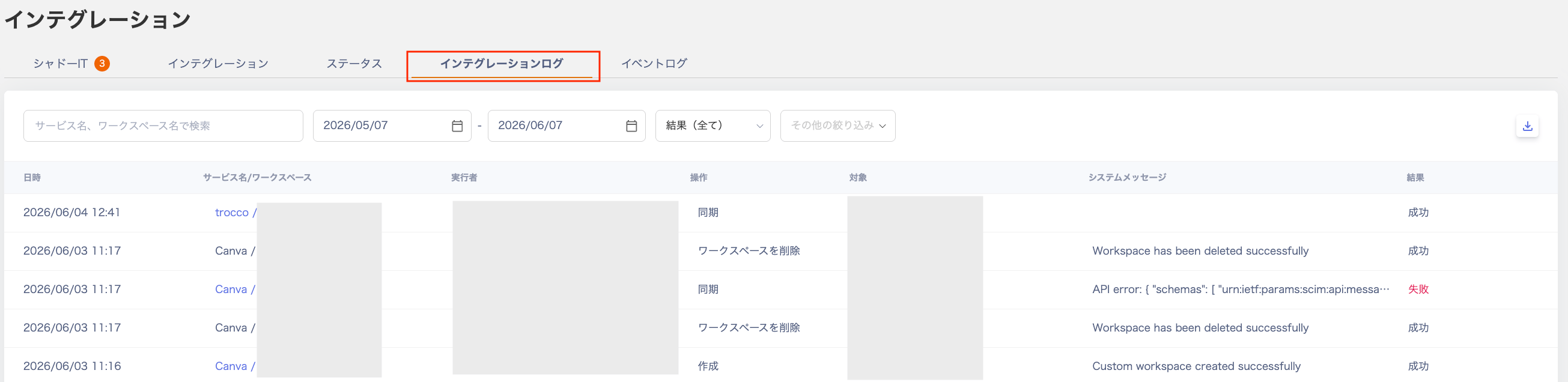
Displayed fields

FieldDescription
Date/TimeShows the date and time of each operation. You can specify a start and end date range.
Service name / WorkspaceShows the target cloud service and workspace name.
Executed byShows the email address of the user who performed the operation.
OperationShows the content of each operation — Sync, Delete, or Deactivate. You can filter by each operation type.
TargetFor sync operations, shows the target workspace name. For account deletion or deactivation, shows the target email address.
System messageShows error messages and other system notifications.
ResultShows whether the operation succeeded or failed. You can also filter by result.

Additional filters

Integration log filter options
FieldDescription
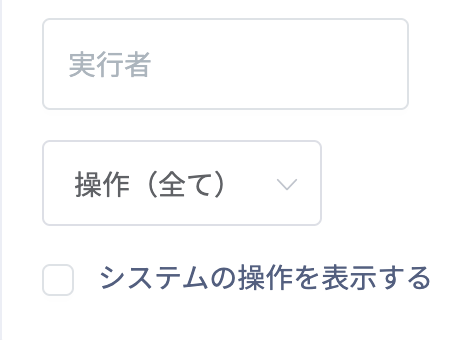
Executed byFilter by the email address of the person who performed the operation.
OperationFilter to show only results for sync, deletion, or deactivation operations.
Show system operationsCheck this to include operations performed by the system, such as automatic overnight syncs.

CSV export

Click Export to download the displayed results as a CSV file. CSV export button

Status

View logs under Integration > Status. Integration status screen

Displayed fields

FieldDescription
Service name / WorkspaceShows the target service and workspace name.
Connected byShows the email address of the user who set up the integration.
StatusDisplays one of the following statuses: Synced / Syncing / Sync Failed / Additional Authentication Required / Partially Suspended / Waiting for Maintenance / Manual.
Synced (connected) Sync completed successfully and the latest data is available.
Syncing (processing) Data retrieval is currently in progress.
Sync Failed (stopped) An integration error occurred and sync has stopped.
Additional Authentication Required (pending) Additional input or authentication is needed to complete the integration. Refer to the integration guide for each SaaS and perform a re-integration.
Partially Suspended (suspended) The integration with the service is temporarily suspended.
Waiting for Maintenance (maintenance) The target service is under maintenance. If the syncing state continues for an extended period, it automatically changes to “Waiting for Maintenance.” Run a sync to check whether the status changes.
Manual (manual) This is a custom workspace. Manual operations are required.
Last retrievedShows when data was last retrieved in relative time (e.g., 1 minute ago, about 2 hours ago, 1 day ago, 1 month ago).
System messageShows error messages and other system notifications.
Last modified on July 13, 2026