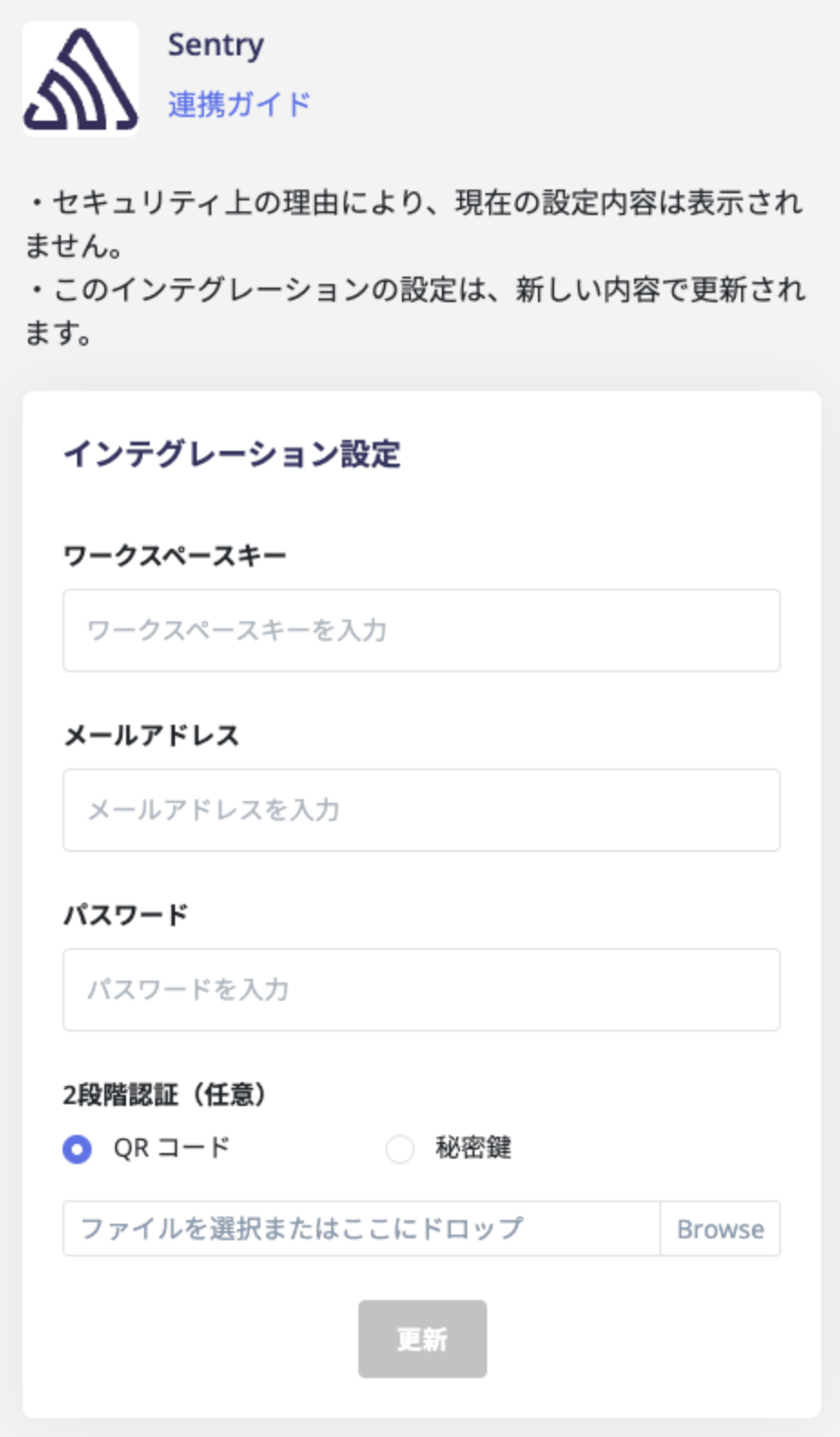
When Two-Factor Authentication (2FA) Is Enabled on the SaaS Side
Some SaaS services require two-factor authentication (2FA) in addition to an ID and password. This might involve scanning a QR code. This page explains how to connect such services with our service.What You Need
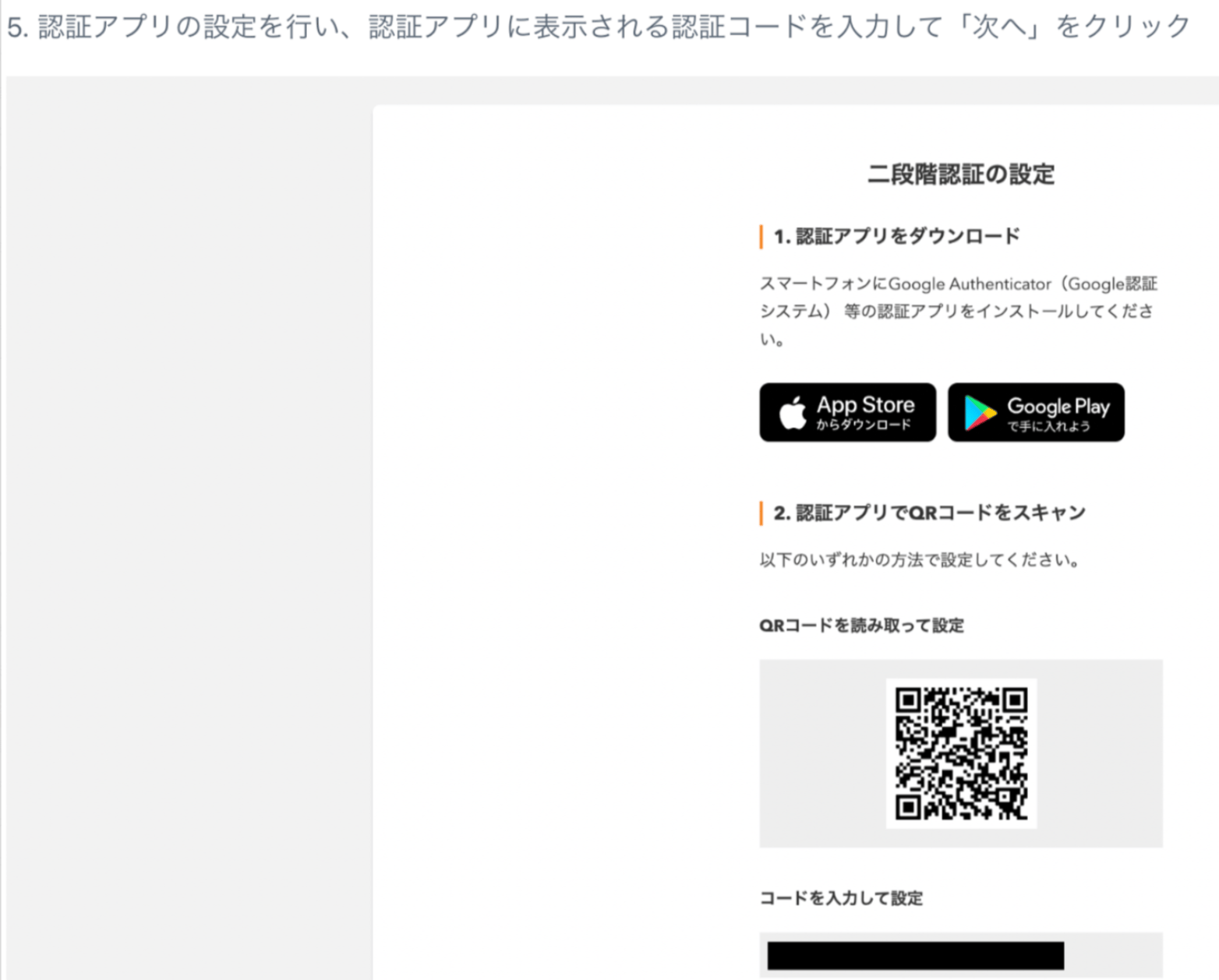
Prepare one of the following:- An image file of the QR code displayed during authentication (.jpeg, .png, etc.)
- A secret key (the text code shown when you cannot scan the QR code)
If you have already set up two-factor authentication, you need to disable 2FA and re-enable it to obtain the information above.
If you are not using two-factor authentication, connect the service without entering 2FA credentials.
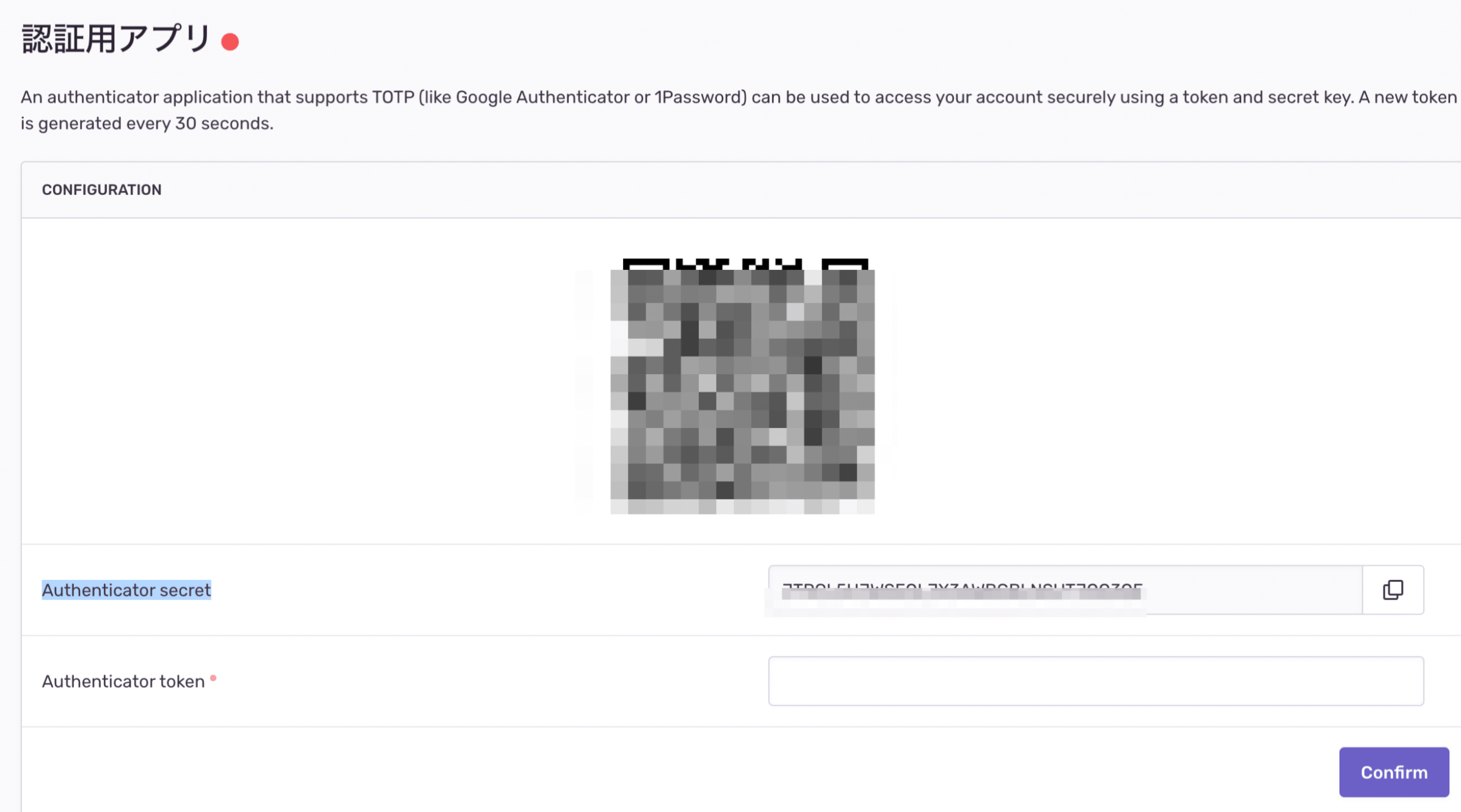
Sample
- The image file of the QR code area or the Authentication Secret value serves as the secret key.
- For MoneyForward ID
Integration Steps
When connecting the service, enter your ID and password along with the QR code image or secret key you prepared above. Then click Connect.