Search the Integrations screen for the SaaS you want to integrate. If you cannot find it, you can submit a request to us. Submit your request using one of the following two methods.

Request from the Integrations screen

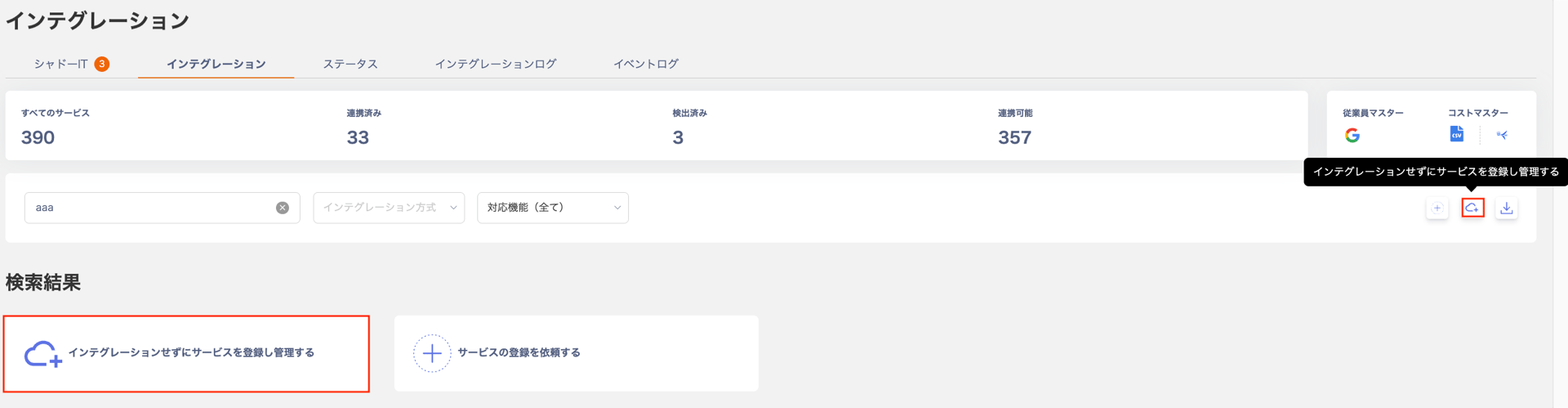
  1. Go to Integrations > Integrations and search for the SaaS you want to connect. If the SaaS does not appear, click “Request a service registration”. Screenshot
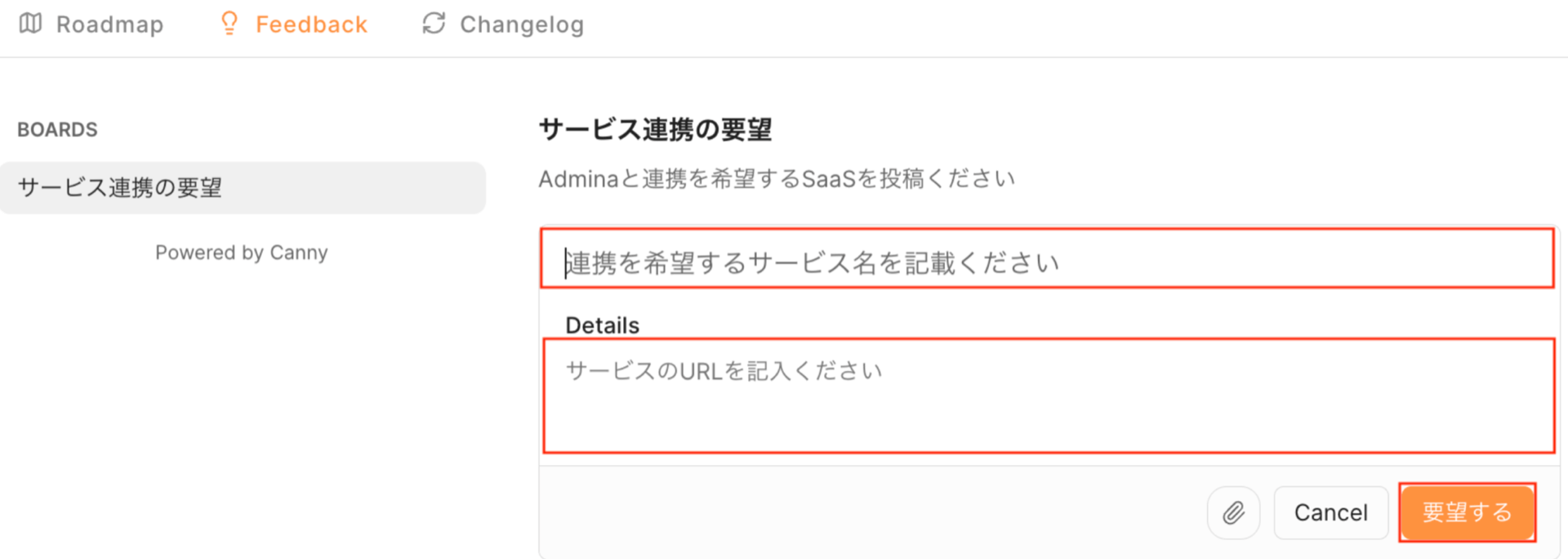
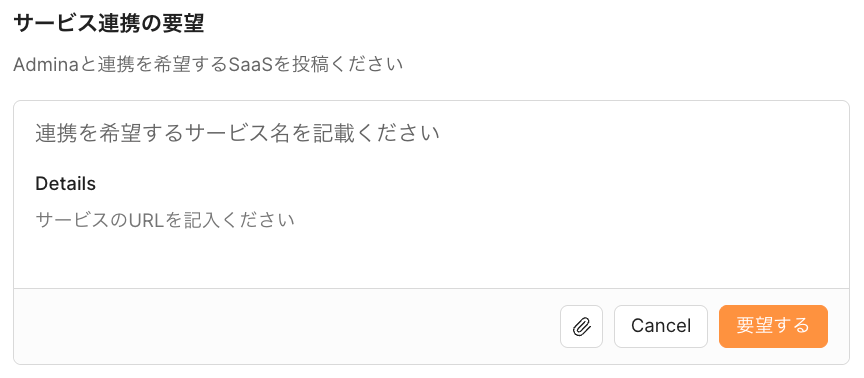
  2. The “Service Integration Request” screen opens. Enter the name and URL of the SaaS you want to integrate, then click [Submit request]. Screenshot
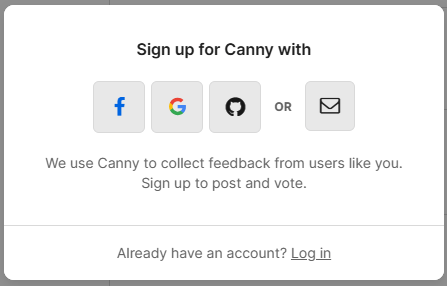
  3. A sign-up screen appears. Register with a third-party account or your email address. If you already have an account, click “Log in” to sign in. Screenshot
  4. Once your request appears, the submission is complete.

Request from the Help Center chat (bottom right)

  1. Click the orange box in the bottom-right corner. Screenshot
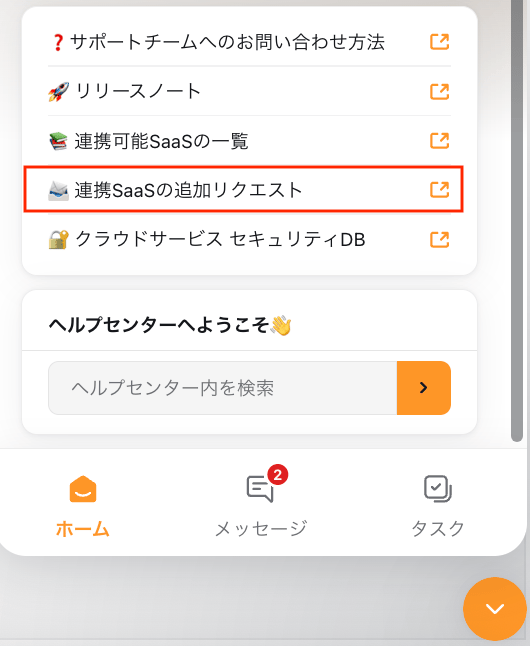
  2. The gadget opens. Click “Add SaaS integration request”. Screenshot
  3. The “Service Integration Request” screen opens. Enter the name and URL of the SaaS you want to integrate, then click [Submit request]. Screenshot
  4. A sign-up screen appears. Register with a third-party account or your email address. If you already have an account, click “Log in” to sign in. Screenshot
  5. Once your request appears, the submission is complete.

Vote on an existing request

On the “Service Integration Request” screen, search for a service. If a suggested post appears, click the number next to it to vote on an existing request. To receive a notification when an integration is completed, see Receive notifications (email). Screenshot

Receive notifications (email)

When an integration or feature is implemented, the status changes to “Complete” and you receive a notification by email.

Notification settings

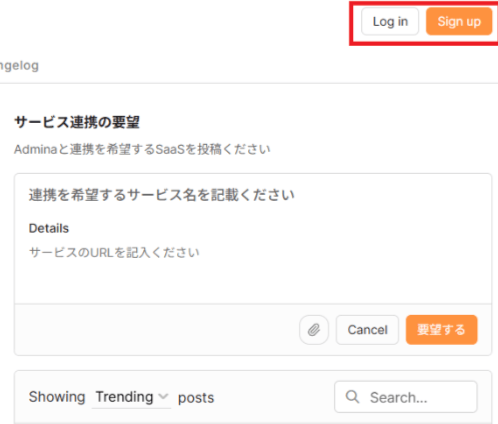
  1. On the “Service Integration Request” screen, click [LOG IN] or [SIGN UP] in the top-right corner. Screenshot
  2. To sign up, register with a third-party account or your email address. If you already have an account, click “Log in” to sign in.
  3. When a requested SaaS integration or feature is implemented, the status changes to Complete. You then receive a notification at your registered email address.


View the list of implemented SaaS and requests

You can also view a list of all SaaS integrations and requests that have been completed. Completed Integration List
Last modified on July 13, 2026