This feature requires Admin permission or the Survey Manager role to operate, and Member permission or the Survey Viewer role to view.
See Configure login users and roles for details.
The “Device” target type requires the Device feature.
Prerequisites
Before configuring the Slack delivery channel, you must specify a destination. Set this in Alert Notifications via Slack. Go to Settings > Notifications > Alert Notifications via Slack and configure the destination.Delivery Methods
You can select either “Email” or “Slack” as the survey delivery method.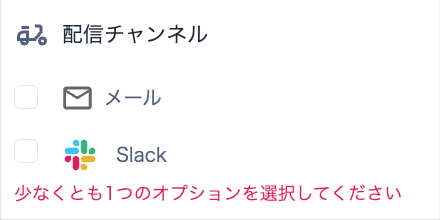
Configure the Slack Delivery Channel
The screen flow differs depending on whether notification credentials are already set up under Settings > Notifications. See When notification credentials are already configured. Otherwise, see When notification credentials are not yet configured.When notification credentials are already configured
This applies when configuring the Slack delivery channel in step ⑨ of Create a survey. If notification credentials are set up under Settings > Notifications, the Select Workspace screen displays them. Select the workspace you want to use.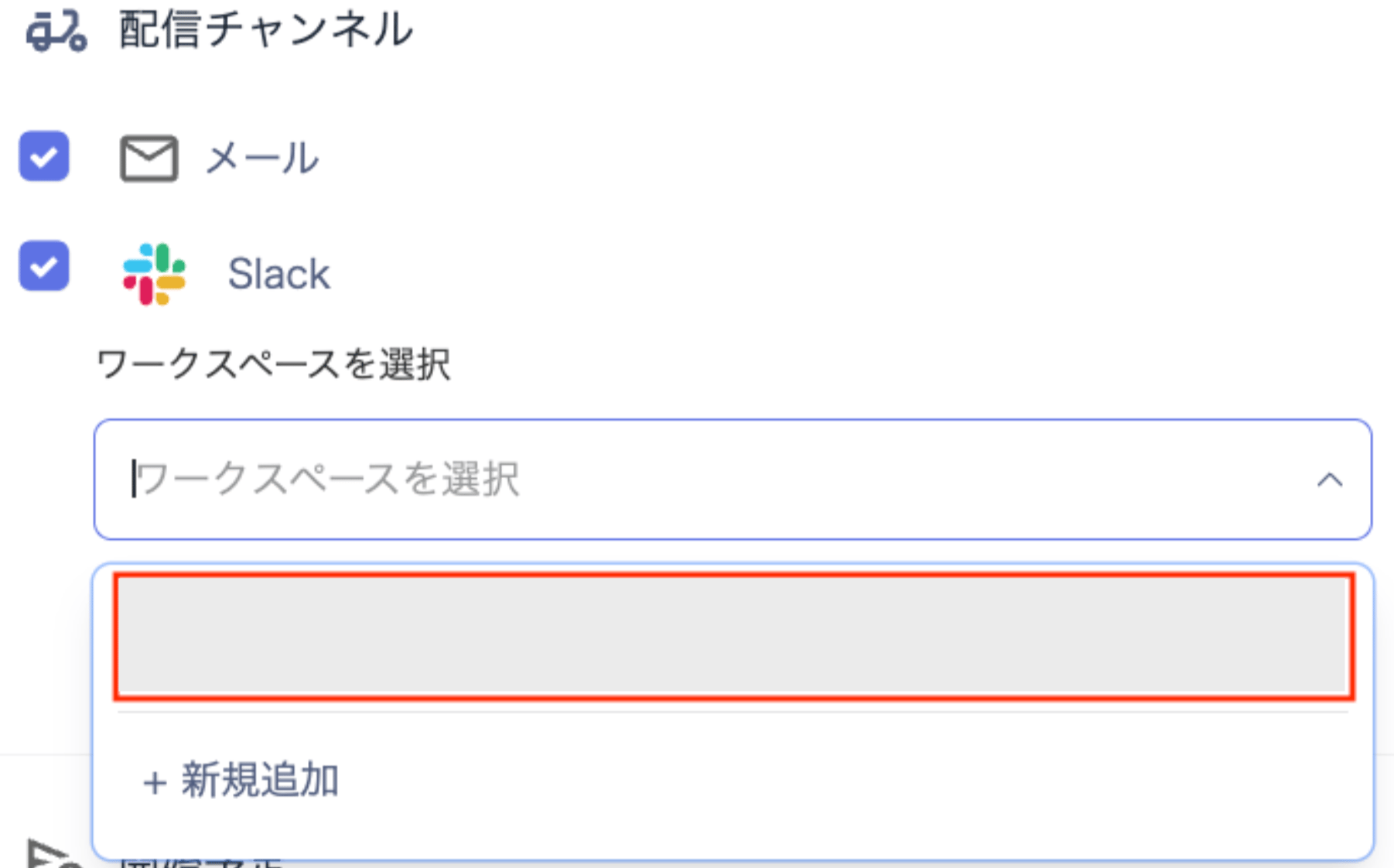
When notification credentials are not yet configured
This applies when configuring the Slack delivery channel in step ⑨ of Create a survey. If notification credentials are not yet configured under Settings > Notifications, the following screens appear.-
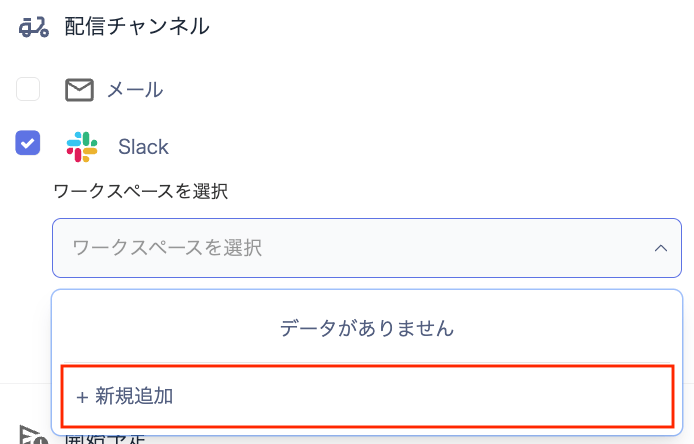
On the Delivery Channel screen, select Slack, then click [+ Add New] under “Select Workspace.”
-
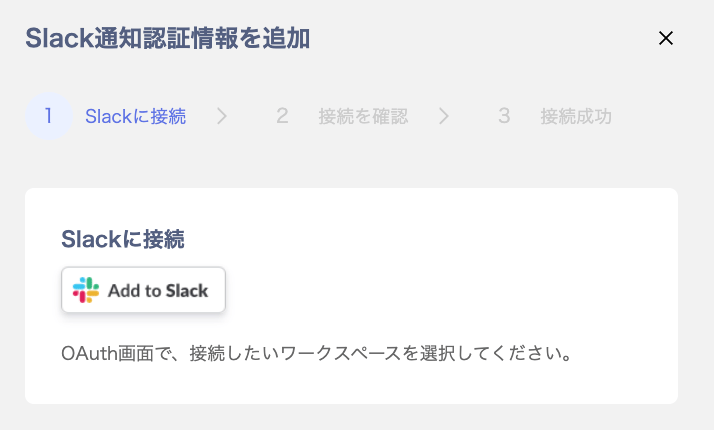
On the Add Slack Notification Credentials screen, click [Add to Slack] under “Connect to Slack.”
-
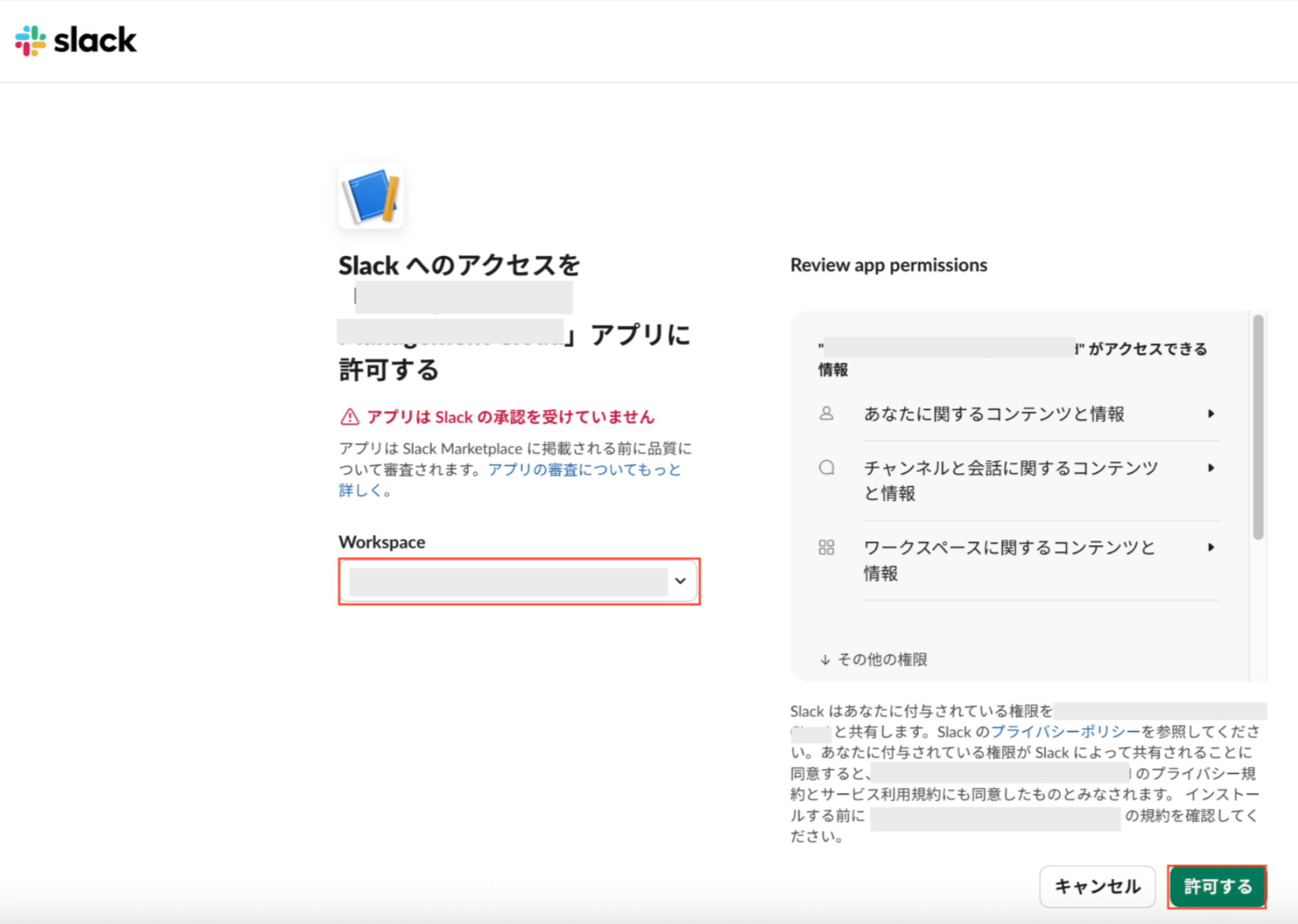
The Allow [this service] to access Slack screen appears. Confirm the Workspace, then click [Allow].
-
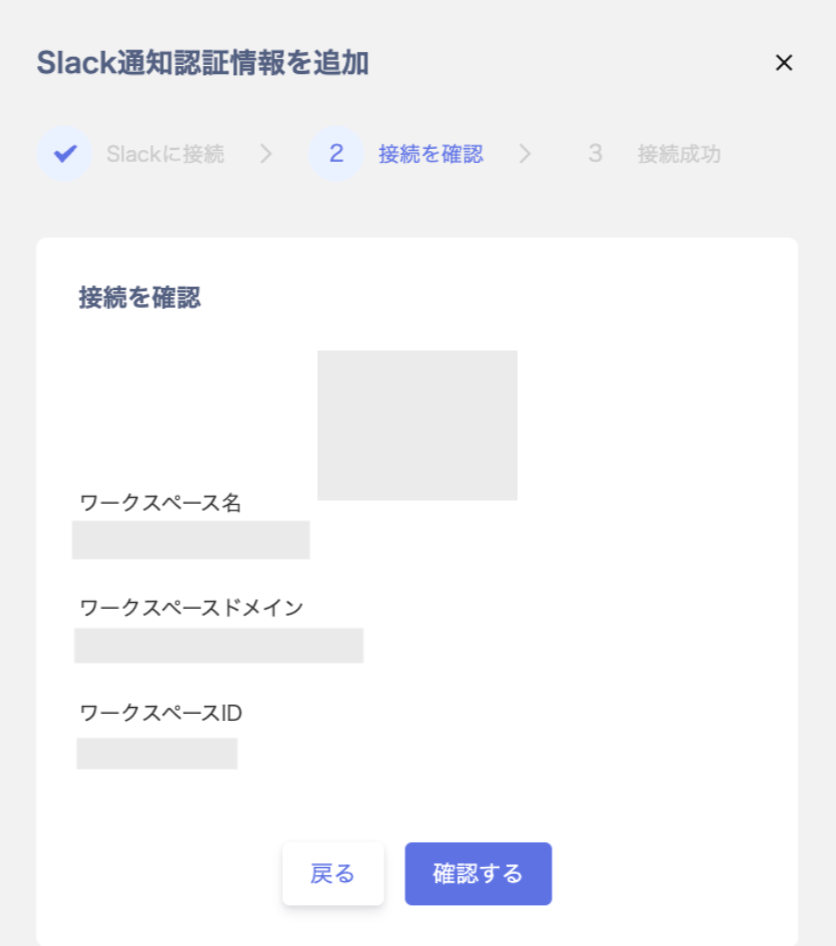
On the Add Slack Notification Credentials screen, verify the connection under “Confirm Connection”. Then click [Confirm].
-
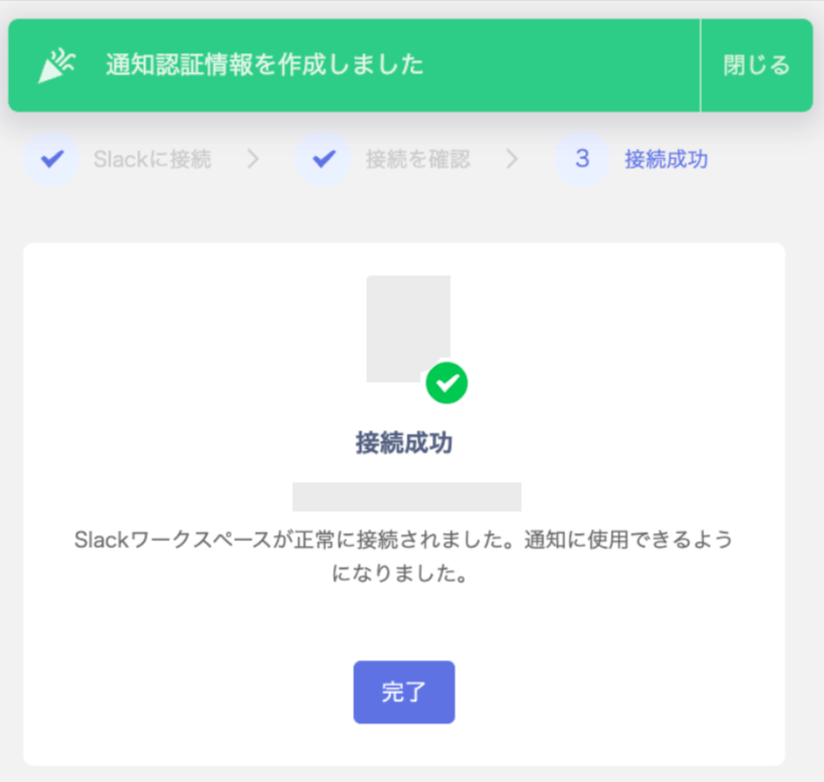
The Add Slack Notification Credentials screen displays “Additional credentials created” and “Connection successful.”
Click [Done].
-
When the survey is delivered, it arrives in Slack under Apps. Click [Answer Link] to respond before the deadline.
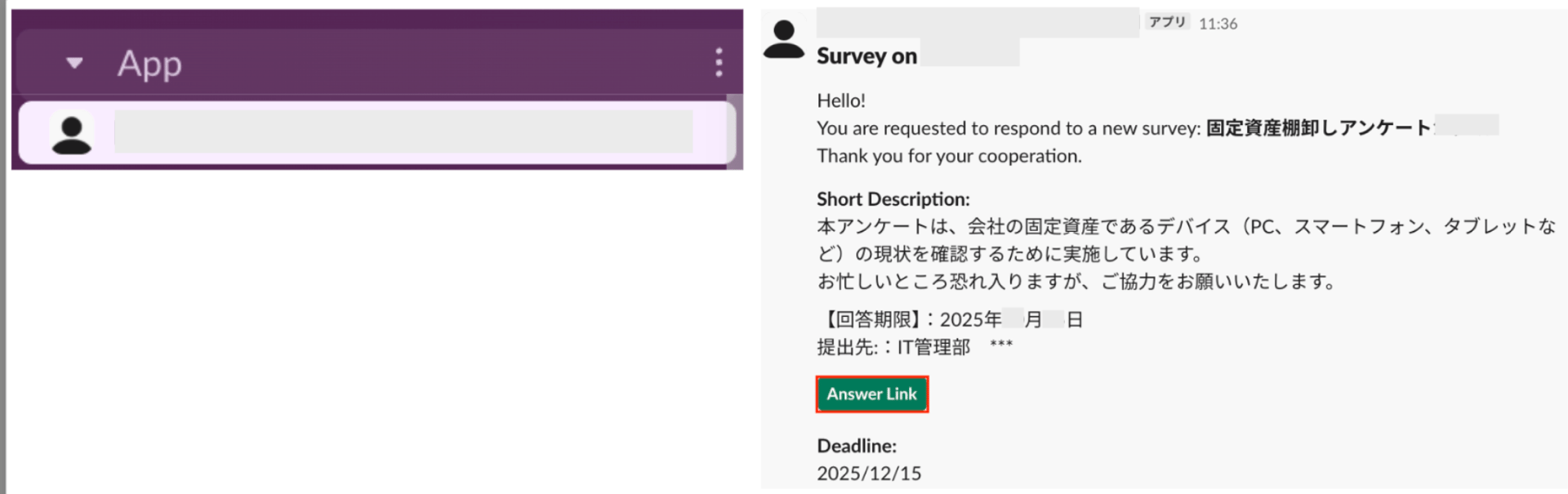
Survey Delivery via Slack
Surveys delivered via Slack are sent as individual direct messages (DMs) to each target recipient. The system identifies the matching user in the Slack workspace using the registered primary email address. It then sends an individual direct message automatically.Message Content
Recipients receive the following message.FAQ
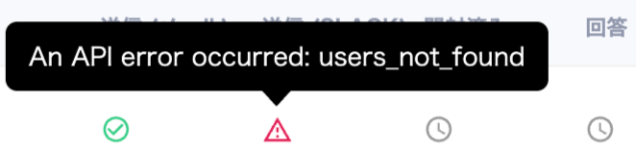
Q. How can I check if there are no users available to deliver to in a Slack channel? A. On the Check survey response status screen, the following error appears: “An API error occurred:users_not_found.”