This feature requires Admin permission or the Survey Manager role to operate, and Member permission or the Survey Viewer role to view.
See Configure login users and roles for details.
Add a survey type
-
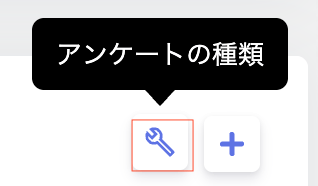
Click the settings icon (the wrench icon) at the top right of the survey screen, then select Survey types.
-
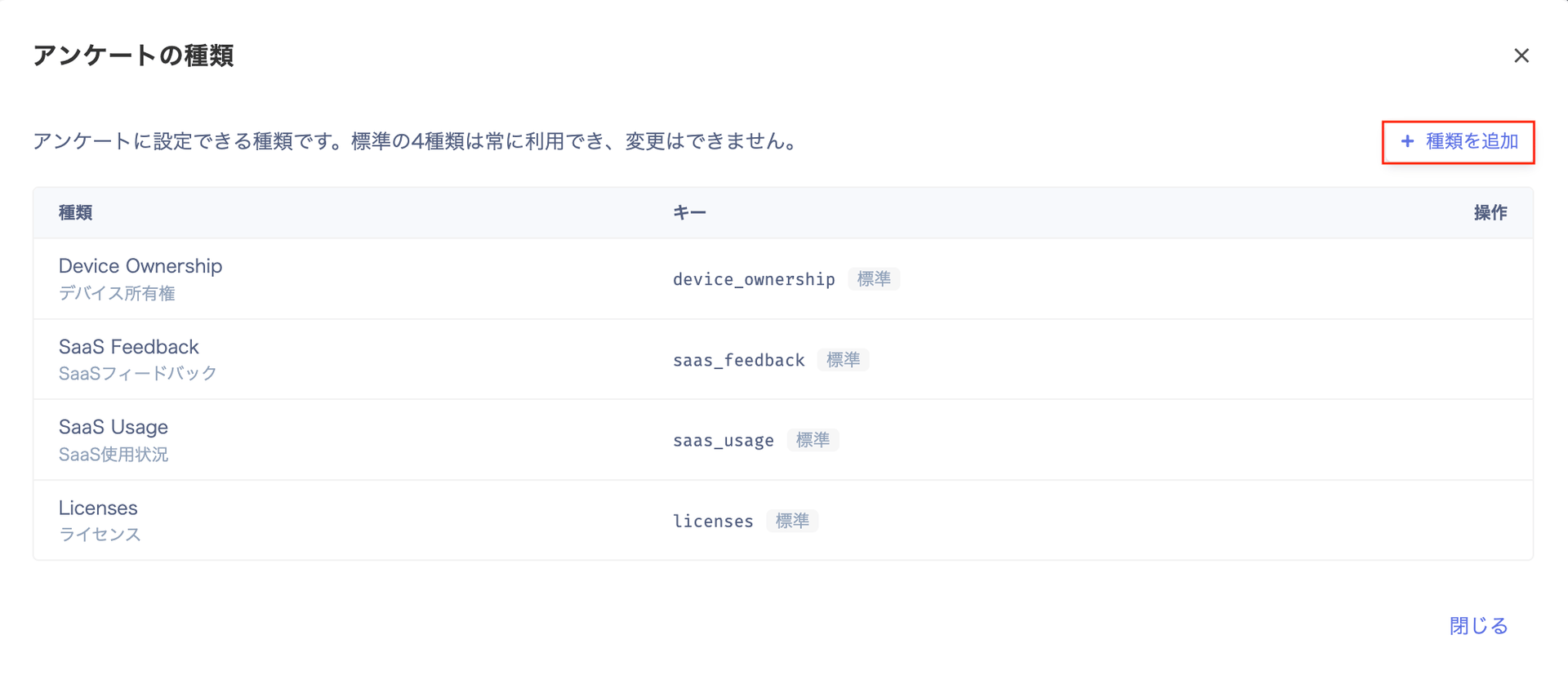
On the “Survey types” screen, click [+ Add type].
There are 4 standard types: Device Ownership, SaaS Feedback, SaaS Usage, and Licenses. They’re always available across all organizations, and can’t be changed or deleted.
-
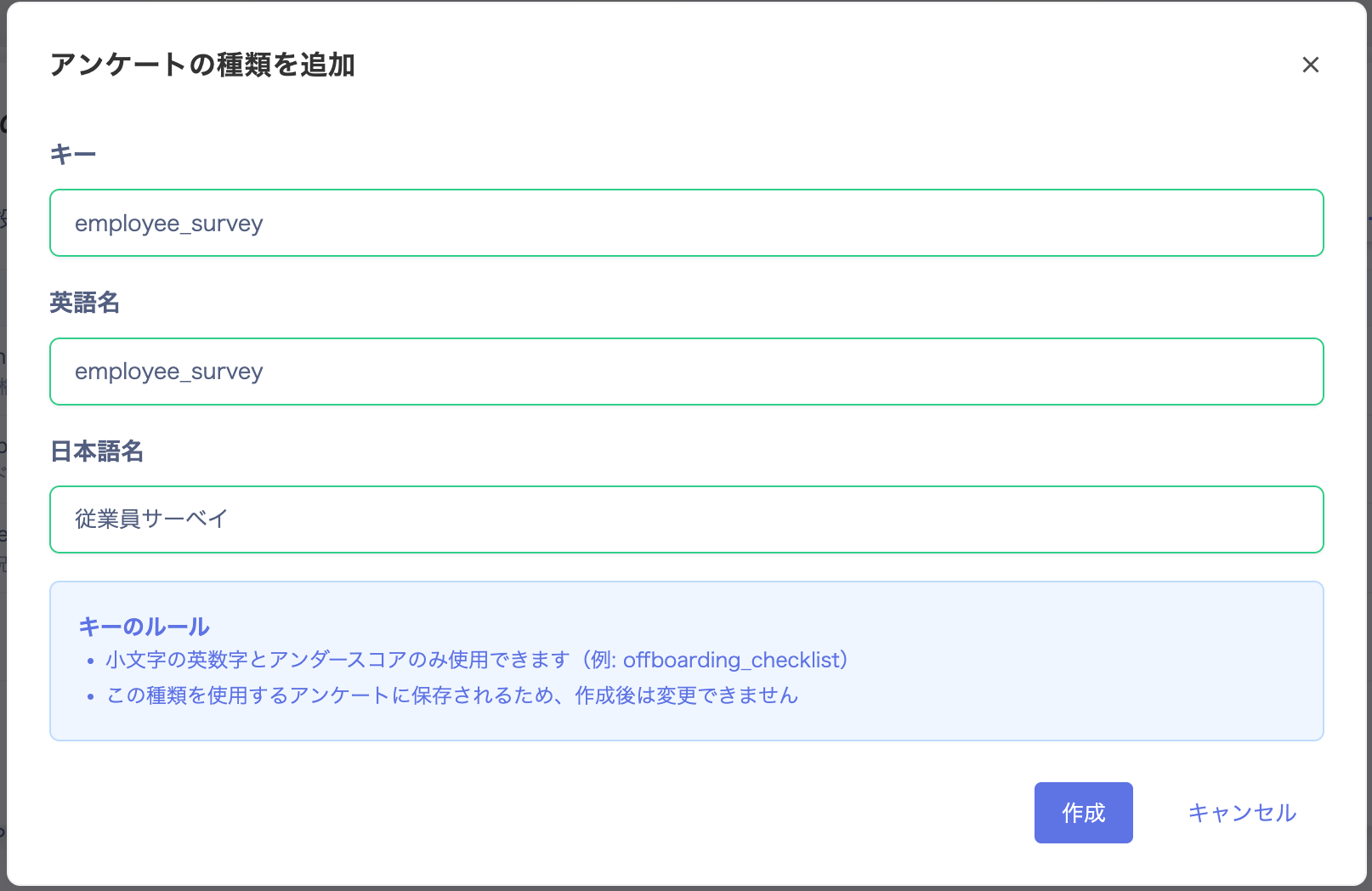
On the “Add survey type” screen, enter a Key, English name, and Japanese name, then click [Create].
-
Once created, “Survey type created” appears.

Check your survey types
You can check your survey types from the Category dropdown at the bottom right of the “Create survey” screen. The same dropdown also appears on the “Edit survey” screen.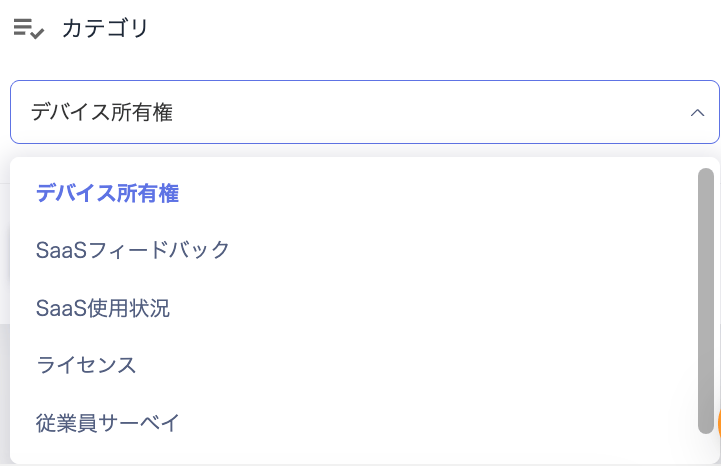
Edit a survey type
-
On the “Survey types” screen, click [Edit] (the pencil icon) for the type you want to edit.
The 4 standard types can’t be edited.

-
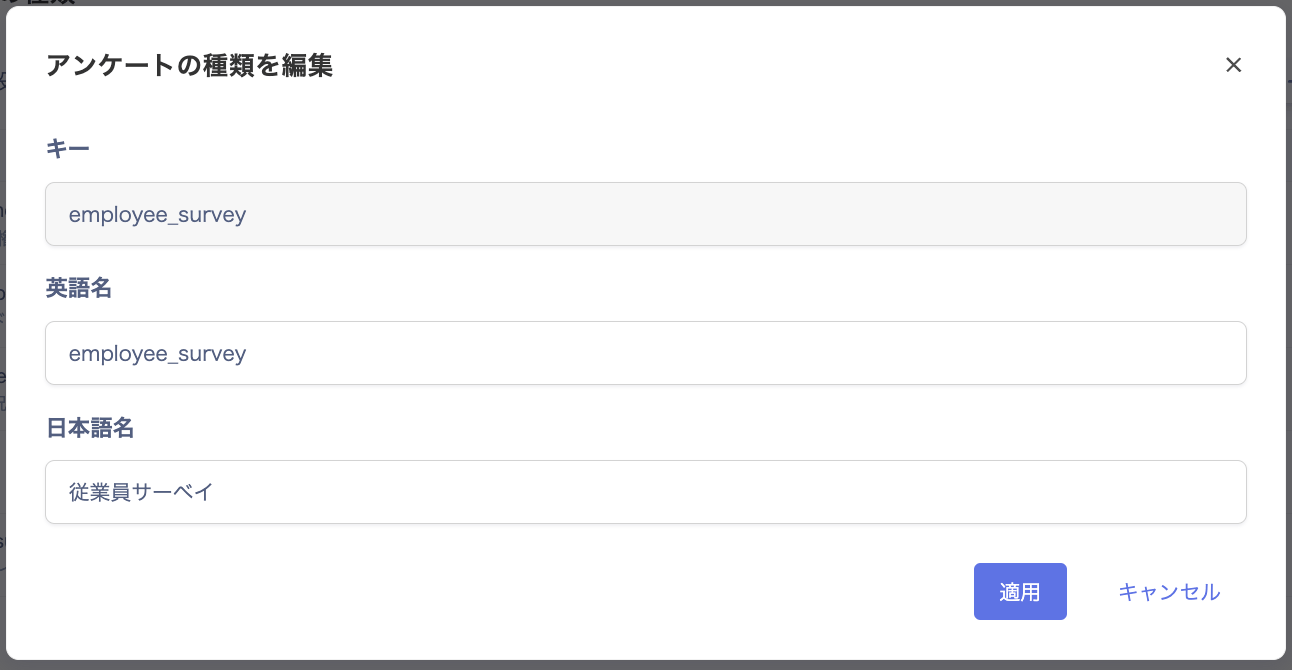
On the “Edit survey type” screen, edit the English name and Japanese name, then click [Apply].
The key can’t be changed after creation.
Delete a survey type
-
On the “Survey types” screen, click [Delete] (the trash icon) for the type you want to delete.
The 4 standard types can’t be deleted.
-
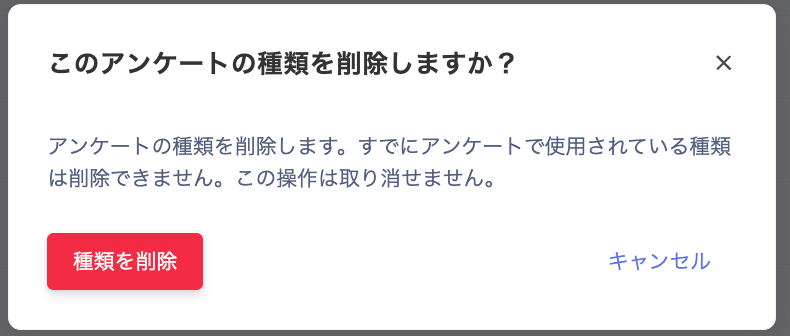
“Delete this survey type?” appears. Check the details, then click [Delete type].
A type that’s already in use by a survey can’t be deleted. This action can’t be undone.