All operations in this feature require Admin permission or the Survey Manager role. Viewing requires Member permission or the Survey Viewer role. For details, see Basic Roles. To use the “Device” target type, you must separately enable the Device feature.
This page covers usage examples from step (6) onward in Create a new survey. It also covers configuration methods for each target type.

Usage examples by target type

Target typeUsage example
EmployeeSelect employees from the employee list and send a survey to them directly or to their managers.
Example: Send an enrollment confirmation to managers linked to the list of Company X, a contracted partner.
Send a questionnaire to full-time employees.
DeviceSelect devices and send a survey to the owner or the owner’s manager.
Example: Send a confirmation to the owner for a device inventory check. Physically verify devices that are subject to fixed asset management.
SaaS appSelect accounts for each SaaS service and send a survey to the owner or the owner’s manager.
Example: Ask ChatGPT users directly about their satisfaction with the service.

Create a survey with target type “Employee”
ItemSetting
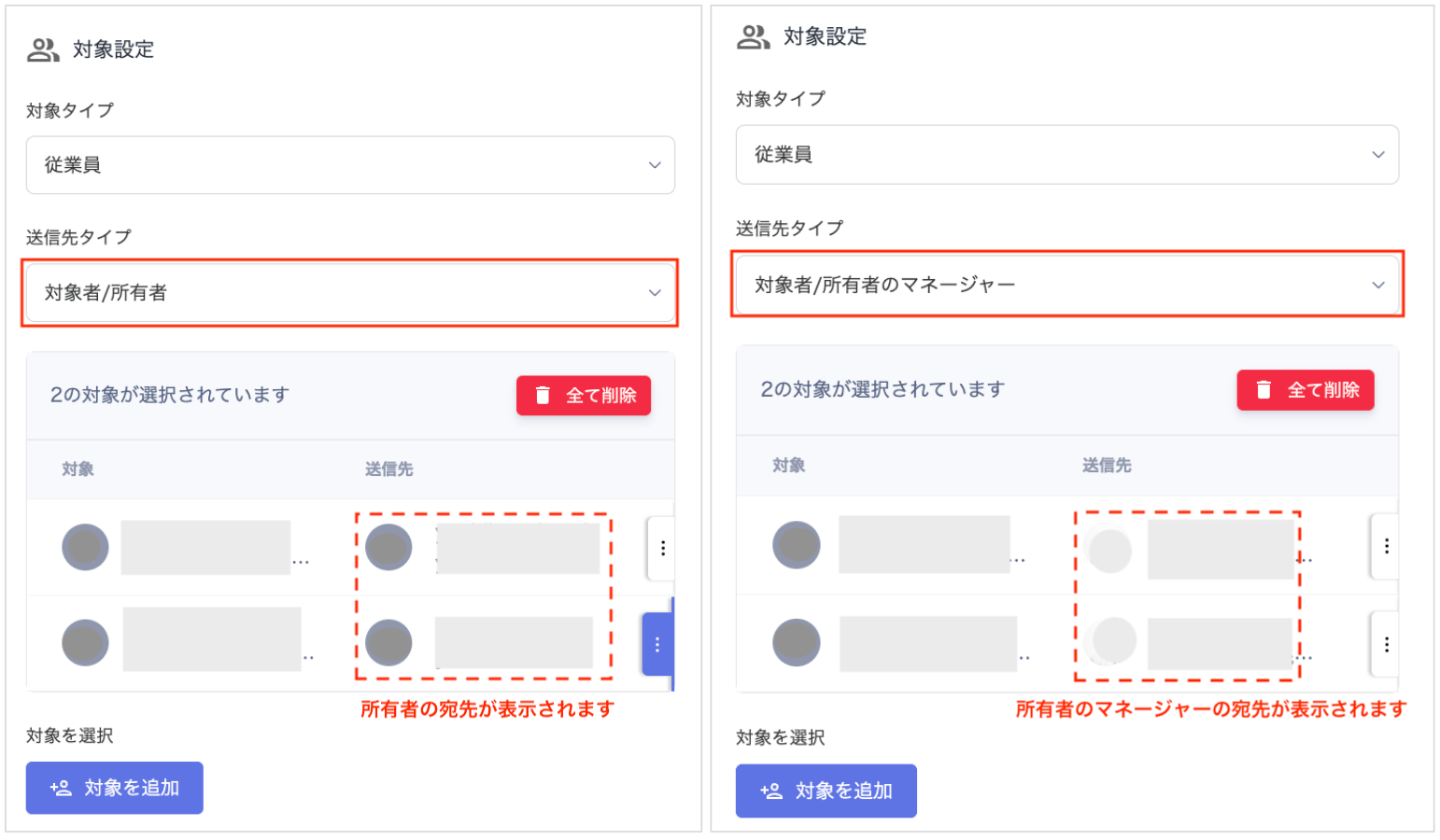
Target typeSelect “Employee”.
Recipient typeChoose from “Target / Target’s Manager”. Select Target to send a survey to each individual, or select Target’s Manager to send by department.
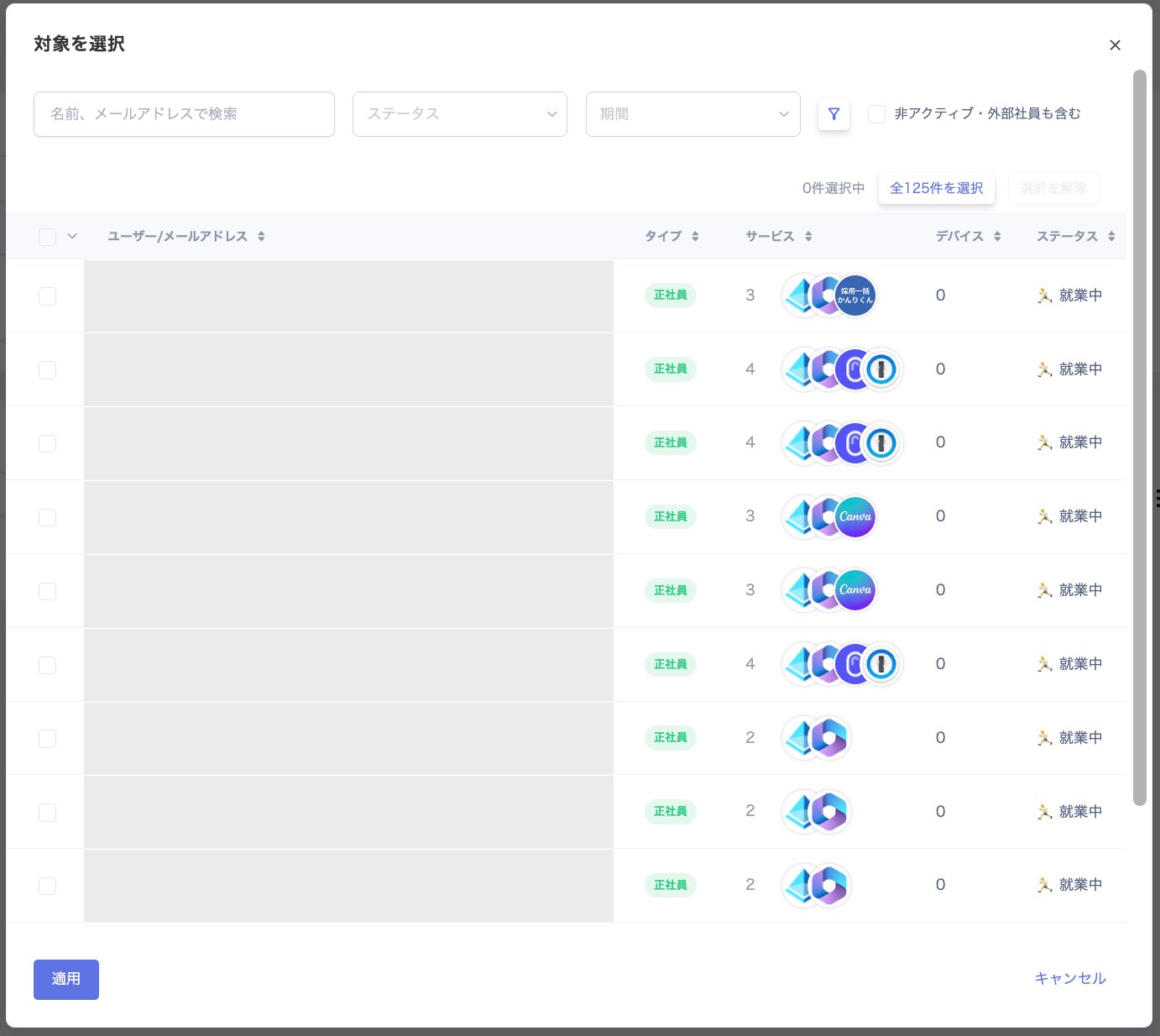
Select targetsAccounts registered in the directory are displayed. Select the survey recipients.
Screenshot

Target configuration (target type: Employee)
Screenshot

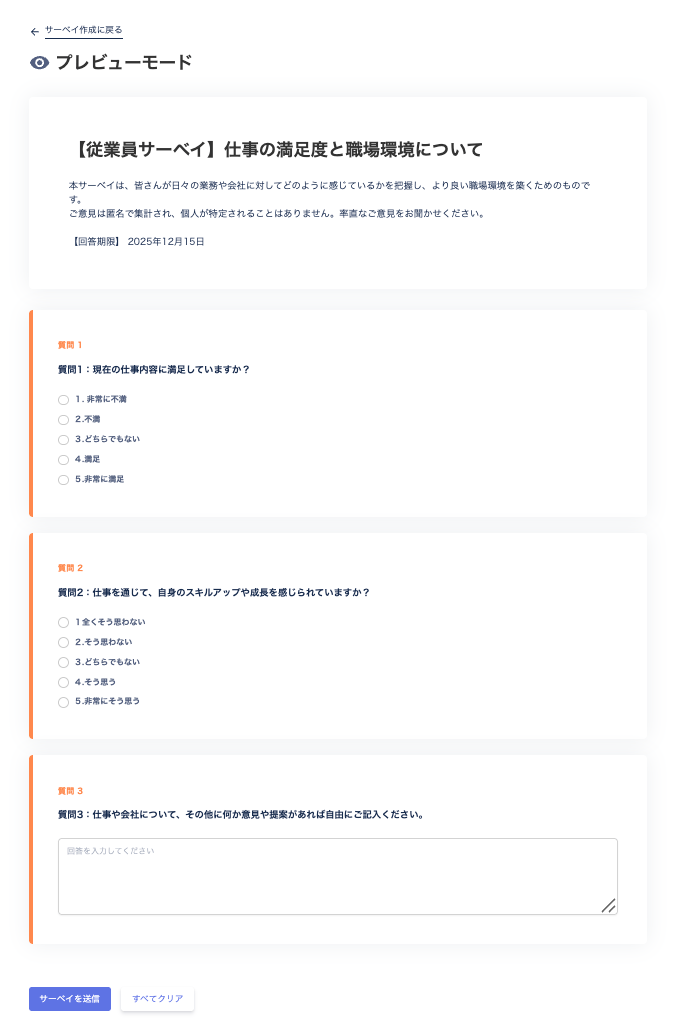
Preview mode (target type: Employee)

Screenshot

Create a survey with target type “Device”
ItemSetting
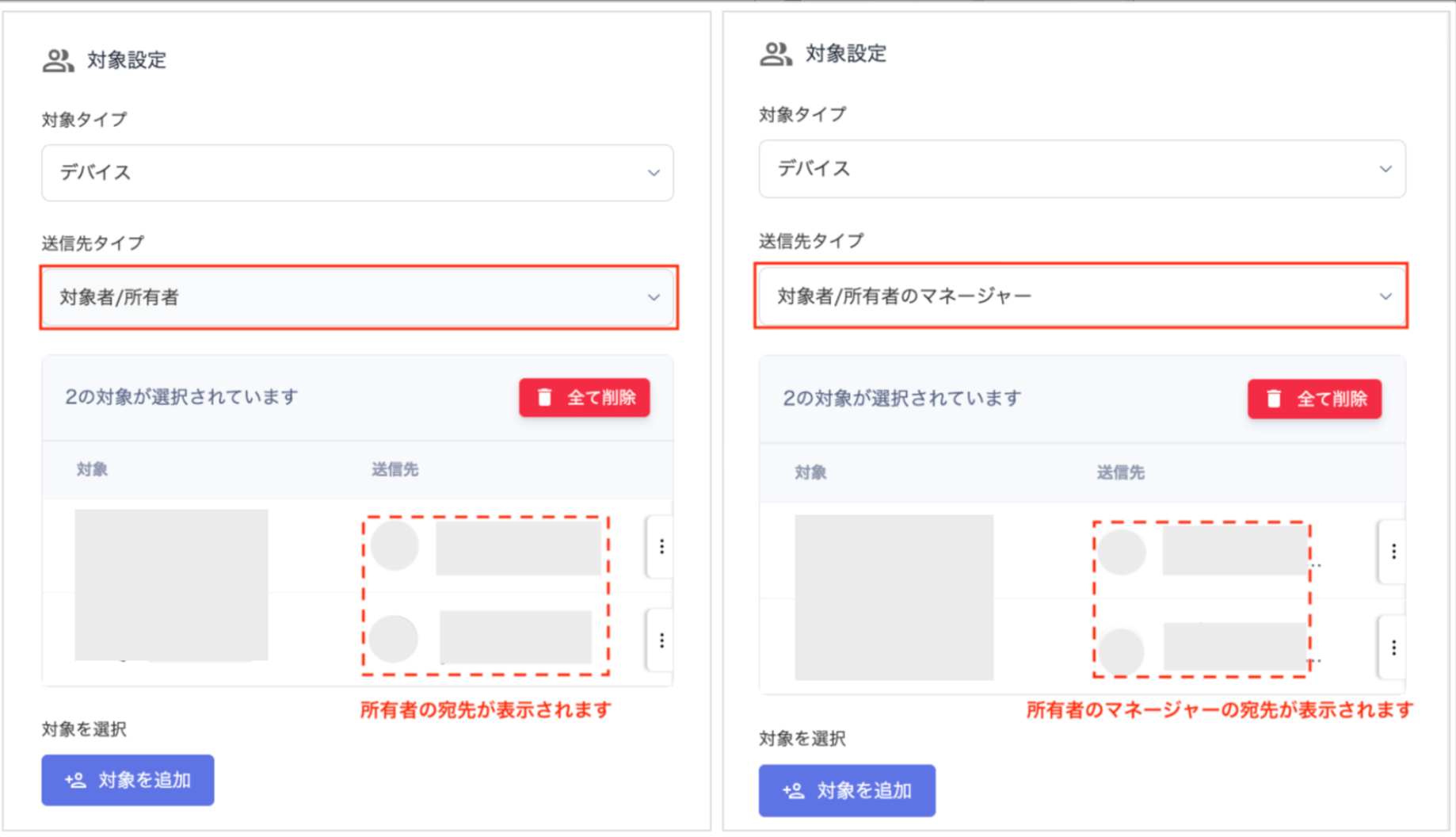
Target typeSelect “Device”.
Recipient typeChoose from “Target / Target’s Manager”. Select Target to check device ownership per individual, or select Owner’s Manager to check device ownership by department.
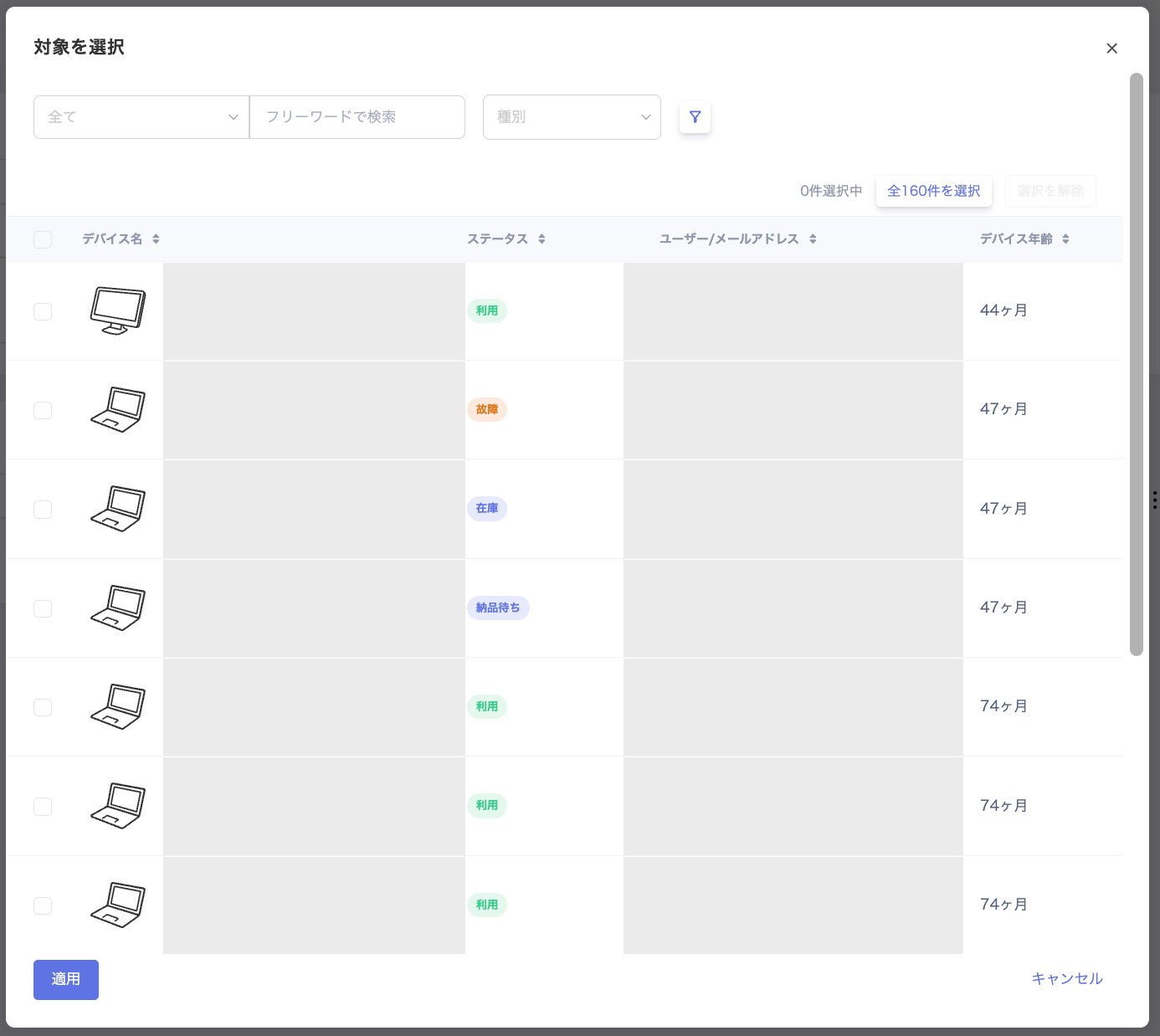
Select targetsUsers registered in the device screen are displayed. Select the target devices for the survey.
Screenshot

Target configuration (target type: Device)
Screenshot

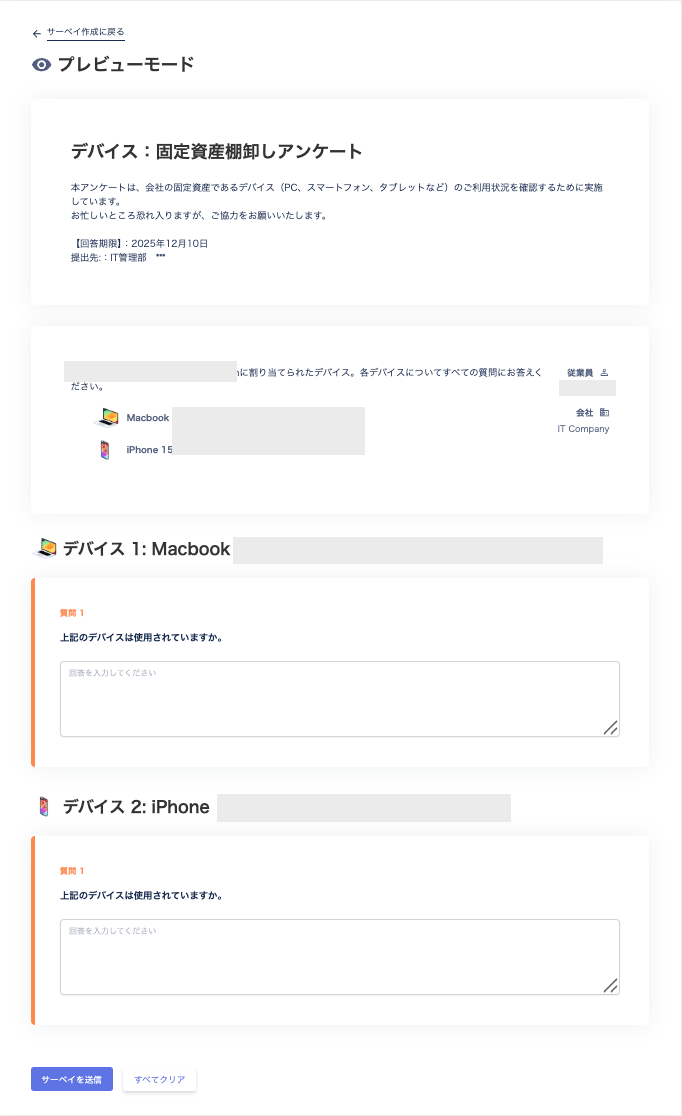
Preview mode (target type: Device)

Screenshot

Create a survey with target type “SaaS app”
ItemSetting
Target typeSelect “SaaS”.
Recipient typeChoose from “Target / Target’s Manager”. Select Target to check SaaS usage per individual. Select Target’s Manager to check SaaS usage by department.
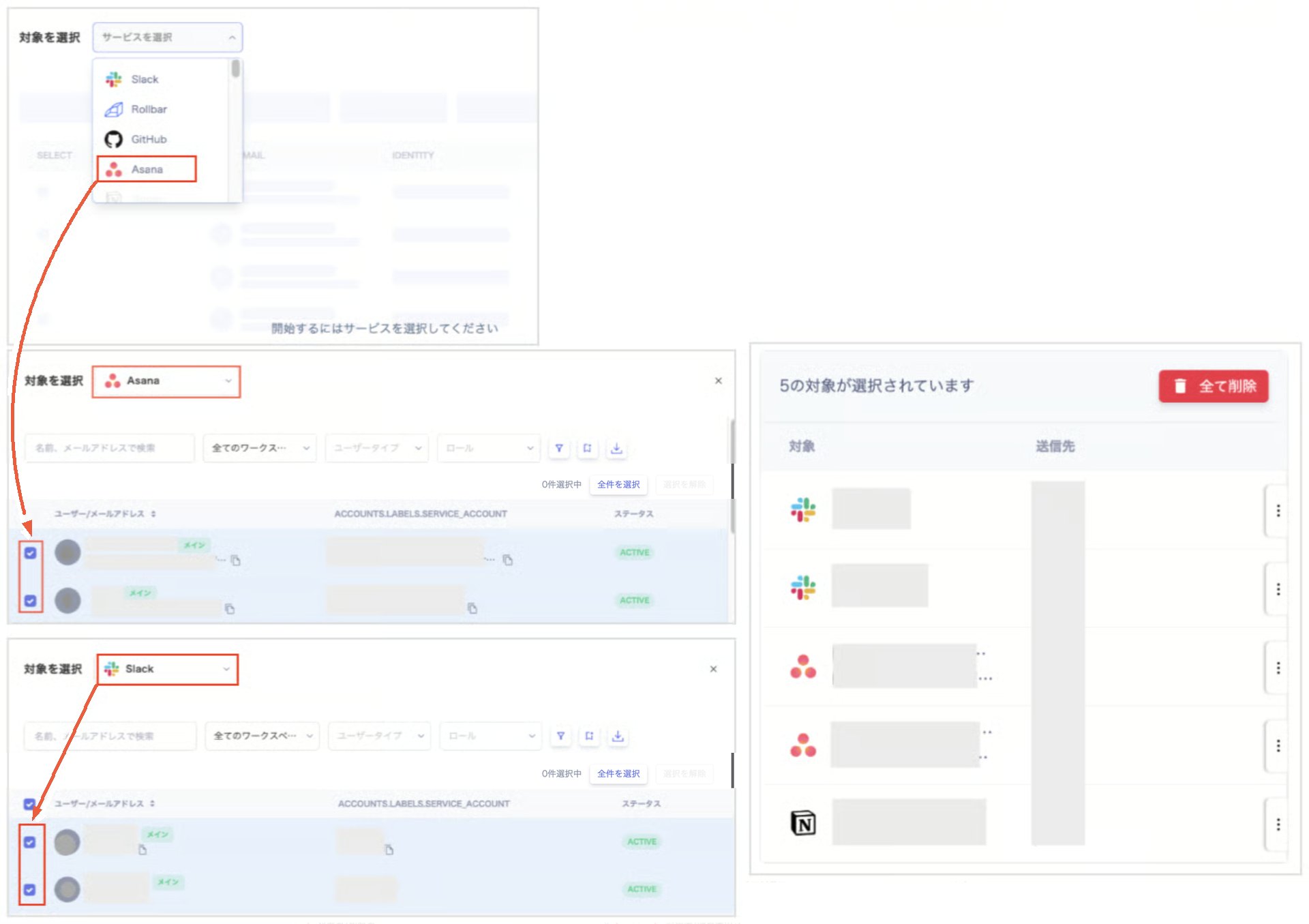
Select targetsAccounts registered in the service screen are displayed. When you select a service under “Select targets”, the accounts for that service appear. To target accounts across multiple services, check the desired accounts, then select another service and check its accounts as well.
Screenshot

Target configuration (target type: SaaS app)
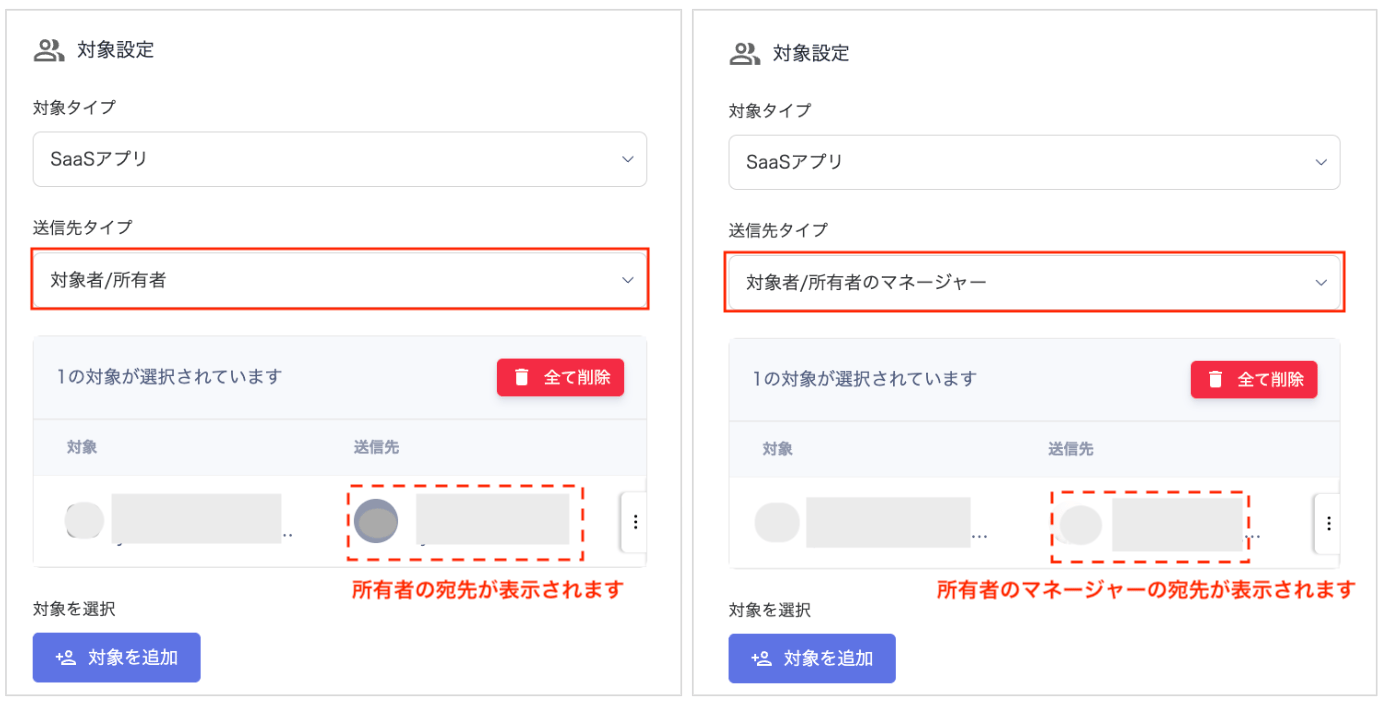
Screenshot

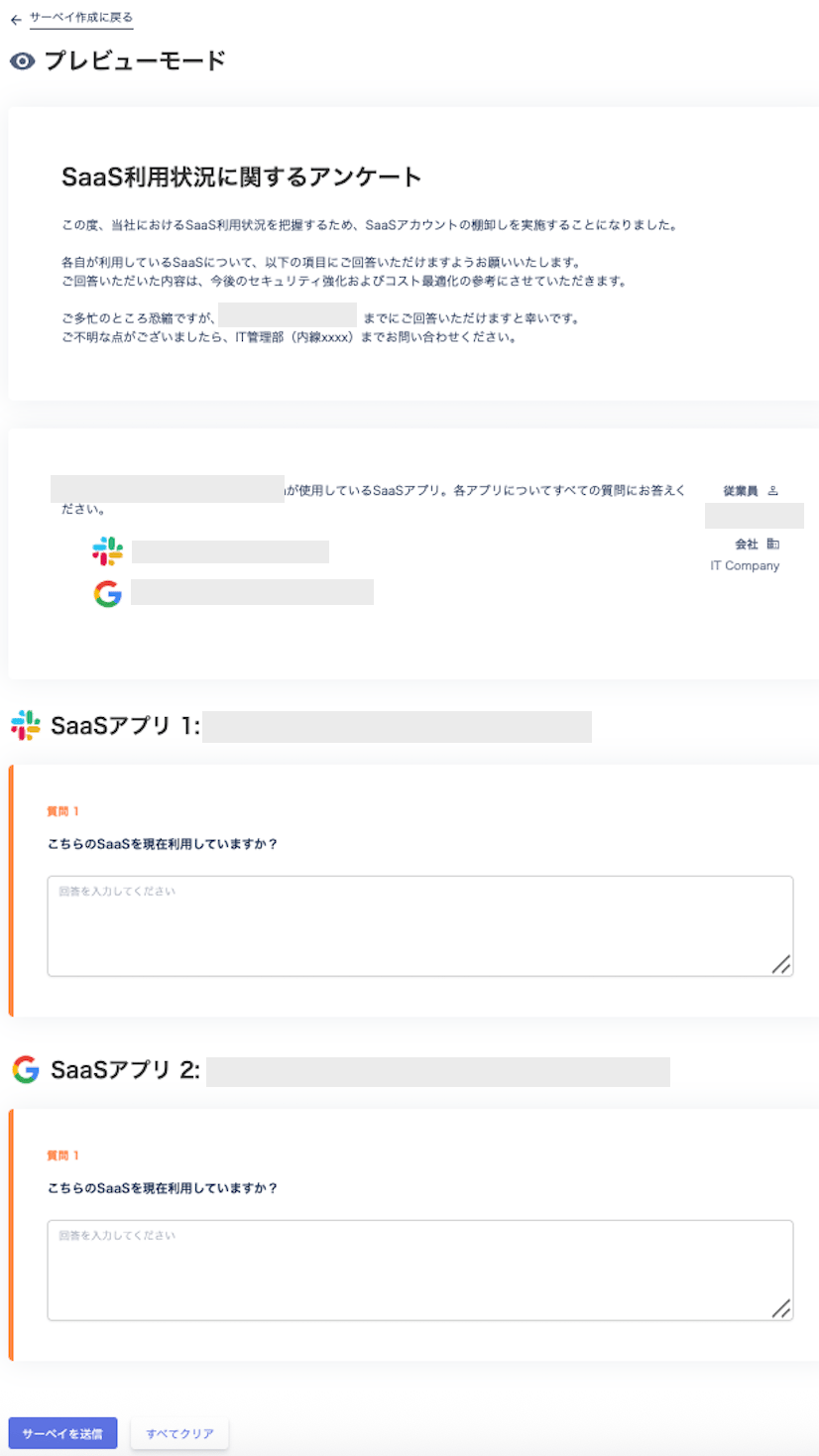
Preview mode (target type: SaaS app)

Screenshot
Last modified on July 10, 2026