This feature requires Admin permission or the Survey Manager role to operate, and Member permission or the Survey Viewer role to view.
See Configure login users and roles for details.
The “Device” target type requires the Device management plan.
Set up branding
-
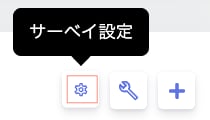
Click [Survey settings] at the top right of the survey.
-
On the “Survey settings” screen, use “Branding” to customize the survey response page.
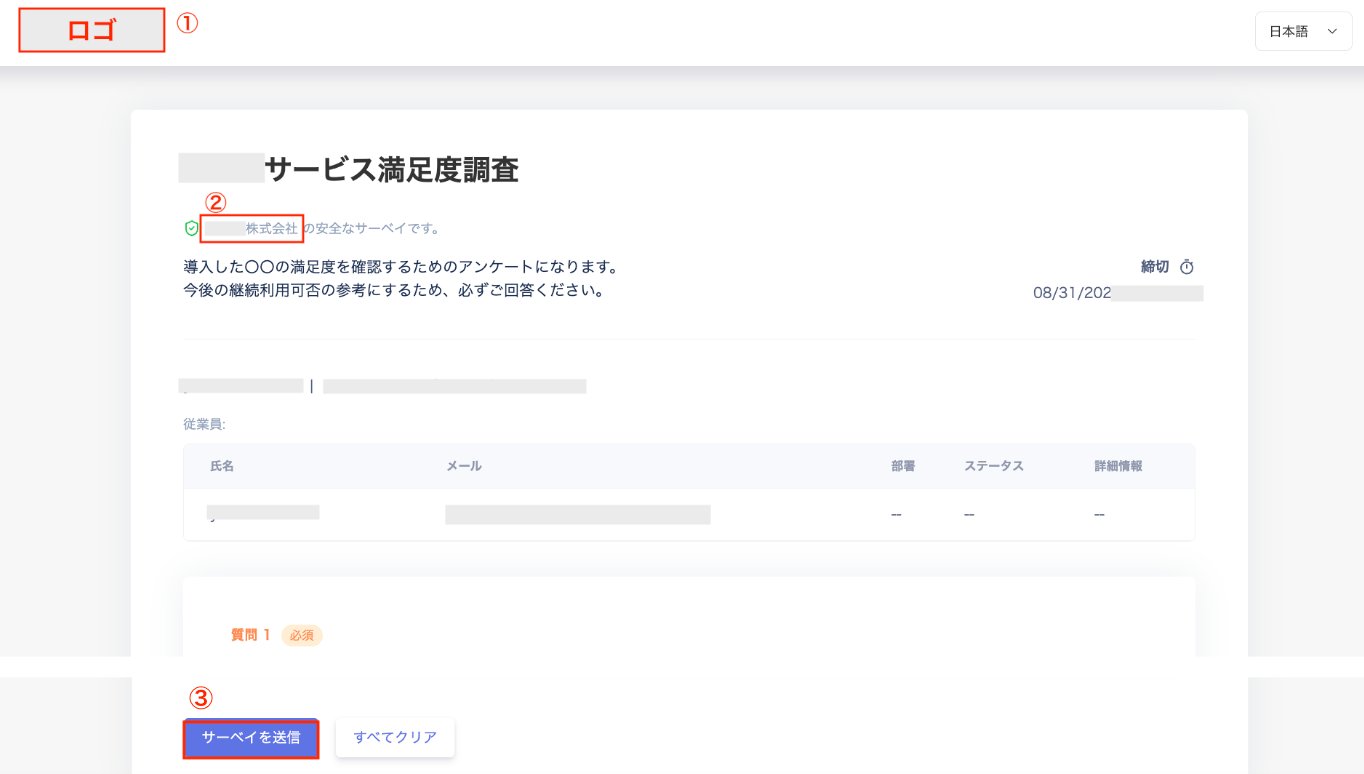
You can set the logo, brand/product name, and primary brand color.
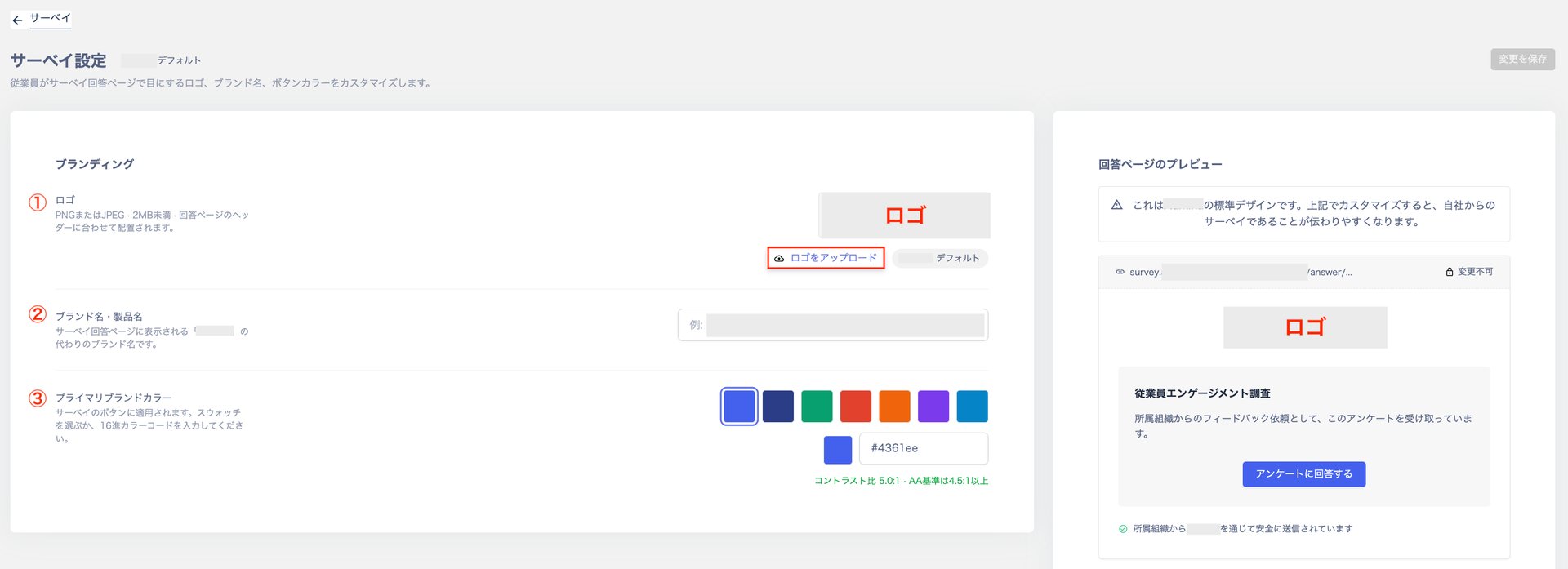
- Click [Save changes] at the top right.
Check your settings
-
Check the survey email and click [Respond to the survey now].
See Respond to a survey for details.
-
On the response page, check that your settings are reflected.