Check notifications and menus
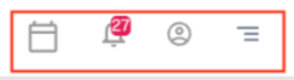
Click the icons in the upper right to access notifications and menus.
Events
Click the calendar icon to view events.

Notifications
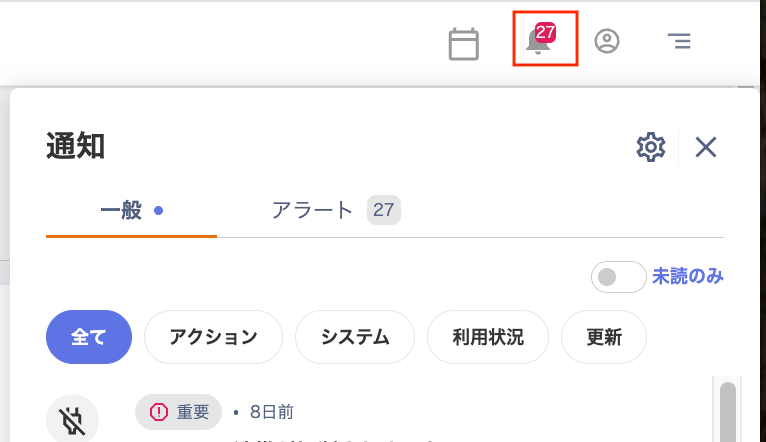
Check your notifications on the Notifications screen. You can filter notifications by “General / Alert,” “Unread only,” and “All / Action / System / Usage / Updates.” Click the gear icon in the upper right to go to Settings > Notifications. For details, see Receive alert notifications in Slack.
Account settings
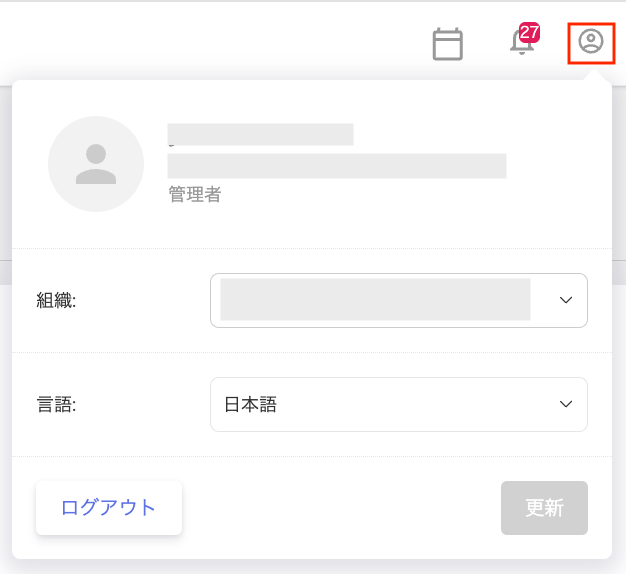
Switch organizations, change the display language, or log out. For details, see Change display settings.
Menus
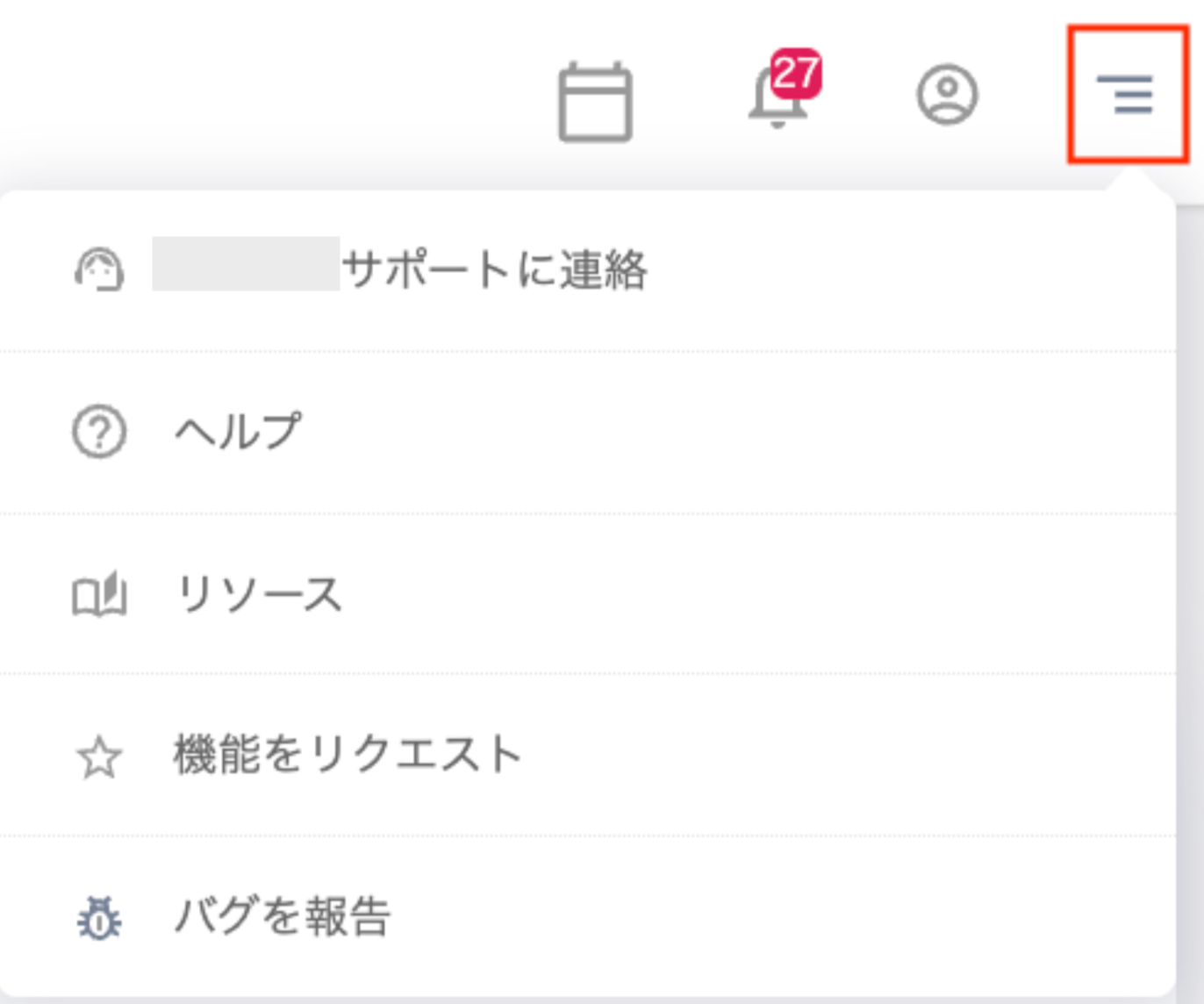
A list of menus is displayed. Click the menu you want to access. From the menu, you can select “Contact support / Help / Resources / Request a feature / Report a bug.”
| Menu item | Description |
|---|---|
| Contact support | Click “Contact support” to open a chat panel on the right. Use the provided template to send a request directly to support. An AI responds first. If the AI response does not resolve your issue, contact the support team. |
| Help | Click “Help” to open the help page. |
| Resources | Opens the website where you can browse case study pages. |
| Request a feature | Click “Request a feature” to open a chat panel on the right. Use the provided template to submit a feature request. To request a new SaaS integration, include the name and URL of the SaaS you want to connect. |
| Report a bug | Click “Report a bug” to open a chat panel on the right. Use the provided template to submit your report. An AI responds first. If the AI response does not resolve your issue, contact the support team. |