Open the Device Type Management screen
-
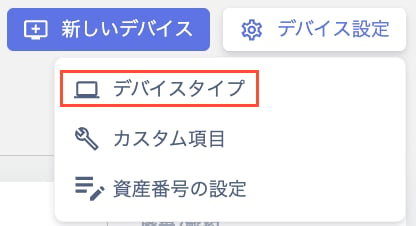
Go to Device > Device Settings > Device Types.
-
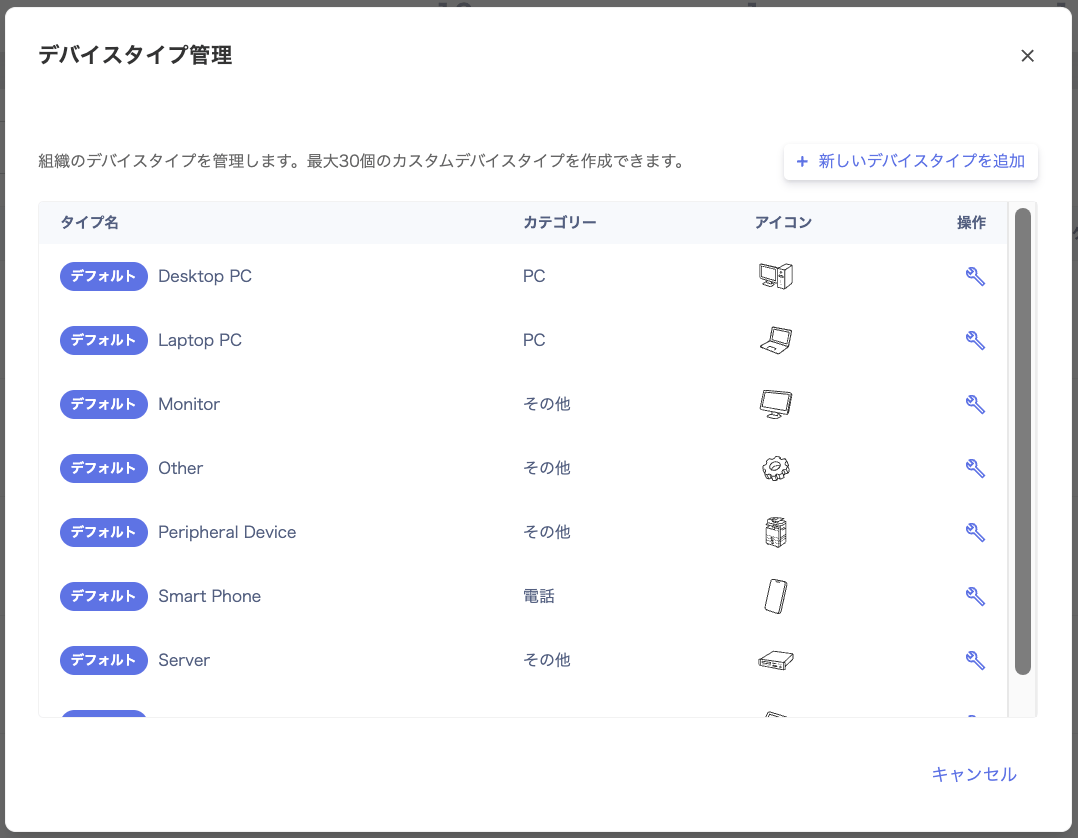
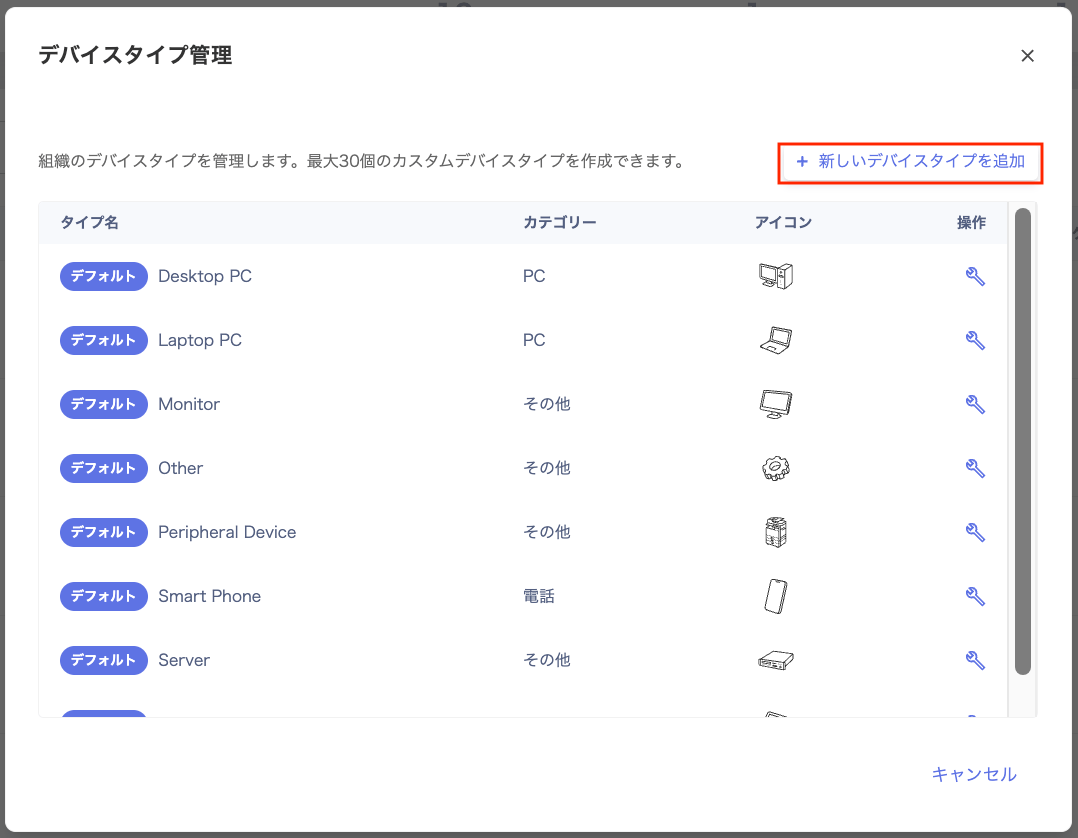
The Device Type Management screen appears. Here you can edit default items and create custom items (up to 30).
Device types
There are two kinds of device types: built-in default items and freely created custom items.- Default items: pre-configured items marked with [Default] in the Type Name column.
- Custom items: items you create by clicking [+ Add new device type]. You can create up to 30 device types in total.
Edit a device type
Follow these steps to update an existing device type.-
Go to Device > Device Settings > Device Types.
-
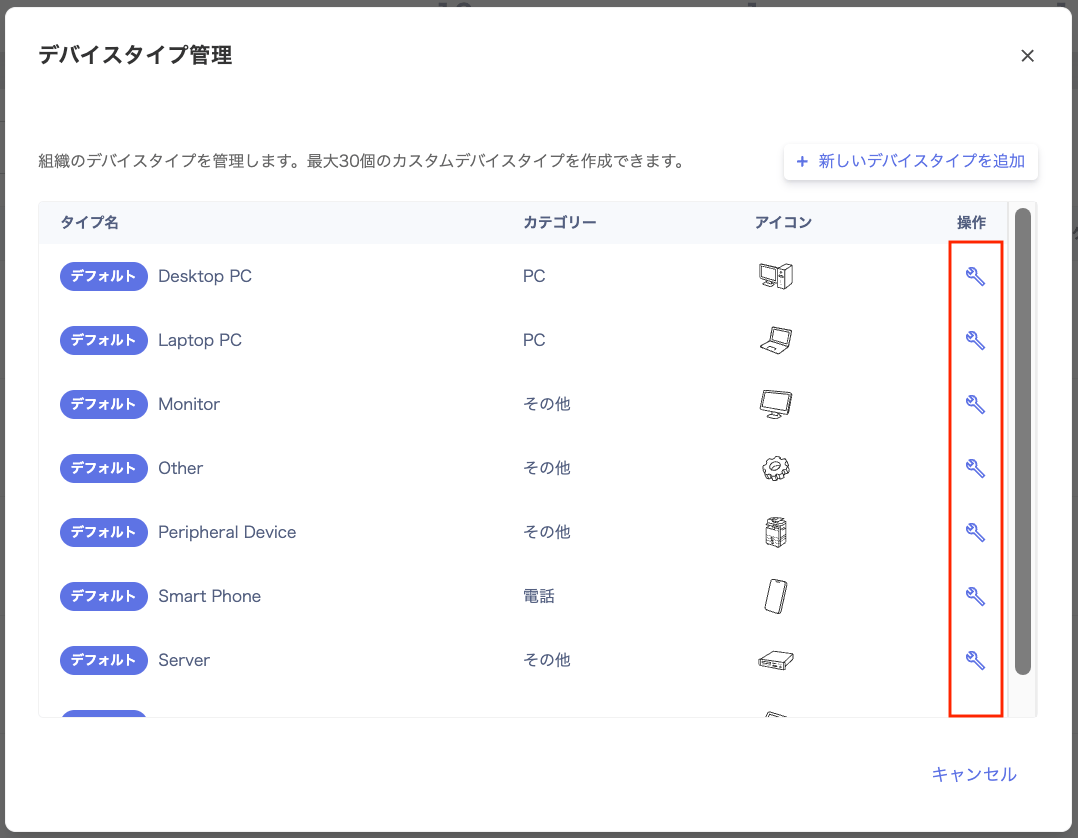
On the Device Type Management screen, click the wrench icon in the Actions column for the item you want to edit.
-
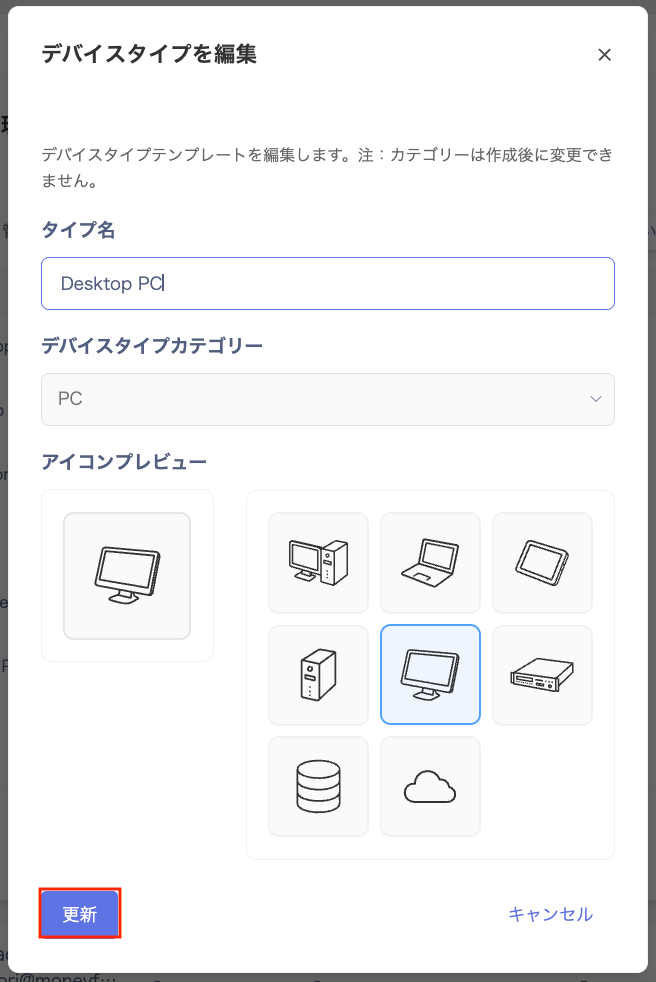
On the Edit device type screen, update the fields and click [Update].
Add a new device type
-
Go to Device > Device Settings > Device Types.
-
Click [+ Add new device type] in the upper right of the Device Type Management screen.
-
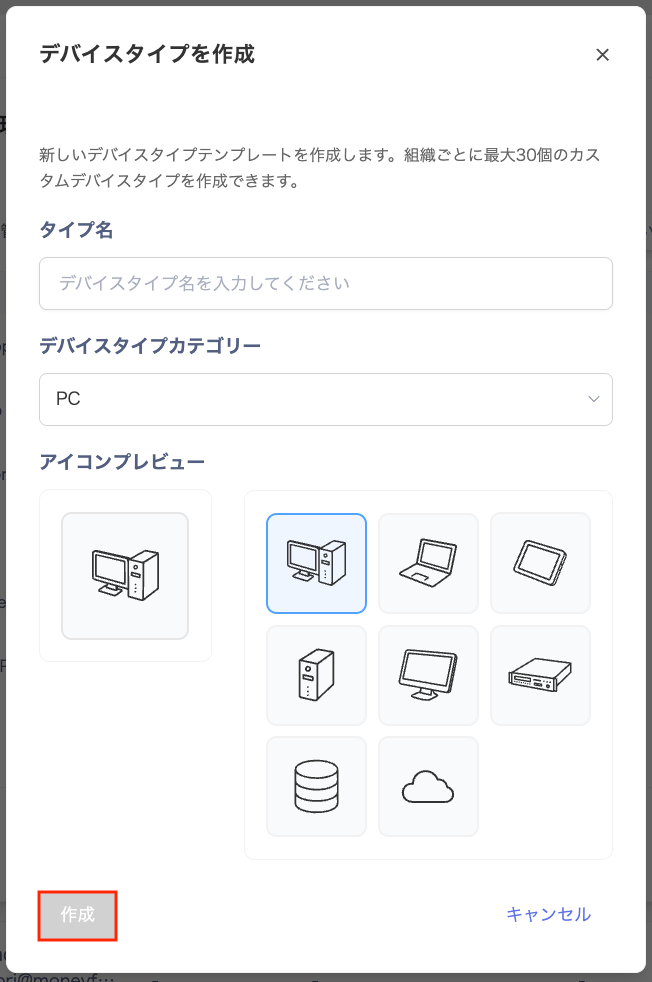
On the Create device type screen, configure the fields and click [Create].