

The Device plan (paid) is required to use the device management feature. To request a trial, contact us via “Ask a support representative directly” in the chat.
Device Registration and Updates
An error appears during CSV import
Check the error message displayed. Then verify that all required fields are filled in by reviewing the Registration Template. Also review the CSV Import Precautions. If the issue persists, contact us with the error details.I want to register the status “Pre-use”
The status “Pre-use” does not appear in the “Change Assignment and Status” screen. For devices in Pre-use status, select the status “In Use” and set a future date as the assignment date. After saving, the status changes to “Pre-use,” and on the assignment date it automatically changes to “In Use.”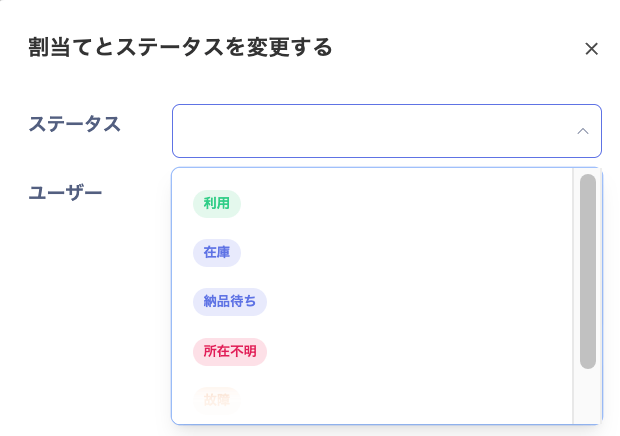
I cannot register a management field called “Device Age”
Register a “Purchase Date” in the “Edit Device Information” screen. The “Device Age” is then calculated automatically from that date.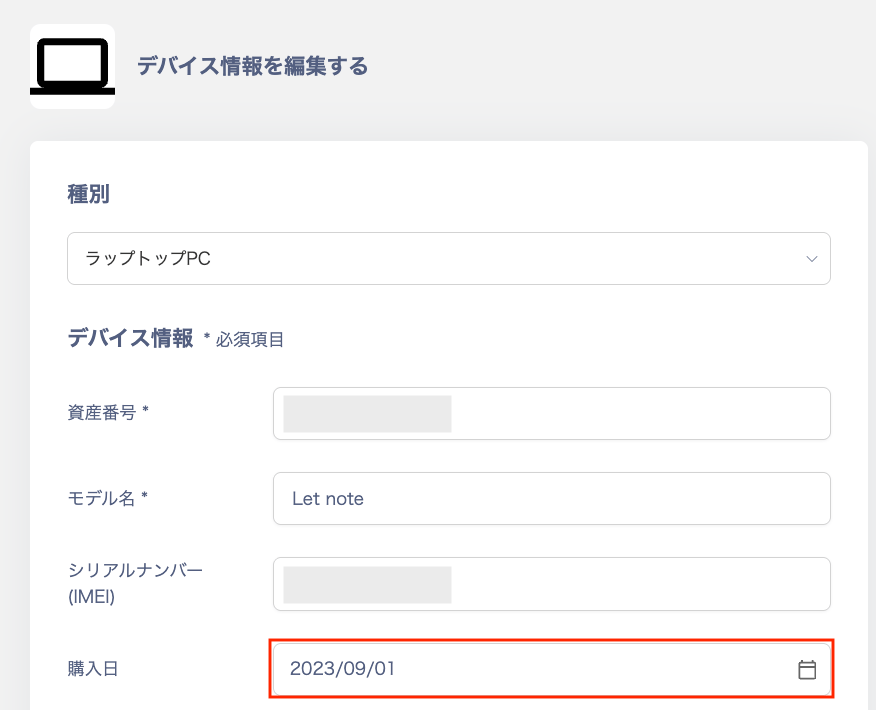

Handling devices without an asset number
If the device has no asset number, register it using a combination of the device name and a sequential number. Example: mouse0001I want to manage devices not linked to an employee, such as a conference room monitor
You can register a device without linking it to an employee (email address). By setting a location, you can manage devices such as monitors in conference rooms.I want to assign a device to an employee with an External ID
Employees with an External ID include guests, collaborators, and external partners. You can assign and unassign devices for them in the same way as for employees with an Internal ID. For the assignment steps, see Assign devices and register statuses. For details on ID types, see Employee status conditions.I want to clear the usage history of a device
Go to Devices > select a device > “Usage History” under the “Info” section. When you register a device, it starts with the “In Stock” status. Then use [Change Assignment Status] to assign the correct status and user, and use [Add History] to record the history. Once history is added, you can view details via “See more” in the lower left. Usage history entries can be [deleted] from the three-dot menu [︙], but one record of usage history always remains. To delete the remaining record as well, use [Add History] to register the “Status” of the history you want to keep. ※ When changing an assignment, using [Unassign] removes the assigned user information.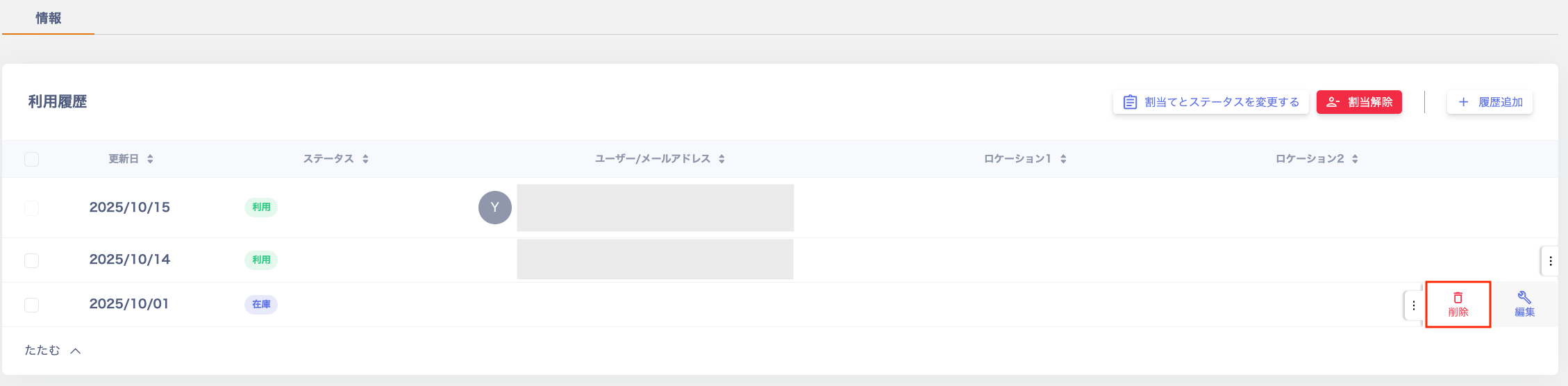
I want to manage licenses by device product key (license key)
Device management does not support managing licenses by the product key (license key) of an OS or software. To check the license status of your SaaS services, see Check SaaS license status.MDM Integration
I want to stop MDM integration
Go to Integrations > Status and [Delete] the relevant service name or workspace.
Two devices with the same serial number were registered
This happens in either of the following cases:- Two devices with the same serial number temporarily exist in the MDM.
- You add a device with the same serial number manually or via CSV import after syncing devices with the MDM. Later syncs do not merge that device.
- Delete the newly added device (with the duplicate serial number) via the MDM integration.
- Run a sync with the MDM and confirm that the existing record is synced (merged) from the MDM.
- Delete the device that the MDM integration registered.
- Run a sync with the MDM. The sync merges the MDM device into the device you added manually or via CSV import, because their serial numbers match. The MDM values overwrite MDM-based fields. Service-based fields keep any existing value, and only empty fields get the MDM value.
- Delete the device you added manually or via CSV import.
- Enter the fields you need on the device that the MDM integration registered. To use CSV import, export the CSV and edit the row for that device. Keep its asset number unchanged, then import the file. CSV import does not overwrite fields marked with the MDM logo.
I deleted a device from MDM
When you delete a device from MDM, the MDM integration is disconnected. The device remains on the device screen. However, the MDM icon, links, and MDM-related fields no longer appear after the integration is disconnected. ※ Deleting a device from MDM does not change the status on the device screen.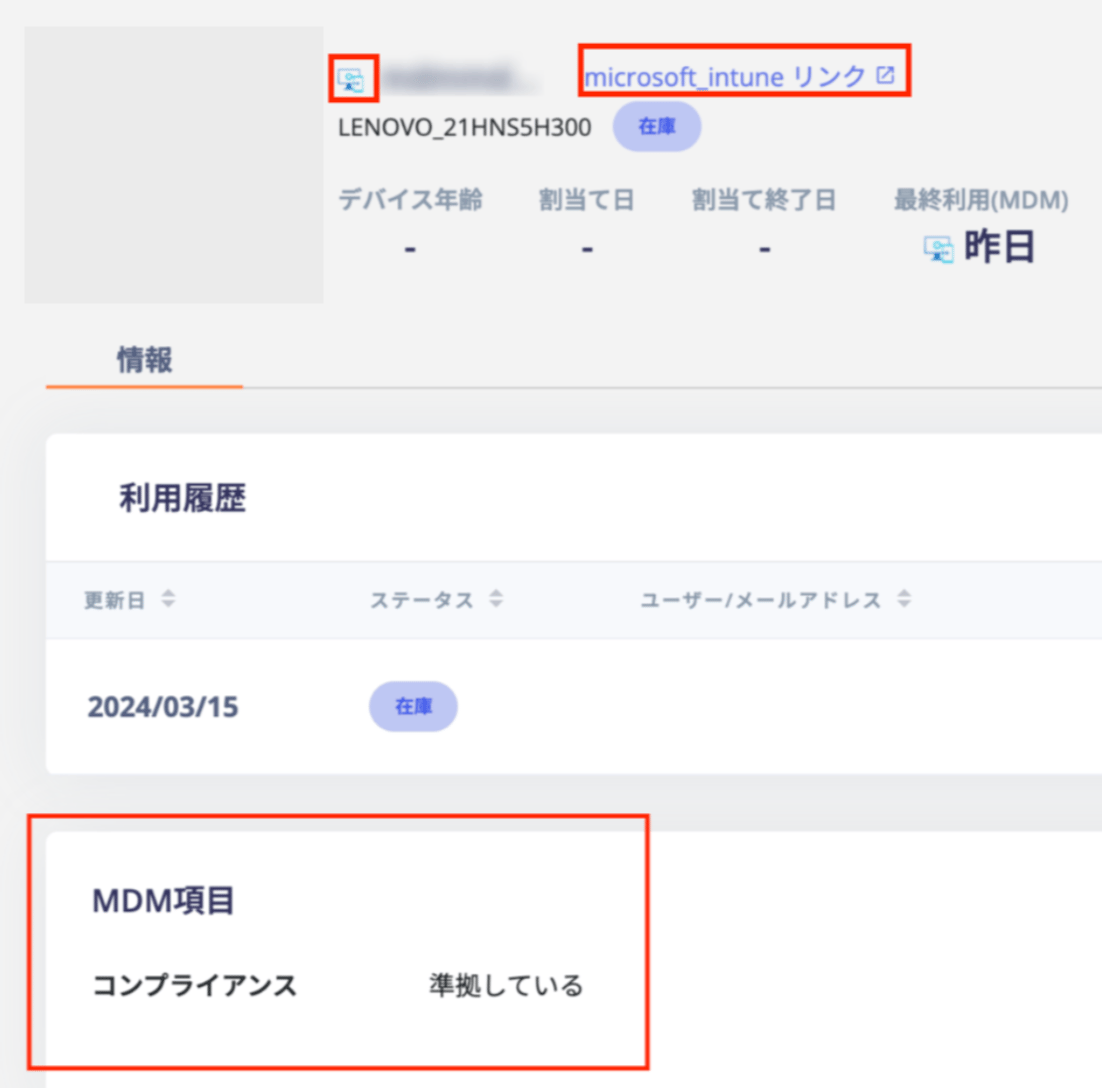
MDM was uninstalled from the device
Whether the device disappears from MDM after uninstalling the MDM software depends on the MDM’s behavior. If the device remains in the MDM tool after the MDM software is uninstalled, the integration stays active. If the device is removed from the MDM tool, the MDM integration is disconnected. In either case, the status does not change and the device remains on the device screen.The device is not linked after MDM integration
When merging with a registered device via MDM integration, theserial number is used as the merge key.
If the device is not merged after MDM integration, use one of the following approaches:
MDM integration assigns a device automatically only when both of the following are true:
- The device is imported for the first time. This means it is registered as a new device, or merged with a registered device by serial number.
- The device is not yet assigned.
- The device was already imported through MDM integration, and the email address on the MDM side was set or changed later. For example, the primary user was set in Intune afterward. Use one of the methods in the table above.
- The serial number is missing or is a placeholder value such as
ToBeFilledByO.E.M.orSystemSerialNumber. In this case, the device is also not merged by serial number.